
1. Product Overview
The ZEBRONICS Marine Wireless Mouse (Model: ZEB-MARINE) is a versatile input device designed for both productivity and gaming. It offers dual connectivity modes (2.4GHz wireless and Bluetooth), a built-in rechargeable battery, and adjustable DPI settings for precise control. Its ergonomic design ensures comfortable use, complemented by dynamic multicolor LED lighting.
Key Features:
- Dual Mode Connectivity: Seamlessly switch between 2.4GHz wireless and Bluetooth modes.
- Rechargeable Battery: Built-in battery for extended use without frequent replacements.
- Adjustable DPI: Four DPI levels (1000/1600/2400/3200) for customized sensitivity.
- 6 Buttons: Includes dedicated DPI adjustment, forward, and backward buttons.
- Ergonomic Design: Comfortable for prolonged use.
- Multicolor LED Lights: Enhances aesthetic appeal.
- Power On/Off Switch: Conserves battery life.
2. Setup Instructions
2.1 What's in the Box
- ZEBRONICS Marine Wireless Mouse (1 unit)
- USB Nano Receiver (1 unit)
2.2 Charging the Mouse
The mouse features a built-in rechargeable battery. Connect the mouse to a USB power source using a Type-C charging cable (not included in the box, but the mouse has a Type C charging connector). The LED lights may indicate charging status.

Image: The mouse connected to a laptop, showing the USB Nano Receiver and highlighting the Type C charging connector and built-in rechargeable battery.
2.3 Connecting via 2.4GHz Wireless
- Locate the USB Nano Receiver. It is typically stored in a compartment on the underside of the mouse.
- Insert the USB Nano Receiver into an available USB port on your computer (laptop or personal computer).
- Turn on the mouse using the Power On/Off switch located on the underside.
- The mouse should automatically connect to your computer. If not, ensure the mouse is in 2.4GHz mode (refer to the mode switch if available, though not explicitly mentioned in features, it's common for dual-mode mice).
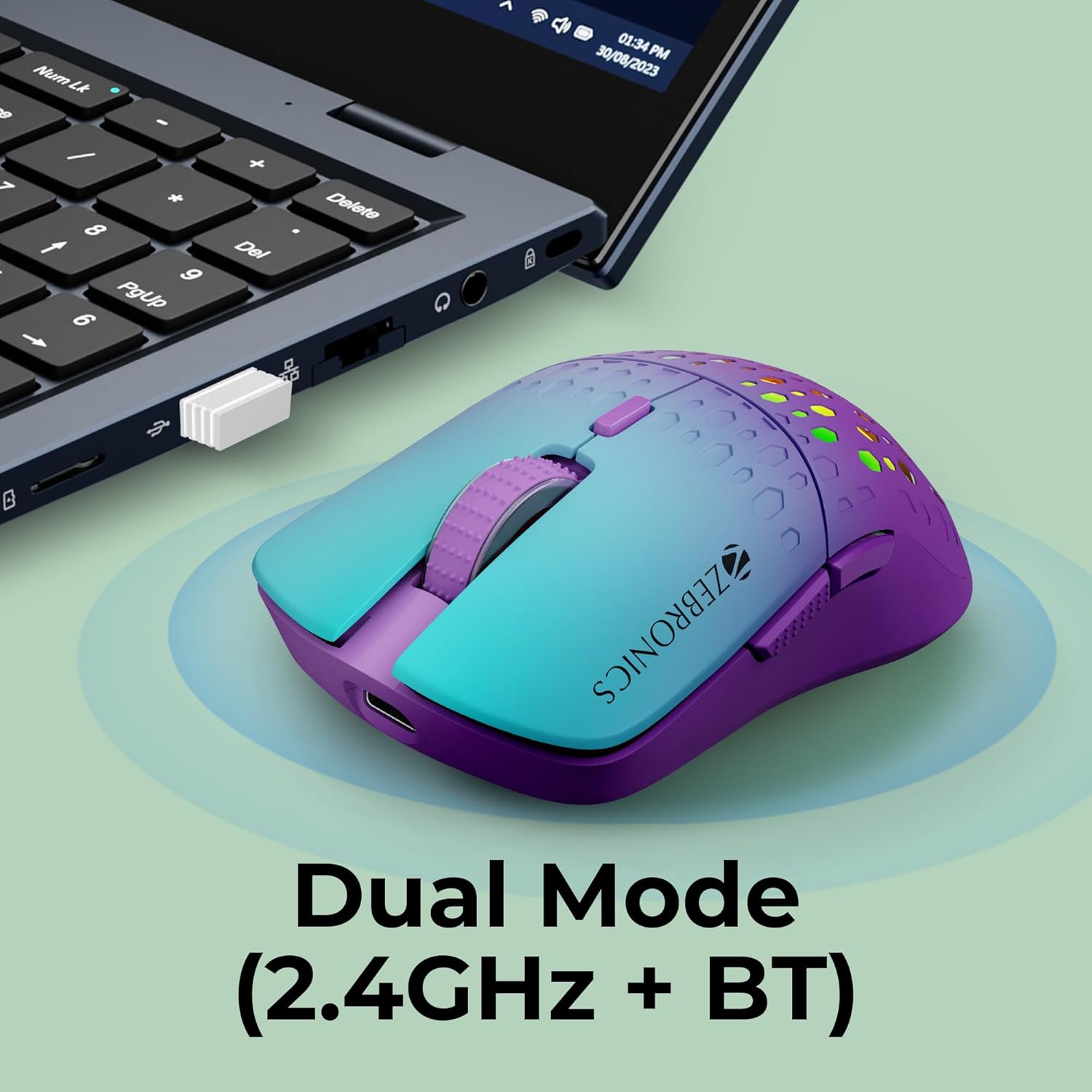
Image: The ZEBRONICS Marine Wireless Mouse shown with its USB Nano Receiver plugged into a laptop, illustrating 2.4GHz wireless connection.
2.4 Connecting via Bluetooth
For Bluetooth connectivity, ensure your computer has Bluetooth enabled.
- Turn on the mouse using the Power On/Off switch.
- Switch the mouse to Bluetooth mode. (This usually involves a switch on the underside or a button press; specific instructions not detailed in product info, but assumed for dual-mode).
- On your computer, go to Bluetooth settings and search for new devices.
- Select "ZEBRONICS Marine" (or similar name) from the list of available devices to pair.
- Follow any on-screen prompts to complete the pairing process.
3. Operating Instructions
3.1 Button Functions
The ZEBRONICS Marine mouse features 6 buttons for enhanced functionality:
- Left Click Button: Standard primary click function.
- Right Click Button: Standard secondary click function.
- Scroll Wheel/Middle Button: For scrolling and middle-click actions.
- DPI Button: Adjusts the mouse sensitivity (DPI).
- Forward Button: Navigates forward in web browsers or file explorers.
- Back Button: Navigates backward in web browsers or file explorers.

Image: An annotated diagram illustrating the location and function of the 6 buttons on the mouse.
3.2 Adjusting DPI (Sensitivity)
Press the dedicated DPI button to cycle through the available DPI settings: 1000, 1600, 2400, and 3200 DPI. Each press will change the sensitivity, allowing you to select the speed that best suits your task or preference.

Image: Visual representation of the adjustable DPI settings on the mouse.
3.3 Power Management
To conserve battery life, use the Power On/Off switch located on the underside of the mouse when not in use. This helps extend the time between charges.

Image: The underside of the mouse, highlighting the Power On/Off switch.
4. Product Features
4.1 Ergonomic Design
The ZEBRONICS Marine mouse is designed for comfort, fitting naturally in your hand to reduce strain during extended periods of use.
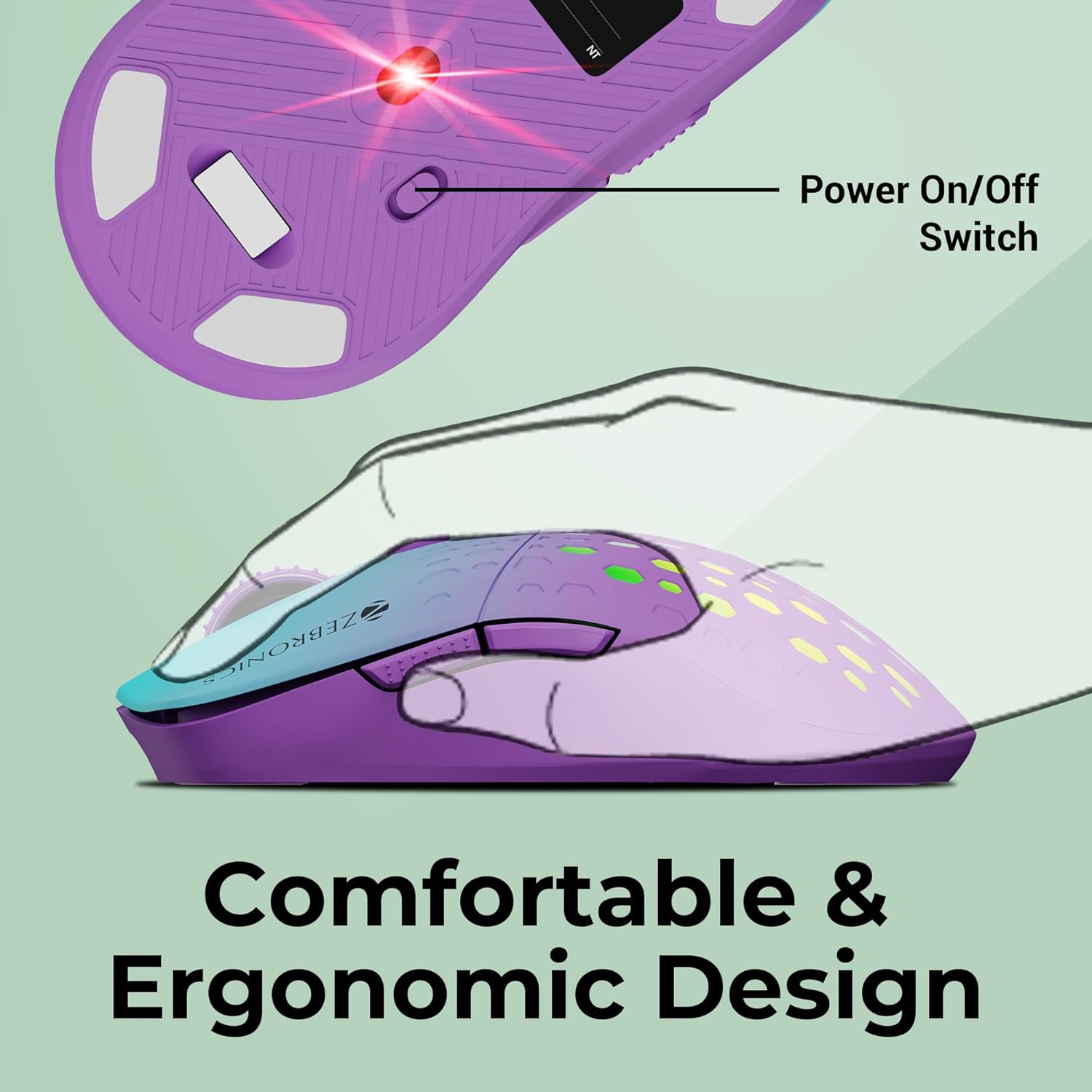
Image: An illustration demonstrating the comfortable and ergonomic design of the mouse.
4.2 Multicolor LED Lights
The mouse features dynamic multicolor LED lights that add a visually appealing element to your setup. These lights cycle through various colors, enhancing the overall user experience.

Image: A collage showing the mouse with various multicolor LED lighting effects.
4.3 Portability
Its compact size and wireless design make the ZEBRONICS Marine mouse easy to carry, ideal for users on the go.

Image: The mouse being placed into a bag, illustrating its portability.
4.4 Product Video
Video: An official product video showcasing the features and design of the ZEBRONICS Marine Wireless Mouse, including its dual mode connectivity, adjustable DPI, and multicolor LED lights.
5. Specifications
| Feature | Detail |
|---|---|
| Brand | ZEBRONICS |
| Model | ZEB-MARINE |
| Connectivity Technology | Wireless (2.4GHz, Bluetooth) |
| Movement Detection Technology | Optical |
| DPI Settings | 1000 / 1600 / 2400 / 3200 DPI |
| Number of Buttons | 6 |
| Hand Orientation | Ambidextrous |
| Compatible Devices | Laptops, Personal Computers |
| Operating System Compatibility | Linux, Windows 7, Windows XP (and newer Windows versions) |
| Power Source | Battery Powered (Rechargeable) |
| Wireless Range | 10 meters |
| Item Weight | 160 Grams |
| Item Dimensions (L x W) | 12.5L x 6.1W Centimeters |
| Country of Origin | China |
6. Troubleshooting
- Mouse not responding:
- Ensure the mouse is turned on using the Power On/Off switch.
- Check the battery level and charge the mouse if necessary.
- For 2.4GHz connection, ensure the USB Nano Receiver is securely plugged into a working USB port. Try a different USB port.
- For Bluetooth connection, ensure Bluetooth is enabled on your computer and the mouse is correctly paired. Try re-pairing the device.
- Try restarting your computer.
- Lag or intermittent connection:
- Ensure the mouse is within the 10-meter wireless range of your computer.
- Minimize interference from other wireless devices (e.g., Wi-Fi routers, other Bluetooth devices).
- Ensure the mouse is fully charged.
- DPI adjustment not working:
- Ensure you are pressing the dedicated DPI button.
- The mouse cycles through fixed DPI levels; there is no software for custom adjustment.
- LED lights not working:
- Check if the mouse is powered on.
- Some mice may have a button combination to turn off/on LEDs, though not specified for this model.
7. Warranty and Support
The ZEBRONICS Marine Wireless Mouse comes with a 1-year carry-in warranty to the service center. For warranty claims or technical support, please contact ZEBRONICS customer service or visit their official website for service center locations.
Manufacturer Contact Information: Smith Road, Royapettah CHENNAI-600002