
Introduction
This manual provides comprehensive instructions for the NuPhy Air60 V2 Portable Wireless Mechanical Keyboard. Designed for efficiency and comfort, the Air60 V2 offers versatile connectivity and customizable features for various operating systems. Please read this manual carefully before using your keyboard to ensure proper operation and longevity.

What's in the Box
Upon opening your NuPhy Air60 V2 package, you should find the following items:
- NuPhy Air60 V2 Wireless Mechanical Keyboard
- USB-C to USB-A Cable
- 2.4GHz USB Receiver
- Keycap Puller
- Switch Puller
- Extra Switches (Gateron Cowberry Switch)
- Extra Keycaps (for customization)
- Quick Guide / User Manual
- Sticker Set
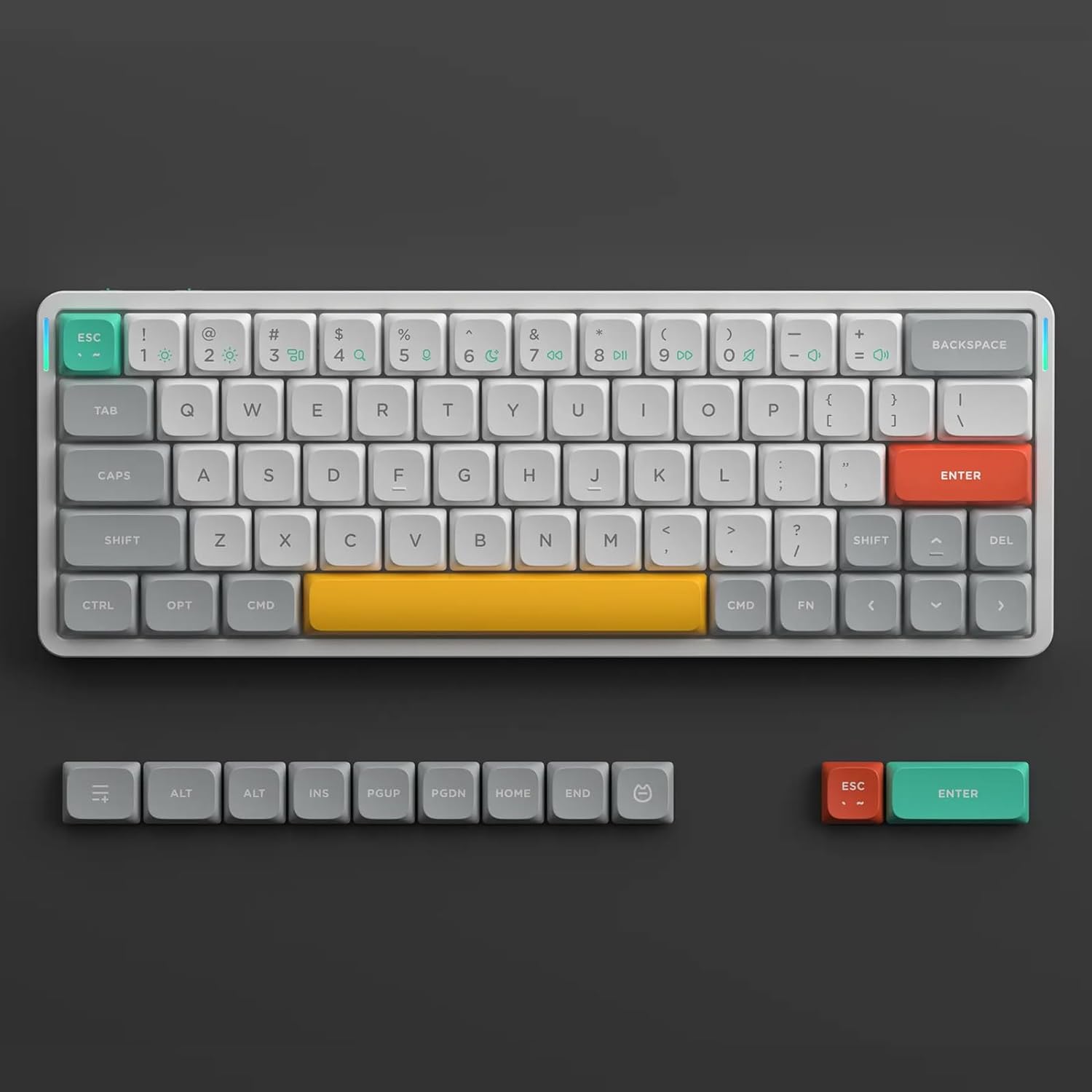
Video 1: Unboxing the NuPhy Air60 V2 Wireless Mechanical Keyboard, showing all included components and initial setup steps.
Product Features
- New Upgrade: The Air60 V2 features a 60% layout (64 keys) and supports QMK/VIA for extensive key remapping. It is compatible with Windows, macOS, and Linux operating systems.
- Versatile Connectivity: Supports Bluetooth 5.1, 2.4GHz wireless, and USB-C wired connections, offering flexibility for various setups.
- Conveniently Portable: Designed without a dedicated F-row for a smaller footprint, making it an ideal choice for on-the-go use. It can connect to up to 4 devices simultaneously, allowing seamless switching between work and entertainment.
- Custom Backlight: Equipped with two RGB light bars on each side of the aluminum frame. The left bar indicates caps lock and connection mode, while the right bar shows battery level and system mode. VIA clients and configuration pages allow for personalized lighting effects.
- Long-lasting Battery: Features a 2500mAh capacity battery, providing approximately 30-90 hours of working time with all lights on, and up to 150 hours with all lights off (lab test results).
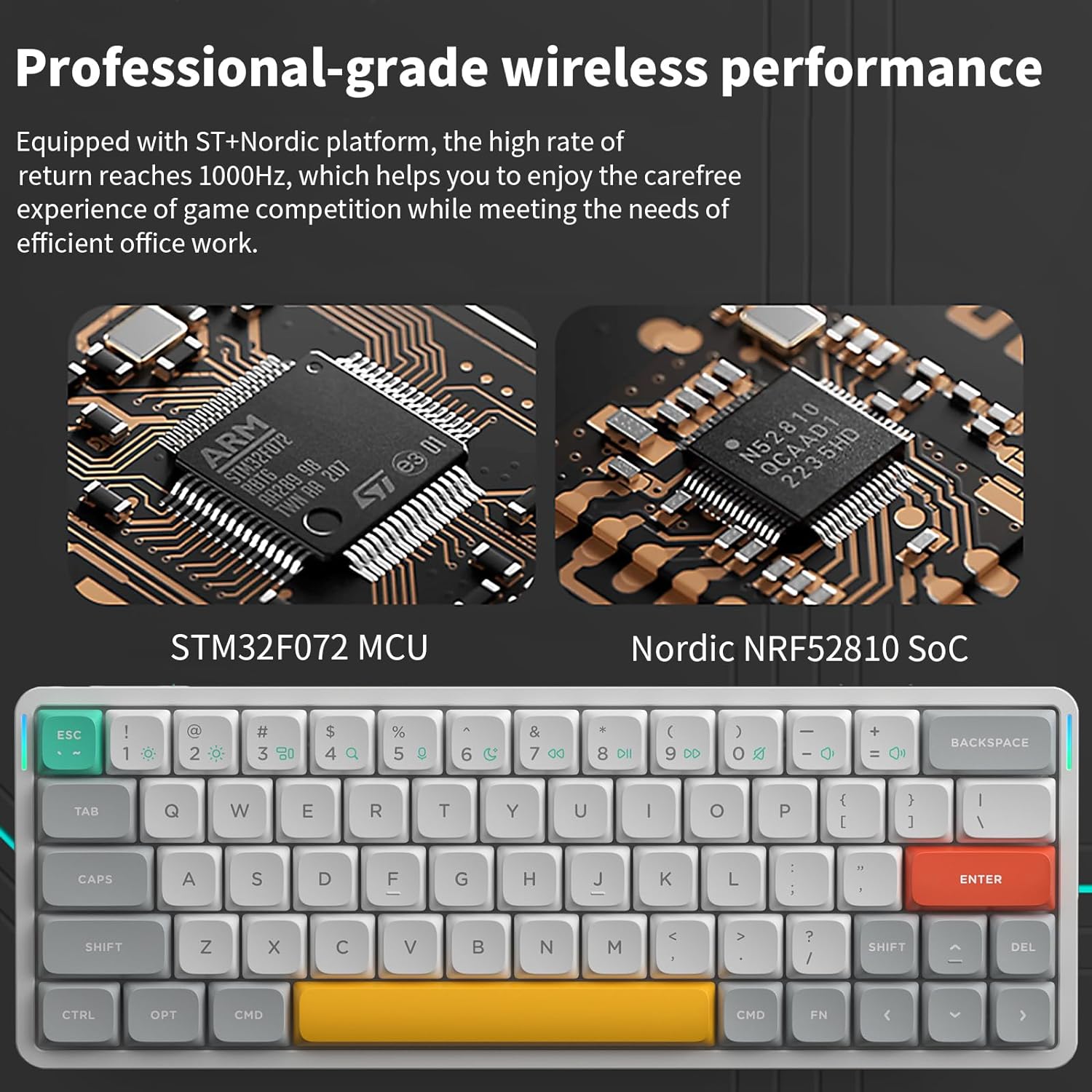
- High Performance: Achieves a 1000Hz polling rate in wireless mode, ensuring low latency for both office tasks and gaming.
- Hot-Swappable Switches: Mechanical switches can be easily replaced with different models to customize your typing experience.
Setup Guide
1. Initial Setup and Charging
Before first use, it is recommended to fully charge your NuPhy Air60 V2 keyboard. Connect the provided USB-C cable to the keyboard's USB-C port and the other end to a power source (e.g., computer USB port, wall adapter).
2. Power On/Off and System Mode Selection
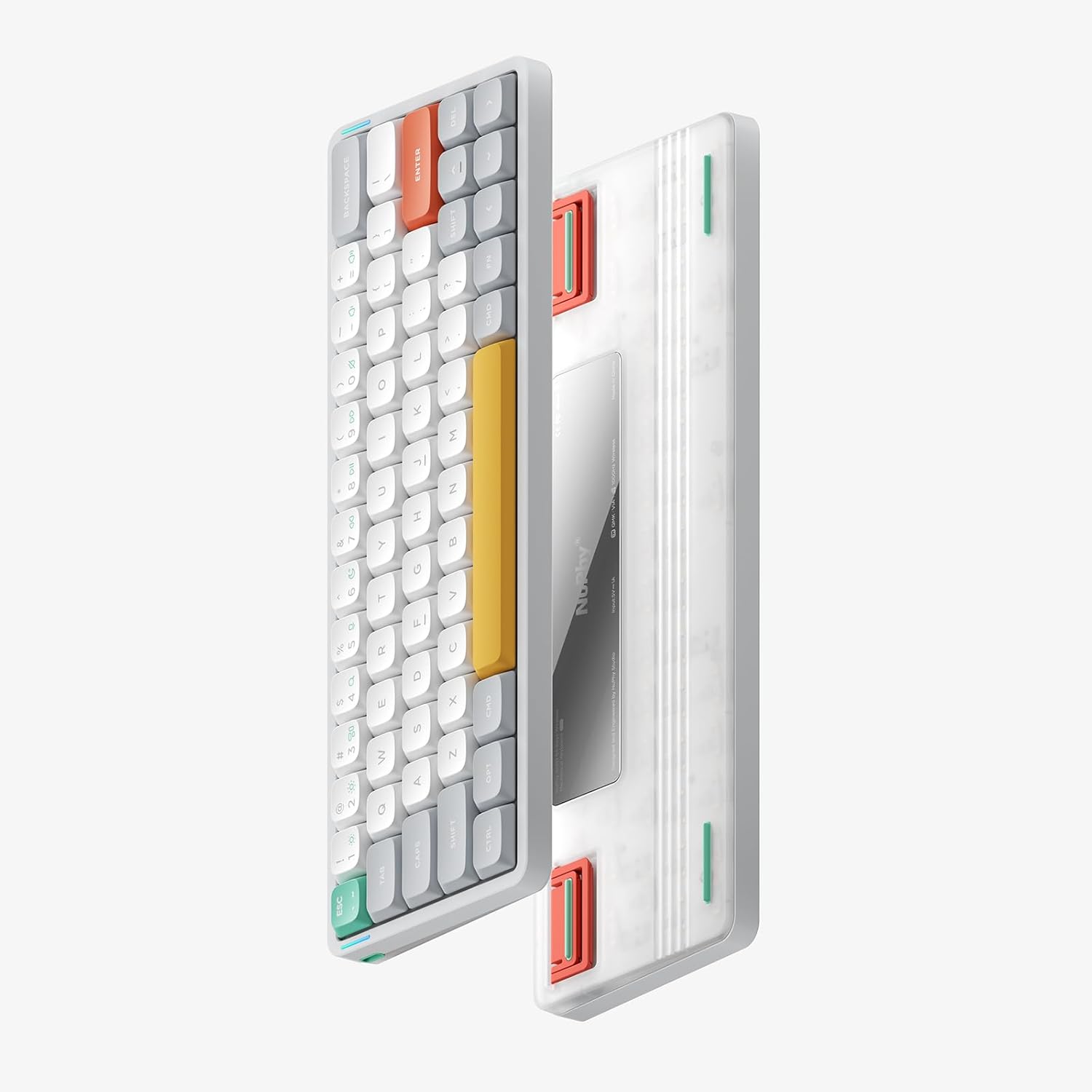
Locate the power switch on the side of the keyboard. Slide it to the ON position to power on the device. The keyboard also features a system mode switch (Windows/Mac) to optimize key functions for your operating system.

3. Connectivity Modes
The Air60 V2 supports three connection types:
- 2.4GHz Wireless: Insert the 2.4GHz USB receiver into an available USB port on your computer. The keyboard should automatically connect.
- Bluetooth 5.1:
- Switch the keyboard to Bluetooth mode.
- On your device, go to Bluetooth settings and search for "NuPhy Air60 V2".
- Select the keyboard to pair. You can pair up to 4 Bluetooth devices and switch between them using the designated function keys (refer to the Quick Guide for specific key combinations).
- USB-C Wired: Connect the keyboard directly to your device using the USB-C cable. This mode also charges the keyboard.
Operating Instructions
1. Key Functions and Layout
The Air60 V2 features a compact 60% layout. Many functions are accessed via key combinations (e.g., Fn + key). Refer to the included Quick Guide for a detailed map of all key functions and shortcuts.

2. Custom Backlight and Side Lights
The keyboard features customizable RGB backlighting and side lights. Use the designated key combinations (usually Fn + number keys or specific lighting keys) to cycle through various lighting effects and adjust brightness. The side lights provide visual indicators for Caps Lock, connection mode, battery level, and system mode.
For advanced customization, download the QMK/VIA software. This allows you to create a wide range of personalized lighting and color effects across multiple operating systems.

3. QMK/VIA Customization
The Air60 V2 supports QMK/VIA, an open-source firmware that allows you to remap keys, create macros, and customize lighting effects. Download the VIA client from the official NuPhy website or QMK/VIA repository. Follow the software's instructions to configure your keyboard to your preferences.
4. Battery Management
Monitor the battery level using the right side light bar. Recharge the keyboard when the indicator shows low battery. For optimal battery life, consider turning off the backlighting when not needed.
Maintenance
1. Cleaning
To clean your keyboard, power it off and disconnect any cables. Use a soft, lint-free cloth to wipe down the keycaps and frame. For deeper cleaning, you can remove the keycaps using the provided keycap puller and clean underneath.
2. Switch Replacement (Hot-Swappable)
The Air60 V2 features hot-swappable switches, allowing you to easily change them without soldering. Use the provided switch puller to gently remove existing switches and insert new compatible switches. Ensure the pins align correctly before pressing them into place.


Troubleshooting
1. Connectivity Issues
- Keyboard not connecting via Bluetooth: Ensure the keyboard is in Bluetooth mode and discoverable. Remove previous pairings on your device and re-pair.
- 2.4GHz connection unstable: Ensure the USB receiver is securely plugged in and there are no major obstructions or interference sources nearby.
- Keyboard not responding in wired mode: Check the USB-C cable connection and try a different USB port or cable.
2. Battery and Charging
- Keyboard not charging: Verify the USB-C cable and power source are functional. The battery indicator light should show charging status.
- Inaccurate battery percentage: If the battery percentage seems inconsistent after charging, unplug and re-plug the cable. This can sometimes recalibrate the reading.
3. Key Functionality and Lighting
- Specific keys not working: If a single key is not responding, it might be a faulty switch. Utilize the hot-swappable feature to replace the switch.
- Cannot get specific characters (e.g., `~`): Ensure your system's keyboard layout matches the physical layout. For custom key assignments, check your QMK/VIA configuration.
- LED lights not turning off: If there is no direct "off" mode, try reducing the brightness to zero using the lighting control keys.
4. Important Note on 2.4GHz Receiver
Caution: Some users have reported issues with the physical design of the 2.4GHz USB-A receiver, where its construction may cause it to become lodged or potentially damage the USB port on the host device during removal. Exercise caution when inserting and removing the 2.4GHz dongle. If you encounter resistance, do not force it. Consider using a USB-C to USB-A adapter or a USB hub if you are concerned about direct connection to your computer's ports.
Specifications
| Feature | Detail |
|---|---|
| Product Dimensions | 11.69 x 4.21 x 0.53 inches (11.7"L x 4.22"W x 0.53"H) |
| Item Weight | 1.02 pounds |
| Manufacturer | nuphy |
| ASIN | B0CQRL1Y57 |
| Item Model Number | AIR60V2IWCBY |
| Batteries | 1 9V battery required (included) |
| Connectivity Technology | Bluetooth, USB-C, 2.4GHz |
| Compatible Devices | PC/Laptop/Tablet |
| Keyboard Description | Supports Windows/macOS/Linux system |
| Special Feature | Backlit (RGB) |
| Number of Keys | 64 |
| Style | Modern |
Warranty and Support
For warranty information, technical support, or further assistance, please refer to the official NuPhy website or contact their customer service directly. Keep your proof of purchase for warranty claims.
Official NuPhy Store: NuPhy Store on Amazon