
1. Introduction
This manual provides detailed instructions for the installation, operation, and maintenance of your OBO HANDS S20 Stand-Alone Waterproof Door Access Control System Kit. Please read this manual thoroughly before installation and operation to ensure proper functionality and safety.

Figure 1: Complete OBO HANDS S20 Access Control System Kit, including the keypad, magnetic lock, power supply, exit button, and RFID keyfobs.
2. Package Contents
The OBO HANDS S20 Access Control System Kit includes the following components:
- 1 x Access Control Keypad
- 1 x Power Supply
- 1 x Electric Magnetic Lock (180KG/350lbs)
- 1 x Door Exit Button
- 10 x RFID Keyfobs (Blue)
- 1 x User Manual (this document)
3. Specifications
3.1. Access Control Keypad
- User Capacity: 3000
- Working Voltage: DC 12V
- Waterproof Level: IP68 (suitable for outdoor installation)
- Working Frequency: 125KHz
- Material: High-quality ABS
- Panel: Touch screen
- Card Reading Type: Supports EM compatible cards
- Card Reading Distance: 0-10CM
- Identification Method: Card, Password, Card + Password
- Backlight: Blue backlight
- Doorbell Button: Supports wired doorbell
- Wiegand Signal: WG26/34 input/output
- Management Card: Yes, can be set
- Working Temperature: -20 °C ~ 70 °C
- Working Humidity: 20% ~ 90%

Figure 2: The IP68 waterproof keypad, designed for durability in various weather conditions.
3.2. Power Supply
- AC Input: Standard AC100V-240V 50-60HZ 36W
- DC Output: DC12V/ 3 A
- Protection: Automatic protection and no voltage output during short circuit
- Dimensions: 100*65*32mm
- Material: Metal
- Time Delay: 0-15 seconds adjustable

Figure 3: The power supply unit, featuring adjustable time delay for door release.
3.3. 180KG Magnetic Lock
- Material: Aluminum alloy shell + iron plate
- Holding Force: 180KG/350lbs
- Working Voltage: DC12V
- Working Current: 380-430mA
- Humidity: 0 to 95%
- Working Temperature: -10 to 55 Celsius degree
- Working Mode: Locked when power on, unlocked when power off (Fail-secure)
- Suitable For: Wooden door, Glass door, Metal door, Fireproof door, etc.
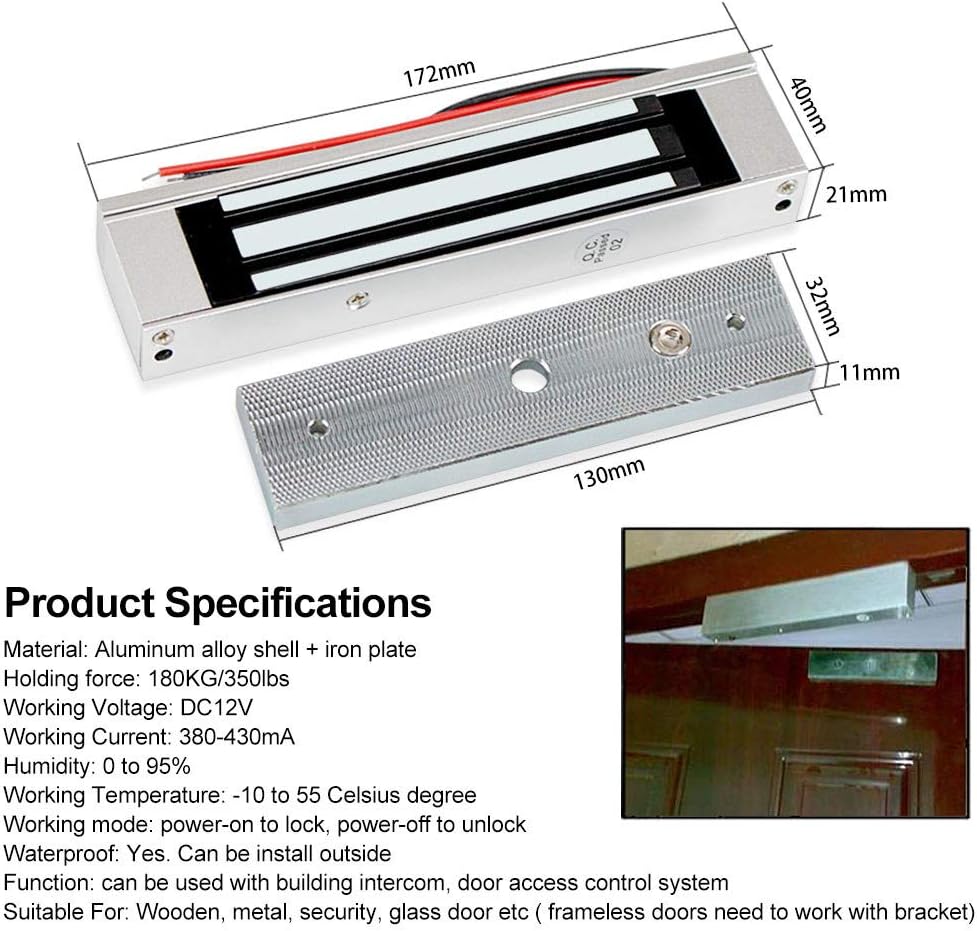
Figure 4: The 180KG (350lbs) magnetic lock, designed for secure door access.
3.4. Door Exit Button
- Dimensions: 86*86*8mm
- Material: Fireproof ABS plastic
- Power Input: DC 12V
- Output Contact: NO / COM
3.5. RFID Keyfobs
- Frequency: 125KHz
- Type: EM ID type
- Chip: TK4100
- Color: Blue
- Function: Read Only
- Quantity: 10pcs included
4. Setup and Installation
The OBO HANDS S20 system is designed for straightforward installation. It is suitable for various door types, including wooden, glass, and metal doors. For detailed wiring and mounting instructions, please refer to the included wiring diagram and mounting templates (if provided in the physical package).

Figure 5: Illustrative diagram of the access control system setup for both indoor and outdoor environments.
Important: Ensure all power is disconnected before beginning installation. It is recommended to consult a qualified electrician for complex wiring or if you are unsure about any steps.
5. Operation
The OBO HANDS S20 Access Control Keypad supports multiple methods for door access: RFID card, password, or a combination of card and password.
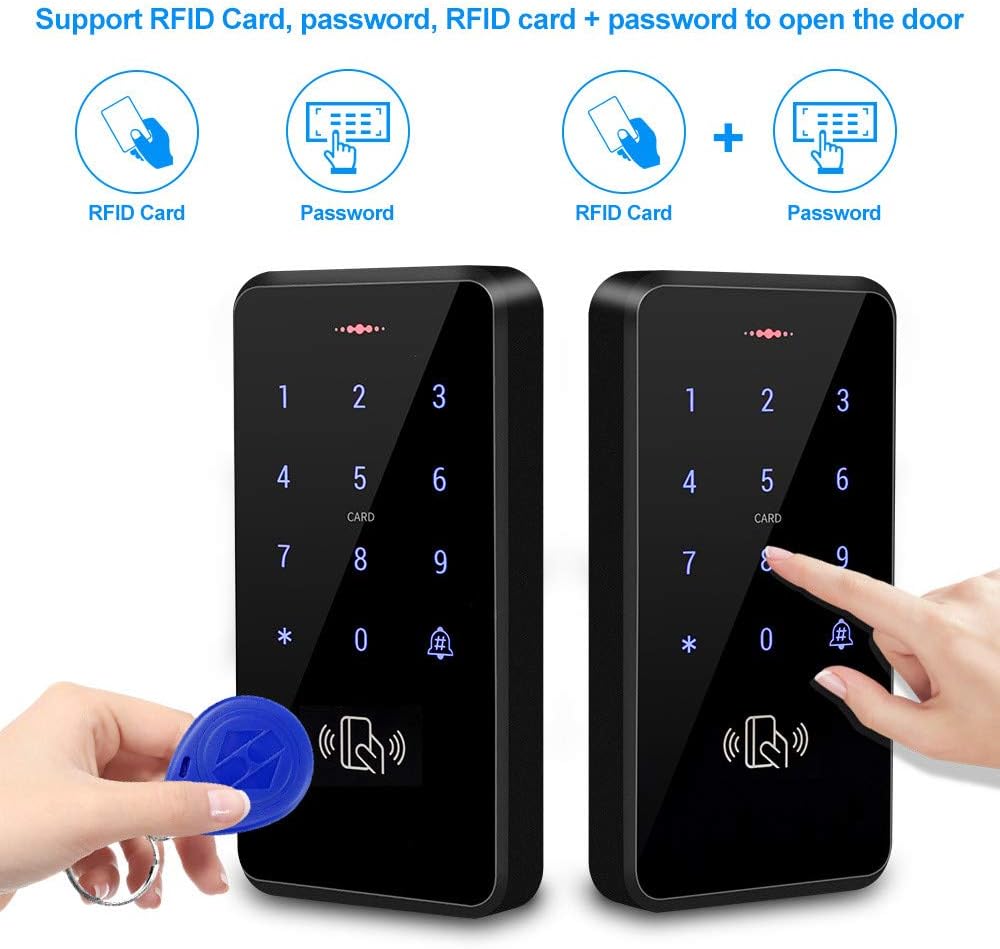
Figure 6: The keypad supports RFID card, password, and combined card + password access methods.
5.1. Keypad Operation Overview
The keypad features a touch panel with numerical keys (0-9), an asterisk (*) key, and a hash (#) key. The asterisk key is typically used to enter programming mode or as part of a command sequence. The hash key is used to confirm entries or exit programming mode.
5.2. Programming Password Modification
The default programming password is 881122. It is highly recommended to change this password immediately after initial setup for security purposes.
- Enter programming mode: Press * then 881122 then #.
- Enter the command for password modification: Press 0.
- Enter your new 6-digit programming password (e.g., 456789) then #.
- Re-enter your new 6-digit programming password (e.g., 456789) then # to confirm.
- Exit programming mode: Press *.
Video 1: Keypad Operation Video. This video demonstrates various programming steps, including modifying the programming password, public unlocking password, and managing user cards and passwords.
5.3. Public Unlocking Password
The default public unlocking password is 7890. This password allows anyone to open the door without needing an RFID card. You can modify this password.
- Enter programming mode: Press * then [Programming Password] then #.
- Enter the command for public password modification: Press 9.
- Enter your new public unlocking password (e.g., 1234) then #.
- Exit programming mode: Press *.
5.4. Setting Management Cards (Add Card & Delete Card)
Management cards simplify the process of adding or deleting user cards without entering programming mode each time. The first card swiped after entering this mode becomes the 'Add Card' (green indicator), and the second becomes the 'Delete Card' (red indicator).
- Enter programming mode: Press * then [Programming Password] then #.
- Enter the command for setting management cards: Press 9.
- Swipe the card you wish to designate as the 'Add Card'. The indicator will turn green.
- Swipe the card you wish to designate as the 'Delete Card'. The indicator will turn red.
- Exit programming mode: Press *.
5.5. Adding User Cards
To add new user cards using the 'Add Card':
- Swipe the 'Add Card'. The indicator will turn green.
- Swipe each new user card you wish to add. The indicator will flash green for each successful addition.
- Exit adding mode: Swipe the 'Add Card' again or wait for 10 seconds.
5.6. Deleting User Cards
To delete user cards using the 'Delete Card':
- Swipe the 'Delete Card'. The indicator will turn red.
- Swipe each user card you wish to delete. The indicator will flash red for each successful deletion.
- Exit deleting mode: Swipe the 'Delete Card' again or wait for 10 seconds.
Alternatively, to delete a specific user card by its number:
- Enter programming mode: Press * then [Programming Password] then #.
- Enter the command for deleting user cards by number: Press 4.
- Enter the card number (e.g., 0004605790) then #.
- Exit programming mode: Press *.
5.7. Adding Private Passwords
Private passwords are unique to individual users and can be used for access.
- Enter programming mode: Press * then [Programming Password] then #.
- Enter the command for adding private passwords: Press 2.
- Enter a 4-digit user code (e.g., 0002) then #.
- Enter the private password (e.g., 4569) then #.
- Exit programming mode: Press *.
To open the door with a private password, enter the 4-digit user code followed by the private password and then # (e.g., 00024569#).
5.8. Deleting Private Passwords
To delete a private password:
- Enter programming mode: Press * then [Programming Password] then #.
- Enter the command for deleting private passwords: Press 4.
- Enter the 4-digit user code of the private password to delete (e.g., 0002) then #.
- Exit programming mode: Press *.
5.9. Setting Password + Card Access
This method requires both a valid RFID card swipe and a correct password entry for access.
- Enter programming mode: Press * then [Programming Password] then #.
- Enter the command for setting password + card access: Press 3.
- Enter a 4-digit user code (e.g., 0002) then #.
- Enter the password (e.g., 5456) then #.
- Swipe the RFID card to associate with this password.
- Exit programming mode: Press *.
To open the door using this method: Swipe the associated card, then enter the password (e.g., 5456) and press #.
5.10. Factory Data Reset
To reset the keypad to its factory default settings:
- Enter programming mode: Press * then [Programming Password] then #.
- Enter the command for factory reset: Press 8.
- Enter the programming password again (e.g., 456789) then #.
- The system will reset, and all user data and custom passwords will be cleared. The programming password will revert to 881122, and the public unlocking password to 7890.
6. Maintenance
Regular maintenance ensures the longevity and optimal performance of your access control system:
- Cleaning: Wipe the keypad and other components with a soft, damp cloth. Avoid abrasive cleaners or solvents that could damage the surfaces.
- Cable Inspection: Periodically check all wiring connections for any signs of wear, damage, or loose connections. Ensure cables are securely fastened and protected from environmental elements.
- Magnetic Lock Check: Ensure the magnetic lock and armature plate are clean and free of debris to maintain maximum holding force.
- Firmware Updates: Check the manufacturer's website for any available firmware updates that may improve performance or add new features.
7. Troubleshooting
If you encounter issues with your OBO HANDS S20 Access Control System, refer to the following common troubleshooting steps:
| Problem | Possible Cause | Solution |
|---|---|---|
| Keypad not responding. | No power, loose wiring, or internal fault. | Check power supply connection. Verify all wiring is secure. If problem persists, contact support. |
| Door does not unlock with valid card/password. | Incorrect programming, card not registered, or magnetic lock issue. | Ensure card/password is correctly programmed. Check magnetic lock wiring and power. Perform a factory reset if necessary and re-program. |
| Magnetic lock not holding. | Insufficient power, misalignment, or debris on contact surfaces. | Verify power supply output. Clean the magnetic lock and armature plate. Adjust alignment if needed. |
| Keypad indicator light is red for valid cards. | Card is not programmed or has been deleted. | Re-program the card as a user card. |
8. Warranty and Support
OBO HANDS products undergo rigorous quality testing. For any questions or concerns regarding your access control system, please contact OBO HANDS customer support. Our team is available to assist you.
- Manufacturer: One By One AC
- WhatsApp Support: +86 177 2255 8183 (Mon-Sun 24/7)
- Brand Store: Visit the OBO HANDS Store on Amazon
Please retain your proof of purchase for warranty claims.