
1. Introduction
This user manual provides detailed instructions for the operation, maintenance, and troubleshooting of your DURAGS Peripage D2s Mobile Scanner Translator. Please read this manual thoroughly before using the device to ensure proper functionality and to maximize its capabilities. Keep this manual for future reference.
2. Product Overview
2.1 Package Contents
Upon opening the package, please verify that all items listed below are present and in good condition:
- 1 x DURAGS Peripage D2s Translate Pen
- 1 x Type-C Charging Cable
- 1 x User Manual (this document)
Note: A TF card is not included in the package and must be purchased separately if additional storage is desired.
2.2 Device Components
Familiarize yourself with the various parts of your D2s Mobile Scanner Translator:

Image: Front and back view of the DURAGS Peripage D2s Mobile Scanner Translator. The front displays the touchscreen interface with icons for Scan Translate, Voice Translate, Photo Translate, and Excerpt. The back shows the speaker grille and camera lens. The scanning tip is visible at the bottom.
- LCD Touchscreen (2.23 inches): Displays menus, translation results, and settings.
- Scanning Tip: Located at the bottom, used for scanning text.
- Scanning Camera (300,000 pixels): Proactive camera for text recognition during scanning.
- Rear Camera (5 million pixels, AF auto focus): Used for photo translation.
- Speaker: For audio output of translations and MP3 playback.
- Microphone: For voice input during voice translation and recording.
- Power Button: For turning the device on/off and screen wake/sleep.
- Type-C Port: For charging the device.
- TF Card Slot: For expandable storage (supports up to 32GB).
2.3 Key Features
The DURAGS Peripage D2s offers a wide range of functionalities designed to assist with language learning, translation, and information management:

Image: The Peripage D2s is highlighted as a multifunctional device, serving as a Translation pen, Scanning pen, Voice recorder, Learning pen, and MP3 player. The device is shown next to an open book.
- Multi-language Translation: Supports 112 languages for online voice and photo translation, 12 languages for offline text scan and photo translation, and 22 languages for text excerpt.
- Advanced Scanning: High accuracy (up to 99%) for both online and offline scanning, with a scanning speed of 3mm/s to 6mm/s.
- Learning Tool: Includes a dictionary with 7.82 million words, two pronunciation styles, and adjustable text reading speeds. Supports saving scanned content and photo translation records for review.
- Versatile Connectivity: Supports Wi-Fi and phone hotspot connections for online features, and Bluetooth 4.0 for connecting to external speakers or headsets.
- Voice Recording & MP3 Playback: Functions as a voice recorder for business or speech, and an MP3 player for audio playback.
- User-Friendly Design: Features a 2.23-inch HD capacitive touchscreen, lightweight design (approx. 60g), and a long-lasting 800mAh battery.
- Accessibility: Includes a reversed scanning direction setting for left-handed users.
3. Setup
3.1 Charging the Device
Before first use, fully charge the device. Connect the provided Type-C cable to the charging port on the D2s pen and the other end to a USB power adapter (not included) or a computer's USB port. The charging indicator on the screen will show charging status. A full charge takes less than 2 hours.
3.2 Powering On/Off
- To Power On: Press and hold the Power button for a few seconds until the screen lights up.
- To Power Off: Press and hold the Power button until a power-off prompt appears on the screen. Select "Power Off" to shut down the device.
- Screen On/Off: Briefly press the Power button to turn the screen on or off without powering down the device.
3.3 Initial Setup and Network Connection (Wi-Fi/Hotspot)
For online translation and other internet-dependent features, connect the device to a Wi-Fi network or a mobile hotspot.
- From the main screen, swipe down from the top to access the quick settings panel, or navigate to "Settings".
- Tap on the Wi-Fi icon or select "Wi-Fi" in the settings menu.
- Turn on Wi-Fi and select your desired network from the list.
- Enter the Wi-Fi password if prompted and tap "Connect".
- Once connected, the Wi-Fi icon will indicate a successful connection.
Note: Voice translation functionality requires an active internet connection.
3.4 Bluetooth Pairing
You can connect Bluetooth headphones or speakers to the D2s for private listening or louder audio output.
- Ensure your Bluetooth audio device is in pairing mode.
- On the D2s, go to "Settings" and select "Bluetooth".
- Turn on Bluetooth. The device will scan for available devices.
- Select your Bluetooth audio device from the list to pair.
- Confirm pairing if prompted.
4. Operating Instructions
The D2s offers various modes for translation and learning. Navigate through the main menu by tapping the corresponding icons on the touchscreen.
4.1 Scan Translation
This mode allows you to scan printed text and translate it instantly.

Image: The D2s pen is shown scanning text from a book. The screen displays the original scanned text and its translation. This mode supports scan translation, photo translation, and voice translation.
- From the main menu, tap the "Scan Translate" icon.
- Select the source language and target language. The device supports 12 languages for offline scan translation and 112 languages online.
- Place the scanning tip flat on the text you wish to translate.
- Slowly and steadily slide the pen across the line of text. Ensure the entire line is within the scanning window.
- The translated text will appear on the screen almost instantly. You can also listen to the pronunciation.
- For left-handed users, enable "Reversed Scanning Direction" in settings for optimal scanning.
4.2 Photo Translation
Translate text from images using the built-in camera.
- From the main menu, tap the "Photo Translate" icon.
- Point the rear camera at the text you want to translate. Ensure the text is clear and well-lit within the camera frame.
- Tap the screen to capture the image.
- The device will process the image and display the translation.
- Supports 12 languages for offline photo translation and 112 languages online.
4.3 Voice Translation
Engage in real-time voice conversations with translation.
- From the main menu, tap the "Voice Translate" icon.
- Select the two languages for conversation.
- Press and hold the microphone button (or designated on-screen button) and speak clearly into the device. Release the button when finished.
- The device will translate your speech and play it aloud in the target language.
- This feature requires an active internet connection and supports 112 languages.
4.4 Text Excerpt
Extract and save text from scanned documents without translation.
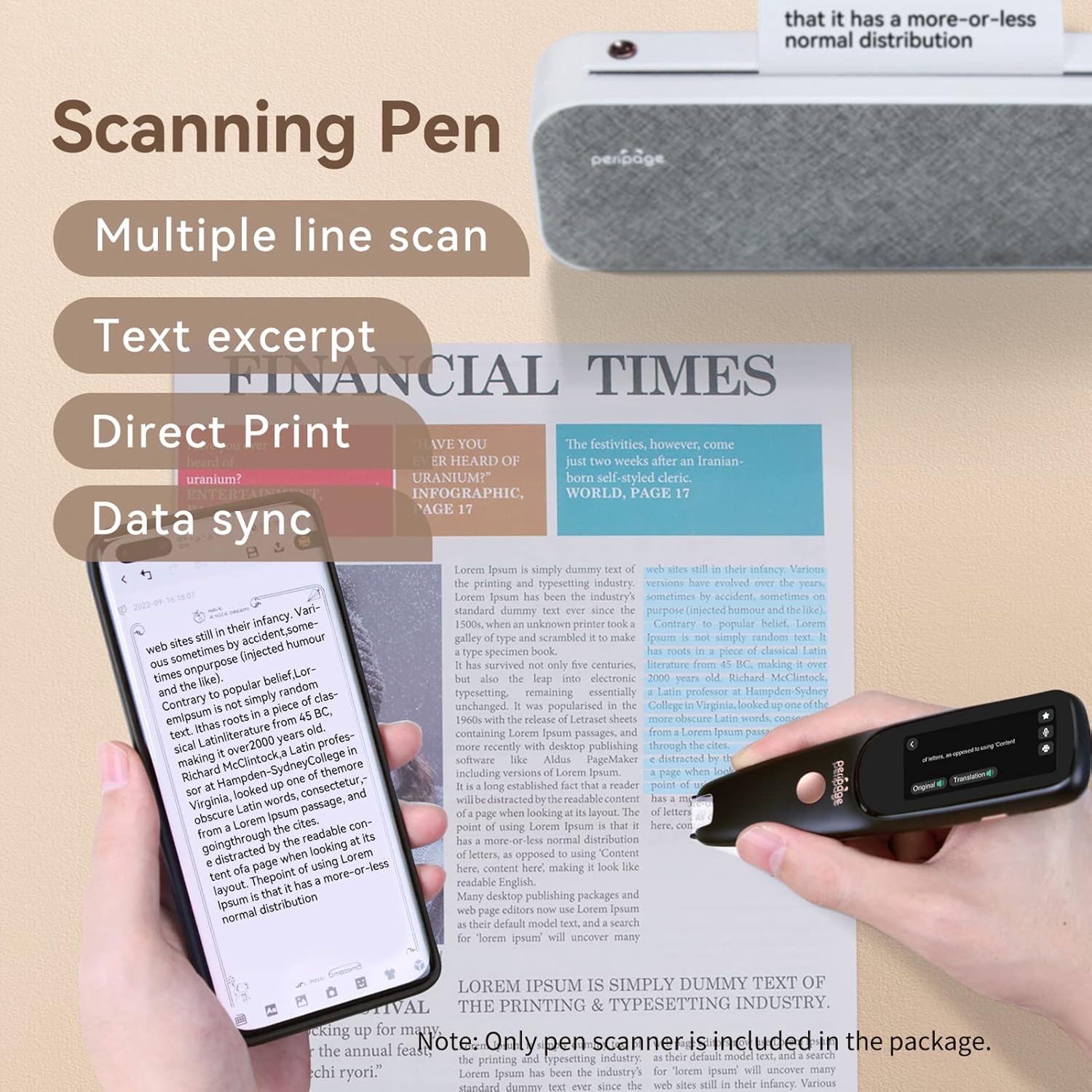
Image: The D2s pen is shown scanning text from a newspaper. This mode allows for multiple line scanning, text excerpting, direct printing (with compatible Peripage printers), and data synchronization to other devices.
- From the main menu, tap the "Excerpt" icon.
- Scan the text as you would for translation.
- The scanned text will be displayed and saved. You can then review, edit, or export this text.
- This function supports 22 languages and can be used with or without an internet connection.
- Scanned content can be uploaded to a PC or mobile device for later review.
4.5 Learning Tools
The D2s is an effective tool for language learning and vocabulary building.

Image: A student is shown using the D2s pen for language study. The device supports features like language study, words learning, and English-Chinese tests, aiding in comprehensive language acquisition.
- Dictionary: Access a vast dictionary with 7.82 million words.
- Pronunciation: Choose between two pronunciation styles and adjust text reading speed (slow/normal/fast).
- Word Learning: Save new words encountered during scanning or translation to a dedicated word list for later review.
- Listening Training: Download audio files to the pen for listening practice.
- Dyslexia Support: The scanning and reading features can assist individuals with reading difficulties.
4.6 Voice Recorder
Record audio for notes, lectures, or meetings.

Image: The D2s functions as both a Voice Recorder for business or speech recording and an MP3 Player for listening to audio. The image depicts a user speaking into the pen and another user listening to music with headphones.
- From the main menu, tap the "Voice Recorder" icon.
- Tap the record button to start recording.
- Tap the stop button to end the recording.
- Recordings are saved internally and can be managed from the device's file manager.
4.7 MP3 Player
Play audio files stored on the device or a TF card.
- From the main menu, tap the "MP3 Player" icon.
- Browse and select the audio file you wish to play.
- Use the on-screen controls for playback (play, pause, skip).
- Connect Bluetooth headphones or speakers for audio output.
5. Maintenance
Proper care and maintenance will extend the life of your D2s Mobile Scanner Translator.
- Cleaning: Use a soft, dry, lint-free cloth to clean the device's screen and body. For stubborn smudges, slightly dampen the cloth with water. Do not use harsh chemicals, abrasive cleaners, or immerse the device in water.
- Scanning Tip: Keep the scanning tip clean and free of dust or debris to ensure accurate scanning. Use a soft brush if necessary.
- Storage: Store the device in a cool, dry place away from direct sunlight, extreme temperatures, and high humidity.
- Battery Care: To preserve battery life, avoid fully discharging the battery frequently. Charge the device regularly, even if not in use for extended periods.
6. Troubleshooting
If you encounter issues with your D2s, refer to the following common problems and solutions:
| Problem | Possible Cause | Solution |
|---|---|---|
| Device does not power on. | Low battery; device frozen. | Charge the device for at least 30 minutes. If still unresponsive, press and hold the power button for 10-15 seconds to force a restart. |
| Scanning accuracy is low. | Incorrect scanning angle; too fast/slow; poor lighting; dirty scanning tip. | Ensure the pen is held at a 60°-90° angle. Scan at a steady speed (3-6mm/s). Ensure adequate lighting. Clean the scanning tip. |
| Voice translation not working. | No internet connection; microphone blocked. | Verify Wi-Fi or hotspot connection. Ensure the microphone is not covered. |
| Cannot connect to Wi-Fi. | Incorrect password; out of range; network issue. | Double-check the Wi-Fi password. Move closer to the Wi-Fi router. Restart the router and the D2s. |
| Bluetooth device not pairing. | Device not in pairing mode; out of range. | Ensure the Bluetooth audio device is in pairing mode. Move the devices closer. Restart both devices. |
7. Specifications
Detailed technical specifications for the DURAGS Peripage D2s Mobile Scanner Translator:
| Feature | Detail |
|---|---|
| Model | D2s |
| Dimensions (L x W x H) | 142 x 38.2 x 15.5mm |
| Weight | Approx. 60g |
| LCD Screen | 2.23 inches, 200*480 resolution, 230dpi, TFT |
| Touchscreen | Capacitive touchscreen |
| Wi-Fi | 2.4G, communication distance > 30m |
| Bluetooth | BT printing, BT headset, communication distance > 15m |
| Online Scanning Accuracy | Up to 99% |
| Offline Scan Progress | Up to 99% |
| Scanning Speed | Best speed 3mm/s ~ 6mm/s |
| Scanning Translation Speed | 0.5 seconds |
| Voice Translation Speed | 0.5 seconds |
| Standby Time | Approx. 4 days |
| Charging Time | Less than 2 hours |
| Battery | 800mAh, 3.7V, polymer lithium battery |
| Photo Camera | 5 million pixels, AF auto focus, rear camera |
| Scanning Camera | 300,000 pixels, proactive |
| Storage Configuration | Memory 1GB, Storage 8GB |
| Speaker | Rated power: 0.8W, Maximum power: 1.2W |
| Pen Pressing Life | 50,000 times |
| TF Card Support | Max 32GB (high, medium, low speed), supports hot swap |
| Scanning Angle | 60° ~ 90° |
8. Warranty and Support
DURAGS products are manufactured to high quality standards. For information regarding warranty coverage and customer support, please refer to the warranty card included with your product or visit the official DURAGS website. If you encounter any issues not covered in this manual, please contact customer service for assistance.
Please retain your proof of purchase for warranty claims.


