Introduction
This manual provides comprehensive instructions for the setup, operation, and maintenance of your GreenLaw Bluetooth Keyboard. This keyboard is designed for use with Microsoft Surface Pro 9, Surface Pro 8, and Surface Pro X 13-inch models, offering enhanced functionality and protection.

Image: The GreenLaw Bluetooth Keyboard seamlessly integrated with a Microsoft Surface Pro tablet, showcasing its use as a laptop replacement.
Compatibility
The GreenLaw Bluetooth Keyboard is compatible with the following Microsoft Surface models:
- Surface Pro 9
- Surface Pro 8
- Surface Pro X
Note: This keyboard is not compatible with Surface Pro 7+, Surface Pro 7, Surface Pro 6, Surface Pro 5, Surface Pro 4, Surface Pro 3, or Surface Go models.
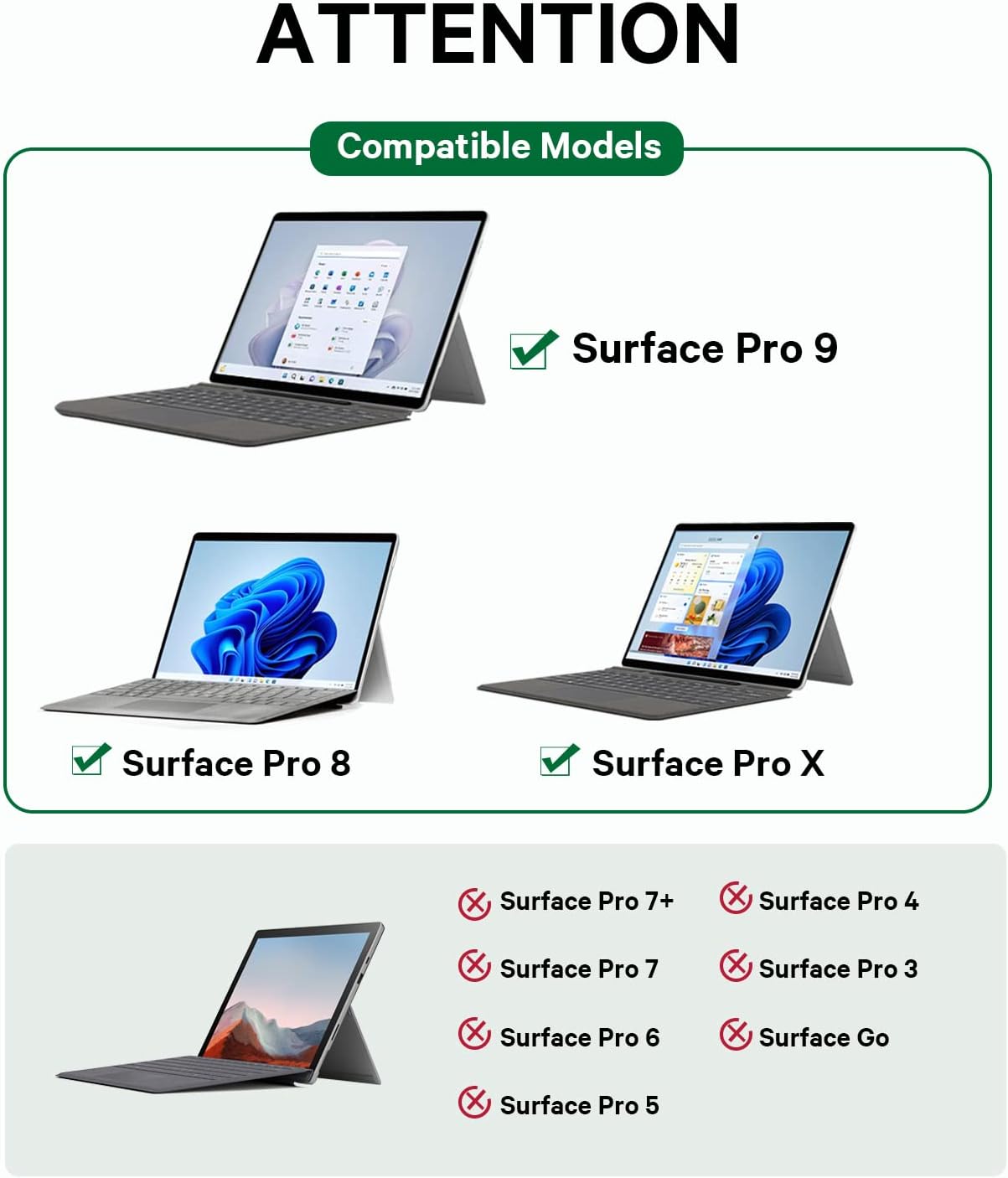
Image: A visual guide illustrating the compatible and incompatible Microsoft Surface Pro models for the keyboard.
Key Features
- Multi-Gesture Touchpad: Microfiber touch panel with intelligent core design for efficient navigation and simplified operations.
- 7-Color Backlight: Adjustable 3 brightness levels and 7 color options for enhanced visibility in various lighting conditions.
- Wireless Bluetooth 5.1 Connectivity: Stable long-distance connection (up to 10 meters) allowing separate use of keyboard and tablet.
- Ultra-Slim Design: Lightweight and ergonomic keys with 7° tilt support to reduce typing pressure and wrist fatigue.
- Skin-Friendly Material: Faux microfiber fabric provides protection for the tablet screen and is dirt-resistant.
Setup Guide
1. Initial Charging
Before first use, ensure the keyboard is fully charged. Connect the provided USB-C charging cable to the keyboard's charging port and a power source. The battery indicator will show charging status.

Image: A detailed view of the USB-C charging port on the keyboard, indicating where to connect the charging cable.
2. Attaching Your Tablet
The keyboard features a magnetic attachment for easy connection to your Surface Pro. Align the bottom edge of your Surface Pro with the magnetic strip on the keyboard and allow it to snap into place.

Image: A user demonstrating the magnetic attachment of the Surface Pro tablet to the keyboard, forming a laptop-like setup.
3. Bluetooth Pairing
- Flip the power switch on the right side of the keyboard to the "ON" position. The indicator light will turn on.
- Press the "Fn" + "C" keys simultaneously to enter Bluetooth pairing mode. The Bluetooth indicator will flash.
- On your Surface Pro, go to Settings > Bluetooth & devices.
- Select "Add device" and choose "Bluetooth".
- Locate "Bluetooth Keyboard" in the list of available devices and click to connect. The indicator light will stop flashing once connected.
Video: A step-by-step demonstration of how to connect the Bluetooth keyboard to a Microsoft Surface tablet, including activating pairing mode and selecting the device in settings.
Operating Instructions
Keyboard Functions
- Backlight Control: Press "Fn" + "Shift" to adjust the 3 brightness levels or cycle through the 7 available colors.
- Function Keys: The top row of keys (F1-F12) can be used for multimedia control or standard function keys. Refer to the key legends for specific actions.
- Touchpad: The integrated multi-gesture touchpad supports various gestures for navigation and control.

Image: A user interacting with the multi-gesture touchpad, highlighting its functionality for precise control.

Image: The keyboard's keys glowing with a vibrant 7-color backlight, demonstrating its visibility in low-light conditions.
Touchpad Gestures
The touchpad supports various multi-finger gestures for efficient navigation:
- One-finger tap: Left-click.
- Two-finger tap: Right-click.
- Two-finger scroll: Scroll up/down or left/right.
- Pinch-to-zoom: Zoom in/out.
- Three-finger swipe up: Open Task View (Windows).
- Three-finger swipe down: Show desktop (Windows).
- Three-finger swipe left/right: Switch between open applications (Windows).
Maintenance
- Cleaning: Use a soft, dry cloth to clean the keyboard surface. For stubborn dirt, a slightly damp cloth can be used, ensuring no moisture enters the key gaps or ports.
- Storage: When not in use, close the keyboard cover to protect the tablet screen and keyboard from dust and scratches.
- Battery Care: To prolong battery life, avoid fully discharging the keyboard frequently. Charge it regularly, especially if it will not be used for an extended period.
Troubleshooting
| Problem | Solution |
|---|---|
| Keyboard not connecting via Bluetooth. |
|
| Backlight not working or stuck on one color. |
|
| Touchpad is unresponsive. |
|
Specifications
- Product Dimensions: 12.4 x 9.28 x 0.4 inches
- Item Weight: 1.23 pounds
- Connectivity Technology: Bluetooth 5.1
- Battery: 1 Lithium Polymer battery (included)
- Special Features: Backlit, Lightweight, Multi-Gesture Trackpad
- Color: Grey (RGB backlighting)
- Manufacturer: GreenLaw
- Model Number: GreenLaw Surface Pro 9 Keyboard
Warranty and Support
For warranty registration and product support, please refer to the documentation included with your product or contact GreenLaw customer service. If you encounter any difficulties or have inquiries, please do not hesitate to reach out to us at your earliest convenience.
For the quickest and most efficient support experience, please contact us directly through Amazon or via the provided contact information in your product packaging.
Additional Resources
Product Overview Video
Video: An official product video from the seller showcasing the Microsoft Surface Pro 11 / Pro 10 / Pro 9 / Pro 8 / Pro X keyboard, highlighting its features and compatibility.


