
Alizen Roku remote
Alizen Replacement Backlit Remote for Roku TV & Streaming Box
Instruction Manual
Introduction
This manual provides essential information for the setup, operation, and maintenance of your Alizen Replacement Backlit Remote. This remote is designed to control both Roku TVs (TCL, Hisense, Sharp, Philips, Westinghouse, etc.) and Roku streaming devices (Ultra, Express, Premiere series, and legacy models).
Please read these instructions carefully before using the remote to ensure optimal performance and compatibility.
Product Overview

Image: Front view of the Alizen Replacement Backlit Remote, showcasing its buttons and sleek black design.
The Alizen Replacement Backlit Remote offers a convenient solution for controlling your Roku TV and Roku streaming devices. Key features include:
- Backlit Buttons: Automatically illuminates upon any button press for 6 seconds, enhancing visibility in low-light conditions.
- Universal Compatibility: Works with a wide range of Roku TV brands and all Roku streaming devices.
- Essential TV Controls: Manages power, volume, input, and sleep timer functions for compatible TVs.
- Dedicated App Buttons: Quick access to popular streaming services.
- Infrared (IR) Technology: Operates via IR, requiring direct line-of-sight.
Setup and Pairing
Proper pairing is essential for the remote to function correctly with your devices. Follow the steps below based on your setup.
1. Battery Installation
The remote requires two AAA batteries (not included). Open the battery compartment on the back of the remote and insert the batteries, ensuring correct polarity (+/-).
Note: If the backlight dims or performance is affected, replace the batteries.
2. First-Time Pairing for Roku TV (TCL, Hisense, etc.)
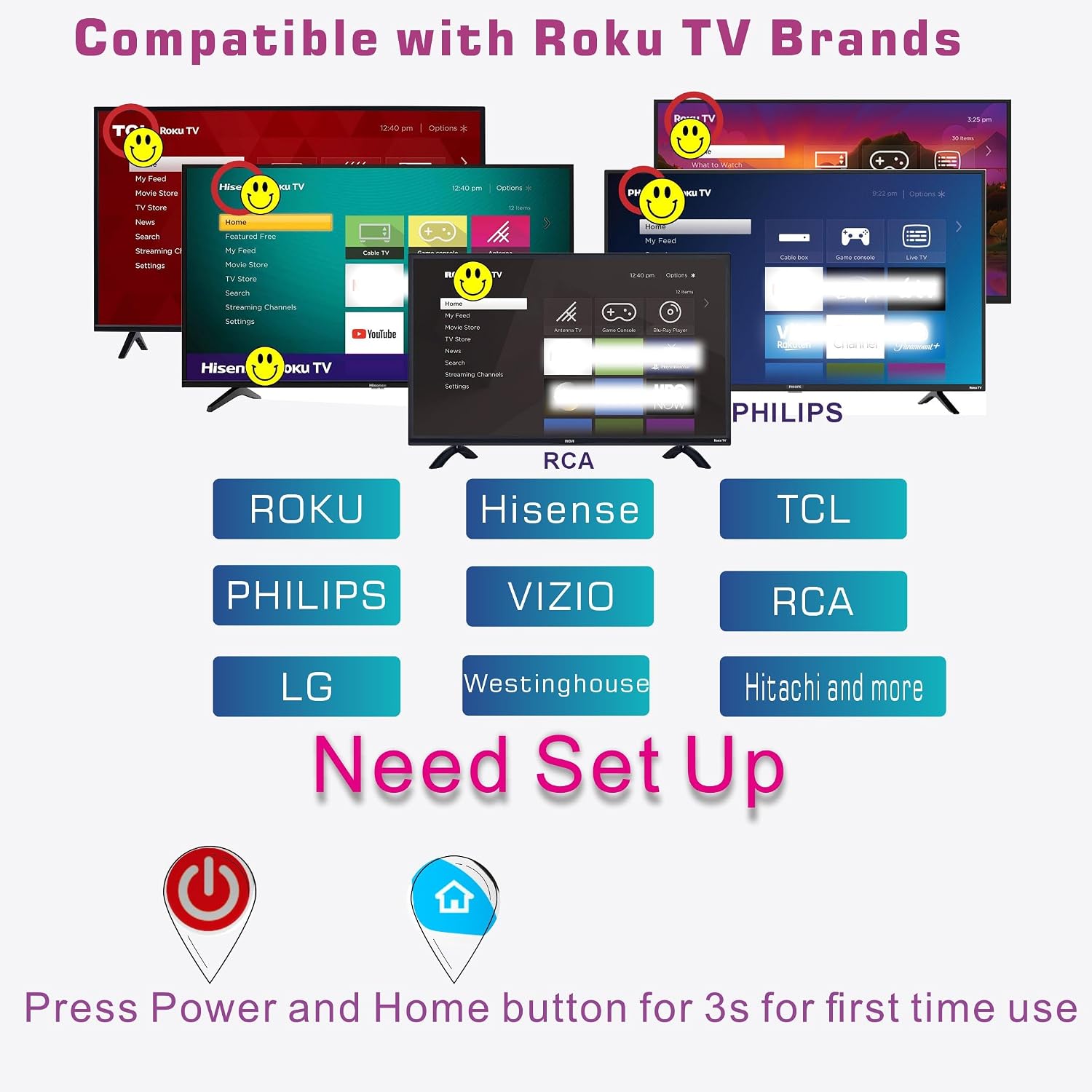
Image: Visual guide showing various Roku TV brands (TCL, Hisense, Philips, RCA, LG, Westinghouse, Hitachi) and the instruction to press Power and Home buttons for 3 seconds for first-time setup.
For initial setup with a Roku TV (e.g., TCL, Hisense, Sharp, Philips, Westinghouse):
- Ensure your Roku TV is powered on.
- Press and hold the Power button and the Home button simultaneously for 3 seconds.
- The remote will attempt to pair with your Roku TV. Once paired, the remote will control your TV's basic functions.
3. Pairing for Roku Streaming Devices (Box, Stick, etc.)

Image: Depicts various Roku streaming devices (Roku 1/2/3/4, HD/LT/XS/XD, Express, Premiere, Ultra) and the instruction to press Power + OK for 3 seconds for setup.
To pair with a Roku streaming device (e.g., Roku Box, Ultra, Express, Premiere series, legacy models 1/2/3/4):
- Ensure your Roku streaming device is powered on and connected to your TV.
- Place the Roku device in direct line-of-sight of the remote.
- Press and hold the Power button and the OK button simultaneously for 5 seconds.
- The remote will pair with your Roku streaming device.

Image: Illustrates the remote controlling a Roku streaming device connected to a TV, emphasizing the need to place the Roku device in front of the TV for optimal signal.
Important: For optimal performance, ensure the Roku streaming device is placed in front of the TV, allowing for clear line-of-sight for the infrared signal.
4. TV Brand Compatibility and Pairing for Enhanced Control

Image: A table showing various TV brands (VIZIO, Samsung, LG, Sony, Philips, Sharp, Insignia, Toshiba, Panasonic, Dynex) and the corresponding button combinations (Power + Brand Button) to pair the remote for enhanced TV control.
To control power, volume, input, and sleep timer for specific TV brands (VIZIO, Samsung, LG, Philips, Sharp, Insignia, Toshiba, Panasonic, Dynex), use the following pairing method:
Press and hold the Power button and the corresponding Brand Button (e.g., VUDU for Samsung, Disney for LG) for 5 seconds until the remote pairs with your TV.
| TV Brand | Button Combination (Press & Hold for 5s) |
|---|---|
| VIZIO | Power + Source Input |
| Samsung | Power + VUDU |
| LG | Power + Disney |
| Sony | Power + Sling |
| Philips | Power + Prime Video |
| Sharp | Power + Hulu |
| Insignia | Power + Spotify |
| Toshiba | Power + ESPN |
| Panasonic | Power + RK Channel |
| Dynex | Power + Spotify |
Note: Sleep timer functionality may vary by TV model.
Operating Instructions
Once paired, your Alizen remote provides intuitive control over your Roku devices and compatible TVs.
Basic Navigation
- Directional Pad (Up, Down, Left, Right): Navigate menus and select items.
- OK Button: Confirm selections.
- Home Button: Return to the Roku home screen.
- Back Button: Go back to the previous screen.
- Power Button: Turns the TV and/or Roku device on/off.
- Volume Up/Down: Adjust TV volume.
- Mute Button: Mute/unmute TV audio.
- Input Button: Change TV input source.
Media Playback Controls
- Play/Pause: Start or pause playback.
- Fast Forward: Skip forward in content.
- Rewind: Skip backward in content.
Dedicated Channel Buttons

Image: Close-up of the remote highlighting the 10 dedicated shortcut buttons for popular streaming services like Netflix, Prime Video, Hulu, YouTube, Vudu, Disney+, Sling, Spotify, ESPN+, and The Roku Channel.
The remote features dedicated buttons for quick access to popular streaming applications:
- Netflix
- Prime Video
- Hulu
- YouTube
- Vudu
- Disney+
- Sling
- Spotify
- ESPN+
- The Roku Channel
Backlight Feature

Image: Shows the remote with its buttons illuminated, demonstrating the backlight feature. Text indicates that pressing any button activates the backlight for 6 seconds.
The remote is equipped with an energy-efficient backlight. Pressing any button will activate the backlight for approximately 6 seconds, making it easier to use in dark environments. The backlight automatically turns off to conserve battery life.
Video: A short demonstration of the remote's backlight feature activating when a button is pressed, showing its utility in low-light conditions.
Maintenance
- Cleaning: Use a soft, dry cloth to clean the remote. Do not use liquid cleaners or abrasive materials.
- Battery Replacement: Replace batteries when the backlight dims significantly or the remote becomes unresponsive. Always use fresh AAA batteries.
- Storage: Store the remote in a cool, dry place away from direct sunlight and extreme temperatures.
Troubleshooting
| Issue | Possible Cause | Solution |
|---|---|---|
| Remote not responding. | Low or dead batteries; remote not paired; obstructed IR signal. | Replace batteries. Re-pair the remote following the "Setup and Pairing" instructions. Ensure clear line-of-sight between the remote and the device. |
| Backlight is dim or not working. | Low batteries. | Replace batteries with new ones. |
| Cannot control TV functions (volume, power). | Remote not paired with TV; TV brand not compatible. | Follow the "TV Brand Compatibility and Pairing" instructions. Verify your TV brand is listed as compatible. |
| Cannot control Roku streaming device. | Remote not paired with Roku device; obstructed IR signal. | Follow the "Pairing for Roku Streaming Devices" instructions. Ensure the Roku device is in direct line-of-sight. |
| Voice commands or headphone jack not working. | This remote does not support these features. | This remote is an IR remote and does not support voice commands, headphone jacks, or Wi-Fi/Bluetooth pairing. It is not compatible with Roku Stick. |
Specifications
- Model: Roku remote
- Brand: Alizen
- Dimensions: 5.5 x 1.6 x 0.75 inches
- Weight: 2.08 ounces
- Power Source: 2 x AAA batteries (not included)
- Connectivity: Infrared (IR)
- Special Features: Backlit, No Programming Required (for basic Roku TV/device functions), Universal (with specific pairing for enhanced TV control)
- Color: Black
- Max Supported Devices: 18 (via universal programming)
- Compatible Devices: Roku Set Top Box, Roku Television
Warranty and Support
Specific warranty information for this product is not provided in the available documentation. For any product support or warranty inquiries, please contact the seller directly through your purchase platform.
Ask a question about this manual
Ask about setup, troubleshooting, compatibility, parts, safety, or missing instructions. Manuals+ will review the question and use this page’s manual context to help answer it.