
1. Introduction
Welcome to the user manual for your new ILIFE V5s Plus Robot Vacuum and Mop Combo. This manual provides essential information on how to set up, operate, maintain, and troubleshoot your device to ensure optimal performance and longevity. Please read this manual thoroughly before using the product and keep it for future reference.
2. Safety Instructions
To reduce the risk of injury or damage, read these safety instructions carefully and keep them accessible when setting up, using, and maintaining your robot.
- This appliance can be used by children aged from 8 years and above and persons with reduced physical, sensory or mental capabilities or lack of experience and knowledge if they have been given supervision or instruction concerning use of the appliance in a safe way and understand the hazards involved.
- Children should be supervised to ensure that they do not play with the appliance.
- Cleaning and user maintenance shall not be made by children without supervision.
- Only use the original power adapter provided by the manufacturer.
- Do not use the robot in environments with open flames or fragile objects.
- Ensure the robot is not exposed to direct sunlight or extreme temperatures.
- Do not allow the robot to pick up large objects, sharp objects, or liquids.
- Before cleaning, remove loose cables, small objects, or anything that could entangle the robot.
- Do not immerse the robot or its electronic components in water.
- For indoor use only.
3. Product Overview
3.1. Main Unit and Accessories
The ILIFE V5s Plus comes with the following components:
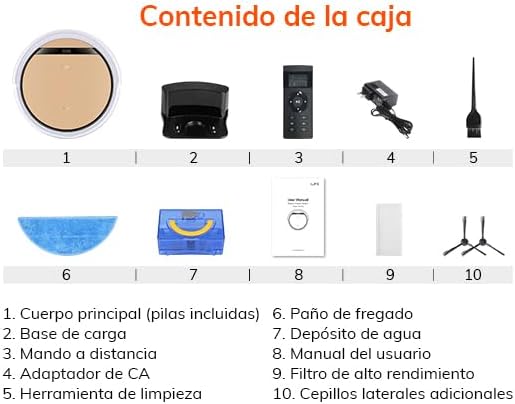
Figure 3.1: Contents of the Box
- 1. Main Body (batteries included)
- 2. Charging Base
- 3. Remote Control
- 4. AC Adapter
- 5. Cleaning Tool
- 6. Mop Cloth
- 7. Water Tank
- 8. User Manual
- 9. High-Performance Filter
- 10. Additional Side Brushes
3.2. Product Diagram

Figure 3.2: ILIFE V5s Plus Robot Vacuum and Mop Combo
The ILIFE V5s Plus features a sleek, low-profile design, allowing it to clean under furniture. It integrates both vacuuming and mopping functionalities.
4. Setup
4.1. Charging Dock Placement
Place the charging dock against a wall in an open, uncluttered area. Ensure there is at least 1 meter (3 feet) of clear space on both sides and 2 meters (6 feet) in front of the dock for the robot to easily return for charging.

Figure 4.1: Automatic Charging
4.2. Initial Charging
Connect the power adapter to the charging dock and plug it into a wall outlet. Place the robot onto the charging dock, ensuring the charging contacts align. For first-time use, charge the robot for at least 12 hours to fully activate the battery.
4.3. Installing Side Brushes
Flip the robot over. Push the side brushes onto the square posts until they click into place. Ensure the L and R markings on the brushes match the corresponding markings on the robot.
4.4. App Connection (ILIFEHOME App)
Download the "ILIFEHOME" app from your smartphone's app store. Follow the in-app instructions to connect your robot to your home Wi-Fi network. Note: The app supports only 2.4 GHz Wi-Fi networks, not 5 GHz.

Figure 4.2: Smart App Control
4.5. Voice Assistant Setup (Alexa/Google Assistant)
The ILIFE V5s Plus is compatible with Amazon Alexa and Google Assistant. Enable the ILIFE skill/action in your Alexa or Google Home app and link your ILIFEHOME account. You can then use voice commands to start or stop cleaning.

Figure 4.3: Voice Control Compatibility
5. Operating Instructions
5.1. Power On/Off
To power on the robot, press the "CLEAN" button on the robot or the remote control. To power off, press and hold the "CLEAN" button until the indicators turn off.
5.2. Cleaning Modes
The ILIFE V5s Plus offers multiple cleaning modes to suit different needs:
- Auto Mode: The robot automatically cleans the area, adjusting its path based on obstacles.
- Spot Mode: The robot cleans a specific area in a spiral pattern, ideal for concentrated dirt.
- Edge Mode: The robot cleans along walls and furniture edges.
- Max Mode: Increases suction power for deeper cleaning.
- Scheduled Cleaning: Set a cleaning schedule via the app or remote control for automated cleaning.

Figure 5.1: Multiple Cleaning Modes
5.3. Vacuuming Function
For vacuuming, ensure the dustbin is installed. The robot effectively picks up dust, debris, and pet hair from various floor types, including hardwood, tile, laminate, and low-pile carpets.

Figure 5.2: Powerful Suction
5.4. Mopping Function
To use the mopping function, replace the dustbin with the water tank and attach the mop cloth. The intelligent control water tank offers three levels of water output (soft, standard, strong) adjustable via the app, allowing for effective mopping of spills and stains.

Figure 5.3: 2-in-1 Robot Vacuum and Mop
5.5. Automatic Recharging
When the battery level is low or a cleaning cycle is complete, the robot will automatically return to its charging dock to recharge. Ensure the charging dock is always powered on and accessible.
6. Maintenance
Regular maintenance is crucial for the optimal performance and longevity of your ILIFE V5s Plus. Perform these steps regularly.
6.1. Emptying the Dustbin
After each cleaning cycle, remove the dustbin, open its lid, and empty the collected debris into a trash can. Tap the dustbin gently to dislodge any stuck dirt.
6.2. Cleaning the Water Tank and Mop Cloth
After each mopping session, empty any remaining water from the tank. Rinse the water tank thoroughly with clean water. Remove the mop cloth and hand wash it with mild detergent, then air dry completely before reattaching.
6.3. Cleaning Side Brushes
Periodically check the side brushes for tangled hair or debris. Gently pull them off their posts and use the cleaning tool or your fingers to remove any obstructions. Reattach them securely.
6.4. Cleaning Sensors
Wipe the cliff sensors (located on the bottom of the robot) and the anti-collision sensors (on the bumper) with a clean, dry cloth. Keep them free of dust and debris to ensure proper navigation.
6.5. Cleaning Charging Contacts
Wipe the charging contacts on both the robot and the charging dock with a dry cloth to ensure a good connection for recharging.
7. Troubleshooting
If your ILIFE V5s Plus encounters issues, refer to the table below for common problems and their solutions.
| Problem | Possible Cause | Solution |
|---|---|---|
| Robot does not turn on. | Low battery; Power switch off. | Charge the robot; Ensure the power switch on the side of the robot is in the "ON" position. |
| Robot does not charge. | Charging contacts dirty; Power adapter not connected. | Clean charging contacts on robot and dock; Ensure power adapter is securely plugged in. |
| Robot gets stuck frequently. | Too many obstacles; Cliff sensors dirty. | Clear the cleaning area of loose cables and small objects; Clean cliff sensors. |
| Poor cleaning performance. | Dustbin full; Brushes tangled; Filter clogged. | Empty dustbin; Clean side brushes; Clean or replace filter. |
| App connection fails. | Incorrect Wi-Fi password; 5GHz Wi-Fi network; Robot too far from router. | Verify Wi-Fi password; Ensure you are connecting to a 2.4GHz network; Move robot closer to router. |
8. Specifications
Technical specifications for the ILIFE V5s Plus Robot Vacuum and Mop Combo:
| Feature | Detail |
|---|---|
| Brand | iLife |
| Model Name | ILIFE V5s Plus |
| Product Dimensions | 29.9L x 29.9W x 8.1H cm (11.77L x 11.77W x 3.19H inches) |
| Item Weight | 3.56 Kilograms (7.85 lbs) |
| Dustbin Capacity | 300 Milliliters |
| Water Tank Capacity | 300 Milliliters |
| Battery Life | Up to 1.8 Hours (110 minutes) |
| Compatible Devices | Amazon Echo, Google Assistant, Smartphone |
| Connectivity | 2.4G Wi-Fi |
9. Warranty and Support
9.1. Warranty Information
Your ILIFE V5s Plus is covered by a manufacturer's warranty. Please refer to the warranty card included in your product packaging for specific terms and conditions, including warranty period and coverage details. Keep your purchase receipt as proof of purchase.
9.2. Customer Support
For technical assistance, troubleshooting not covered in this manual, or warranty claims, please contact ILIFE customer support. Contact information can typically be found on the official ILIFE website or on the warranty card.


