
1. Product Overview
The ACEMO 6MP PTZ Wireless Outdoor Security Camera is designed for comprehensive outdoor surveillance. It features a dual-lens system, pan/tilt/zoom capabilities, advanced night vision, and intelligent motion detection with auto-tracking.
Key Features:
- 6 Megapixel Resolution: Provides clear and detailed video footage.
- PTZ Functionality: Pan 360°, Tilt 90° for wide area coverage.
- 10X Digital Zoom: Allows for close-up viewing of specific areas.
- Dual Lens System: Offers both wide-angle panoramic and detailed close-up views simultaneously.
- Color Night Vision: Enhanced visibility in low-light conditions.
- Auto Tracking: Automatically follows detected motion.
- Motion Detection Alarm: Sends alerts upon detecting activity.
- Two-Way Audio: Enables communication through the camera.
- IP66 Weatherproof: Designed to withstand various outdoor weather conditions.
- Dual Storage Options: Supports local SD card storage and cloud storage.
2. Package Contents
Please check the package for the following items:
- ACEMO 6MP PTZ Wireless Outdoor Security Camera
- Power Adapter
- Mounting Screws and Wall Plugs
- Waterproof Kit for Network Cable (if applicable)
- User Manual (this document)
3. Setup Guide
3.1 Physical Installation
- Choose a Location: Select an outdoor location with a clear view of the area you wish to monitor. Ensure the camera is within range of your Wi-Fi network and a power outlet.
- Mount the Camera: Use the provided mounting screws and wall plugs to securely attach the camera to a wall or ceiling. Ensure the mounting surface is sturdy enough to support the camera's weight.
- Connect Power: Plug the power adapter into the camera's power input and then into a suitable power outlet. The camera will power on and initiate its self-test.
3.2 App Installation and Pairing
- Download the App: Search for 'CareCamPro' (or the specified app in your product packaging) in your mobile device's app store (iOS or Android) and install it.
- Register/Log In: Open the app and follow the on-screen instructions to create a new account or log in if you already have one.
- Add Device: Tap the '+' icon or 'Add Device' button in the app. Select 'Wireless Camera' or 'Scan QR Code'.
- Scan QR Code: If prompted, scan the QR code located on the camera body or its packaging.
- Connect to Wi-Fi: Follow the app's instructions to connect the camera to your 2.4GHz Wi-Fi network. Ensure your phone is connected to the same Wi-Fi network during setup.
- Complete Setup: Once connected, name your camera and set a password. The camera is now ready for use.
4. Operating Instructions
4.1 Live View and Control
Open the app and select your camera from the device list to access the live view. The dual-lens system provides both a wide-angle panoramic view and a detailed close-up view simultaneously on your screen.

Image: Dual Lens & Screen, Full Coverage View. The camera provides both a wide-angle panoramic view and a 10X digital zoom close-up view on a single screen.
4.2 Pan, Tilt, and Zoom (PTZ)
Use the directional controls within the app to remotely adjust the camera's viewing angle. The camera supports 355° horizontal pan and 90° vertical tilt. The 10X digital zoom allows you to magnify specific areas of interest.

Image: PTZ Panoramic View. The camera offers 355° pan and 90° tilt for comprehensive coverage.
4.3 Night Vision Modes
The camera offers multiple night vision modes:
- Black and White Night Vision: Standard infrared night vision for clear black and white images in complete darkness.
- Color Night Vision: Utilizes built-in spotlights to provide full-color video even in very low light.
- Smart Night Mode: Automatically switches from black and white to color night vision upon detecting motion.
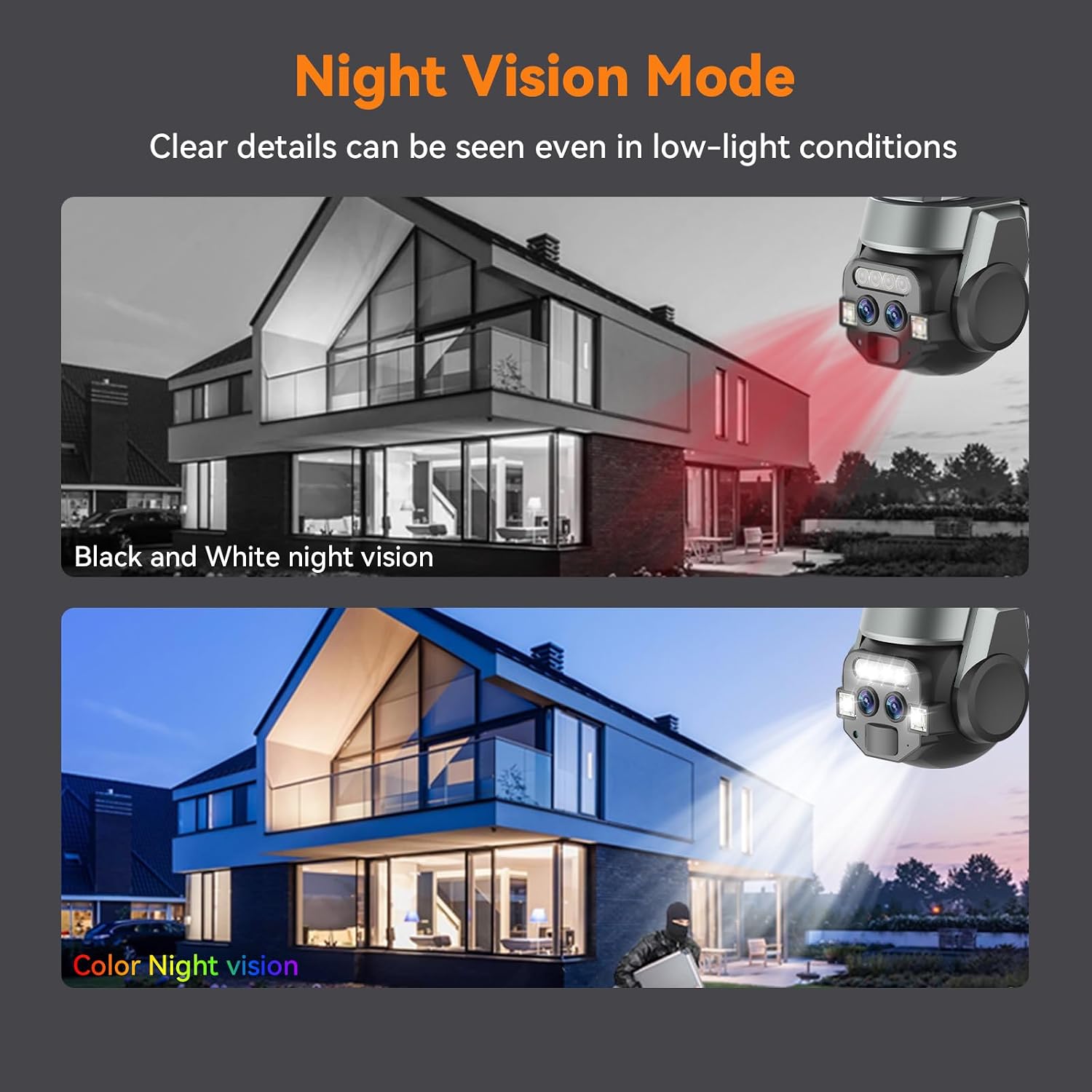
Image: Night Vision Mode. Clear details are visible in low-light conditions using either black and white or color night vision.
4.4 Intelligent Motion Detection and Auto Tracking
The camera can detect human shapes and automatically track their movement within its field of view. When motion is detected, the camera sends real-time alerts to your phone via the app.

Image: Intelligent Motion Detection. Features include human detection, auto tracking, and app push notifications.
4.5 Two-Way Audio
The built-in microphone and speaker allow for real-time two-way communication. You can speak through the app and hear responses from the camera's location.

Image: Two-Way Audio in Real Time. Easily communicate through the camera via the Wi-Fi connection.
4.6 Recording and Storage
The camera supports two primary storage methods for recorded videos:
- Local Storage (SD Card): Insert a compatible microSD card (not included) into the camera's designated slot. The camera will record footage directly to the card.
- Cloud Storage: Subscribe to the optional cloud storage service through the app to securely back up your recordings online.

Image: Dual Storage Option. Recorded videos can be backed up to a memory card or cloud storage via the app.
4.7 Video Demonstration
Video: ACEMO Dual Lens 10X Zoom PTZ Camera. This video demonstrates the camera's dual lens functionality, 10X zoom, humanoid tracking, two-way voice intercom, and IP66 waterproof rating.
5. Maintenance
5.1 Cleaning the Camera
To ensure optimal performance, periodically clean the camera lens and housing. Use a soft, damp cloth to wipe away dust and dirt. Avoid using harsh chemicals or abrasive materials that could damage the lens or finish.
5.2 Firmware Updates
Regularly check the app for available firmware updates. Keeping your camera's firmware up-to-date ensures you have the latest features, security enhancements, and bug fixes. Follow the in-app instructions for updating firmware.
5.3 Storage Management
If using an SD card, periodically review and manage stored footage. You may need to format the SD card occasionally to maintain performance. For cloud storage, manage your subscription and stored videos through the app.
6. Troubleshooting
If you encounter issues with your ACEMO security camera, refer to the following common solutions:
- Camera Not Connecting to Wi-Fi:
- Ensure your Wi-Fi network is 2.4GHz. The camera does not support 5GHz Wi-Fi.
- Check that the camera is within range of your Wi-Fi router.
- Verify the Wi-Fi password entered in the app is correct.
- Try restarting your router and the camera.
- Rotation Issues (Pan/Tilt):
- Ensure there are no physical obstructions blocking the camera's movement.
- Check for firmware updates, as software glitches can affect motor control.
- If the issue persists, try resetting the camera to factory defaults.
- No Motion Detection Alerts:
- Verify that motion detection is enabled in the app settings.
- Check the sensitivity settings for motion detection.
- Ensure app notifications are enabled on your mobile device and for the CareCamPro app.
- Poor Image Quality:
- Clean the camera lens to remove any smudges or dirt.
- Ensure adequate lighting, especially for color night vision.
- Check your internet connection speed, as a slow connection can affect streaming quality.
- Camera Unresponsive:
- Unplug the camera from power, wait 10 seconds, and plug it back in.
- If the camera remains unresponsive, perform a factory reset (refer to the app or product documentation for specific instructions).
7. Specifications
| Feature | Detail |
|---|---|
| Brand | ACEMO |
| Model | B0CQNPWVB3 |
| Video Capture Resolution | 6 MP |
| International Protection Rating | IP66 |
| Number of IR LEDs | 6 |
| Alert Type | Motion Only |
| Video Capture Format | MPEG-4 |
| Number of Channels | 4 |
| Manufacturer | Shenzhen Mimai Technology Co., Ltd |
8. Warranty and Support
8.1 Warranty Information
ACEMO products typically come with a limited warranty. Please refer to the warranty card included in your product packaging or visit the official ACEMO website for detailed warranty terms and conditions. Keep your purchase receipt as proof of purchase for warranty claims.
8.2 Customer Support
For technical assistance, troubleshooting, or any product-related inquiries, please contact ACEMO customer support. Contact details can usually be found on the product packaging, the official ACEMO website, or within the CareCamPro app.
Online Resources:
- Visit the ACEMO Store on Amazon for product information and updates.
