
podofo 8Core 6G+128G Radio for Honda CRV 2007-2011
podofo 8Core 6G+128G Car Stereo User Manual
For Honda CRV 2007-2011 Models
1. Product Overview
This manual provides detailed instructions for the installation, operation, and maintenance of your new podofo 8Core 6G+128G Car Stereo. This advanced multimedia system is specifically designed for Honda CRV models manufactured between 2007 and 2011, offering a seamless upgrade to your vehicle's infotainment capabilities.
Equipped with an 8-Core CPU, 6GB RAM, and 128GB ROM, this unit ensures smooth performance for all your applications. The 9-inch 1280x720P IPS touchscreen provides a clear and vibrant display. Key features include Wireless CarPlay, Android Auto, Bluetooth 5.0, DSP audio processing with 46-band EQ, GPS navigation, RDS/FM radio, MirrorLink, and support for an AHD backup camera.

Image 1.1: The podofo 8Core 6G+128G Car Stereo unit, shown with the included AHD backup camera, external microphone, and icons indicating Wireless CarPlay and Android Auto compatibility.
2. Compatibility and Important Notes
This car stereo is designed to fit Honda CRV models from 2007 to 2011. Before installation, it is crucial to verify your vehicle's original car console configuration to ensure compatibility. Some original car consoles with a large GPS screen or B.O.S.E Audio system may require an additional wiring harness for proper integration.

Image 2.1: A visual guide illustrating various Honda CRV dashboard layouts, indicating which configurations are compatible ('Fit') and which are not ('Not Fit') with the stereo unit. Please compare your vehicle's dashboard to these examples.

Image 2.2: An important note advising users to confirm their original car system configuration, year, and central control map before purchasing to avoid installation incompatibility.
3. Setup and Installation
The podofo car stereo is designed for a plug-and-play installation in compatible Honda CRV models. The package includes all necessary components for a standard setup.
3.1 Package Contents
Before beginning installation, please verify that all items listed below are present in your package:
- Carplay Car Stereo Radio (Host Unit)
- Frame for Honda CRV 2007-2011
- Power Cable
- RCA Cable
- Rear Camera Input Cable
- AHD Backup Camera
- External Microphone
- USB Cable
- GPS Antenna
- Installation Tool
- User Manual

Image 3.1: A visual representation of the complete package contents, including the main unit, frame, various cables, backup camera, microphone, USB cable, GPS antenna, installation tool, and user manual.

Image 3.2: This image provides detailed dimensions of the car stereo unit and illustrates the various components included in the package, such as the power cable, user manual, RCA cable, microphone, USB cable, installation tool, GPS antenna, reverse line, and rear camera.
3.2 Installation Steps (General Guide)
While specific steps may vary slightly based on your vehicle's exact trim, the general installation process involves:
- Preparation: Disconnect the vehicle's battery. Carefully remove the original car stereo unit and trim panels using the provided installation tool.
- Wiring: Connect the new stereo's power cable, RCA cables, and other necessary wiring harnesses to the vehicle's existing connections. Ensure all connections are secure.
- GPS Antenna: Mount the GPS antenna in a location with a clear view of the sky, typically on the dashboard or under the windshield.
- Backup Camera: Install the AHD backup camera at the rear of the vehicle. Route the rear camera input cable to the stereo unit and connect it. Ensure the camera's power is connected to the reverse light circuit for automatic activation.
- External Microphone: Connect the external microphone and route it to a suitable location, such as near the sun visor, for optimal call quality.
- Mounting: Secure the new stereo unit within the dashboard opening using the provided frame.
- Testing: Reconnect the vehicle's battery. Turn on the ignition and test all functions of the stereo, including audio, touchscreen, GPS, Bluetooth, and backup camera.
- Final Assembly: Reinstall all trim panels.
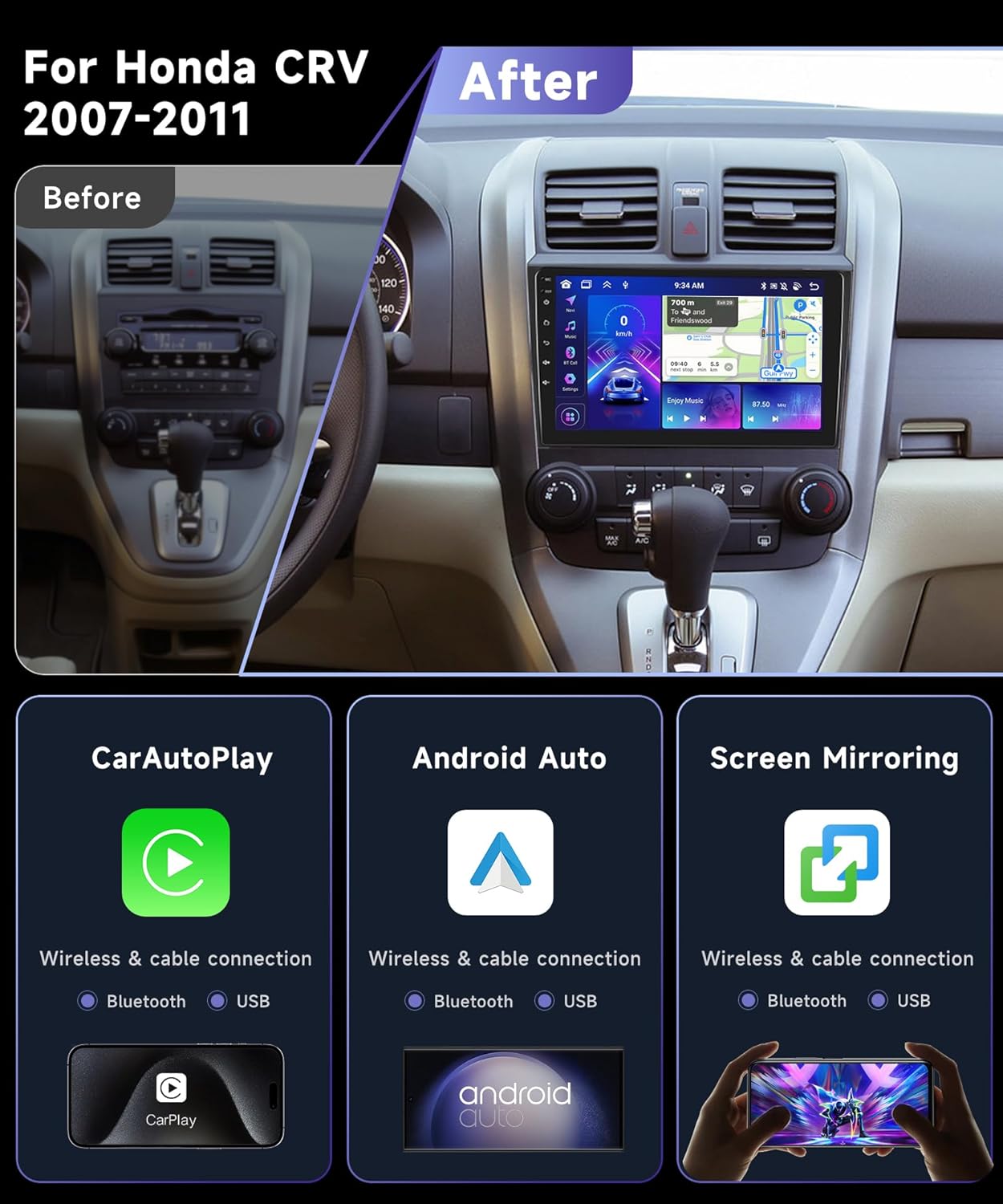
Image 3.3: A side-by-side comparison showing the original Honda CRV dashboard ('Before') and the dashboard after the installation of the new podofo car stereo ('After'), highlighting the integrated display.

Image 3.4: A detailed wiring diagram for the rear camera, showing connections to the car stereo unit and the vehicle's power supply (12V and ground) for proper operation.
4. Operating Instructions
4.1 System Overview and Display
The stereo runs on the latest Android Operating System, powered by an 8-Core CPU. The 9-inch IPS touchscreen features a 1280x720P resolution, providing clear visuals and responsive touch control. You can customize your interface with 59 different UI themes and arrange apps on the home page.

Image 4.1: An overview of the stereo's core specifications and features, including its Android operating system, memory configuration, processor type, and supported technologies like CarPlay, Android Auto, and DSP.

Image 4.2: This image details the high-definition IPS touchscreen, emphasizing its 9-inch size, 1280x720 resolution, support for 1080P video playback, and advanced features like Glass+Glass touch technology and a 2.5D curved screen.

Image 4.3: Examples of the 59 different user interface themes available, showcasing various layouts for FM radio, music playback, GPS navigation, and customizable app icons on the home screen.
4.2 Wireless CarPlay / Android Auto
Enjoy seamless integration with your smartphone using Wireless CarPlay and Android Auto. This feature allows you to access navigation, music, calls, and messages directly from the stereo's display without needing a USB connection. The system supports split-screen functionality, enabling simultaneous use of navigation and music playback.
- Connection: Ensure your phone's Bluetooth and Wi-Fi are enabled. On the stereo, navigate to the CarPlay/Android Auto application and follow the on-screen prompts to pair your device.
- Functions: Access apps like Waze, Google Maps, Spotify, iTunes, and more.
4.3 DSP Audio & 46-Band EQ
Elevate your in-car audio experience with advanced Digital Signal Processing (DSP) technology. The built-in 46-band Equalizer (EQ) allows for precise customization of sound output, enabling you to tailor the audio to your preferences and vehicle acoustics.
- Accessing EQ: Navigate to the 'DSP' or 'Equalizer' application on the stereo's main menu.
- Adjustments: Use the sliders to adjust frequencies across the 46 bands. Explore various preset audio modes or create and save your custom profiles.

Image 4.4: This image displays the DSP audio interface with a 36-band EQ, the Wi-Fi/Hotspot connectivity screen showing various app icons, the Bluetooth 5.0 call and music interface, and details about the rear camera input including waterproof, night vision, HD image, and wide angle capabilities.

Image 4.5: A visual representation of the DSP Sound feature, showing how sound is distributed within a car cabin and an example of the detailed equalizer interface for audio customization.
4.4 Bluetooth 5.0
The integrated Bluetooth 5.0 module provides stable and fast connections for hands-free calling and audio streaming. Pair your smartphone to make and receive calls, access your phonebook, and play music wirelessly.
- Pairing: Go to the 'Bluetooth' menu on the stereo. Enable Bluetooth on your phone and search for available devices. Select the stereo's name (e.g., 'podofo Car Stereo') and confirm the pairing code.
- Functions: Once paired, you can dial numbers, view call history, access contacts, and stream audio from your phone.

Image 4.6: This image illustrates the Bluetooth 5.0 functionality, including the interface for making and receiving calls, playing Bluetooth music, and accessing your phone's contacts.
4.5 RDS/FM Radio
Tune into your favorite radio stations with the built-in RDS/FM tuner. RDS (Radio Data System) provides additional information such as station name, song title, and traffic announcements where available.
- Tuning: Access the 'Radio' application. Use the scan function to find available stations or manually tune to a specific frequency.
- Presets: Save your preferred stations to the preset buttons for quick access.

Image 4.7: The FM/RDS Radio interface, showing frequency tuning, signal strength, and options to save favorite stations as presets.
4.6 MirrorLink
MirrorLink allows you to mirror your smartphone's screen directly onto the car stereo's display. This feature is compatible with both Android (up to Android 11.0) and iOS (up to iOS 13.4) devices, enabling you to access your phone's apps, videos, and content on the larger screen.
- Connection: Connect your smartphone via Wi-Fi or USB. Open the 'MirrorLink' application on the stereo and follow the instructions to establish the connection.

Image 4.8: A visual explanation of the MirrorLink function, demonstrating how content from both iOS and Android smartphones can be displayed on the car stereo's screen via Wi-Fi or USB connection.
4.7 GPS Navigation & WiFi
The stereo supports GPS navigation, allowing you to download and use offline map data. Connect to Wi-Fi or a mobile hotspot to access online navigation services, stream content, and download applications from the Google Play Store.
- Wi-Fi Connection: Go to 'Settings' > 'Network & Internet' > 'Wi-Fi' to connect to an available network or your phone's hotspot.
- Navigation: Use pre-installed navigation apps or download your preferred ones (e.g., Waze, Google Maps) from the Play Store.

Image 4.9: This image illustrates the GPS navigation interface, showing a map with route information, alongside various app icons for online services like YouTube, Spotify, and TikTok, accessible via Wi-Fi.
4.8 Backup Camera / SWC / Full RCA Output / Split Screen
- Backup Camera: The included AHD rear camera provides clear visuals for reversing, automatically activating when the vehicle is put into reverse gear.
- Steering Wheel Controls (SWC): Connect your vehicle's steering wheel controls to the stereo to manage calls, adjust volume, and change music tracks safely without taking your hands off the wheel.
- Full RCA Output: The stereo supports full RCA video output, allowing you to connect external monitors, such as headrest screens, for rear-seat entertainment.
- Split Screen: Utilize the split-screen function to run two applications simultaneously on the display, for example, navigation on one side and music on the other.
5. Maintenance
To ensure the longevity and optimal performance of your podofo car stereo, follow these general maintenance guidelines:
- Cleaning: Use a soft, dry, lint-free cloth to clean the touchscreen and unit exterior. For stubborn smudges, slightly dampen the cloth with water or a screen-safe cleaner. Avoid abrasive materials or harsh chemicals.
- Temperature: Avoid exposing the unit to extreme temperatures, both hot and cold, for extended periods.
- Software Updates: Periodically check for and install any available software updates to ensure the system runs efficiently and has the latest features and security patches.
- Cable Connections: Occasionally check all cable connections to ensure they are secure and free from damage.
6. Troubleshooting
This section addresses common issues you might encounter with your podofo car stereo. If you experience a problem not listed here, please refer to the support section.
6.1 Common Issues and Solutions
| Problem | Possible Cause | Solution |
|---|---|---|
| No Power / Unit Not Turning On | Loose power connection, blown fuse, vehicle battery issue. | Check all power cable connections. Inspect vehicle fuses and replace if necessary. Ensure vehicle battery is charged. |
| No Sound Output | Speaker wires disconnected, volume too low, incorrect audio source selected, DSP settings. | Verify speaker wire connections. Increase volume. Select correct audio source (e.g., FM, Bluetooth). Check DSP/EQ settings. |
| Backup Camera Not Displaying / Triple Image Issue | Incorrect camera input format, loose camera connection, camera power issue. | Ensure camera is properly connected and receiving power. If experiencing a 'triple image' or distorted view, navigate to Car Settings > Factory Settings (PIN: 8888) > Protocol Parameter Settings > Reversing Image Format and switch the format from 'AHD' to 'NTSC/PAL'. |
| Wireless CarPlay/Android Auto Connectivity Issues | Bluetooth/Wi-Fi interference, incorrect pairing, app crash. | Ensure phone's Bluetooth and Wi-Fi are on. Forget and re-pair the device. Restart both the stereo and your phone. If the Zlink app crashes, try restarting it or the stereo. |
| GPS Not Working / Inaccurate | GPS antenna not properly installed, no internet connection for online maps, outdated map data. | Ensure GPS antenna has a clear view of the sky. Connect to Wi-Fi for online maps. Download offline map data if needed. |
| Touchscreen Unresponsive | System freeze, temporary software glitch. | Perform a soft reset (refer to the device's reset button location, usually a small pinhole). If issue persists, disconnect vehicle battery for a few minutes and reconnect. |
7. Specifications
Detailed technical specifications for the podofo 8Core 6G+128G Car Stereo:
| Feature | Specification |
|---|---|
| Operating System | Android OS |
| CPU | 8-Core Processor |
| RAM | 6GB DDR4 |
| ROM | 128GB Solid State |
| Display Size | 9 Inches |
| Resolution | 1280x720P IPS Touchscreen |
| Bluetooth Version | 5.0 |
| Connectivity Technology | Bluetooth, USB, Wi-Fi (5Ghz WiFi supported) |
| Special Features | Wireless CarPlay, Android Auto, Built-in DSP (46-band EQ), MirrorLink, AHD Backup Camera Support, RDS/FM Radio, Split Screen, Full RCA Output |
| Compatible Devices | Smartphone |
| Audio Output Mode | APE/FLAC/WAV/MP3/WMA, etc. |
| Surround Sound Channel Configuration | 5.1 |
| Item Weight | 2.77 pounds |
| Package Dimensions | 10.31 x 6.73 x 4.17 inches |
8. Warranty and Support
podofo stands behind the quality of its products. Your car stereo comes with a comprehensive warranty and dedicated customer support.
- Warranty: The product includes a 2-Year Warranty on both labor and parts.
- Returns: Enjoy a 60-Day no-worry return period.
- Customer Support: For any inquiries or technical assistance, podofo offers quick replies within 18 hours and lifetime after-sales technical support.

Image 8.1: This image highlights podofo's commitment to customer satisfaction, detailing their 18-hour quick reply time, 60-day return policy, 24-month replacement availability, and lifetime after-sales technical support.
For further assistance, please visit the official podofo store or contact their customer service directly via the contact information provided on their website or product packaging.
Related Documents - 8Core 6G+128G Radio for Honda CRV 2007-2011
 |
CarPlay and Android Auto Car Stereo User Manual Comprehensive user manual for a car stereo system supporting Apple CarPlay, Android Auto, MirrorLink, Bluetooth, and various media playback options. Includes installation, operation, and troubleshooting guides. |
 |
Podofo Car Stereo User Guide: Features and Operation Comprehensive user guide for the Podofo Car Stereo, detailing features like Apple CarPlay, Android Auto, Bluetooth, FM radio, USB/SD playback, and phone linking. Includes operation instructions and troubleshooting tips. |
 |
Telescopic Screen CarPlay Manual - Installation and Troubleshooting Guide Comprehensive manual for the Telescopic Screen CarPlay MP5 Player, covering installation, features, functions, and troubleshooting for seamless integration with your vehicle and smartphone. |
 |
Honda Accord 7 (2003-2007) Android Car Stereo User Manual Comprehensive user manual for the Android car stereo system designed for Honda Accord 7th generation (2003-2007), covering installation, wiring, features like GPS, Bluetooth, voice control, and troubleshooting. |
 |
Android Car Stereo with Apple CarPlay & Android Auto User Manual Comprehensive user manual for the Android Car Stereo, detailing installation, wiring, features like Apple CarPlay and Android Auto, troubleshooting, and specifications. Learn how to connect your smartphone, use navigation, and manage settings for an enhanced driving experience. |
 |
Istruzioni per Android Car Media Player: Guida all'Installazione e Uso Guida completa alle istruzioni, installazione, cablaggio e funzioni del lettore multimediale per auto Android. Include dettagli su Carplay, Android Auto, navigazione GPS e connettività. |