
Amazon Fire TV Stick HD
Amazon Fire TV Stick HD User Manual
Model: Fire TV Stick HD
Introduction
Welcome to the user manual for your new Amazon Fire TV Stick HD. This guide provides detailed instructions on how to set up, operate, maintain, and troubleshoot your device, ensuring you get the most out of its streaming and smart home capabilities.

Image: The Amazon Fire TV Stick HD and its accompanying Alexa Voice Remote. The stick is compact and plugs directly into an HDMI port, while the remote features dedicated buttons for navigation, voice control, and popular streaming services.
What's in the Box
Upon unboxing your Fire TV Stick HD, you should find the following components:
- Fire TV Stick HD device
- Alexa Voice Remote
- Power cable and power adapter
- HDMI extender
- 2 AAA batteries (for the remote)
- Quick Start Guide

Image: The retail packaging for the Amazon Fire TV Stick HD, showing the device, remote, and box. This illustrates all the items included in the product package.
Setup Guide
Follow these steps to set up your Fire TV Stick HD:
- Connect the Fire TV Stick: Plug the Fire TV Stick HD directly into an available HDMI port on your high-definition television. If space is limited or for better Wi-Fi reception, use the included HDMI extender.
- Power On: Connect the power cable to the Fire TV Stick and then plug the power adapter into a wall outlet.
- Insert Batteries into Remote: Open the battery compartment on the back of the Alexa Voice Remote and insert the two AAA batteries, ensuring correct polarity.
- Select HDMI Input: Turn on your TV and select the correct HDMI input source where the Fire TV Stick is connected.
- Follow On-Screen Instructions: The Fire TV Stick will guide you through the initial setup process, including connecting to your Wi-Fi network and logging into your Amazon account.
- Pair Remote (if necessary): If your remote does not automatically pair, press and hold the Home button on the remote for 10 seconds until it pairs with your Fire TV Stick.
Operating Your Fire TV Stick HD
Voice Control with Alexa
The Alexa Voice Remote allows you to control your Fire TV Stick using voice commands. Press and hold the microphone button on the remote, then speak your command. You can search for content, launch apps, control playback, and more.

Image: The Alexa Voice Remote, highlighting its voice control button and dedicated app buttons for services like Prime Video and Netflix. This remote simplifies content discovery and access.
Streaming Content
Access a vast library of movies, TV shows, and live TV from various streaming services. The Fire TV Stick HD supports Full HD (1080p) resolution for a clear viewing experience.
- Movies & TV Shows: Stream from popular services like Netflix, Prime Video, Disney+, Vix, and many more. Subscription fees may apply for certain services.
- Free Content: Enjoy over 50,000 free movies and TV episodes from ad-supported streaming apps such as Vix, Tubi, and Pluto TV.
- Music: Listen to millions of songs from Amazon Music, Spotify, Pandora, and other music streaming platforms.
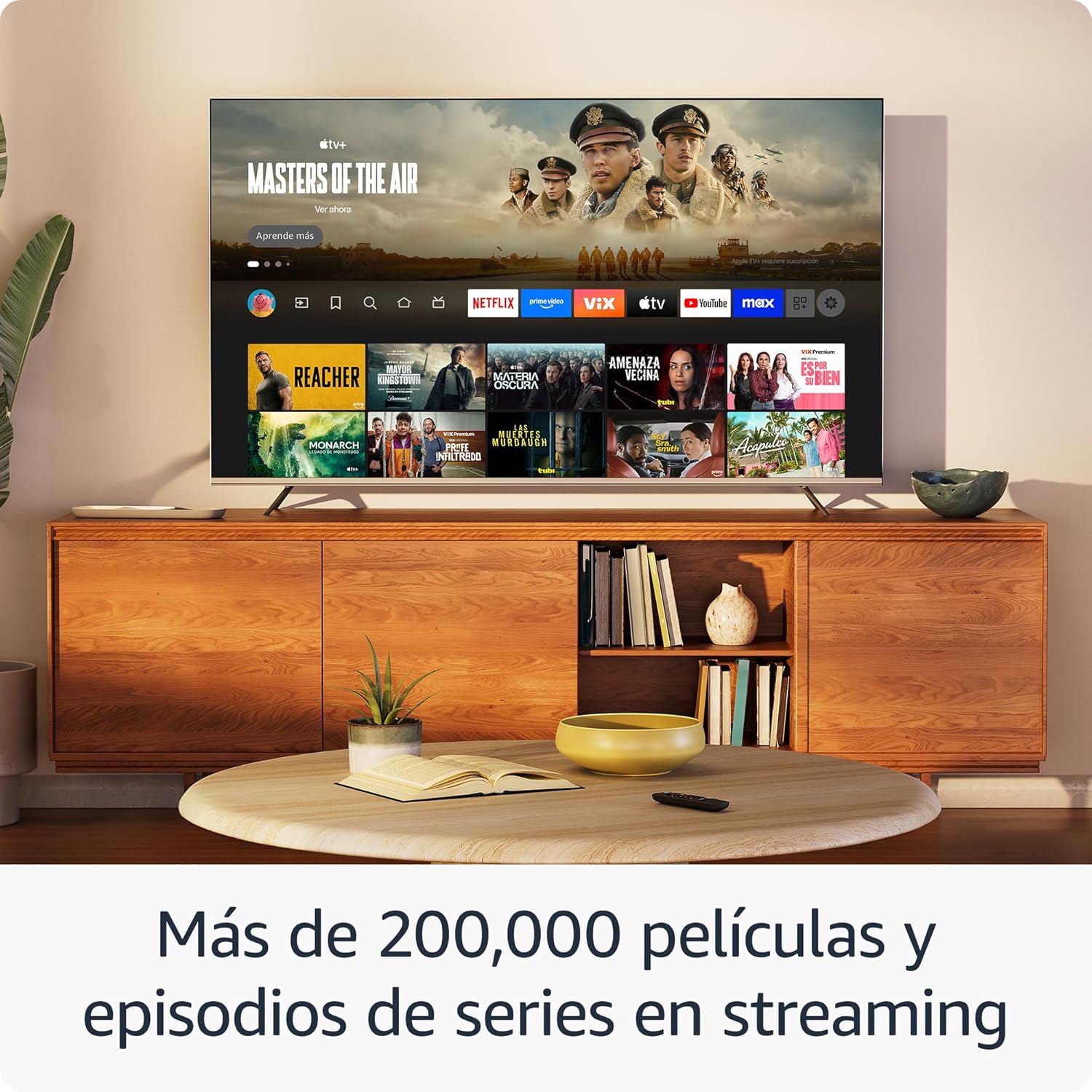
Image: A television screen showcasing the Fire TV interface with various streaming applications like Netflix, Prime Video, and Disney+. This demonstrates the wide range of entertainment options available.

Image: A visual comparison illustrating the difference in picture quality between Standard Definition (SD), High Definition (HD), and 4K resolution. The Fire TV Stick HD delivers content in crisp HD.
Smart Home Control
Use your Fire TV Stick HD and Alexa Voice Remote to control compatible smart home devices. You can ask Alexa to check the weather, dim lights, view live camera feeds, and more.

Image: A television screen displaying the smart home control dashboard, showing icons for thermostat, smart camera, and light. This illustrates how the Fire TV Stick can integrate with and manage smart home devices.
Maintenance
To ensure the longevity and optimal performance of your Fire TV Stick HD:
- Cleaning: Gently wipe the device and remote with a soft, dry, lint-free cloth. Avoid using liquid cleaners or aerosols.
- Environment: Keep the device in a well-ventilated area, away from direct sunlight, heat sources, and moisture.
- Software Updates: The device automatically receives software security updates. Ensure your device is connected to the internet to receive these updates.
Troubleshooting
If you encounter issues with your Fire TV Stick HD, try the following solutions:
- No Power/No Display:
- Ensure the power cable is securely connected to both the Fire TV Stick and the power adapter, and the adapter is plugged into a working wall outlet.
- Verify your TV is on the correct HDMI input channel.
- Try a different HDMI port on your TV.
- Remote Not Responding:
- Replace the AAA batteries in the remote.
- Re-pair the remote by pressing and holding the Home button for 10 seconds.
- Ensure there are no obstructions between the remote and the Fire TV Stick.
- Wi-Fi Connectivity Issues:
- Restart your Wi-Fi router and modem.
- Go to Settings > Network on your Fire TV Stick and try reconnecting to your Wi-Fi network.
- Ensure your Fire TV Stick is within range of your Wi-Fi router.
- Partial Incompatibility with Roku TVs (as reported by some users):
- Some Roku TV models may not automatically switch to the Fire TV Stick's HDMI input upon power-on. You may need to manually select the HDMI input using your Roku TV's remote.
Specifications
| Feature | Specification |
|---|---|
| Dimensions (Stick) | 86 x 30 x 13 mm (3.4” x 1.2” x 0.5”) |
| Weight (Stick) | 32.0 g (1.1 oz) |
| Processor | Quad-Core 1.7 GHz |
| Internal Storage | 8 GB |
| Wi-Fi Connectivity | Dual-band, dual-antenna Wi-Fi (MIMO) compatible with 802.11a/b/g/n/ac |
| Bluetooth | Bluetooth 5.0 and Bluetooth Low Energy |
| Voice Compatibility | Alexa Voice Remote (included) or free Fire TV app |
| IR Device Control | Controls TV, soundbar, AV receiver (power, volume) via included Alexa Voice Remote |
| Cloud Storage | Free cloud storage for digital content purchased from Amazon |
| Ports | HDMI output; Micro USB for power only |
| Audio Support | Dolby encoded audio (AC-3, E-AC-3) HDMI pass-through |
| Video Formats | HDR10, HDR10+, HLG, H.265, H.264, Vp9 |
| Output Resolution | 1080p and 720p up to 60 fps |
| System Requirements | HD TV with HDMI input, Wi-Fi internet connection, power outlet |
| Compatible TVs | HD TVs with HDMI and 1080p or 720p at 60/50 Hz capability |
| Accessibility Features | VoiceView screen reader, Closed Captions (not for all content) |
| Remote Dimensions | 38.68 x 141.3 x 17.6 mm |
| Remote Weight | 45 g (without batteries) |
| Remote Batteries | 2 AAA batteries (included) |
| Remote Compatibility | Fire TV Stick HD, Fire TV Stick 4K (1st Gen and later) |
Warranty and Support
Your Amazon Fire TV Stick HD comes with a 1-year limited warranty and included service. For detailed terms and conditions regarding the use of your Fire TV Stick, please refer to the official Amazon website.
Software Security Updates: This device is guaranteed to receive software security updates for at least four years after it is no longer available for purchase as a new unit on Amazon websites. For more information on your specific device's updates, you can check your Amazon account's "Manage Your Content and Devices" section.
For further assistance or support, please visit the official Amazon support pages or contact Amazon customer service.
Related documentsFire TV Stick HD


Ask a question about this manual
Ask about setup, troubleshooting, compatibility, parts, safety, or missing instructions. Manuals+ will review the question and use this page’s manual context to help answer it.