
1. Introduction
Thank you for purchasing the Setty FOREVER P350 Retro Portable FM Radio and Bluetooth Speaker. This device combines classic 1950s vintage aesthetics with modern audio technology, offering FM radio, Bluetooth connectivity, USB, and SD card playback. This manual provides essential information for safe operation, setup, and maintenance of your device. Please read it thoroughly before use and retain it for future reference.
2. Safety Information
- Do not expose the device to extreme temperatures, direct sunlight, or high humidity.
- Avoid dropping or subjecting the device to strong impacts.
- Do not disassemble or attempt to repair the device yourself. Refer all servicing to qualified personnel.
- Keep the device away from water and other liquids.
- Use only the specified charging voltage and current.
- Dispose of batteries and electronic components responsibly according to local regulations.
3. Package Contents
Please check the package for the following items:
- Setty FOREVER P350 Retro Portable FM Radio and Bluetooth Speaker
- User Manual (this document)
- Lithium-ion battery (pre-installed or included separately)
Note: Charging cable may not be included and might need to be purchased separately.
4. Product Overview
Familiarize yourself with the various parts and controls of your Setty FOREVER P350 radio.
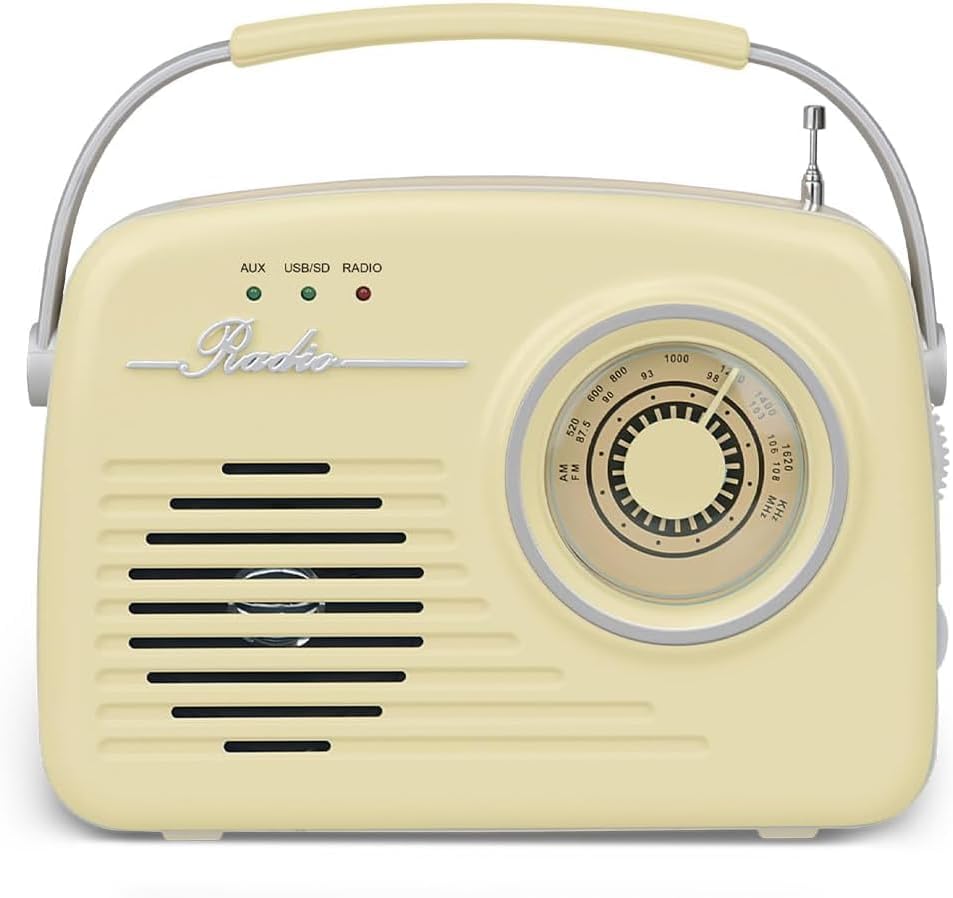
Figure 4.1: Front View - Shows the speaker grille, 'Radio' emblem, and the main tuning dial.

Figure 4.2: Side View - Displays the various input ports and control buttons.
Controls and Ports:
- Tuning Dial: Used to select FM radio frequencies.
- Volume Knob: Adjusts the audio output level.
- FM Antenna: Extendable antenna for improved FM radio reception.
- Headphone Jack: For private listening with 3.5mm headphones.
- AUX IN Port: Connect external audio devices using a 3.5mm audio cable.
- SD CARD Slot: Insert an SD memory card for MP3 playback.
- USB Port: Insert a USB flash drive for MP3 playback. May also serve as a charging port.
- PWR Button: Power On/Off button.
- PLAY/PAUSE Button: Controls playback for USB/SD and Bluetooth modes.
- STOP Button: Stops playback for USB/SD mode.
- PREV Button: Skips to the previous track/station.
- NEXT Button: Skips to the next track/station.
- FUNC (Function) Button: Cycles through different modes (FM Radio, Bluetooth, USB/SD, AUX).
- Indicator Lights (AUX, USB/SD, RADIO): Indicate the currently selected operating mode.
5. Setup
5.1. Charging the Battery
- Ensure the radio is powered off.
- Connect a compatible USB charging cable (not included) to the USB port on the side of the radio.
- Connect the other end of the USB cable to a suitable USB power adapter (e.g., 5V/1A) or a computer's USB port.
- The charging indicator (if available, refer to product specific LED behavior) will illuminate during charging and turn off or change color when fully charged.
- A full charge typically takes approximately 3-4 hours.
5.2. Powering On/Off
- To power on the radio, press and hold the PWR button until the display or indicator lights activate.
- To power off the radio, press and hold the PWR button again until the display or indicator lights turn off.
6. Operating Instructions
6.1. Selecting Modes
Press the FUNC button repeatedly to cycle through the available modes: FM Radio, Bluetooth, USB/SD, and AUX. The corresponding indicator light (RADIO, USB/SD, AUX) will illuminate to show the active mode.
6.2. FM Radio Mode
- Switch to FM Radio mode using the FUNC button. The 'RADIO' indicator light will turn on.
- Extend the FM antenna fully for optimal reception.
- Rotate the Tuning Dial to scan for available FM radio stations.
- Adjust the Volume Knob to your desired listening level.
6.3. Bluetooth Mode
- Switch to Bluetooth mode using the FUNC button. The radio will enter pairing mode, indicated by a flashing Bluetooth icon on the display (if applicable) or an audible prompt.
- On your mobile device (smartphone, tablet, etc.), enable Bluetooth and search for available devices.
- Select "P350" or a similar name from the list of found devices to pair.
- Once paired, the radio will confirm with an audible sound or a solid Bluetooth indicator.
- You can now play audio from your connected device through the radio. Use the PLAY/PAUSE, PREV, and NEXT buttons on the radio or your device to control playback.
6.4. USB/SD Card Playback
- Insert a USB flash drive into the USB Port or an SD card into the SD CARD Slot. Ensure the media contains MP3 audio files.
- Switch to USB/SD mode using the FUNC button. The 'USB/SD' indicator light will turn on, and playback should start automatically.
- Use the PLAY/PAUSE, STOP, PREV, and NEXT buttons to control playback.
6.5. AUX Input Mode
- Connect one end of a 3.5mm audio cable (not included) to the AUX IN Port on the radio.
- Connect the other end of the audio cable to the headphone jack or audio output of your external device (e.g., MP3 player, smartphone).
- Switch to AUX mode using the FUNC button. The 'AUX' indicator light will turn on.
- Play audio from your external device. Volume can be controlled via the radio's Volume Knob and your external device.
7. Maintenance
- Cleaning: Use a soft, dry cloth to clean the exterior of the radio. Do not use abrasive cleaners or solvents.
- Storage: When not in use for extended periods, store the radio in a cool, dry place, away from direct sunlight and extreme temperatures.
- Battery Care: If the radio will not be used for a long time, charge the battery at least once every three months to maintain its lifespan.
8. Troubleshooting
| Problem | Possible Cause | Solution |
|---|---|---|
| No power | Battery is depleted; Power button not pressed correctly. | Charge the battery; Press and hold the PWR button firmly. |
| No sound | Volume is too low; Incorrect mode selected; Device not connected properly (AUX/Bluetooth). | Increase volume; Ensure correct mode is selected; Reconnect AUX cable or re-pair Bluetooth device. |
| Poor FM reception | Antenna not extended; Weak signal area. | Extend the FM antenna fully; Try repositioning the radio. |
| Bluetooth not pairing | Radio not in pairing mode; Device too far; Already connected to another device. | Ensure radio is in Bluetooth pairing mode; Move device closer; Disconnect from other devices and try again. |
| USB/SD playback issues | Incorrect file format; Corrupted media; Media not inserted correctly. | Ensure files are MP3 format; Try different USB/SD media; Reinsert media firmly. |
9. Specifications
- Brand: FOREVER
- Model: P350
- Tuner Technology: FM
- Connectivity: Wireless (Bluetooth), Wired (AUX, USB, SD)
- Compatible Devices: MP3 Player, Bluetooth-enabled devices
- Power Source: Battery Powered (Lithium-ion battery included)
- Display Type: LCD (if applicable)
- Material: Plastic
- Dimensions (L x W x H): 5 x 18 x 15 cm
- Weight: 670 g
- Special Features: Vintage 50s-inspired design, decorative element, practical handle
10. Warranty and Support
This product is covered by the standard manufacturer's warranty. For detailed warranty terms and conditions, please refer to the documentation provided at the time of purchase or contact your retailer.
For technical support, troubleshooting assistance, or inquiries about replacement parts, please contact the FOREVER customer service department or your local distributor. Contact information can typically be found on the product packaging or the brand's official website.