
1. Introduction
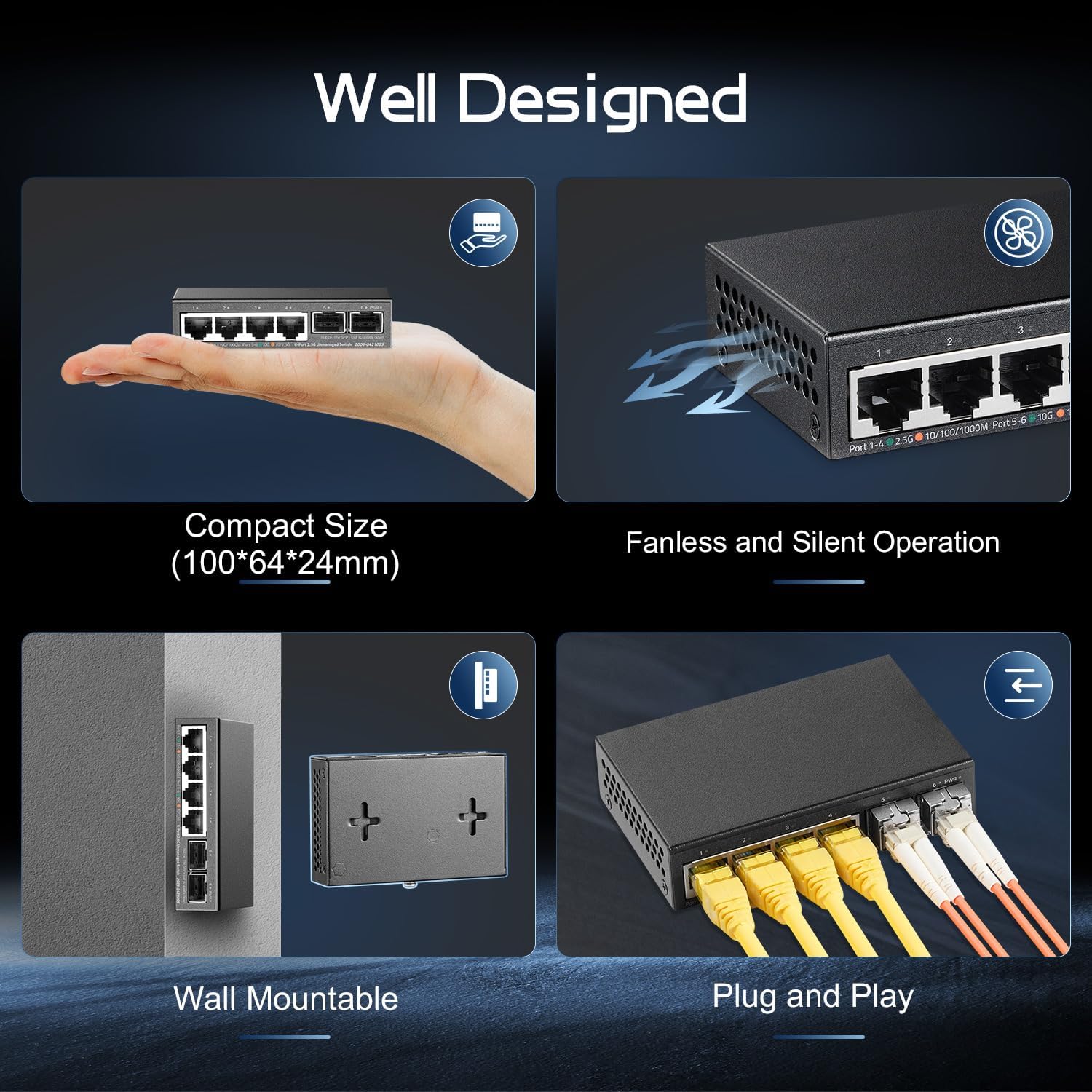
This manual provides instructions for the Binardat 4-Port 2.5G Unmanaged Network Switch with 2x10G SFP+ ports, model Mini 4x2.5G. This device is designed to expand network connectivity, offering high-speed data transfer for various applications including home entertainment, gaming, NAS, and WiFi 6 access points. It features a compact, fanless design and supports port-based VLAN functionality.
2. Product Features
- High-Speed Ports: 4 x 2.5 Gigabit Ethernet ports (compatible with 100Mbps/1Gbps) and 2 x 10G SFP+ slots (compatible with 1G/2.5G/10G optical modules, not included by default).
- Switching Capacity: 60G switching capacity for efficient data handling.
- Port VLAN Support: Features a DIP switch to enable port VLAN function, isolating ports 1-4 from each other while allowing communication with uplinked ports 5 and 6. This reduces broadcast storms and enhances network security.
- Compact Design: Ultra-mini size with a durable metal case, suitable for desktop placement or wall mounting.
- Plug and Play: Unmanaged switch requiring no configuration. Simply connect the power cord and Ethernet cables.
- Status Indicators: Power and port LED lights clearly display working status and port rate.
- Silent Operation: Fanless design ensures low energy consumption and quiet operation, ideal for home and office environments.

3. Package Contents
The Binardat Mini 4x2.5G Network Switch package typically includes:
- 1 x Binardat 4-Port 2.5G Unmanaged Switch with 2x10G SFP+
- 1 x Power Adapter (12V/1.0A)
- 1 x User Manual (this document)

4. Setup Instructions
The Binardat Mini 4x2.5G switch is designed for plug-and-play operation, requiring minimal setup.
- Power Connection: Connect the included 12V/1.0A power adapter to the DC input port on the rear panel of the switch and then to a power outlet. The Power LED (PWR) on the front panel will illuminate, indicating the device is powered on.
- Ethernet Connections:
- Connect your network devices (e.g., computers, NAS, routers, WiFi 6 APs) to the 2.5G Ethernet ports (Port 1-4) using standard Ethernet cables (Cat5e or better recommended for optimal performance).
- For higher speed uplinks or connections to other 10G devices, insert compatible 1G/2.5G/10G SFP+ optical modules (not included) into the SFP+ slots (Port 5-6) and connect appropriate fiber optic cables.
- Verify Connectivity: Once devices are connected, the corresponding port LED indicators will light up, showing active connections and data transfer rates.

5. Operation
The Binardat Mini 4x2.5G is an unmanaged switch, meaning it operates automatically without requiring user configuration for basic network functionality.
5.1 LED Indicators
| Indicator | Status | Description |
|---|---|---|
| PWR (Power) | Green | The switch is powered on. |
| Port 1-4 (RJ45) | Orange | Active link at 100Mbps/1Gbps. |
| Port 1-4 (RJ45) | Green | Active link at 2.5Gbps. |
| Port 5-6 (SFP+) | Orange | Active link at 1G/2.5G. |
| Port 5-6 (SFP+) | Green | Active link at 10Gbps. |
5.2 Auto-Negotiation
The switch automatically detects the speed and duplex mode of connected devices and adjusts its settings accordingly. This ensures optimal performance without manual configuration.
6. Port-Based VLAN Configuration
The switch includes a DIP switch on the rear panel to enable or disable port-based VLAN functionality.
- Default Mode (DIP switch to the Right): All ports (1-6) can communicate with each other. This is the standard operating mode for a typical unmanaged switch.
- VLAN Mode (DIP switch to the Left): When enabled, ports 1-4 are isolated from each other. Each of these ports can only communicate with ports 5 and 6 (the SFP+ uplink ports). This configuration helps to reduce broadcast storms and enhance network security by segmenting devices connected to ports 1-4.
To change the VLAN mode, ensure the switch is powered off, then adjust the DIP switch to the desired position. Power on the switch after making the change.

7. Maintenance
The Binardat Mini 4x2.5G switch is designed for reliable, maintenance-free operation.
- Cleaning: Use a soft, dry cloth to clean the exterior of the device. Do not use liquid or aerosol cleaners.
- Ventilation: Ensure the device is placed in a well-ventilated area to prevent overheating, although its fanless design minimizes heat generation.
- Firmware: As an unmanaged switch, firmware updates are generally not required or available for user installation.
8. Troubleshooting
If you encounter issues with your Binardat network switch, refer to the following common troubleshooting steps:
- No Power:
- Ensure the power adapter is securely connected to the switch and a working power outlet.
- Verify the power outlet is functional by plugging in another device.
- Check if the Power LED (PWR) is illuminated.
- No Link/Connectivity:
- Ensure Ethernet cables are securely connected to both the switch port and the network device.
- Verify that the connected device is powered on and functioning correctly.
- Check the corresponding port LED indicator on the switch. If it's off, there might be no link.
- Try using a different Ethernet cable or connecting to a different port on the switch.
- Ensure the cable type is appropriate (Cat5e or better for 2.5G/10G speeds).
- If using SFP+ ports, ensure the SFP+ module is correctly inserted and compatible, and the fiber cable is intact.
- Slow Speed:
- Ensure all connected devices (NICs, cables, routers) support 2.5G or 10G speeds.
- Use Cat5e or higher-rated Ethernet cables for 2.5G connections, and appropriate fiber cables for SFP+ 10G connections.
- Check the color of the port LED indicators to confirm the detected link speed (Green for 2.5G/10G, Orange for 100Mbps/1Gbps).
- Network Segmentation Issues (VLAN Mode):
- If devices on ports 1-4 cannot communicate with each other, check the DIP switch position. If it's in VLAN mode (Left), this is expected behavior.
- To allow full communication between all ports, switch the DIP switch to Default mode (Right).
9. Specifications
| Feature | Detail |
|---|---|
| Model | Mini 4x2.5G |
| Ports | 4 x 2.5G RJ45, 2 x 10G SFP+ |
| Data Transfer Rate | 2500 Megabits Per Second (2.5Gbps) per RJ45 port, 10Gbps per SFP+ port |
| Switching Capacity | 60 Gbps |
| VLAN Support | Port-based VLAN via DIP switch |
| Power Input | 12V DC |
| Case Material | Metal |
| Cooling | Fanless |
| Dimensions | Approximately 15.01 x 9.91 x 9.4 cm |
| Weight | Approximately 0.36 Kilograms |
| Operating Temperature | Up to 40°C |
| Compatible Devices | Laptop, Gaming PC, NAS, Server, WiFi 6 AP, and other devices with Ethernet ports supporting 2.5G or 10G data transfer rates. |
10. Warranty and Support
For warranty information and technical support, please contact Binardat customer service.
- Manufacturer: Binardat
- Support Email: support@binardat.com
- Return Policy: Refer to your purchase retailer's return policy for details (e.g., 30-day refund/replacement).