
Introduction
This manual provides comprehensive instructions for the assembly, operation, and maintenance of your TUTOTAK 2-Tier Rolling Printer Stand (Model PS01BB001). Please read these instructions carefully before assembly and use to ensure proper function and longevity of your product.
Product Features
- 2-Tier Design: Spacious top tabletop and bottom shelf provide ample storage for printers, paper, and other office supplies.
- Rolling or Fixed Functionality: Equipped with four 360-degree swivel wheels for easy mobility. Two wheels are lockable to ensure stability when needed.
- Integrated Power Outlets & USB Ports: Features built-in power outlets (120V/12A) and USB ports (5V/2A) for convenient charging and power access, reducing cable clutter.
- Space-Saving: Designed to fit under most desks, freeing up valuable workspace.
- Durable Construction: Made from engineered wood with a sturdy frame, capable of securely supporting items.
- Multipurpose Use: Versatile design allows use as a printer table, storage shelf, or utility cart in various settings such as offices, kitchens, bedrooms, and living rooms.
Specifications
| Brand | TUTOTAK |
| Model | PS01BB001 |
| Color | Brown |
| Material | Engineered Wood |
| Dimensions (L x W x H) | 15.7 x 11.8 x 15.4 inches |
| Power Outlets | 1 AC Outlet (120V/12A) |
| USB Ports | 2 USB Ports (5V/2A) |
| Power Cord Length | 4.9 feet (approx. 59 inches) |
| Weight Capacity (Top Shelf) | 44 lbs (approx.) |
| Mounting Type | Tabletop |
| Compatible Devices | Printers, office equipment |
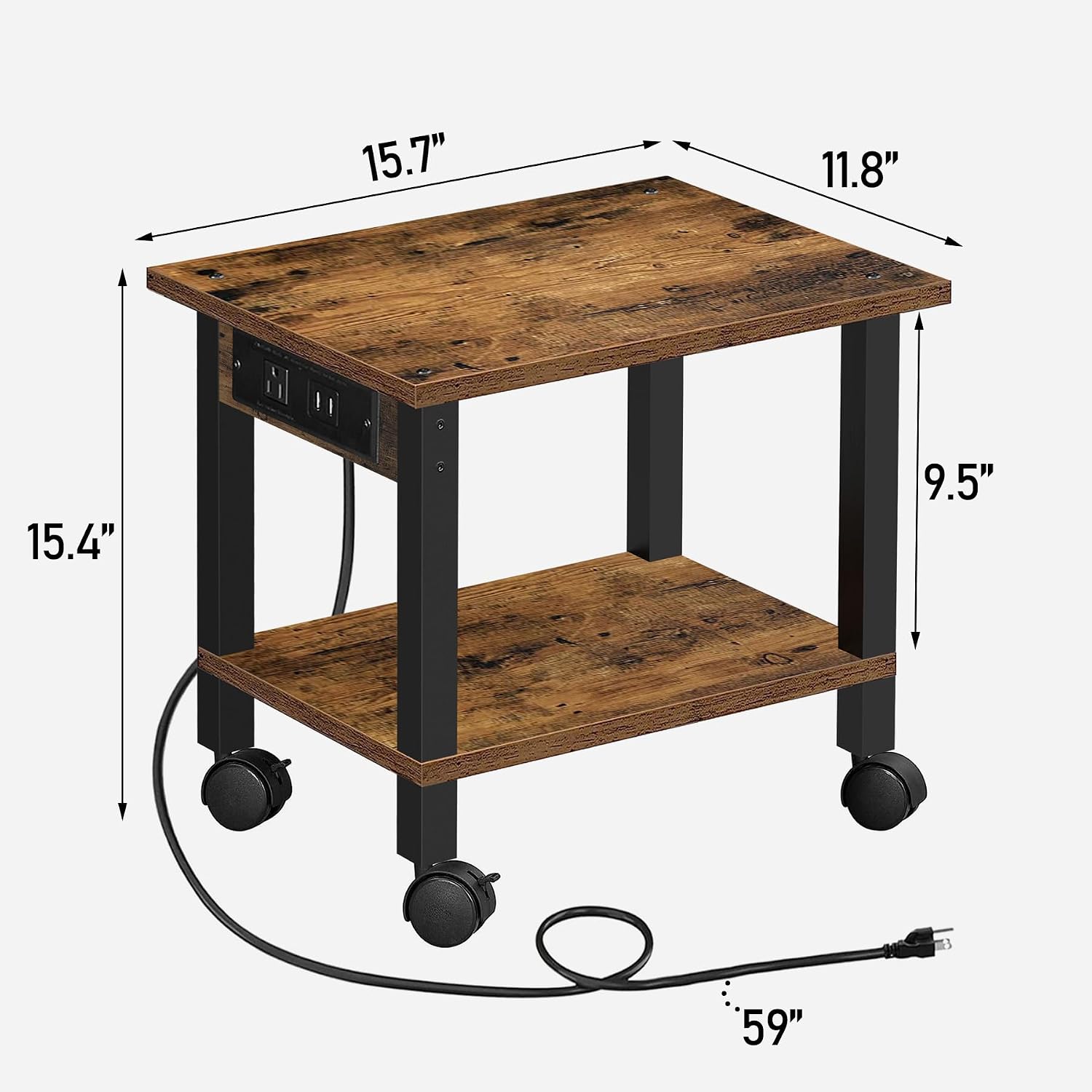
Figure 1: Product Dimensions and Power Cord Length.
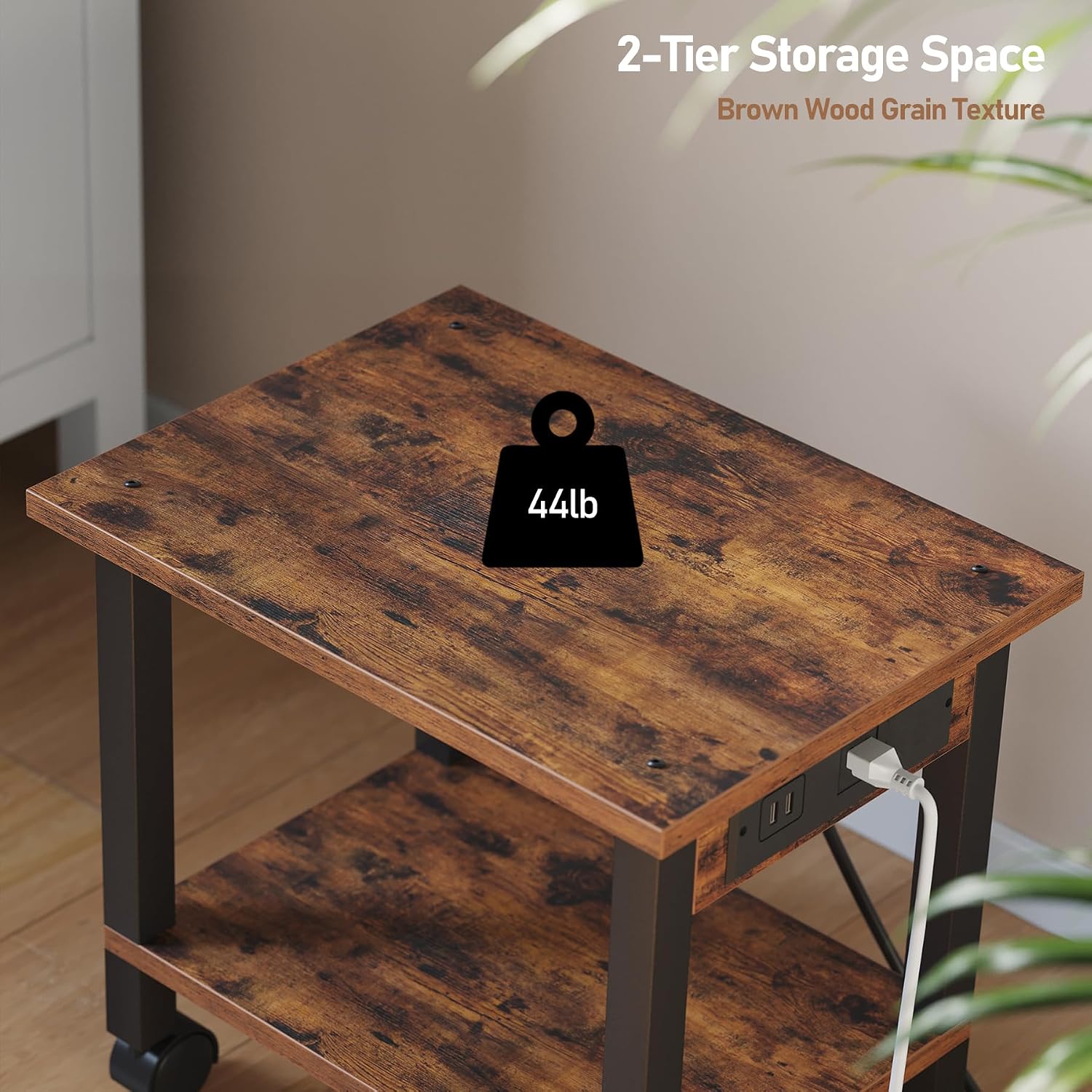
Figure 2: Top Shelf Weight Capacity (44 lbs).
Setup Instructions
Follow these steps to assemble your printer stand:
- Unpack Components: Carefully remove all parts from the packaging. Verify that all components listed in the included parts list are present and undamaged.
- Attach Legs to Bottom Shelf: Secure the four support legs to the designated corners of the bottom shelf using the provided screws and tools. Ensure they are tightened firmly.
- Install Wheels: Insert the four swivel wheels into the bottom of the support legs. Ensure they are securely fitted. Two of these wheels have locking mechanisms.
- Attach Top Shelf: Place the top shelf onto the upper ends of the support legs. Align the pre-drilled holes and secure the top shelf using the remaining screws.
- Connect Power Unit: The power outlet and USB port unit is pre-installed. Connect the main power cord from this unit to a wall outlet.
- Final Check: Gently shake the assembled stand to ensure all connections are secure and the stand is stable.

Figure 3: Assembled Printer Stand with Printer.
Operating Instructions
- Placement: Position the printer stand in your desired location. It can be placed under a desk to save space or next to it for easy access.
- Using Wheels: To move the stand, ensure the wheel locks are disengaged. To keep the stand stationary, press down on the locking levers on the two lockable wheels until they click into place.
- Power Outlets & USB Ports: Plug your printer's power cord into the AC outlet on the side of the stand. Use the USB ports to charge compatible devices such as smartphones or tablets. Ensure the stand's main power cord is plugged into a wall outlet for these features to function.

Figure 4: Locking Wheel Mechanism.

Figure 5: Integrated Power Outlets and USB Ports.
Maintenance
- Cleaning: Wipe the surfaces with a soft, damp cloth. Avoid using harsh chemicals or abrasive cleaners, as these may damage the finish.
- Regular Checks: Periodically check all screws and connections to ensure they remain tight. Retighten if necessary to maintain stability.
- Weight Limit: Do not exceed the recommended weight capacity of 44 lbs on the top shelf to prevent damage or instability.
Troubleshooting
| Problem | Possible Cause | Solution |
|---|---|---|
| Stand is wobbly. | Screws are loose. | Check and tighten all assembly screws. |
| Wheels do not roll smoothly. | Debris in wheels or wheels are locked. | Clean any debris from the wheels. Ensure wheel locks are disengaged. |
| Power outlets/USB ports not working. | Main power cord not plugged in or loose connection. | Ensure the stand's main power cord is securely plugged into a functional wall outlet. Check connections to the power unit. |
Warranty and Support
Every TUTOTAK product undergoes thorough testing. If you encounter any questions or issues, please contact TUTOTAK customer service. Our friendly and professional customer service team will respond to you within 24 hours.
For support, please refer to the contact information provided with your purchase or visit the official TUTOTAK website.