
ROATEE 991 ES-MAX Pink (AB0607)
ROATEE 991ES MAX Scientific Calculator User Manual
Model: 991 ES-MAX Pink (AB0607)
1. Introduction
This manual provides detailed instructions for the proper use and maintenance of your ROATEE 991ES MAX Scientific Calculator. This device combines a powerful scientific calculator with an integrated LCD writing tablet, designed for students, educators, and professionals. Please read this manual thoroughly before using the product to ensure optimal performance and longevity.

Image 1.1: The ROATEE 991ES MAX Scientific Calculator, showcasing its dual functionality as a calculator and an LCD writing tablet.
2. Product Features
- 417 Functions: Comprehensive mathematical and scientific functions for various subjects including General Math, Pre-Algebra, Algebra 1 & 2, Geometry, Statistics, Regression, Calculus, Fractions, Decimals, BASE-N calculations, Complex Numbers, EQN, MATRIX, TABLE, VECTOR, and SOLVE.
- Integrated LCD Writing Tablet: Allows for note-taking and scratch work directly on the device using the included stylus. Features a lock key to prevent accidental erasure and a one-click erase button.
- Multiview 4-Line Display: Displays up to four lines of calculations simultaneously, enhancing computational efficiency.
- Dual Power Source: Operates on both solar energy and a rechargeable battery, reducing the need for frequent battery replacement. Includes a USB-C charging port.
- Durable and Portable Design: Features an anti-drop body for enhanced durability and a foldable design for easy storage and portability. Weighs approximately 5 ounces.
- Sensitive Keys: Premium plastic keys designed for sensitive and precise input.

Image 2.1: The calculator highlighting its 417 functions and convenient usage for various mathematical operations.
3. Package Contents
Upon opening your ROATEE 991ES MAX Scientific Calculator package, please verify that all the following items are included:
- ROATEE 991ES MAX Scientific Calculator (1 unit)
- USB-C Charging Cable (1 unit)
- Stylus Pen (1 unit)
- Instruction Manual (1 unit)
- Exquisite Packing Box (1 unit)
4. Getting Started (Setup)
4.1 Powering On/Off
- To turn on the calculator, press the [ON] button.
- To turn off the calculator, press [SHIFT] followed by [AC] (OFF).
4.2 Charging the Calculator
The calculator features a dual power system: solar and rechargeable battery.
- Solar Power: Ensure the solar panel located above the display is exposed to light for continuous operation and to help maintain battery charge.
- USB-C Charging: Connect the provided USB-C cable to the charging port on the side of the calculator and to a compatible USB power source. The calculator will charge automatically.
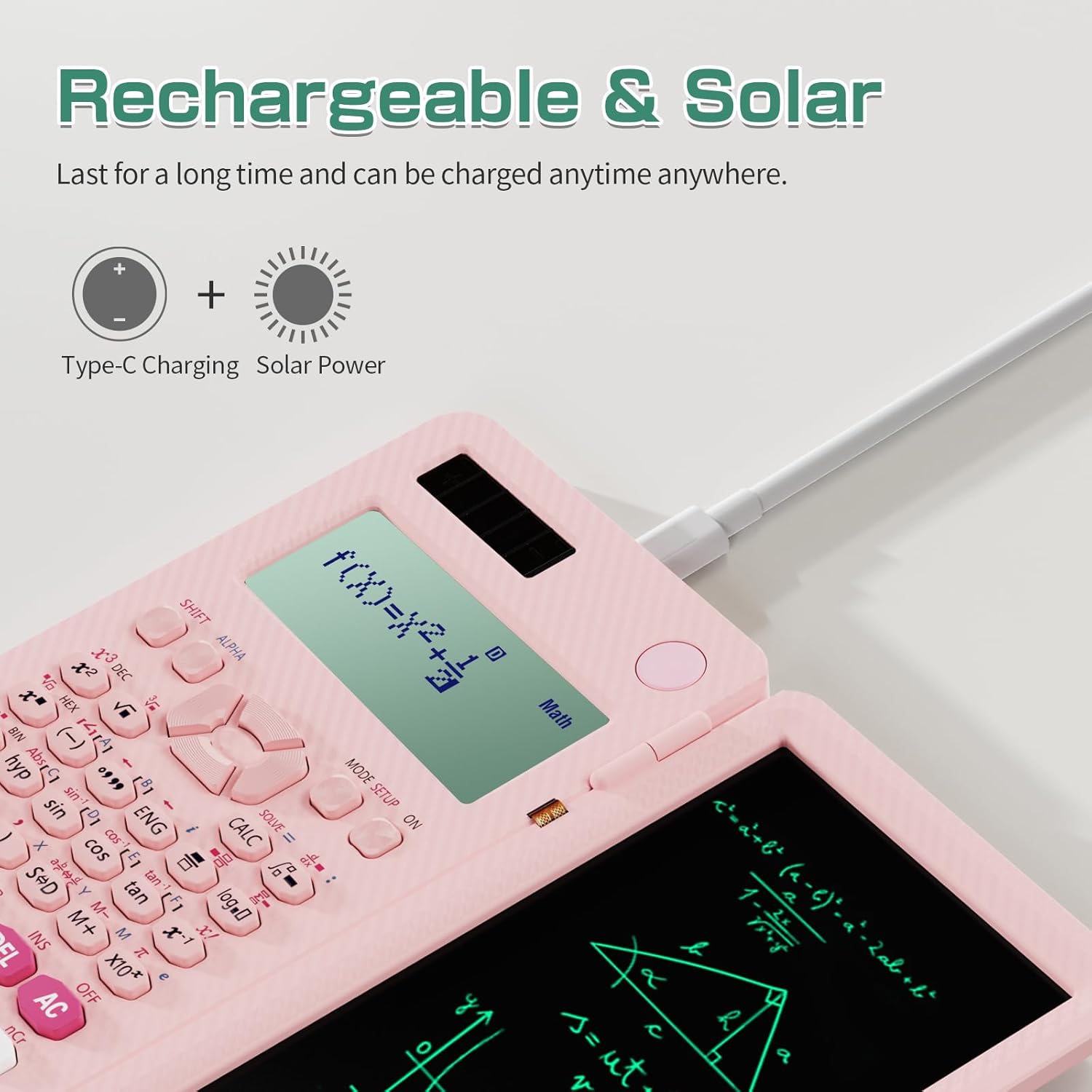
Image 4.1: The calculator connected via USB-C for charging, illustrating its dual power capabilities with solar energy.
4.3 Using the LCD Writing Tablet
The integrated LCD writing tablet allows for temporary notes and calculations.
- Stylus: Use the included stylus pen to write on the LCD tablet. The stylus is stored in a slot on the side of the calculator.
- Lock Switch: Locate the lock switch on the top edge of the calculator. Slide it to the UNLOCKED position to enable writing and erasing on the tablet.
- Erase Function: With the tablet unlocked, press the erase button (often labeled with a trash can icon or similar) located above the calculator display to clear the screen.
- Prevent Accidental Deletion: To prevent accidental erasure of your notes, slide the lock switch to the LOCKED position. When locked, the erase button will not function.

Image 4.2: Detailed view of the LCD writing tablet features, including the one-click erase button, the lock switch to prevent accidental deletion, and the integrated stylus pen.
5. Operating Instructions
5.1 Basic Calculations
Perform standard arithmetic operations using the number keys and operators ([+], [-], [x], [/]). Press [=] to display the result.
5.2 Multiview Display
The 4-line display allows you to view multiple calculations or complex expressions simultaneously. Input expressions as you would normally, and the calculator will manage the display for clarity.

Image 5.1: Close-up of the calculator's 4-line display, showing multiple entries and results for improved workflow.
5.3 Function Modes
The calculator offers various modes for specialized calculations. Press [MODE SETUP] to access the mode menu. Use the arrow keys to navigate and select the desired mode:
- 1: COMP (Compute): For general arithmetic and function calculations.
- 2: CMPLX (Complex): For complex number calculations.
- 3: STAT (Statistics): For statistical and regression calculations.
- 4: BASE-N: For calculations involving specific number systems (binary, octal, decimal, hexadecimal).
- 5: EQN (Equation): For solving equations.
- 6: MATRIX: For matrix calculations.
- 7: TABLE: For generating number tables from functions.
- 8: VECTOR: For vector calculations.
5.4 Conversion of Fraction and Decimal
To convert between fraction and decimal formats:
- After obtaining a result, press the [S⇔D] key to toggle between fraction and decimal display.
- Alternatively, you can configure the calculator setting: Press [SHIFT], then [MODE]. Choose 1 (MthIO) for fraction display or 2 (LineIO) for decimal display.
6. Maintenance
6.1 Cleaning
To clean the calculator, use a soft, dry cloth. For stubborn marks, a slightly damp cloth with mild soap can be used, ensuring no liquid enters the device. Do not use abrasive cleaners or solvents.
6.2 Battery Care
The calculator's rechargeable battery is designed for long-term use. To maximize battery life:
- Charge the calculator regularly using the USB-C cable.
- Utilize the solar panel by exposing it to light whenever possible.
- Avoid storing the calculator in extreme temperatures.
6.3 Durability
The anti-drop body design provides enhanced protection against accidental falls. While durable, avoid intentional drops or excessive force to prevent damage to internal components or the LCD screen.
7. Troubleshooting
| Issue | Possible Cause | Solution |
|---|---|---|
| LCD writing area or erase button not working | The lock key for the writing tablet is engaged. | Slide the lock switch on the top edge of the calculator to the UNLOCKED position. |
| Calculator does not turn on or display is dim | Low battery or insufficient light for solar panel. | Charge the calculator using the USB-C cable. Ensure the solar panel is exposed to bright light. |
| Incorrect calculation results | Incorrect mode selected or input error. | Verify the correct mode is selected (e.g., COMP for general calculations). Double-check your input. Refer to Section 5.3 for mode selection. |
| Stylus is missing or not functioning | Stylus misplaced or damaged. | Ensure the stylus is securely stored in its designated slot. If damaged, contact customer support for replacement options. |
8. Specifications
| Feature | Detail |
|---|---|
| Model Number | AB0607 |
| Product Dimensions | 6.97 x 3.74 x 0.1 inches (17.7 x 9.5 x 0.25 cm) |
| Item Weight | 9.6 ounces (272 grams) |
| Batteries | Rechargeable (CR2032 batteries included) |
| Screen Size | 6.5 Inches (LCD Writing Tablet) / 7 inches (Visible screen diagonal) |
| Calculator Type | Engineering/Scientific/College/High School |
| Color | 991 ES-MAX Pink |
| Manufacturer | ROATEE |
| Functions | 417 |
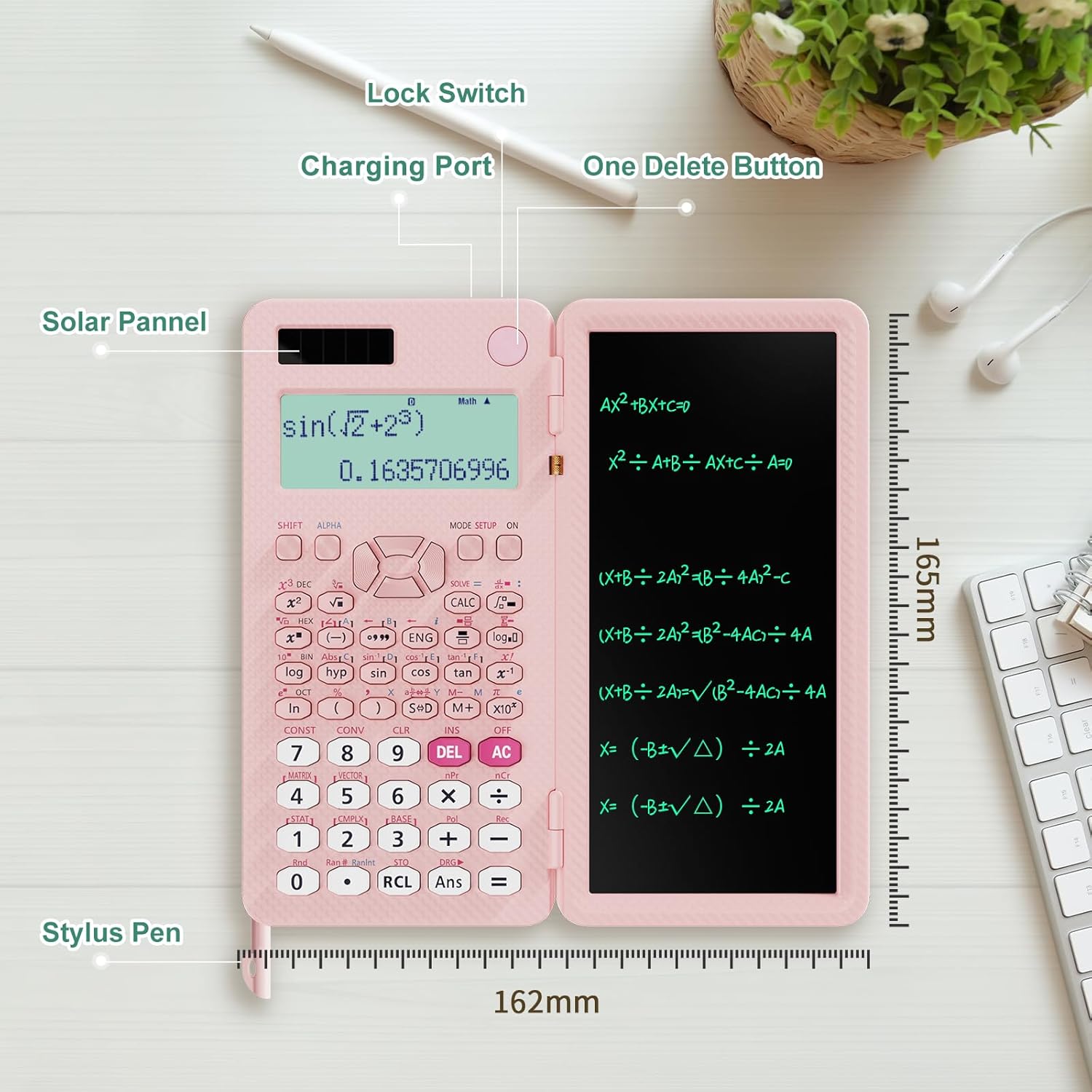
Image 8.1: The ROATEE 991ES MAX calculator with key features like lock switch, charging port, delete button, and stylus pen highlighted, along with its dimensions.
9. Warranty and Support
ROATEE is committed to providing high-quality products. For warranty information, technical support, or any inquiries regarding your ROATEE 991ES MAX Scientific Calculator, please refer to the contact information provided with your purchase documentation or visit the official ROATEE website. Please retain your proof of purchase for warranty claims.
10. Safety Information
- Do not attempt to disassemble or modify the calculator. This may void the warranty and cause damage.
- Keep the calculator away from water and other liquids.
- Avoid exposing the calculator to direct sunlight for prolonged periods or extreme temperatures.
- Keep out of reach of small children due to small parts (stylus, battery).
- Dispose of the product and its battery responsibly according to local regulations.
Ask a question about this manual
Ask about setup, troubleshooting, compatibility, parts, safety, or missing instructions. Manuals+ will review the question and use this page’s manual context to help answer it.