
1. Introduction
This manual provides instructions for the ORICO MINI20 512GB Portable SSD. This external solid-state drive is designed for high-speed data transfer and durability, featuring a rugged zinc alloy design with water and dust resistance. It is suitable for professionals and users requiring reliable storage on the go.

Image: The ORICO MINI20 Portable SSD, a compact and durable external storage device.
2. Product Features
- Superior Speed: Achieves data transfer speeds up to 2000 MB/s, facilitating quick and efficient handling of large files and high-resolution videos.
- Multiple Capacities: Available in 512 GB, 1 TB, and 2 TB options to accommodate various storage requirements.
- Premium Build: Constructed with a full aluminum alloy casing for lightweight durability and effective heat dissipation. The design also offers a sleek, professional appearance.
- Versatile Connectivity: Includes a USB-A and USB-C 2-in-1 data cable for broad compatibility with various devices without needing additional adapters. An integrated hook enhances portability.
- On-the-Go Design: Compact (3.51 x 1.79 x 0.59 inches) and robust, making it easy to carry and suitable for rugged environments. Ideal for photographers and outdoor enthusiasts.

Image: Diagram illustrating the ultra-fast data transfer speeds of the ORICO PSSD, up to 2000MB/s.
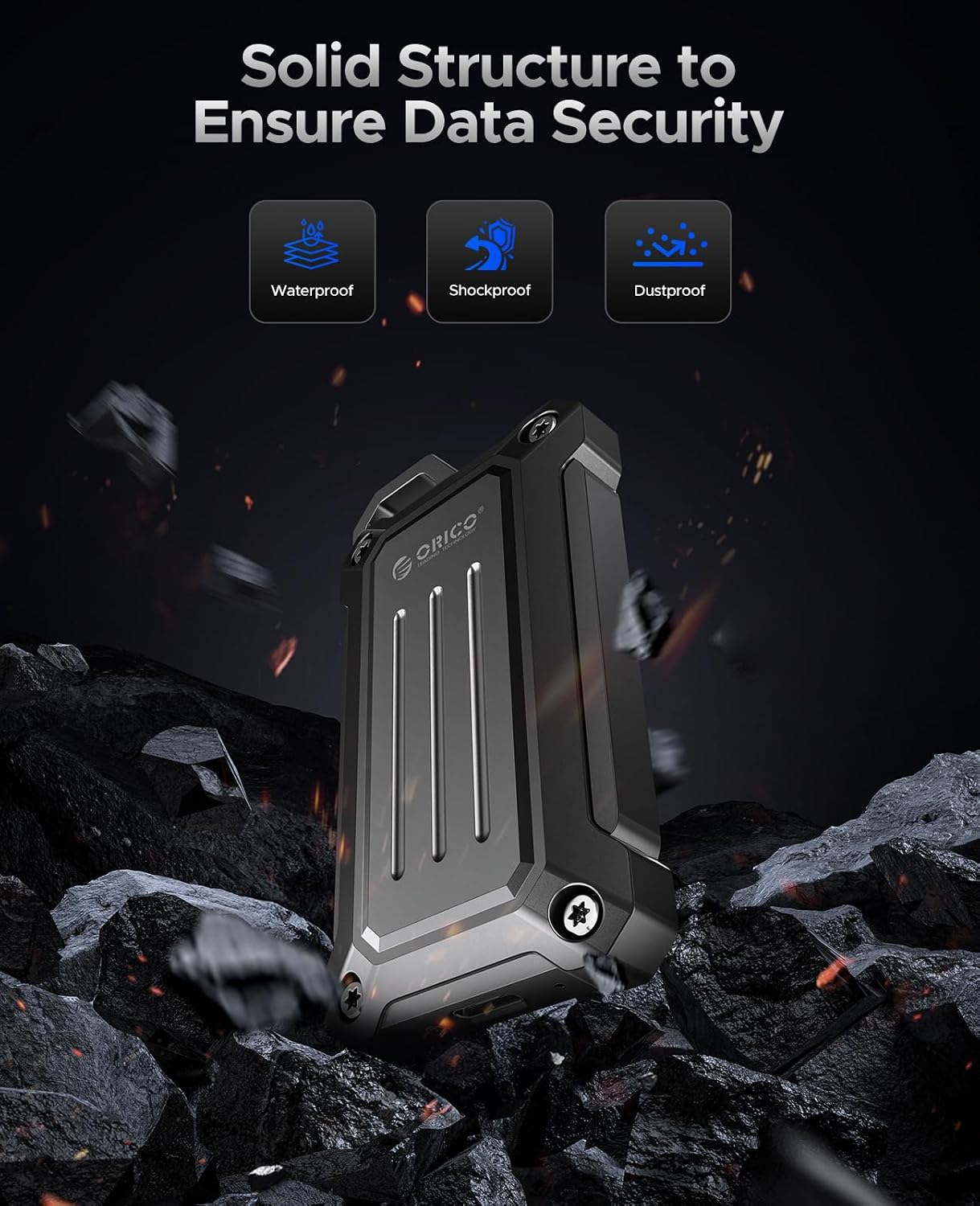
Image: The ORICO PSSD's solid structure, highlighting its waterproof, shockproof, and dustproof capabilities for data security.

Image: The ORICO PSSD featuring a circular design and integrated hook, demonstrating its ease of portability when attached to a backpack.
3. Setup
The ORICO MINI20 Portable SSD is designed for plug-and-play functionality across various devices.
3.1 Package Contents
- ORICO MINI20 Portable SSD
- USB-C to USB-C/USB-A 2-in-1 Data Cable
- Carabiner Hook (pre-attached or included)
3.2 Connecting to Your Device
- Identify the appropriate port on your device (USB-C or USB-A).
- Use the provided 2-in-1 data cable. Connect the USB-C end to the SSD.
- Connect the other end of the cable (USB-C or USB-A adapter) to your computer, tablet, or smartphone.
- The SSD should be automatically recognized by your operating system. If not, check your device's file explorer or disk management utility.
Compatibility: The ORICO MINI20 is compatible with a wide range of operating systems and devices, including Mac, Windows, iPad, and Android smartphones, provided they have a compatible USB-C or USB-A port.

Image: The ORICO PSSD demonstrating compatibility with various devices such as laptops, iPads, and smartphones.
4. Operating Instructions
4.1 Data Transfer
Once connected, the ORICO MINI20 Portable SSD functions like any other external storage device. You can drag and drop files, copy and paste, or use your device's file management system to transfer data.
4.2 Maximizing Transfer Rate
To achieve the maximum transfer speeds of up to 2000 MB/s, ensure the following:
- Matching Cable: Use a data cable that supports 20Gbps transfer rates. The included ORICO 2-in-1 cable is designed for this.
- Compatible Interface: Your device's USB port must be at least USB 3.2 Gen 2x2 (20Gbps). While the PSSD is backward-compatible, speeds will be limited by the interface's maximum rate.
- Source/Destination Drive Speed: The read and write speeds of the source or destination drive (e.g., your computer's internal hard drive) also affect overall transfer performance. For optimal results, both drives should support high speeds.

Image: Diagram illustrating the importance of using a 20Gbps cable to maximize the ORICO PSSD's transfer rate.

Image: Diagram explaining that a 20Gbps transfer rate requires a USB 3.2 Gen 2x2 interface and that the receiving device's disk speed also impacts performance.
4.3 Use Cases
The rugged design and high performance make the ORICO MINI20 suitable for various outdoor and professional applications:
- Photography and Videography: Directly record or offload high-resolution photos and videos from cameras or drones.
- Outdoor Adventures: Securely store data during hiking, vlogging, or other outdoor activities.
- Mobile Workflows: Expand storage for smartphones and tablets for on-the-go editing and file management.

Image: The ORICO PSSD being used in diverse outdoor settings, including hiking, vlogging, and for camera and drone storage.
4.4 Official Product Videos
ORICO Portable Solid State Drive for Vlog Shooting Smartphone
Video: Demonstrates the ORICO Portable SSD being used for vlog shooting with a smartphone, highlighting its utility for mobile content creation.
ORICO External Solid State Drive for Outdoor
Video: Showcases the ORICO External SSD's durability and portability for outdoor use, emphasizing its rugged features.
5. Maintenance
To ensure the longevity and optimal performance of your ORICO MINI20 Portable SSD, follow these maintenance guidelines:
- Keep Clean: Wipe the exterior with a soft, dry cloth. Avoid using harsh chemicals or abrasive materials.
- Protect Ports: Ensure the USB-C port is free from dust and debris. When not in use, keep the port covered if a protective cap is provided.
- Avoid Extreme Conditions: While rugged, avoid prolonged exposure to extreme temperatures, direct sunlight, or highly corrosive environments.
- Safe Ejection: Always safely eject the SSD from your device before disconnecting to prevent data corruption.
6. Troubleshooting
If you encounter issues with your ORICO MINI20 Portable SSD, refer to the following common solutions:
- SSD Not Recognized:
- Ensure the cable is securely connected to both the SSD and your device.
- Try a different USB port on your device.
- Test with a different USB cable to rule out a faulty cable.
- Restart your computer or device.
- Check your operating system's Disk Management (Windows) or Disk Utility (Mac) to see if the drive is detected but unformatted or uninitialized.
- Slow Transfer Speeds:
- Verify that your device's USB port supports USB 3.2 Gen 2x2 (20Gbps) for maximum speed.
- Ensure you are using the provided high-speed data cable.
- Close other applications that might be using system resources or performing background transfers.
- Check the health and speed of your source/destination drive.
- Data Corruption:
- Always safely eject the SSD before disconnecting.
- Ensure your operating system is up to date.
- Run a disk check utility on the SSD.
7. Specifications
| Feature | Detail |
|---|---|
| Digital Storage Capacity | 512 GB |
| Brand | ORICO |
| Series | MINI20-512G-US |
| Item Model Number | MINI20-512G-US |
| Item Weight | 5.9 ounces |
| Product Dimensions (LxWxH) | 3.51 x 0.59 x 1.79 inches |
| Hard Drive Interface | USB 3.0 (Note: Actual speed up to USB 3.2 Gen 2x2) |
| Connectivity Technology | USB |
| Special Feature | Portable |
| Hard Disk Description | Solid State Hard Drive |
| Compatible Devices | Desktop, Laptop, Tablet |
| Installation Type | External Hard Drive |
8. Warranty and Support
For warranty information and technical support, please refer to the official ORICO website or contact ORICO customer service directly. Details regarding product registration and specific warranty terms can typically be found on the manufacturer's support pages.
For additional support or inquiries, please visit the ORICO Store on Amazon.


