
Introduction
Thank you for choosing the RAZEAK Portable 60% Mechanical Gaming Keyboard. This manual provides detailed instructions for the proper setup, operation, and maintenance of your new keyboard. Please read this manual thoroughly before use to ensure optimal performance and longevity of your device.
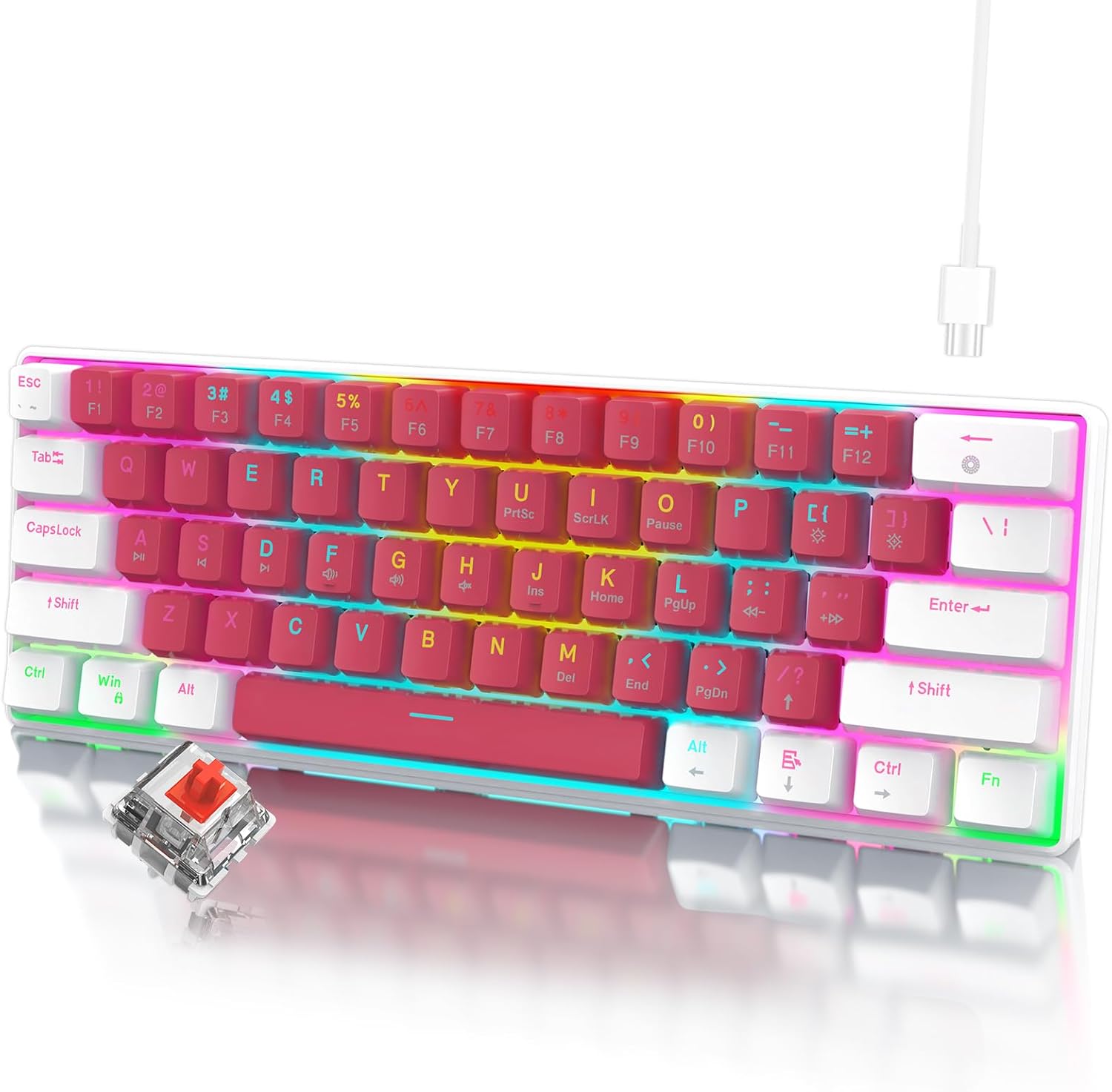
Image: The RAZEAK Portable 60% Mechanical Gaming Keyboard in Pink-White, showcasing its compact design and included USB-C cable. A single red switch is visible in the foreground.
Setup Guide
1. Package Contents
Ensure all items are present in the package:
- RAZEAK Portable 60% Mechanical Gaming Keyboard
- USB-C Cable
2. Connecting the Keyboard
- Locate the USB-C port on the back or side of the keyboard.
- Connect one end of the provided USB-C cable to the keyboard's USB-C port.
- Connect the other end of the USB-C cable to an available USB port on your computer (Windows PC or Laptop).
- The keyboard will be automatically recognized by your operating system. No additional drivers are typically required for basic functionality.
Operating Instructions
Compact 60% Layout
The RAZEAK keyboard features a compact 60% layout with 61 keys, designed to save desk space while retaining full functionality through key combinations. Many standard keys (e.g., F-keys, navigation keys) are accessed via the Function (Fn) key.

Image: A diagram illustrating the 60% ultra-compact 61-key layout of the keyboard, highlighting its space-saving design.
Key Combinations (Fn Key Functions)
To access secondary functions printed on the keycaps, press and hold the Fn key, then press the desired key.
- Fn + 1-0, -, =: Access F1-F12 keys.
- Fn + P, {, }, |, :, ", <, >, ?, /: Access various navigation and editing keys (e.g., Print Screen, Scroll Lock, Pause, Insert, Home, Page Up, Delete, End, Page Down).
- Fn + W, A, S, D: Swap arrow key functions with W, A, S, D for gaming.
- Consult the keycap legends for specific secondary functions.
N-Key Rollover
The keyboard features N-Key Rollover (NKRO), meaning all 61 keys can be pressed simultaneously and registered correctly. This prevents ghosting and ensures precise input, especially beneficial for fast-paced gaming.
Backlighting Control
The keyboard offers multi-colored LED backlighting with 19 different modes. Use the following key combinations to adjust the lighting:
- Fn + \ |: Cycle through 19 backlight modes.
- Fn + [ {: Decrease backlight brightness.
- Fn + ] }: Increase backlight brightness.
- Fn + ; :: Decrease backlight speed/animation.
- Fn + ' ": Increase backlight speed/animation.

Image: A close-up view of the keyboard highlighting the backlit key legends and the Red mechanical switches visible beneath the keycaps.
Ergonomic Design
The keyboard features ergonomic curved keycaps and two adjustable height angles to suit different user preferences and promote comfortable typing during extended use.

Image: A side profile of the RAZEAK keyboard demonstrating its ergonomic high and low key design and adjustable feet for varied typing angles.
Maintenance
Cleaning the Keyboard
Regular cleaning helps maintain the keyboard's appearance and functionality.
- Disconnect the keyboard from your computer before cleaning.
- Use a soft, lint-free cloth lightly dampened with water or a mild cleaning solution to wipe the keycaps and surface.
- For dust and debris between keys, use compressed air.
- Avoid using harsh chemicals, abrasive cleaners, or spraying liquids directly onto the keyboard.
Keycap Care
The dual-color injection molded keycaps are designed for durability and to prevent legends from fading. If you need to remove keycaps for deeper cleaning or replacement, use a keycap puller to avoid damage.
Troubleshooting
If you encounter issues with your RAZEAK keyboard, refer to the following common solutions:
- Keyboard not responding:
- Ensure the USB-C cable is securely connected to both the keyboard and the computer.
- Try connecting the keyboard to a different USB port on your computer.
- Disconnect and reconnect the USB-C cable.
- Restart your computer.
- Backlighting not working or incorrect:
- Check if the backlight brightness is set to maximum using Fn + ] }.
- Cycle through backlight modes using Fn + \ | to see if it resolves the issue.
- Specific keys not working:
- Ensure no debris is lodged under the keycap.
- If using secondary functions, ensure you are pressing the Fn key simultaneously.
Specifications
| Model Number | X44-WTRD-RS_W |
| Product Dimensions | 11.5 x 4.02 x 1.57 inches |
| Item Weight | 1.39 pounds |
| Manufacturer | WINSTAR TECHNOLOGY INDUSTRIAL LIMITED |
| Compatible Devices | Windows devices |
| Connectivity Technology | USB-C |
| Keyboard Description | Gaming, Mechanical |
| Special Feature | Portable, Backlit |
| Color | Pink-White |
| Backlighting Color Support | RGB |
| Material | Plastic |
| Included Components | USB Cable |
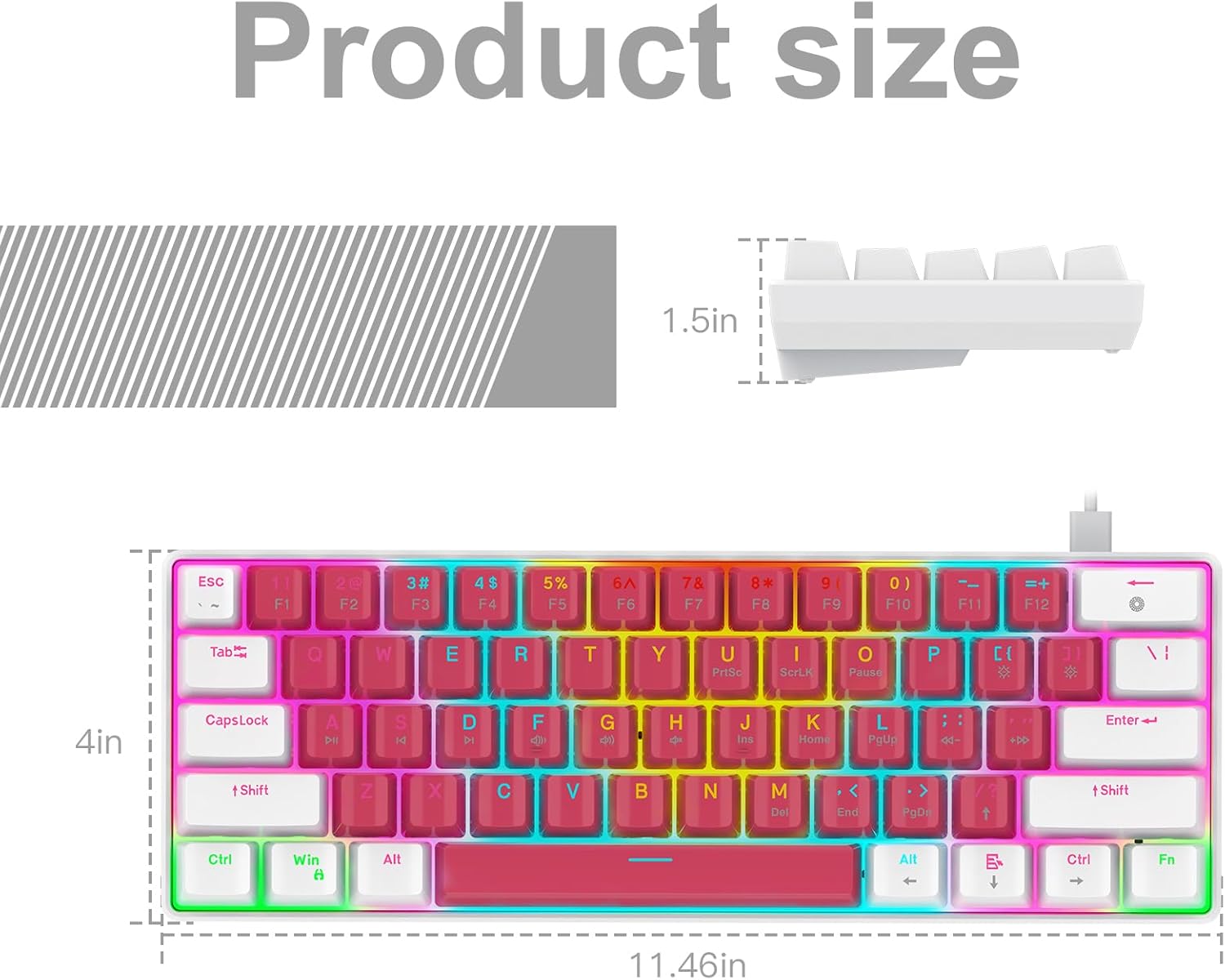
Image: A technical diagram illustrating the product dimensions (length, width, height) of the RAZEAK Portable 60% Mechanical Gaming Keyboard.
Warranty Information
Specific warranty details for the RAZEAK Portable 60% Mechanical Gaming Keyboard are typically provided with your purchase documentation or can be found on the official RAZEAK website. Please retain your proof of purchase for warranty claims.
Customer Support
For further assistance, technical support, or inquiries regarding your RAZEAK keyboard, please visit the official RAZEAK store or contact their customer service through the details provided on their website.
You can visit the RAZEAK store at: RAZEAK Store on Amazon


