1. Product Overview
The JIAN BOLAND USB-WA28 Fingerprint Reader provides a secure and convenient way to log into your Windows 10 or Windows 11 computer using your fingerprint. This device integrates seamlessly with Microsoft's Windows Hello feature, eliminating the need for traditional password entry. It offers fast recognition and automatic driver installation for most genuine Windows systems.
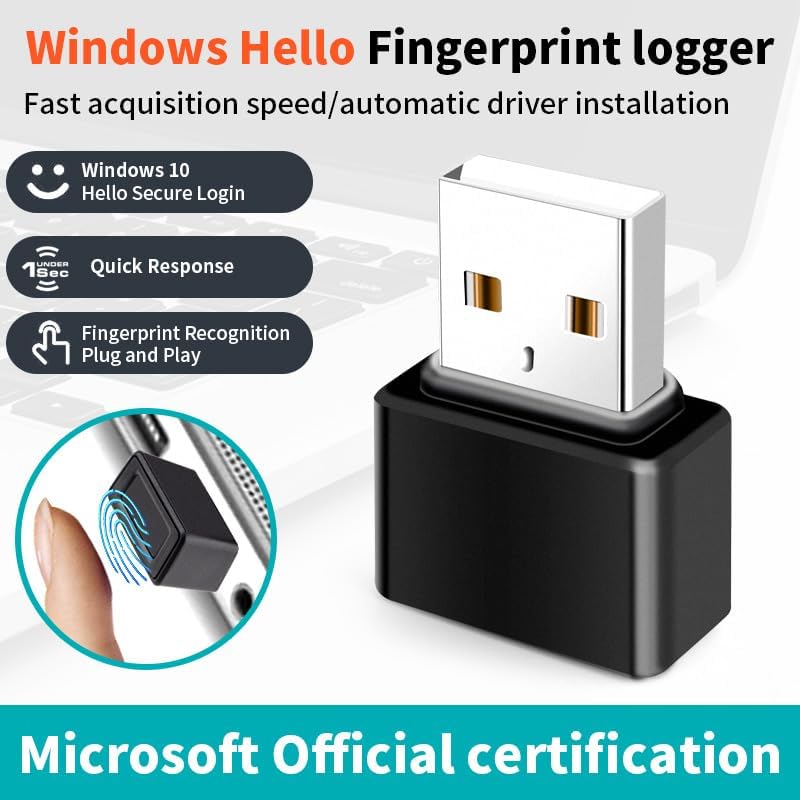
Image 1.1: The JIAN BOLAND USB-WA28 Fingerprint Reader, highlighting its compatibility with Windows Hello for fast and secure login.
2. Setup and Installation
The JIAN BOLAND USB-WA28 Fingerprint Reader is designed for plug-and-play functionality. Follow these steps to set up your device.
2.1. Connecting the Device
- Insert the JIAN BOLAND USB-WA28 Fingerprint Reader into an available USB port on your Windows 10 or Windows 11 PC.
- For most genuine Windows systems, the operating system will automatically detect the device and install the necessary drivers.

Image 2.1: The USB Fingerprint Reader being plugged into a laptop, demonstrating its plug-and-play design.

Image 2.2: Illustration of automatic driver installation on a Windows 10 desktop, showing the device connected.
2.2. Driver Installation (Manual or Windows Update)
If the driver does not install automatically, you may need to update it via Windows Update or install it manually.
- Via Windows Update:
- Connect your PC to the internet.
- Go to Start > Settings > Update & Security > Windows Update.
- Click "Check for updates" and allow Windows to automatically install any available drivers.
- Restart your computer if prompted.
- Manual Driver Installation:
- Download the driver from the official source (if provided by the manufacturer). A common link for drivers is https://www.mediafire.com/file/abojhqrc8uah6q3/Finger.rar/file.
- Extract the contents of the downloaded ZIP file to a known location on your computer.
- Open Computer Management (search for "Computer Management" in the Start menu).
- Navigate to Device Manager.
- Locate the unrecognized device (it might appear under "Other devices" with a yellow exclamation mark).
- Right-click the device and select "Update driver".
- Choose "Browse my computer for drivers" and navigate to the folder where you extracted the driver files.
- Follow the on-screen prompts to complete the installation.
Video 2.1: This video demonstrates the driver installation process, including both automatic installation via Windows Update and manual installation steps through Device Manager. It also covers the setup of Windows Hello fingerprint login.
2.3. Setting Up Windows Hello Fingerprint
Once the driver is successfully installed, you can set up your fingerprint for Windows Hello login.
- Go to Start > Settings > Accounts > Sign-in options.
- Under "Windows Hello Fingerprint", click "Set up" or "Add another".
- You will be prompted to enter your PIN (if you have one set up).
- Follow the on-screen instructions to scan your finger. You will need to repeatedly place and lift your finger on the sensor, adjusting its position slightly to capture all edges and parts of your fingerprint.
- Once registration is complete, you will see a "All set!" message.

Image 2.3: A close-up view of a finger being scanned on the JIAN BOLAND USB-WA28 Fingerprint Reader during the Windows Hello setup process.
3. Operating Instructions
After successful setup, using your JIAN BOLAND USB-WA28 Fingerprint Reader is straightforward.
- To log in, simply place your registered finger on the fingerprint sensor.
- The device will quickly recognize your fingerprint (typically in less than 0.5 seconds) and log you into your Windows account.
- The reader supports up to 10 different fingerprints, allowing multiple users to securely access the same computer or for a single user to register multiple fingers.

Image 3.1: A user demonstrating the convenience of fingerprint login, eliminating the need for passwords.
4. Maintenance
To ensure optimal performance and longevity of your fingerprint reader, consider the following maintenance tips:
- Keep the Sensor Clean: Regularly wipe the fingerprint sensor surface with a soft, dry, lint-free cloth. Avoid using harsh chemicals or abrasive materials that could scratch the sensor.
- Clean Fingers: Ensure your fingers are clean and dry when attempting to log in. Moisture, dirt, or oils can affect recognition accuracy.
- Secure Placement: If the device tends to move on your desk, consider using a small piece of double-sided tape to secure it, preventing accidental dislodgement.
5. Troubleshooting
If you encounter issues with your JIAN BOLAND USB-WA28 Fingerprint Reader, refer to the following troubleshooting steps:
- Device Not Recognized / Driver Issues:
- Ensure the device is firmly plugged into a working USB port.
- Try a different USB port.
- Restart your computer.
- Follow the manual driver installation steps outlined in Section 2.2.
- Ensure your Windows system is genuine. Non-genuine systems may not support Windows Hello or automatic driver installation. If you have a genuine system and still face issues, contact support for a driver download link.
- Fingerprint Registration Fails or Not Supported:
- Administrator User Limitation: Windows Hello does not support running under a direct Administrator user account. If you are using an Administrator account, you may need to create a new local standard user account to register fingerprints.
- Ensure your Windows 10 or Windows 11 operating system is up to date.
- Verify that Windows Hello Fingerprint is enabled in Settings > Accounts > Sign-in options.
- When scanning, ensure you cover the entire sensor surface and follow the prompts to move your finger slightly to capture all angles.
- Inconsistent Fingerprint Recognition:
- Ensure the sensor surface is clean and free of dust or smudges (refer to Section 4).
- Make sure your finger is clean and dry.
- Try re-registering your fingerprint in Windows Hello settings. Sometimes, deleting an old fingerprint and setting it up again can improve recognition.
- Ensure you are placing your finger consistently on the sensor in a similar orientation as during registration.

Image 5.1: Important information regarding compatibility with genuine Windows systems and the requirement for a local administrator account for Windows Hello functionality.
6. Specifications
| Model Number | USB-WA28 |
| Product Dimensions | 1.18 x 0.79 x 0.39 inches (30 x 20 x 10 mm) |
| Item Weight | 0.493 ounces (14 grams) |
| Supported Operating Systems | Windows 10 / Windows 11 (32/64 Bit). MAC OS not supported. |
| Security Features | Microsoft Windows Hello certified biometric framework |
| Fingerprint Capacity | Up to 10 different fingerprints |
| Recognition Speed | < 0.5 seconds |
| False Acceptance Rate (FAR) | < 0.001% |
| False Rejection Rate (FRR) | < 0.1% |

Image 6.1: Detailed dimensions of the JIAN BOLAND USB-WA28 Fingerprint Reader.
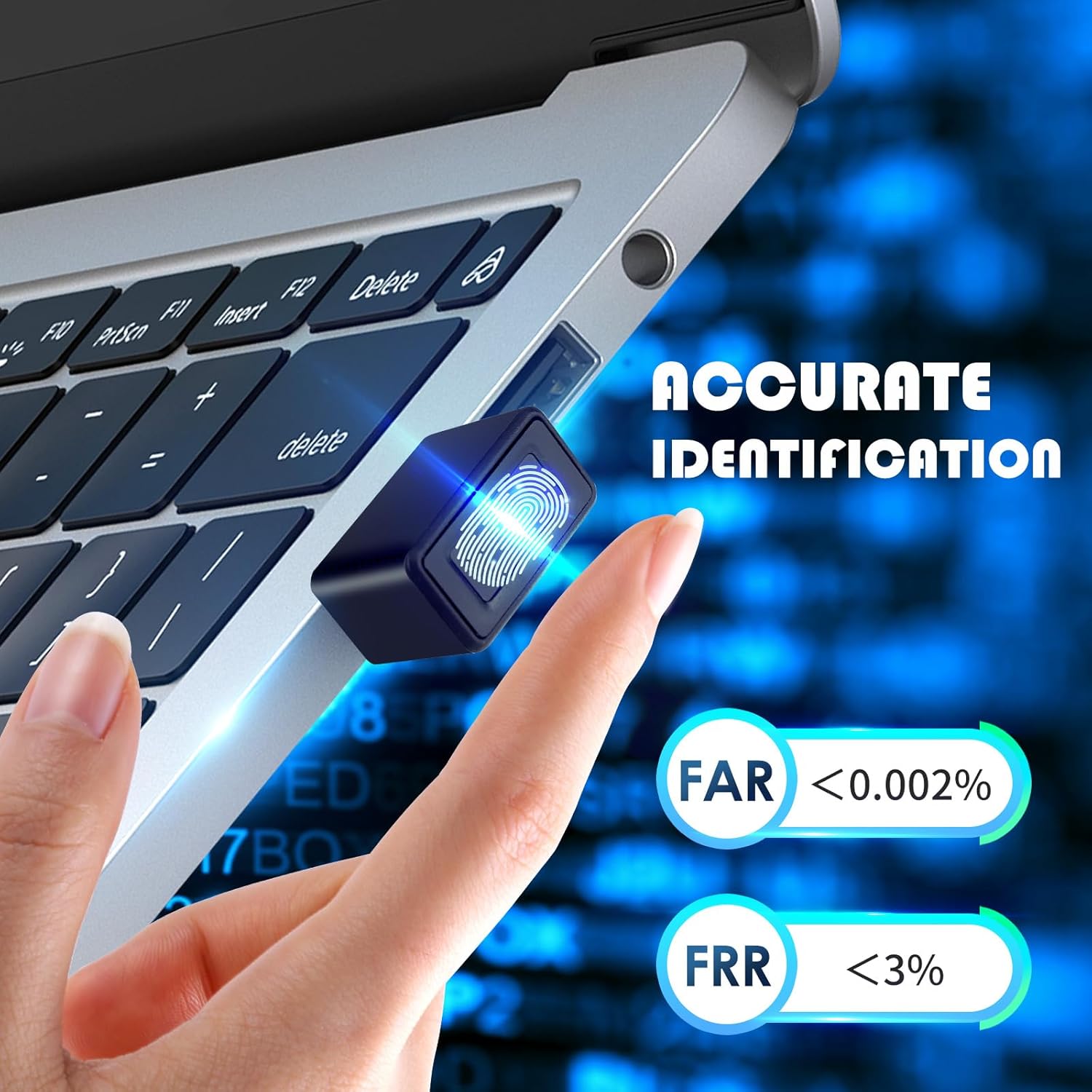
Image 6.2: Performance metrics for the fingerprint reader, including False Acceptance Rate (FAR) (<0.002%) and False Rejection Rate (FRR) (<3%).
7. Warranty and Support
JIAN BOLAND is committed to providing excellent customer service.
- Warranty: The product includes a 30-day free return policy.
- Customer Support: For any questions or assistance, please contact JIAN BOLAND customer service. We aim to reply to all inquiries within 24 hours.


