
1. Introduction
This manual provides comprehensive instructions for the setup, operation, maintenance, and troubleshooting of your ORICO TS200 2-Bay NAS Private Cloud Storage device. The TS200 is designed to offer a secure and accessible solution for personal and small business data management, enabling you to store, share, and access your files from anywhere.
Please read this manual carefully before using the device to ensure proper installation and optimal performance.
2. Product Features

Figure 2.1: The ORICO TS200 NAS as a central home storage solution, capable of managing up to 40TB of data, securing personal documents, and facilitating shared access for groups, enabling comprehensive data organization.
- Home Storage Center: Supports up to 2 hard drive bays, offering a maximum capacity of 44TB for efficient and secure data storage for individuals and small to medium-sized enterprises.
- Anytime, Anywhere Access: Utilize the dedicated application for direct file access with automatic VPN security, allowing you to manage your data remotely. Mobile devices and PCs can store and retrieve images, videos, and documents.
- Media Sharing Hub: Features SAMBA for file sharing across multiple devices and DLNA for creating a family video library, facilitating seamless media streaming to smart devices.
- Stable and Durable Operation: Equipped with an integrated cooling fan to maintain stable temperatures (approximately 35°C daily) and ensure efficient, long-lasting performance even under heavy workloads.
- Transmission Speed: Achieves intranet speeds of 60-80 MB/s. Cross-regional transmission speeds are typically 1-2 MB/s, with options to purchase accelerated traffic within the application for higher speeds if needed.
- Flexible Expansion: Easily upgrade and expand storage space as data needs grow, ensuring your NAS investment adapts to future requirements. Supports hardware RAID configurations.
3. Package Contents
Please verify that all items are present in the package:
- ORICO TS200 2-Bay NAS Device (Diskless)
- Power Adapter
- Ethernet Cable
- User Manual (this document)
- Screws for HDD installation (if applicable)
4. Physical Overview
4.1 Front View

Figure 4.1: Front view of the ORICO TS200 NAS device, illustrating its compact design and indicator lights. The image also shows a smartphone displaying the companion app interface, highlighting the device's connectivity and app integration for data management.
4.2 Rear View and Ports
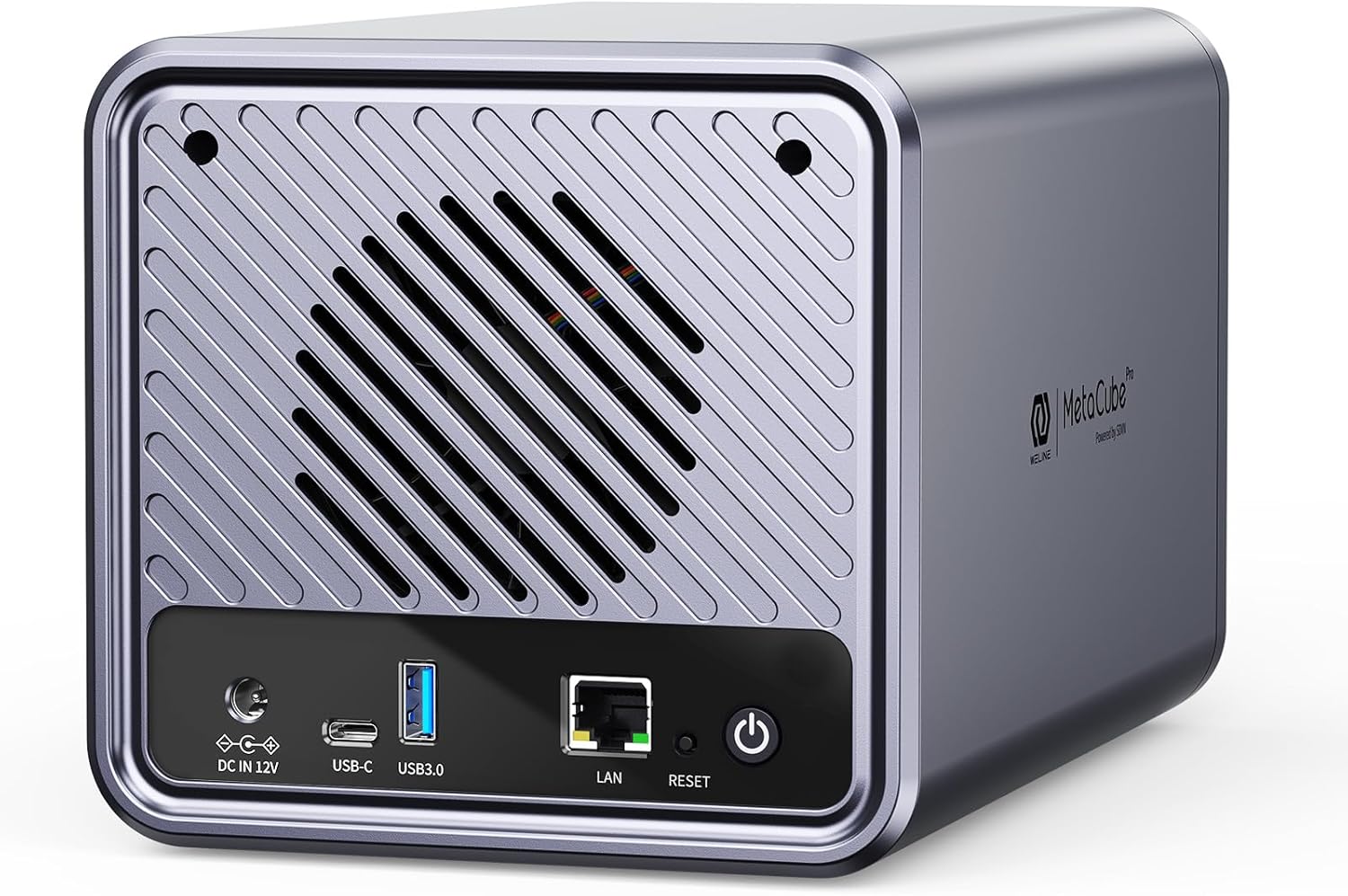
Figure 4.2: Rear view of the ORICO TS200 NAS, showing the various ports and connections. These include the DC 12V power input, USB-C port, USB 3.0 port, LAN port for network connection, and the power button with a reset pinhole.
4.3 Internal Cooling System

Figure 4.3: An internal view of the ORICO TS200 NAS, highlighting its high-efficiency heat dissipation system. This image shows the built-in cooling fan and airflow paths designed to keep the hard drives stable and quiet during operation, with typical CPU and HDD temperatures around 35°C.
5. Setup
5.1 Hardware Installation (Hard Drives)
- Ensure the NAS device is powered off and disconnected from the power source.
- Open the drive bay cover.
- Slide your 3.5-inch or 2.5-inch SATA hard drives into the available bays until they click into place. Ensure they are securely seated.
- Close the drive bay cover.
5.2 Initial Connection
- Connect one end of the provided Ethernet cable to the LAN port on the back of the TS200 and the other end to your router or network switch.
- Connect the power adapter to the DC 12V input port on the NAS and then plug it into a power outlet.
- Press the power button on the rear of the device to turn it on. The indicator lights on the front will illuminate.
6. Operating Instructions
6.1 Software and Application Installation
To manage your ORICO TS200, download and install the dedicated "Weline" application on your mobile device (iOS/Android) or desktop computer. Search for "Weline" in your respective app store or visit the official ORICO website for download links.
6.2 Data Management and Sharing
The TS200 supports various protocols for efficient data management:
- Samba (SMB/CIFS): Enables file sharing across different operating systems (Windows, macOS, Linux) within your local network. Access shared folders directly from your computer's file explorer.
- DLNA (Digital Living Network Alliance): Allows you to stream multimedia content (videos, photos, music) from your NAS to DLNA-compatible devices such as smart TVs, media players, and gaming consoles.

Figure 6.1: Illustration of the ORICO TS200 NAS functioning as a private video library, demonstrating its DLNA capability to project videos from the NAS directly to a television, enabling seamless home entertainment.
6.3 Remote Access and Data Protection (SDVN)
The "Weline" application provides secure remote access to your files via its built-in SDVN (Software Defined Virtual Network) technology. This ensures a peer-to-peer connection, transferring data directly between your device and the NAS without relying on external servers, enhancing privacy and security.

Figure 6.2: A diagram illustrating the SDVN (Software Defined Virtual Network) professional data protection feature of the ORICO NAS. It shows a secure, peer-to-peer connection between the NAS and user devices, emphasizing global accessibility, SDVN encryption, and the use of a dedicated application for secure data transfer.
6.4 Data Backup
Utilize the "Weline" application for remote data backup. You can perform online editing of pictures and documents, and synchronize files between your devices and the NAS, ensuring your data is always safe and accessible.

Figure 6.3: A user interacting with the "Weline" application on a smartphone, demonstrating the remote data backup capabilities of the ORICO TS200 NAS. The image shows the flow of data from the phone to the NAS, indicating online editing and synchronization of files.
6.5 Building a Team Office Center
The ORICO TS200 can serve as a central file sharing hub for individuals and teams, facilitating collaborative work and efficient document management within an office environment.

Figure 6.4: The ORICO TS200 NAS positioned in a modern office setting, illustrating its role in building a team office center. The image suggests its use for easily setting up file sharing centers among individuals and teams, enhancing collaboration.
7. Maintenance
7.1 Cooling and Airflow
Ensure the NAS device is placed in a well-ventilated area. Do not block the air vents on the device to allow for proper heat dissipation. Regularly check for dust accumulation and clean the vents if necessary to maintain optimal operating temperatures.
7.2 Storage Expansion
The ORICO TS200 supports flexible storage expansion. When your data needs increase, you can easily upgrade the hard drives within the two bays to higher capacities. Refer to Section 5.1 for hard drive installation instructions.
8. Troubleshooting
This section addresses common issues you might encounter with your ORICO TS200 NAS. If you experience problems not covered here, please contact customer support.
8.1 Device Not Powering On
- Ensure the power adapter is securely connected to both the NAS and a working power outlet.
- Verify the power outlet is functional by plugging in another device.
- Press the power button firmly.
8.2 Cannot Access NAS on Network
- Check if the Ethernet cable is properly connected to both the NAS and your router/switch.
- Ensure your router is functioning correctly and other devices can access the network.
- Restart the NAS device and your router.
- Verify that the "Weline" application is installed and configured correctly on your device.
8.3 Slow Data Transfer Speeds
- For intranet transfers, ensure your network cables are Cat5e or Cat6 and your router supports Gigabit Ethernet.
- For cross-regional transfers, speeds are dependent on your internet service provider (ISP) and network conditions. Consider purchasing accelerated traffic within the "Weline" app if higher speeds are consistently needed.
- Check for background processes on the NAS or connected devices that might be consuming bandwidth.
8.4 Hard Drive Not Detected
- Ensure the hard drive is properly seated in the bay (refer to Section 5.1).
- Try a different hard drive to rule out a drive issue.
- If the issue persists, the drive bay or NAS hardware may be faulty.
9. Specifications
| Feature | Detail |
|---|---|
| Brand | ORICO |
| Model Number | TS200 |
| Product Dimensions | 23.1D x 14W x 15H centimeters |
| Material | Aluminum Acrylonitrile Butadiene Styrene (ABS) |
| Compatible Devices | Computer, Laptop |
| Type of Product | ATX (referring to form factor/compatibility) |
| Mounting Type | Tabletop, Rack Mount |
| Assembly Required | No |
| Max Storage Capacity | Up to 44TB (with 2 bays) |
| Intranet Transmission Speed | 60-80 MB/s |
| Cross-regional Transmission Speed | 1-2 MB/s (can be accelerated via app) |
10. Warranty and Support
ORICO provides an 18-month warranty for the TS200 NAS device and offers lifetime service support. If you have any questions regarding the device's settings, application usage, or general NAS operation, please do not hesitate to contact ORICO customer service.
For support, please refer to the contact information provided on the official ORICO website or your purchase documentation.


