
1. Introduction
This manual provides detailed instructions for the installation, operation, and maintenance of your darkFlash DRX70 ATX Mid-Tower Gaming PC Case. Please read this manual thoroughly before beginning assembly to ensure proper setup and safe usage. Retain this manual for future reference.
2. Safety Information
- Always disconnect power from all components before installation or maintenance.
- Handle tempered glass panels with care to prevent breakage.
- Avoid exposing the case to extreme temperatures or humidity.
- Keep small parts and screws away from children.
- Ensure proper grounding for all electrical components.
3. Package Contents
Verify that all components are present in your package:
- darkFlash DRX70 ATX Mid-Tower PC Case
- 3 x 120mm Fixed RGB Fans (pre-installed in front)
- Accessory Box (containing screws, standoffs, cable ties, etc.)
- User Manual
4. Product Overview
The darkFlash DRX70 is an ATX mid-tower case designed for optimal airflow and component visibility. It features a magnetic mesh front panel for enhanced air intake and a tempered glass side panel to showcase your build.
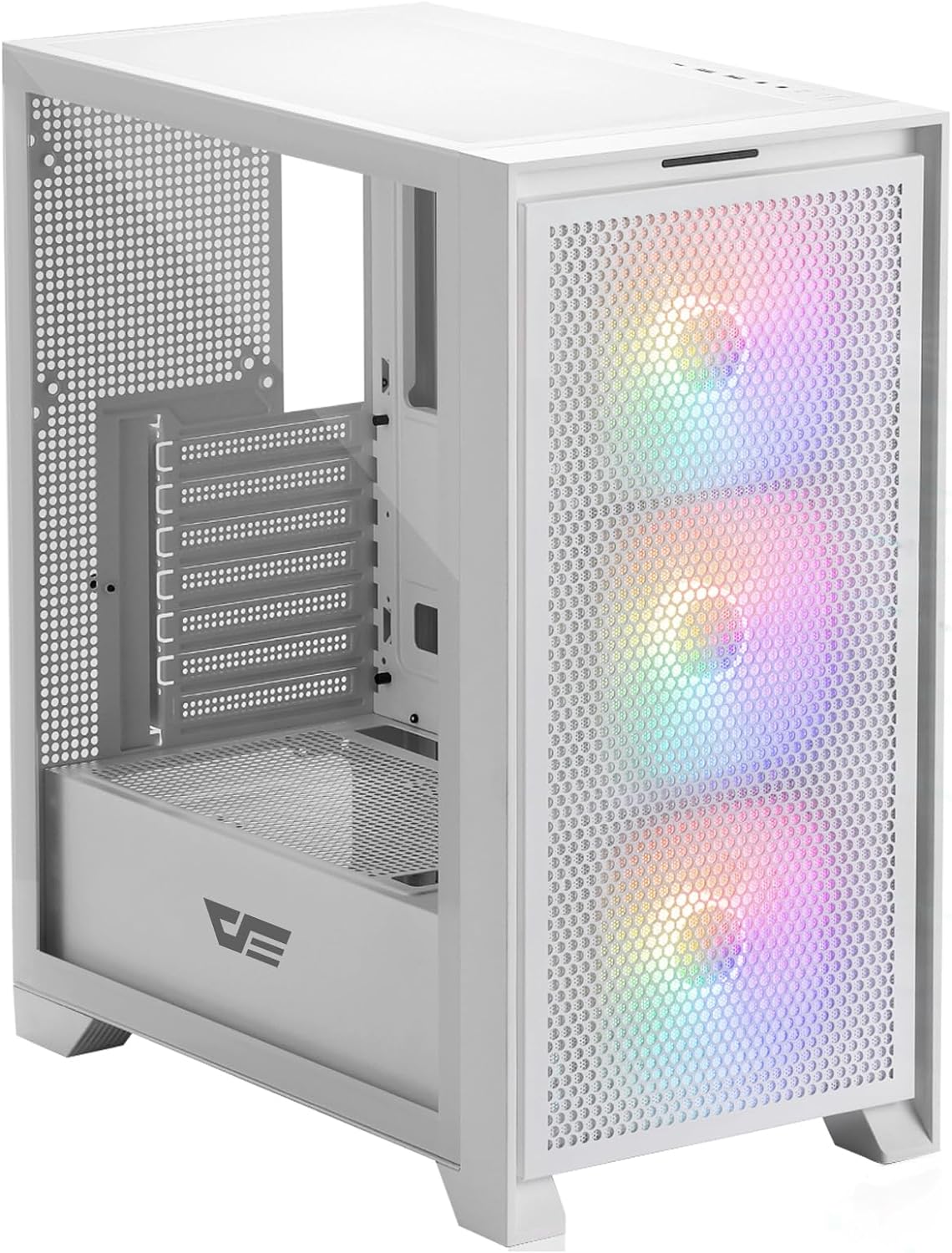
Figure 4.1: Front-side view of the darkFlash DRX70 PC case with pre-installed RGB fans.
Key Features:
- Magnetic Mesh Front Panel: Optimizes air intake and is easily removable for cleaning.
- Tempered Glass Side Panel: Provides a clear view of internal components.
- Pre-installed 3x120mm Fixed RGB Fans: Enhances cooling and adds aesthetic lighting. Note: Lighting is fixed, not addressable.
- Dust Filters: Magnetic dust filters on top and bottom for easy maintenance.
- Anti-slip Bottom Structure: Ensures stability on various surfaces.
- USB 3.0 Ready: Convenient front I/O panel connectivity.
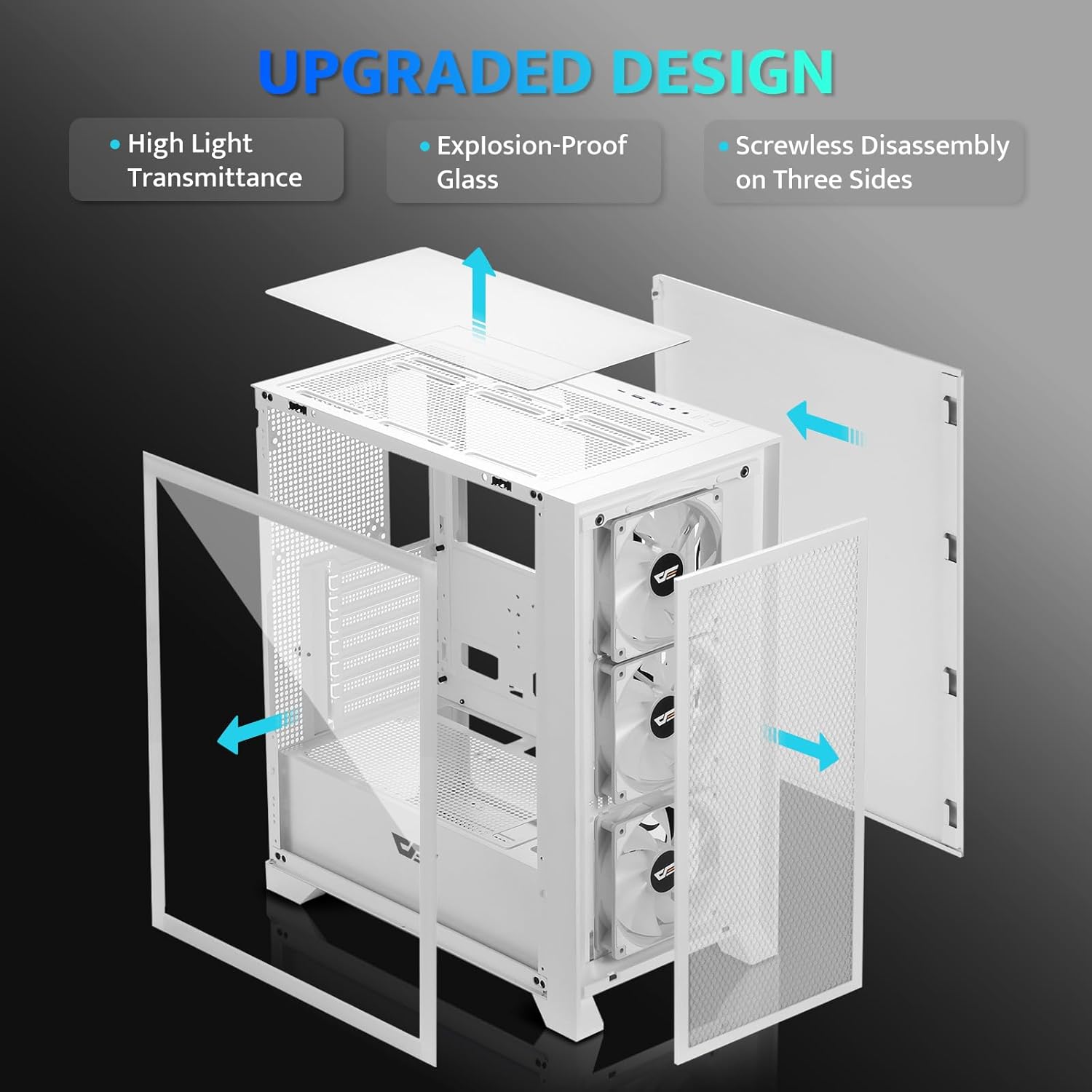
Figure 4.2: Exploded view illustrating the removable panels for easy access and assembly.

Figure 4.3: Detail of the magnetic mesh front panel, designed for optimal airflow and easy removal.

Figure 4.4: Airflow channels within the DRX70 case, demonstrating efficient cooling paths.

Figure 4.5: The top I/O panel featuring USB 3.0, USB 2.0, HD Audio jacks, Reset, and Power buttons.
5. Setup and Installation
Follow these general steps for assembling your PC within the DRX70 case. Refer to your individual component manuals for specific installation details.
5.1 Preparing the Case
- Place the case on a stable, flat surface.
- Remove the tempered glass side panel by unscrewing the thumb screws and carefully sliding it off.
- Remove the magnetic mesh front panel by gently pulling it away from the chassis.
- Remove the rear side panel by unscrewing the thumb screws and sliding it back.
5.2 Component Installation
- Motherboard: Install the necessary standoffs for your motherboard form factor (ATX, M-ATX, ITX). Carefully place the motherboard into the case and secure it with screws.
- Power Supply Unit (PSU): Install the PSU into its designated compartment at the bottom rear of the case. Secure it with screws from the rear.
- Storage Drives: Install 2.5" SSDs or 3.5" HDDs into the drive bays. The case supports 1x 2.5" SSD and 2x 2.5"/3.5" HDDs.
- Graphics Card (GPU): Install your graphics card into the appropriate PCIe slot on the motherboard and secure it. The case supports GPUs up to 350mm in length.
- Cooling: The case comes with 3x 120mm fixed RGB fans pre-installed in the front. Additional fans or a 280mm radiator can be installed as per the specifications.
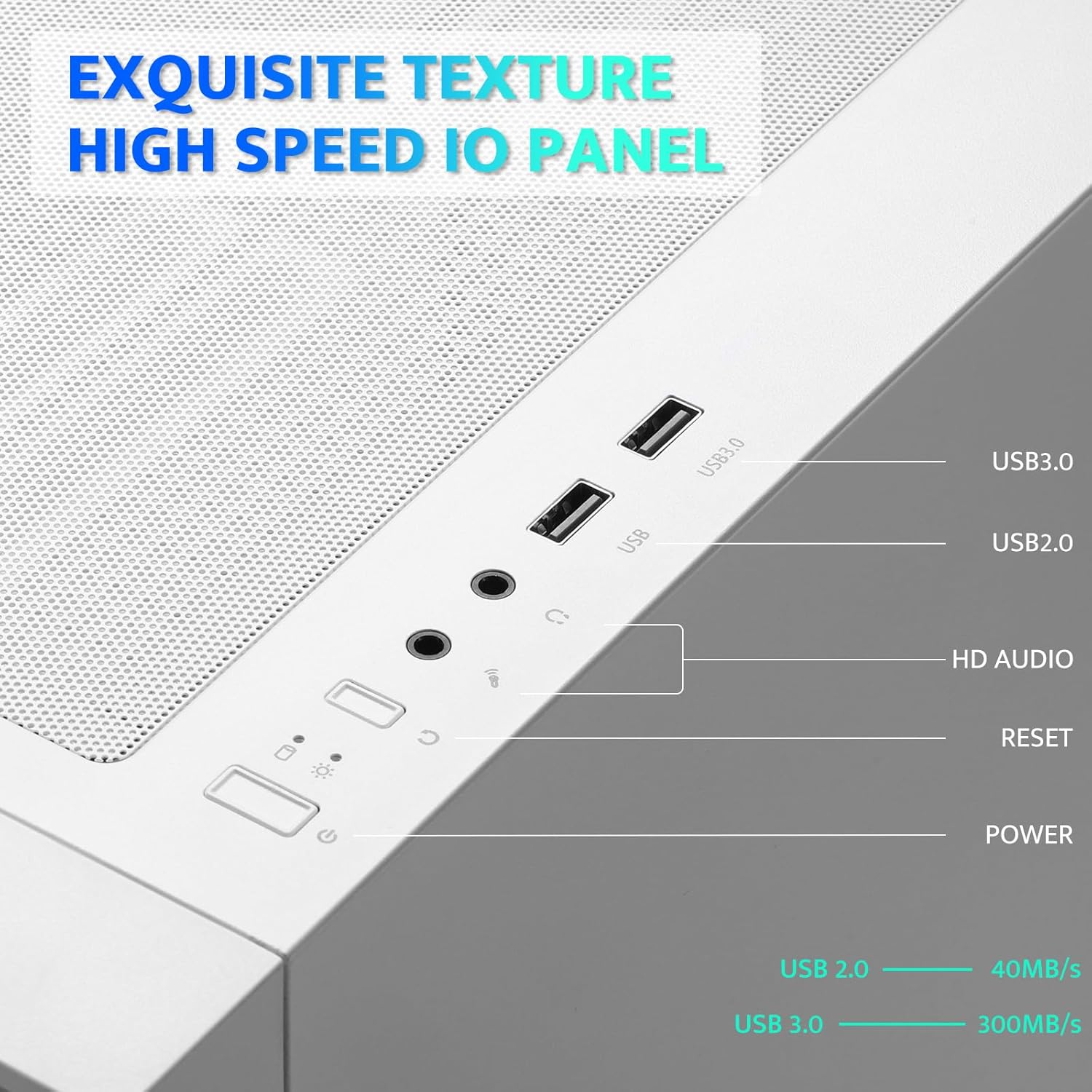
Figure 5.1: Internal layout with maximum component dimensions for CPU cooler, GPU, PSU, and radiator support.
5.3 Cable Management
Utilize the cable routing cutouts and tie-down points behind the motherboard tray to manage cables. This improves airflow and aesthetics. The DRX70 is designed to simplify cable management by allowing most connectors to be routed to the rear of the motherboard.

Figure 5.2: Illustration of cable management optimization, showing how cables can be concealed behind the motherboard tray.
6. Operating Instructions
Once all components are installed and connected, you can power on your system.
6.1 Powering On/Off
- Press the Power button on the top I/O panel to turn on your PC.
- To turn off, use the operating system's shutdown function or press and hold the Power button for several seconds.
6.2 Front I/O Panel Functions
- USB 3.0 Port: For high-speed data transfer with compatible devices.
- USB 2.0 Port: For standard USB devices.
- HD Audio Jacks: For connecting headphones and microphones.
- Reset Button: To restart the system.
6.3 Fan Operation
The pre-installed 120mm fans provide cooling and feature fixed RGB lighting. These fans operate continuously when the system is powered on. The RGB lighting pattern is not user-addressable.
7. Maintenance
Regular maintenance helps ensure optimal performance and longevity of your PC components.
7.1 Cleaning Dust Filters
The DRX70 case includes magnetic dust filters on the front and top panels, and a panel dust filter at the bottom. These should be cleaned periodically to prevent dust buildup and maintain airflow.
- Gently pull the magnetic dust filters off the chassis.
- Use a soft brush or compressed air to remove accumulated dust.
- Reattach the filters.

Figure 7.1: Magnetic dust filter for easy removal and cleaning.
7.2 General Cleaning
Wipe the exterior of the case with a soft, damp cloth. Avoid using harsh chemicals or abrasive materials that could damage the finish or tempered glass.
8. Troubleshooting
If you encounter issues with your PC case, consider the following common solutions:
- No Power: Ensure the PSU is properly connected to the wall outlet and the power switch on the PSU is in the 'ON' position. Verify all internal power cables (24-pin ATX, CPU, GPU) are securely connected. Check front panel power button connections to the motherboard.
- Fans Not Spinning: Confirm that the fan power cables are correctly connected to the motherboard or fan controller.
- USB Ports Not Working: Check that the USB headers from the front I/O panel are correctly plugged into the motherboard.
- Audio Jacks Not Working: Ensure the HD Audio cable from the front I/O panel is correctly connected to the motherboard's audio header.
For persistent issues, consult the manuals for your individual PC components or seek professional assistance.
9. Specifications
| Feature | Specification |
|---|---|
| Model Name | DRX70M ATX Computer Case |
| Brand | darkFlash |
| Case Type | Mid Tower |
| Motherboard Compatibility | ATX, M-ATX, ITX |
| Dimensions (LxWxH) | 15 x 9 x 18.1 inches (381 x 228.6 x 459.7 mm) |
| Item Weight | 11.6 pounds (5.26 kg) |
| Material | Metal, Plastic, Tempered Glass |
| Pre-installed Fans | 3 x 120mm Fixed RGB Fans (Front) |
| Max Fan Support | Up to 8 fans |
| Radiator Support | Up to 280mm (Top), 120mm (Rear) |
| Max CPU Cooler Height | 180mm |
| Max GPU Length | 350mm |
| Storage Bays | 1x 2.5" SSD, 2x 2.5"/3.5" HDD |
| Front I/O Ports | 1x USB 3.0, 1x USB 2.0, HD Audio, Power, Reset |
10. Warranty and Support
darkFlash provides a 1-year assurance for computer cases. This warranty covers manufacturing defects and ensures product quality. For warranty claims or technical support, please contact darkFlash customer service through their official website or the retailer where the product was purchased.
Please retain your proof of purchase for warranty validation.


