
1. Overview
The DGTenk MB09 is a versatile 160GB MP3 player featuring Bluetooth and Wi-Fi connectivity, a 4.3-inch touch screen, and a built-in speaker. This device supports various media formats and includes camera functionality for photos and videos. It is designed for portable entertainment and includes parental control features.

Image: Front and back view of the DGTenk MB09 MP3 Player, showcasing its sleek design and camera lens.
2. What's in the Box
Verify that all items are present in the package:
- DGTenk MB09 160GB MP3 Player x1
- Transparent Case x1
- USB Cable x1
- User Manual x1

Image: The DGTenk MB09 MP3 Player, transparent case, USB-C cable, and user manual laid out next to the product box.
3. Device Layout
Familiarize yourself with the physical components of your DGTenk MB09 MP3 Player.
3.1 Front View
- 4.3-inch Touch Screen: Main display for interaction.
- Front Camera: Located at the top center for selfies and video calls.
- Home Button: Typically a capacitive button at the bottom center.
3.2 Rear View
- Rear Camera: Main camera for high-resolution photos and videos.
- Speaker: Integrated speaker for audio playback without headphones.
3.3 Side Views (Typical)
- Power Button: Used to turn the device on/off and lock/unlock the screen.
- Volume Buttons: Adjust audio output level.
- USB-C Port: For charging and data transfer.
- 3.5mm Headphone Jack: For wired audio output.
- MicroSD Card Slot: For expanding storage capacity.
4. Setup
4.1 Initial Charging
Before first use, fully charge the device. Connect the provided USB-C cable to the player and a compatible USB power adapter (not included) or a computer's USB port. The battery indicator on the screen will show charging status. A full charge takes approximately 3.5 hours.

Image: Internal view of the DGTenk MB09 MP3 Player highlighting the 1900mAh battery and USB-C charging port.
4.2 Powering On/Off
- To Power On: Press and hold the Power button until the screen illuminates.
- To Power Off: Press and hold the Power button, then select "Power Off" from the on-screen options.
- To Lock/Unlock Screen: Briefly press the Power button.
4.3 Connecting to Wi-Fi
To access online features or transfer files wirelessly, connect to a Wi-Fi network:
- From the home screen, tap the "Settings" icon.
- Select "Network & Internet".
- Toggle Wi-Fi to "On".
- Select your desired Wi-Fi network from the list.
- Enter the network password if prompted, then tap "Connect".
4.4 Transferring Files
You can transfer music, videos, and photos to your player using a USB cable or Wi-Fi.
4.4.1 Via USB Cable
- Connect the player to your computer using the provided USB-C cable.
- On the player, a notification will appear. Tap it and select "File Transfer" or "MTP".
- Your computer will recognize the player as a removable storage device.
- Drag and drop your media files into the appropriate folders (e.g., "Music", "Videos", "Pictures") on the player.
- Safely eject the device from your computer before disconnecting the cable.
4.4.2 Via Wi-Fi (if supported by pre-installed apps)
Some pre-installed applications may offer wireless file transfer options. Refer to the specific app's instructions for details.
4.5 Inserting/Managing TF Card
The device supports expandable storage via a TF (MicroSD) card up to 256GB.
- Locate the TF card slot on the side of the player.
- Gently insert the TF card into the slot until it clicks into place. Ensure the card is oriented correctly.
- To remove, gently push the card inward until it springs out.
5. Operating Instructions
5.1 Basic Navigation (Touch Screen)
- Tap: Select an item or open an application.
- Swipe: Navigate through menus, scroll lists, or switch between screens.
- Pinch-to-Zoom: Enlarge or reduce images and web pages.
- Drag: Move icons on the home screen.
5.2 Music Playback
The player supports various music formats including MP3, OGG, FLAC, AAC, WAV, WMA, APE.
- Tap the "Music" application icon on the home screen.
- Browse your music library by artist, album, song, or playlist.
- Tap a song to begin playback.
- Use the on-screen controls (play/pause, skip, volume) to manage playback.
- Access the equalizer settings within the music app for sound customization.

Image: The DGTenk MB09 MP3 Player displaying its music playback interface with an active equalizer, showing support for various audio formats.
5.3 Video Playback
The device supports video formats such as MP4, RM, AVI, RMVB, FLV, DAT, MKV, MPG, MOV, TS.
- Tap the "Video" application icon.
- Select a video file from your storage.
- Use the on-screen controls for playback.
5.4 Camera Functionality
The player is equipped with a 5MP front camera and a 13MP rear camera.
- Tap the "Camera" application icon.
- Switch between front and rear cameras as needed.
- Tap the shutter button to take a photo or start/stop video recording.
- Access your photos and videos in the "Gallery" application.

Image: Two examples of camera usage with the DGTenk MB09 MP3 Player, demonstrating both the 5MP front camera for selfies and the 13MP rear camera for capturing scenes.
5.5 Bluetooth Connectivity
Connect Bluetooth headphones or speakers for wireless audio.
- Go to "Settings" > "Connected devices" > "Bluetooth".
- Ensure Bluetooth is "On".
- Put your Bluetooth device into pairing mode.
- Select your device from the list of available devices and confirm pairing.
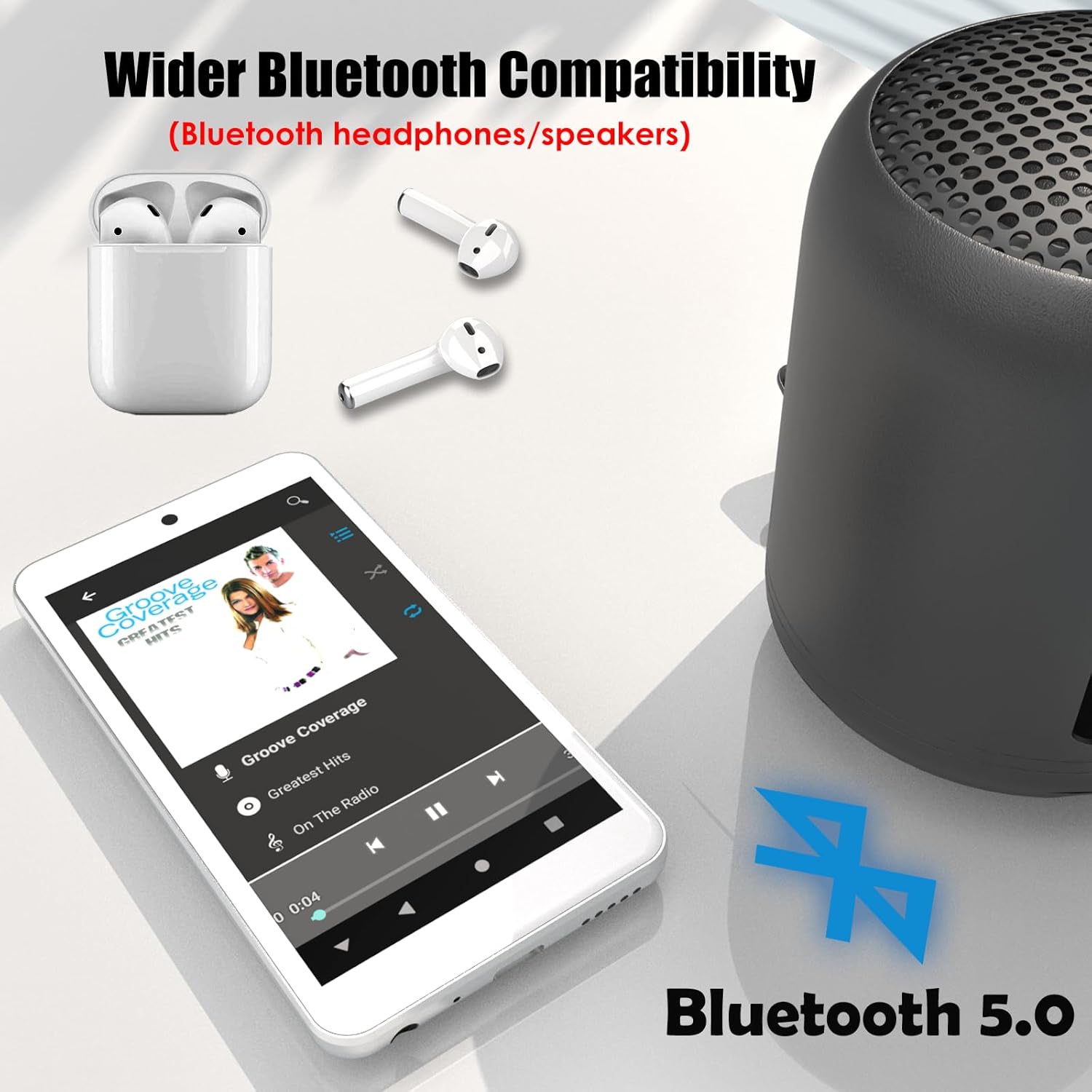
Image: The DGTenk MB09 MP3 Player wirelessly connected to both Bluetooth earbuds and a portable Bluetooth speaker, illustrating its wide compatibility.
5.6 Parental Control Setup
The device includes parental control features to manage usage for children.
- Navigate to "Settings".
- Look for "Parental Controls" or a similar option.
- Follow the on-screen instructions to log in with a Google parent account (if available) or set up controls using a third-party application if a Google account is not used.
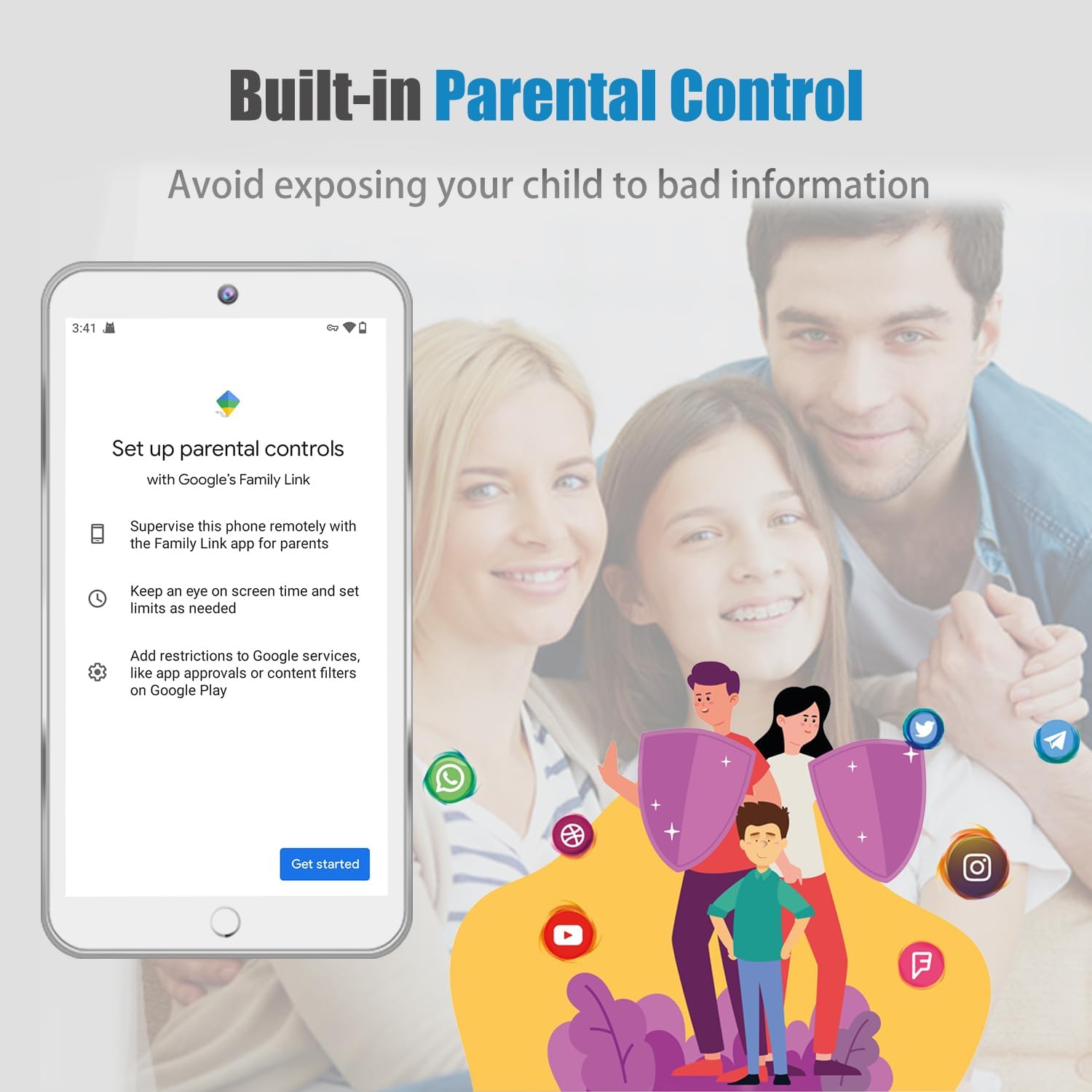
Image: A screen capture of the DGTenk MB09 MP3 Player showing the "Set up parental controls with Google's Family Link" interface, emphasizing child safety features.
5.7 Pre-installed Applications
The device comes with pre-installed music players, social apps, video players, and e-books. Note that the system does not support downloading additional applications from an app store.
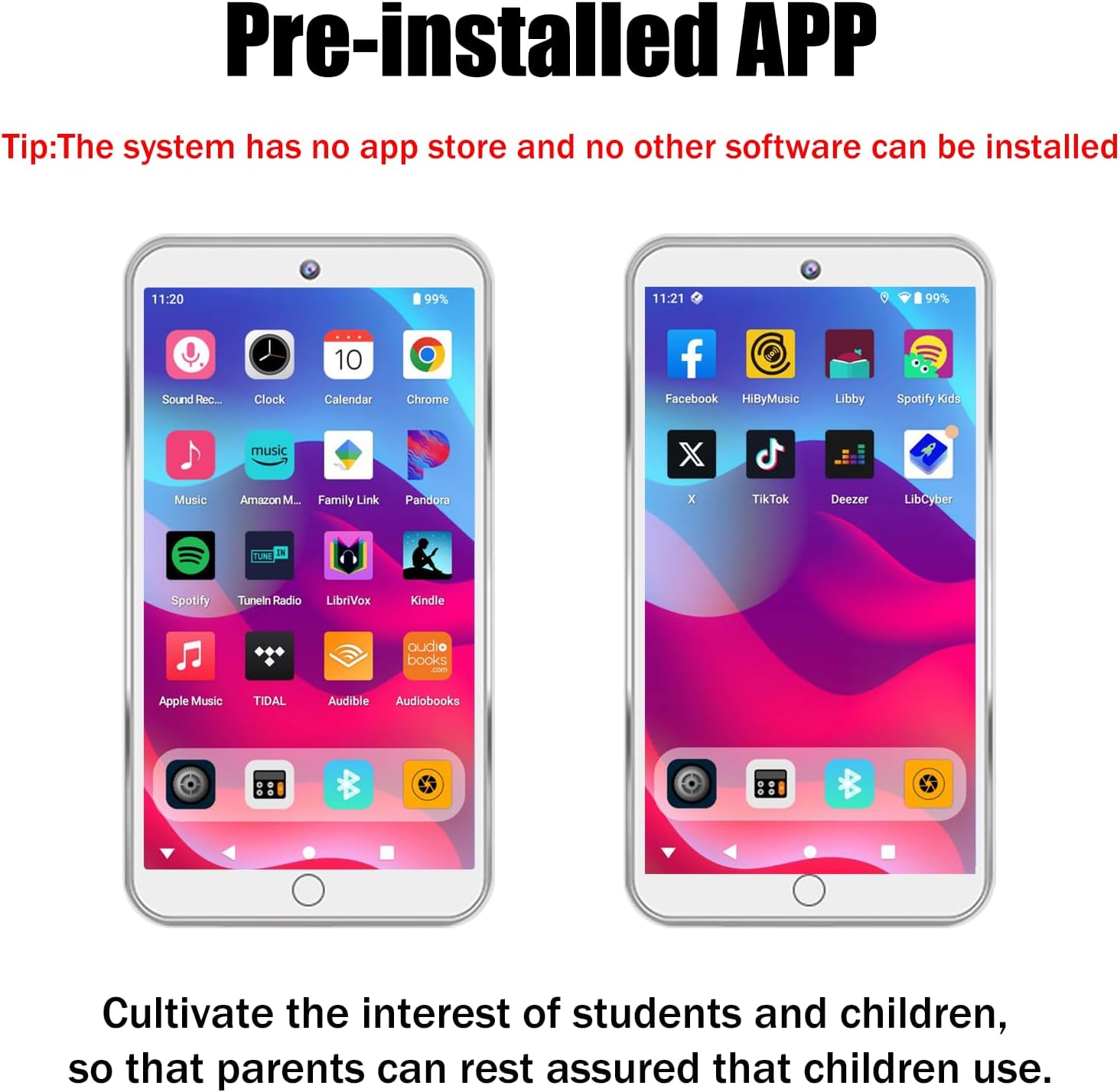
Image: The DGTenk MB09 MP3 Player displaying its home screen with various pre-installed applications, including music, social media, and e-book apps.
5.8 Using the Speaker
To play audio through the built-in speaker, ensure no headphones are connected. The audio will automatically route to the speaker.
5.9 FM Radio
To use the FM Radio function, connect wired headphones (acting as an antenna) to the 3.5mm jack. Open the "FM Radio" application and scan for available stations.
5.10 Voice Recorder
Access the "Voice Recorder" application to record audio. Tap the record button to start and stop recording. Recordings are saved to the device's internal storage.
6. Maintenance
6.1 Cleaning
Use a soft, lint-free cloth to clean the screen and body of the player. Avoid using harsh chemicals or abrasive materials.
6.2 Battery Care
- Avoid exposing the device to extreme temperatures.
- Do not allow the battery to fully discharge frequently.
- If storing the device for an extended period, charge it to approximately 50% before storage.
6.3 Software Updates
Periodically check for software updates in the "Settings" menu to ensure optimal performance and access to new features. Connect to Wi-Fi for updates.
7. Troubleshooting
| Problem | Solution |
|---|---|
| Device does not power on. | Ensure the battery is charged. Connect to a power source and try again. If unresponsive, perform a hard reset by holding the power button for 10-15 seconds. |
| Cannot connect to Wi-Fi. | Check if Wi-Fi is enabled in settings. Verify the network password. Restart the player and your Wi-Fi router. |
| Bluetooth device not pairing. | Ensure both devices are in pairing mode and within range. Turn Bluetooth off and on again on the player. |
| "Memory card busy" message or files not appearing. | Ensure the TF card is properly inserted. Try reinserting the card. Format the TF card (this will erase all data on the card). |
| Audio quality issues. | Check headphone connection. Adjust equalizer settings. Ensure media files are not corrupted. |
| Device is slow or unresponsive. | Close unused applications. Clear cache. Restart the device. If issues persist, consider a factory reset (backup data first). |
8. Specifications
Key technical specifications for the DGTenk MB09 MP3 Player:
- Model: MB09
- Storage Capacity: 160 GB (Internal)
- Expandable Storage: Up to 256 GB via TF card
- Screen: 4.3-inch 1280*720 HD IPS Touch Screen
- Connectivity: Bluetooth 5.0, Wi-Fi, USB-C
- Cameras: 5MP Front, 13MP Rear
- Battery: 1900mAh Lithium Polymer
- Battery Life: Up to 25 hours (Bluetooth earbuds), 40 hours (wired earbuds), 4-8 hours (video playback)
- Charging Time: Approximately 3.5 hours (0%-100%)
- Supported Audio Formats: MP3, OGG, FLAC, AAC, WAV, WMA, APE, etc.
- Supported Video Formats: MP4, RM, AVI, RMVB, FLV, DAT, MKV, MPG, MOV, TS, etc.
- Special Features: Built-In Speaker, FM Radio, Voice Recorder, Parental Control, G-sensor
- Product Dimensions: 0.34 x 2.5 x 5 inches
- Item Weight: 7 ounces
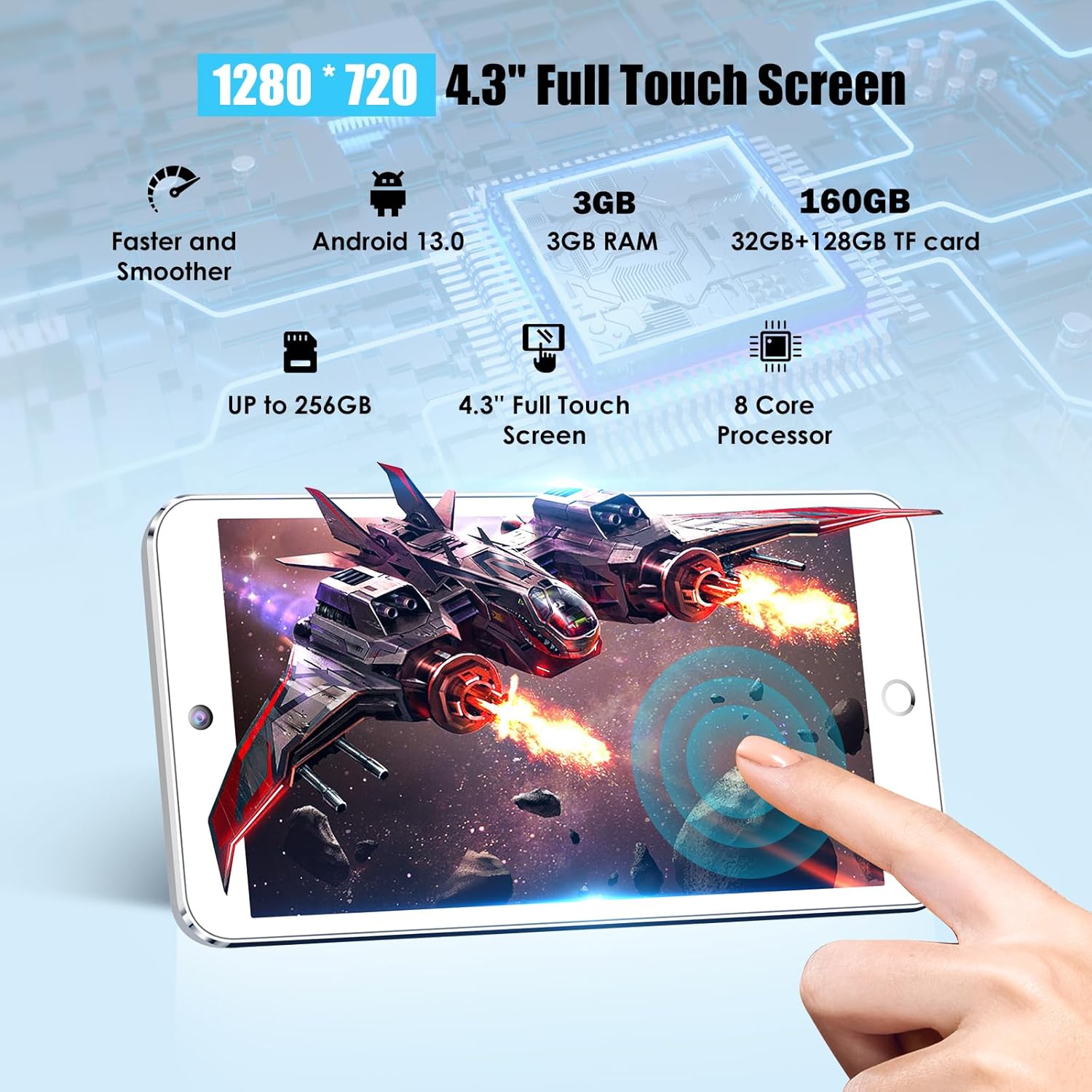
Image: The DGTenk MB09 MP3 Player screen displaying key technical specifications such as 4.3" Full Touch Screen, 3GB RAM, 160GB storage (32GB + 128GB TF card), and an 8-core processor.
9. Warranty and Support
DGTenk provides a 365-day warranty for this product. If you encounter any issues or have questions regarding your DGTenk MB09 MP3 Player, please contact customer support.
Customer Support: For assistance, please refer to the contact information provided in your product packaging or visit the official DGTenk website. You can also reach out to the seller directly through the platform where the purchase was made.
The manufacturer is Dgtenk. For more information, you may visit the DGTenk Store on Amazon.