
1. Introduction
Thank you for choosing the Madoec S9 Portable Carplay Screen Stereo. This device integrates advanced features such as wireless Apple CarPlay, Android Auto, a 4K dash camera, a 1080p backup camera, Bluetooth connectivity, navigation, mirror link functionality, and voice control. This manual provides detailed instructions for installation, operation, and maintenance to ensure optimal performance and user experience.
2. Package Contents
Please check the package for the following items:
- Madoec S9 7-inch Portable Carplay Screen
- 4K Front Dash Camera (integrated)
- 1080p Backup Camera with Cable
- Power Cord (Car Charger)
- Console Stand (Dashboard Suction Mount Bracket)
- Windshield Suction Mount Bracket
- Adhesive Sticker Bracket
- User Manual (this document)
- TF Card (64GB or 164GB as specified)
- AUX Cable (if included)
3. Product Overview
Familiarize yourself with the main components of your Madoec S9 device.
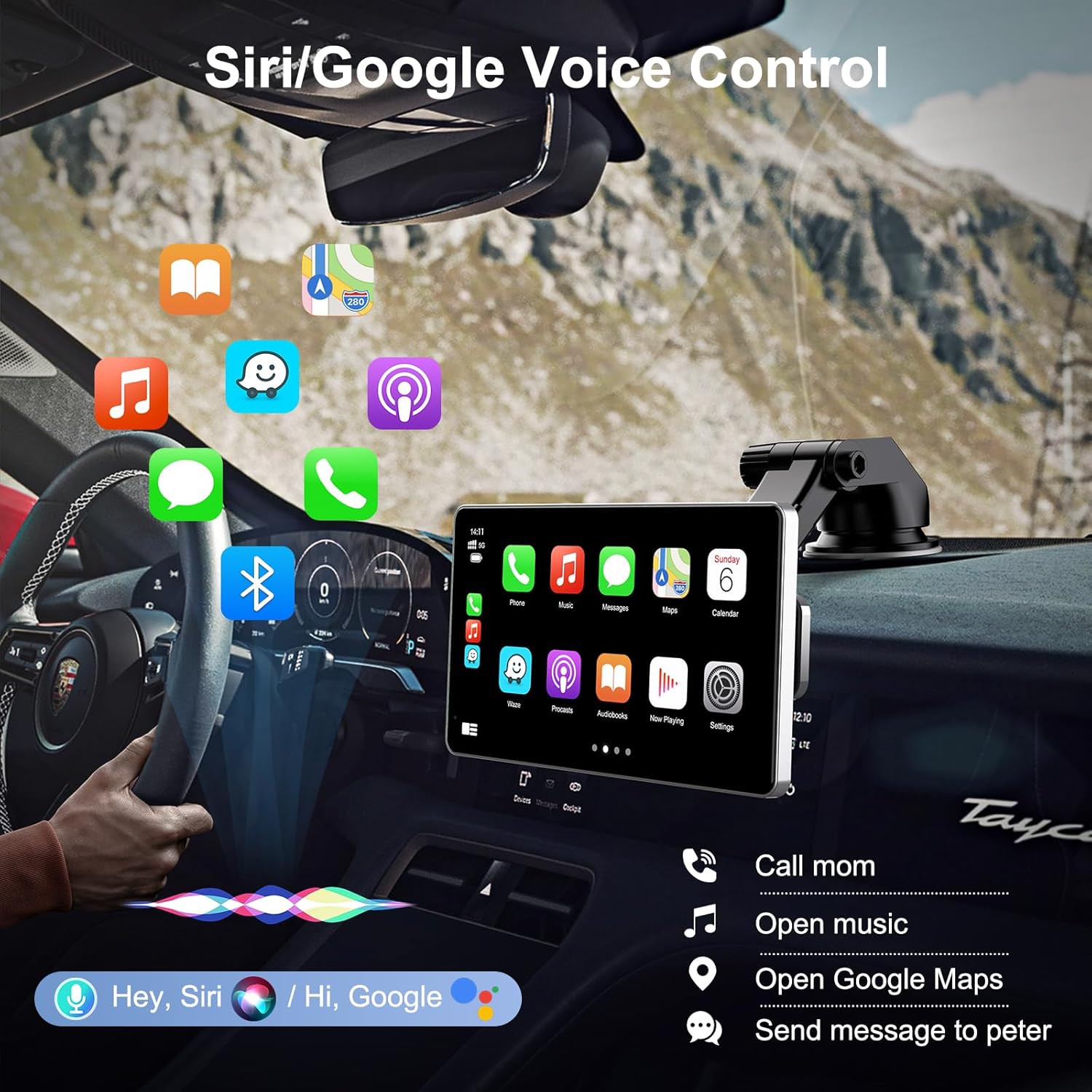
Figure 3.1: Front view of the Madoec S9 unit, showing the 7-inch touch screen display.
The device features a 7-inch HD touch screen (1024x600 resolution) for clear visuals and responsive interaction.
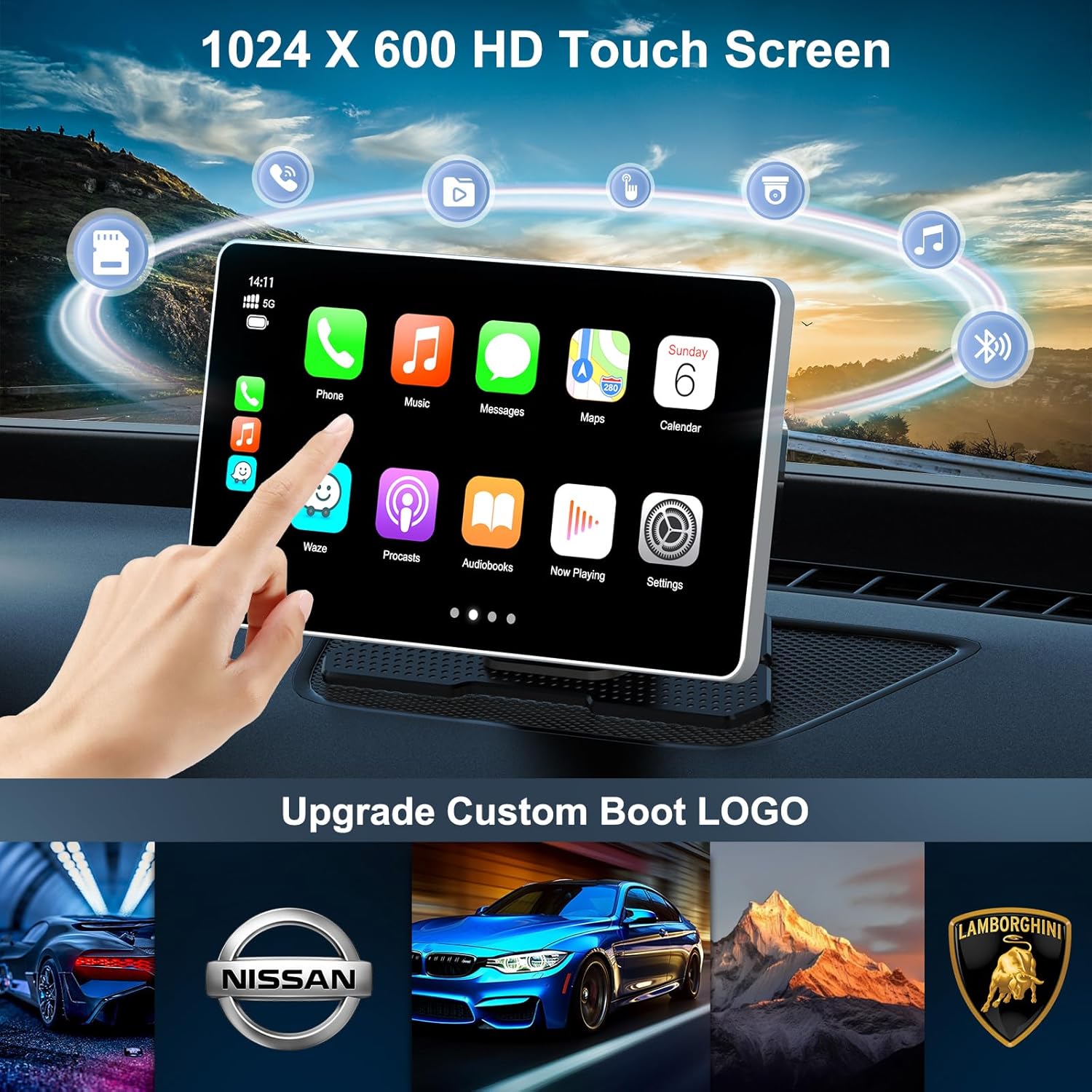
Figure 3.2: The 1024x600 HD touch screen interface, displaying common applications and custom boot logo options.
Key features include:
- 7-inch HD Touch Screen (1024x600)
- Integrated 4K Dash Camera
- Wireless Apple CarPlay & Android Auto
- Bluetooth Connectivity
- Mirror Link Functionality
- Voice Control (Siri/Google Assistant)
- Multiple Audio Output Options (FM Transmitter, AUX, Built-in Speaker)
4. Setup and Installation
This section guides you through mounting the device and connecting necessary cables.
4.1 Mounting the Device
The Madoec S9 offers several installation methods to suit your vehicle's dashboard or windshield.
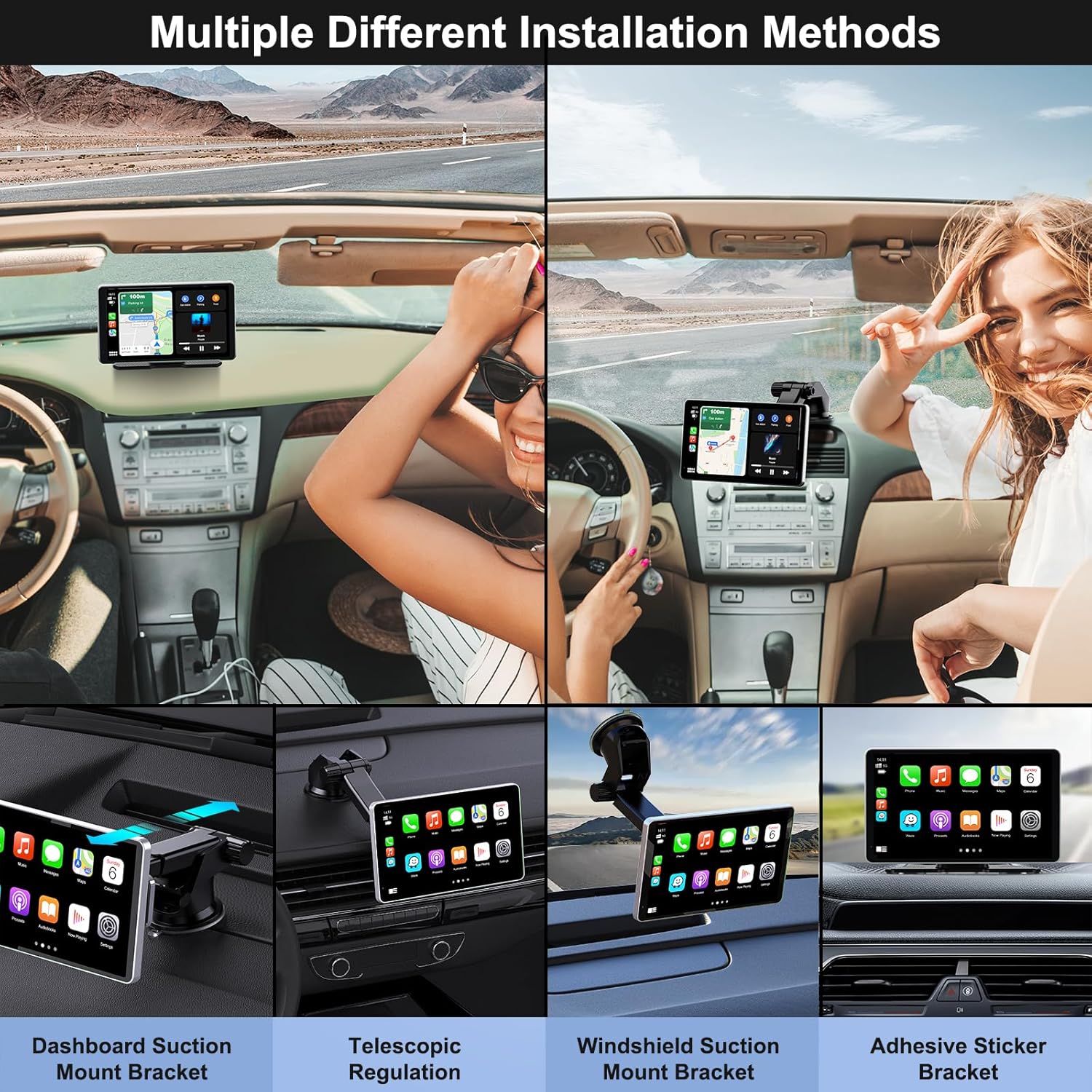
Figure 4.1: Various mounting options for the Madoec S9, including dashboard suction, telescopic, windshield suction, and adhesive brackets.
- Choose a Location: Select a position on your dashboard or windshield that does not obstruct your view of the road or interfere with airbags.
- Clean the Surface: Ensure the mounting surface is clean and dry for optimal adhesion.
- Attach the Bracket:
- For suction mounts (dashboard or windshield), press the suction cup firmly against the surface and engage the locking lever.
- For adhesive mounts, peel off the protective film and press firmly for at least 30 seconds. Allow time for the adhesive to cure before attaching the device.
- Secure the Device: Attach the Madoec S9 unit to the chosen bracket. Adjust the viewing angle for optimal visibility.
4.2 Power Connection
- Insert the provided power cord into the DC IN port on the Madoec S9 unit.
- Plug the other end of the power cord (car charger) into your vehicle's 12V power outlet (cigarette lighter socket).
- The device will power on automatically when the vehicle's ignition is turned on.
4.3 Backup Camera Installation
The backup camera provides a rear view when reversing. Professional installation is recommended for optimal wiring.
- Mount the Camera: Install the backup camera at the rear of your vehicle, typically above the license plate. Ensure it has a clear view.
- Route the Cable: Carefully route the camera cable from the rear of the vehicle to the Madoec S9 unit, ensuring it does not interfere with moving parts or get pinched.
- Connect to Madoec S9: Plug the camera cable into the designated "Rear Cam" input port on the Madoec S9.
- Connect to Reverse Light (Optional but Recommended): For automatic display when reversing, connect the red trigger wire from the camera cable to your vehicle's reverse light positive wire. This signals the Madoec S9 to switch to the backup camera view when reverse gear is engaged.
5. Operating Instructions
This section covers the main functions and features of your Madoec S9.
5.1 Initial Setup and System Settings
- Power On: The device powers on automatically with vehicle ignition.
- Language Selection: On first use, select your preferred language.
- Date & Time: Adjust date and time settings as needed.
- Audio Output: Configure how audio is played through your car's speakers.
- FM Transmitter: Select an unused FM frequency on the Madoec S9 and tune your car's radio to the same frequency.
- AUX Output: Connect an AUX cable from the Madoec S9's AUX OUT port to your car's AUX IN port. Select AUX input on your car stereo.
- Built-in Speaker: Audio will play directly from the device's internal speaker.
5.2 Wireless Apple CarPlay & Android Auto
Connect your smartphone wirelessly for navigation, music, calls, and more.

Figure 5.1: Wireless Apple CarPlay and Android Auto functionality, displaying phone integration for calls, navigation, and media.
- Enable Bluetooth & Wi-Fi: On your smartphone, ensure Bluetooth and Wi-Fi are turned on.
- Pair Device: On the Madoec S9, go to the CarPlay/Android Auto section. It will display a Bluetooth name. On your phone, search for and connect to this Bluetooth device.
- Confirm Connection: Once paired via Bluetooth, the device will prompt you to allow CarPlay/Android Auto connection via Wi-Fi. Confirm on your phone.
- Start Using: Your phone's CarPlay or Android Auto interface will appear on the Madoec S9 screen.
5.3 Dash Camera (Front)
The integrated 4K dash camera continuously records your drive.
- Recording: The dash camera automatically starts recording when the device powers on. Recordings are saved to the inserted TF card.
- Loop Recording: Older files are overwritten when the TF card is full (configurable in settings).
- G-Sensor: In case of a sudden impact, the G-sensor will lock the current video file to prevent it from being overwritten.
- Viewing Footage: Access recorded videos through the "Video Playback" or "Gallery" app on the Madoec S9.
5.4 Backup Camera (Rear)
Provides a clear view of the area behind your vehicle when reversing.

Figure 5.2: Display of front and rear camera feeds, including the reverse camera view with dynamic parking guidelines.
- If connected to the reverse light trigger, the screen will automatically switch to the backup camera view when you shift into reverse.
- Parking guidelines may be displayed to assist with parking.
- You can manually access the rear camera view through the camera application on the device.
5.5 Mirror Link (Android Cast / Airplay)
Display your smartphone's screen directly on the Madoec S9.
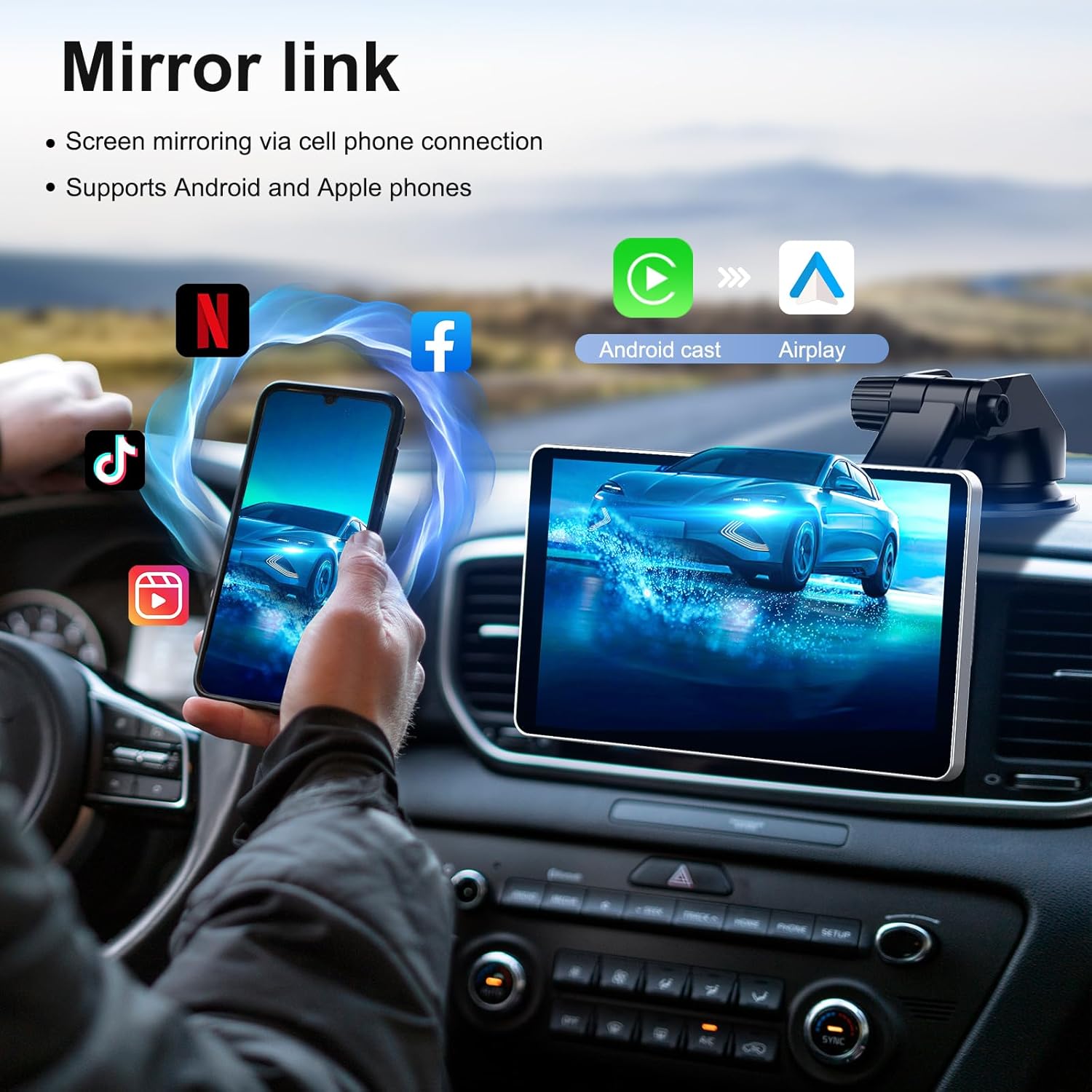
Figure 5.3: Mirror Link in action, projecting a smartphone's display onto the Madoec S9 screen, compatible with Android Cast and Airplay.
- Select Mirror Link: On the Madoec S9, tap the "Mirror Link" icon.
- Connect: Follow the on-screen instructions to connect your Android phone (Android Cast) or iPhone (Airplay) via Wi-Fi.
- Display Content: Your phone's screen will be mirrored on the Madoec S9.
5.6 Voice Control (Siri / Google Assistant)
Use voice commands for hands-free operation when connected to CarPlay or Android Auto.

Figure 5.4: Voice control functionality, demonstrating commands for making calls, playing music, navigation, and sending messages via Siri or Google Assistant.
- Activate Siri or Google Assistant by saying "Hey Siri" or "Hey Google" (if enabled on your phone) or by tapping the voice command icon on the screen.
- Issue commands such as "Call [Contact Name]", "Navigate to [Address]", "Play [Song/Artist]", or "Send a message to [Contact Name]".
6. Maintenance
Proper care ensures the longevity and optimal performance of your device.
- Cleaning the Screen: Use a soft, lint-free cloth to gently wipe the screen. For stubborn smudges, slightly dampen the cloth with water or a screen cleaner designed for electronics. Do not use abrasive cleaners or solvents.
- Cleaning the Cameras: Ensure the front dash camera lens and the rear backup camera lens are clean and free from dirt or obstructions for clear recordings and views.
- Temperature: Avoid exposing the device to extreme temperatures (very hot or very cold) for extended periods, as this can affect battery life and screen performance.
- Firmware Updates: Check the manufacturer's website periodically for firmware updates to ensure you have the latest features and bug fixes.
- TF Card: Periodically format the TF card (at least once a month) to maintain optimal recording performance and prevent data corruption. Back up any important footage before formatting.
7. Troubleshooting
If you encounter issues, refer to the following common solutions.
| Problem | Possible Cause | Solution |
|---|---|---|
| Device does not power on. | No power supply; faulty power cord; vehicle's 12V outlet is not working. | Check power cord connection. Ensure vehicle's 12V outlet is functional. Try a different 12V outlet. |
| No audio from car speakers. | Incorrect audio output setting; car stereo input not selected; FM frequency interference. | Verify Madoec S9 audio output (FM/AUX). Ensure car stereo is on correct input (FM/AUX). Try a different FM frequency. Check AUX cable connection. |
| CarPlay/Android Auto not connecting. | Bluetooth/Wi-Fi off on phone; incorrect pairing; phone software issue. | Ensure phone's Bluetooth and Wi-Fi are on. Forget device on phone and re-pair. Restart phone and Madoec S9. |
| Backup camera not displaying. | Camera cable loose; trigger wire not connected; faulty camera. | Check camera cable connection to Madoec S9. Verify trigger wire connection to reverse light. Test camera manually if possible. |
| Dash cam not recording. | No TF card; TF card full or corrupted; recording function disabled. | Insert TF card. Format TF card (backup data first). Check recording settings. Try a different TF card. |
If the problem persists, please contact Madoec customer support.
8. Specifications
| Model | S9 |
| Screen Size | 7-inch |
| Display Resolution | 1024 x 600 HD |
| Front Camera Resolution | 4K |
| Rear Camera Resolution | 1080p |
| Connectivity | Bluetooth, Wi-Fi (for CarPlay/Android Auto), 3.5mm Jack (AUX), USB Type-C (Power) |
| Special Features | Wireless Apple CarPlay, Wireless Android Auto, Voice Control, Mirror Link, FM Transmitter |
| Storage | Supports TF Card (64GB/164GB included) |
| Power Input | 12V Car Power Outlet |
| Audio Output Modes | Bluetooth, Speaker, FM Radio, AUX Input |
9. Warranty and Support
Madoec products are designed for reliability and performance. This product comes with a standard manufacturer's warranty. Please refer to the warranty card included in your package or visit the official Madoec website for detailed warranty terms and conditions.
For technical support, troubleshooting assistance, or warranty claims, please contact Madoec customer service through the contact information provided on their official website or through your purchase platform.
Website: www.madoec.com (Example, please verify actual website)
Email: support@madoec.com (Example, please verify actual email)