
Madoec S9 Pro
Portable Apple CarPlay Screen User Manual
Model: S9 Pro | Brand: Madoec
Introduction
This manual provides comprehensive instructions for the installation, operation, and maintenance of your Madoec S9 Pro Portable Apple CarPlay Screen. This device integrates advanced features such as wireless Apple CarPlay and Android Auto, a 4K dash camera, a 1080p backup camera, GPS navigation, and various audio connectivity options, designed to enhance your in-car experience.

Figure 1: Madoec S9 Pro Portable Apple CarPlay Screen and accessories.
This image displays the main unit of the Madoec S9 Pro Portable Apple CarPlay Screen, showcasing its 9-inch display. Alongside the main unit, key accessories are visible, including a 64GB TF card, a backup camera, and two smartphones illustrating wireless Apple CarPlay and Android Auto connectivity. The rear view of the main unit, highlighting the integrated dash camera, is also shown.
Setup
1. Package Contents
Before beginning installation, verify that all components are present in the package:
- 1 x 9" Screen Unit
- 2 x Bracket Stands (Dash Mount Bracket, Suction Mount Bracket)
- 1 x 64GB TF Card
- 1 x Power Cord (Cigarette Lighter Power Cable)
- 1 x Camera with Cable (16.4ft Backup Camera)
- 1 x AUX Audio Cable
- 1 x User Manual

Figure 2: All components included in the Madoec S9 Pro package.
This image provides a visual overview of all items included in the product package, ensuring users can confirm they have received all necessary parts for installation and operation. It shows the 9-inch screen, dash mount bracket, suction mount bracket, cigarette lighter power cable, backup camera with cable, AUX audio cable, 64GB TF card, and the user manual.
2. Mounting the Device
The Madoec S9 Pro offers multiple installation methods to suit various vehicle interiors. Choose the method that best fits your vehicle and driving preference.
- Dashboard Suction Mount: Secure the suction cup to a clean, flat surface on your dashboard. Ensure it is stable and does not obstruct your view.
- Adhesive Sticker Bracket: For a more permanent fixture, use the adhesive sticker bracket on a suitable flat surface. Clean the surface thoroughly before applying.
- Windshield Suction Mount: Attach the suction cup to your windshield, ensuring it is positioned to provide optimal visibility without impeding your driving view.
- Telescopic Regulation: The included brackets allow for telescopic adjustment, enabling you to position the screen at an optimal distance and angle.

Figure 3: Various mounting options for the Madoec S9 Pro.
This image illustrates four different ways to install the Madoec S9 Pro in a car: using a dashboard suction mount, an adhesive sticker bracket, telescopic regulation for adjustable positioning, and a windshield suction mount. This provides flexibility for users to choose the most suitable mounting option for their vehicle.
Note: Ensure the chosen mounting location does not interfere with airbags or obstruct your view of the road.
3. Connecting Power and Cameras
- Connect the Cigarette Lighter Power Cable to the designated power input port on the S9 Pro unit and plug the other end into your vehicle's 12V cigarette lighter socket.
- Insert the 64GB TF card into the TF card slot on the unit. This is essential for dash cam recording.
- Connect the 16.4ft Backup Camera cable to the AV IN port on the S9 Pro unit. For automatic display when reversing, the backup camera needs to be wired to your vehicle's reverse light power source. Professional installation is recommended for this step if you are not familiar with car electrical systems.
The front 4K dash camera is integrated into the main unit and does not require separate wiring.
Operating Instructions
1. Initial Power On and Interface
Once powered on, the 9-inch HD touch screen will display the main interface. You can navigate through various functions using the touch screen.
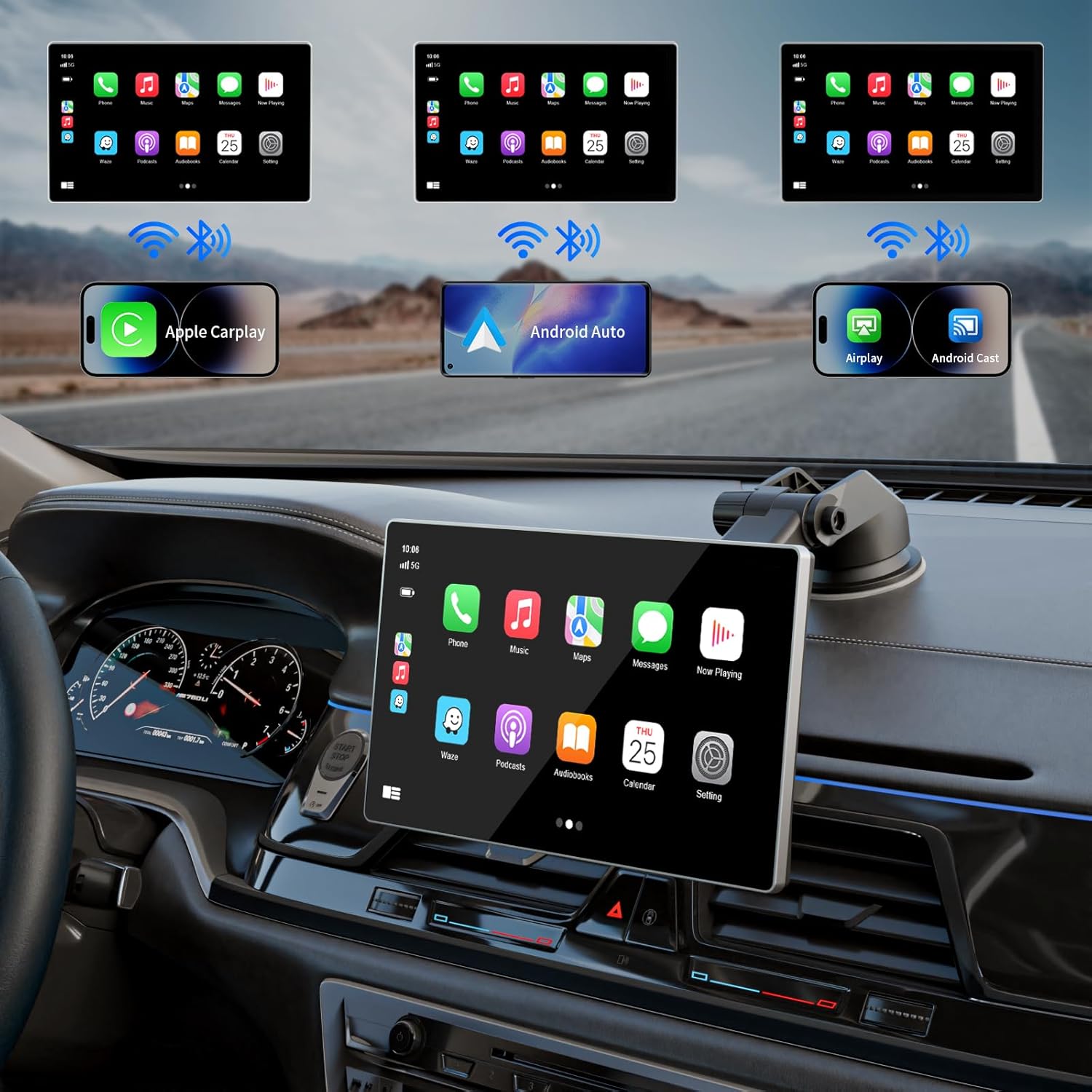
Figure 4: Wireless Apple CarPlay and Android Auto in action.
This image demonstrates the Madoec S9 Pro screen displaying both Apple CarPlay and Android Auto interfaces simultaneously, highlighting its dual compatibility and wireless connectivity. The screen is shown integrated into a car's dashboard, providing a clear view of the user interface.
2. Wireless Apple CarPlay & Android Auto
The S9 Pro supports wireless connectivity for both Apple CarPlay and Android Auto, allowing seamless integration of your smartphone's features onto the screen.
- Ensure Bluetooth and Wi-Fi are enabled on your smartphone.
- On the S9 Pro, select either "CarPlay" or "Android Auto" from the main menu.
- Follow the on-screen prompts to pair your phone via Bluetooth. Once paired, the system will automatically establish a Wi-Fi connection for wireless CarPlay/Android Auto.
- Your phone's compatible apps (Navigation, Music, Messages, Phone) will appear on the S9 Pro screen.
3. Voice Control (Siri/Google Assistant)
Utilize voice commands for safe and convenient operation:
- Activate Siri (for Apple CarPlay) or Google Assistant (for Android Auto) by saying the wake phrase or pressing the voice command icon on the screen.
- You can then issue commands for navigation, making calls, playing music, sending messages, and more, all hands-free.
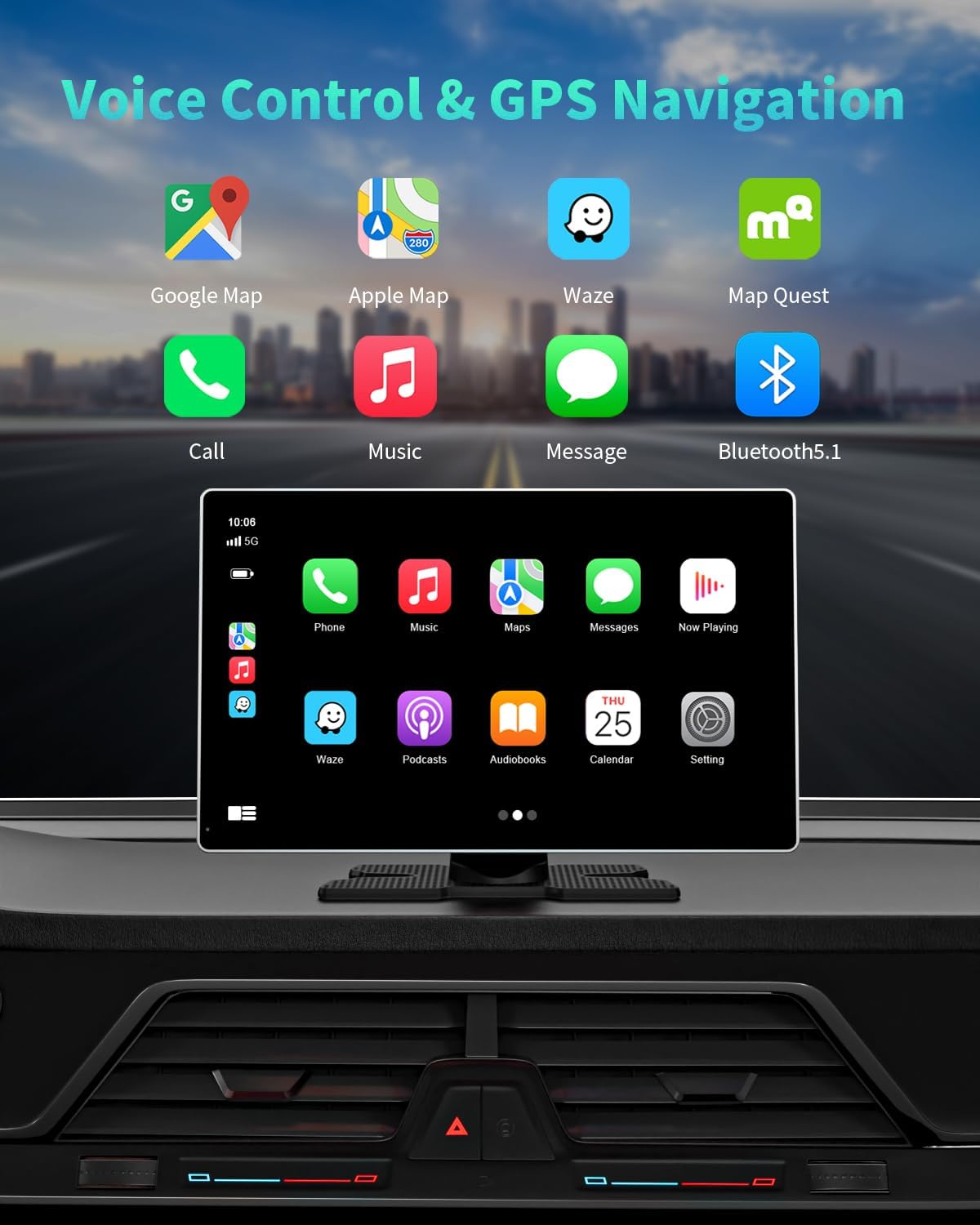
Figure 5: Voice control and GPS navigation features.
This image highlights the voice control capabilities (Siri/Google Assistant) and GPS navigation features of the Madoec S9 Pro. It shows various map applications and communication icons on the screen, emphasizing hands-free operation for safer driving.
4. GPS Navigation
Access real-time GPS navigation through your connected smartphone's map applications (e.g., Google Maps, Waze, Apple Maps). The S9 Pro provides precise location and real-time route recommendations.
5. Dash Cam Recording (Front 4K & Rear 1080P)
The integrated dual dash cameras provide continuous loop recording. Footage is saved to the inserted 64GB TF card.
- Loop Recording: The system automatically overwrites the oldest footage when the TF card is full.
- Emergency Lock: In case of a sudden collision (detected by the G-sensor), the current video segment will be automatically locked and protected from being overwritten.
- Motion Detection: The dash cam can be configured to start recording when motion is detected, providing surveillance when parked.

Figure 6: Dual camera recording capabilities.
This image details the upgraded 4K front and 1080P rear camera features, including dual recording, locked video, and 170° wide-angle views. It visually explains how the front and rear camera feeds can be displayed in a split-screen view, and how the system captures footage in various driving scenarios, including collisions.

Figure 7: Backup camera with parking assistance.
This image showcases the adjustable parking assistant backup camera feature. It illustrates the screen displaying the rear view with dynamic parking guide lines that align with the steering wheel's rotation, providing precise and accurate reversing assistance. Key features like FHD 1080P rear camera, IP67 waterproof rating, and 170° viewing angle are highlighted.
6. Audio Output Options
The S9 Pro offers multiple ways to transmit audio to your vehicle's sound system:
- FM Transmitter: Tune your car's FM radio to an unused frequency and set the S9 Pro to the same frequency to transmit audio wirelessly.
- AUX Connection: Use the provided AUX audio cable to connect the S9 Pro directly to your car's AUX input for a wired audio connection.
- Bluetooth: Connect the S9 Pro to your car's factory stereo system via Bluetooth for audio playback.
- Local Speaker: The S9 Pro has a built-in speaker for direct audio output.

Figure 8: Audio output methods.
This image visually explains the four different audio output methods available with the Madoec S9 Pro: FM Transmitter, AUX Connection, Bluetooth, and Local Speaker. Each method is depicted with an icon and a brief description, showing how audio can be routed to the car's speakers or played directly from the unit.
7. Mirror Link (AirPlay/Miracast)
The "Super Link" feature allows for seamless screen mirroring from your smartphone to the S9 Pro screen, supporting both AirPlay (iOS) and Miracast (Android/iOS).
- Select "Super Link" from the main menu.
- Follow the on-screen instructions to connect your device via Wi-Fi for screen mirroring.
8. Customize Startup Logo
You can personalize your S9 Pro by setting a custom startup logo. Refer to the detailed instructions in the included User Manual for the specific steps to upload your desired logo.

Figure 9: Screen resolution and custom boot logo feature.
This image highlights the 1024 x 600P HD touch screen resolution of the Madoec S9 Pro, comparing it to a general 720 x 480P screen. It also showcases the "Upgrade Custom Boot LOGO" feature, displaying various car brand logos that can be set as the startup screen, allowing for personalization.
Maintenance
- Cleaning: Use a soft, dry cloth to clean the screen and exterior of the device. Avoid using abrasive cleaners or solvents.
- Temperature: Do not expose the device to extreme temperatures (hot or cold) for prolonged periods.
- Storage: If storing the device for an extended period, disconnect it from power and store it in a cool, dry place.
- Firmware Updates: Periodically check the manufacturer's website for any available firmware updates to ensure optimal performance and access to new features.
Troubleshooting
| Problem | Possible Cause | Solution |
|---|---|---|
| Device does not power on. | No power, loose connection, faulty power cable. | Check cigarette lighter connection. Ensure vehicle's 12V socket is working. Try a different power source if available. |
| Wireless CarPlay/Android Auto not connecting. | Bluetooth/Wi-Fi off, incorrect pairing, interference. | Ensure Bluetooth and Wi-Fi are on your phone. Forget device on both ends and re-pair. Move phone closer to the unit. |
| No audio output. | Incorrect audio output mode, FM frequency interference, loose AUX cable. | Verify selected audio output mode (FM, AUX, Bluetooth). If using FM, try a different frequency. Check AUX cable connection. Ensure car stereo is on correct input. |
| Dash cam not recording. | TF card full, faulty TF card, recording disabled. | Format the TF card (this will erase all data). Replace TF card if corrupted. Check recording settings on the device. |
| Backup camera not displaying. | Loose cable, incorrect wiring, camera malfunction. | Check the connection of the backup camera cable to the AV IN port. Verify wiring to the reverse light. Test camera if possible. |
Specifications
- Model Name: S9 Pro
- Brand: Madoec
- Display Size: 9 Inches
- Display Resolution: 1024 x 600P HD
- Front Camera: 4K
- Rear Camera: 1080P
- Connectivity: Wireless Apple CarPlay, Wireless Android Auto, Bluetooth, Wi-Fi, AUX
- Storage: Supports TF Card (64GB TF card included)
- Special Features: GPS Navigation, Voice Control (Siri/Google Assistant), Loop Recording, Emergency Lock (G-sensor), Motion Detection, Mirror Link (AirPlay/Miracast), Customizable Startup Logo
- Power Input: 12-24V (compatible with most motor vehicles)
- Item Weight: 2.61 pounds
- Package Dimensions: 10.39 x 6.42 x 3.9 inches
Warranty & Support
Madoec is committed to providing high-quality products and excellent customer service.
- Warranty: The Madoec S9 Pro comes with a 1-YEAR warranty.
- Returns: 60 days no worry to return.
- Replacement: Replacement available within 12 Months.
- Technical Support: Lifetime after-sales consultation and technical support are available.
- Customer Service: Quick reply within 24 hours.
For any inquiries, technical assistance, or warranty claims, please contact Madoec customer support through the platform where you purchased the product or refer to the contact information provided in the included user manual.
Ask a question about this manual
Ask about setup, troubleshooting, compatibility, parts, safety, or missing instructions. Manuals+ will review the question and use this page’s manual context to help answer it.