
1. Introduction
The KOQICALL Wireless Queue Calling System is designed to improve waiting line flow and customer experience in various service environments. This system eliminates the need for customers to stand in long queues, allowing them to browse or relax while waiting for their turn. It is ideal for government offices, pharmacies, retail stores, patient waiting areas, restaurants, cafes, and more.
The system operates by providing customers with a numbered ticket. When their turn arrives, the service staff uses a keypad to call their number, which is then displayed on a monitor with an accompanying voice prompt.

Figure 1: Overview of the Wireless Calling System operation.
2. Product Components
Your KOQICALL Wireless Queue Calling System package includes the following main components:
- K-Q23 Display Receiver: To display calling numbers and provide voice prompts.
- K-999 Keypad Transmitter: To call customer numbers.
- Power Adaptors: For both the display and keypad.
- User Manual: This document.
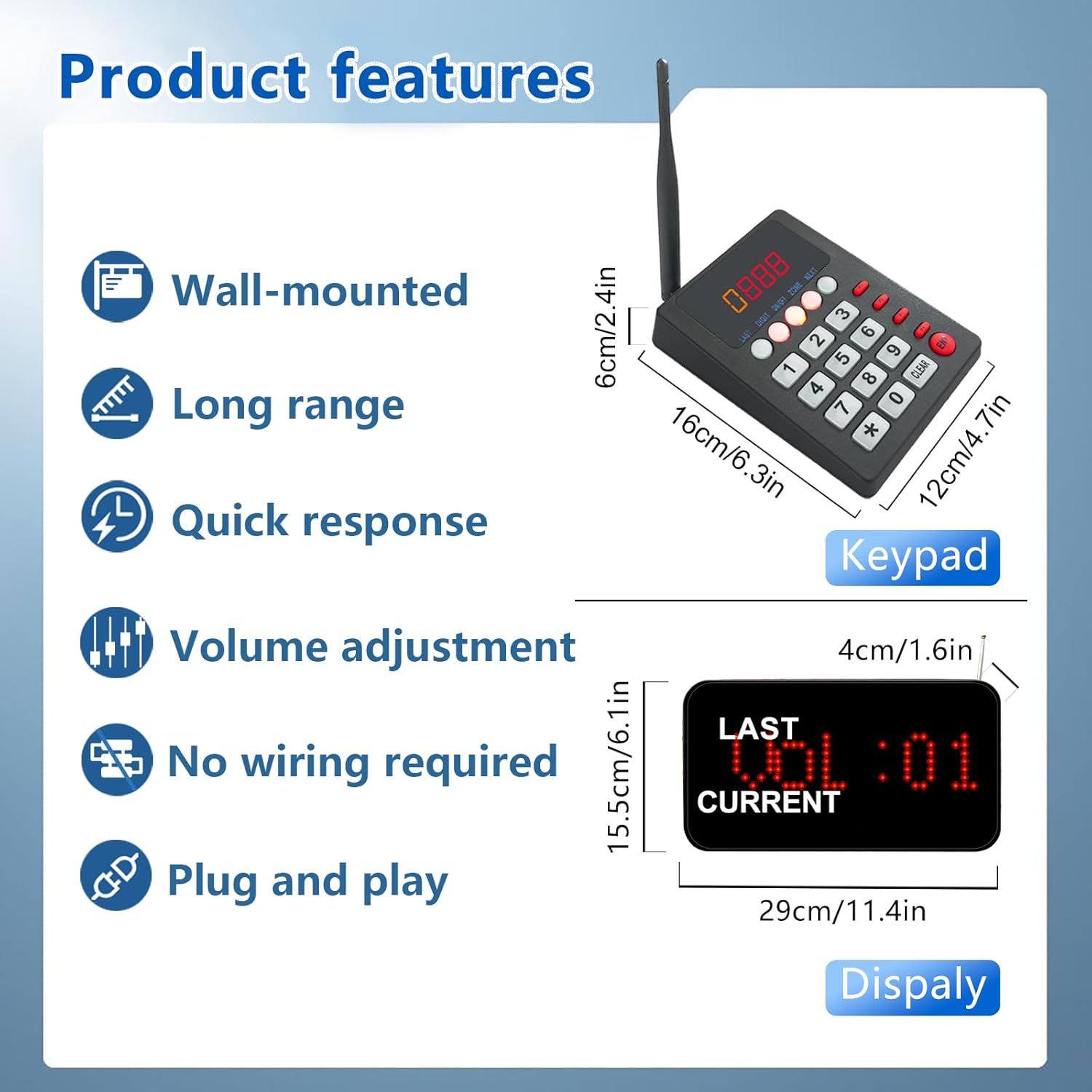
Figure 2: K-999 Keypad and K-Q23 Display with key features and dimensions.

Figure 3: K-999 Keypad Transmitter layout and functions.
Video 1: This video demonstrates the unboxing and initial setup of the system, including the display, keypad, and power adaptors.
3. Setup
3.1 Initial Connection (Plug and Play)
The K-999 Keypad Transmitter and K-Q23 Display Receiver are pre-paired at the factory. Simply connect the power adaptors to both units and plug them into a power outlet. The system should be ready for immediate use.
3.2 Zone Configuration
If you are using multiple systems or need to operate the keypad and display in different signal zones, you may need to adjust the zone settings. The keypad has 16 different zone options (0-9/A-F).
- To change the keypad zone: Press the "ZONE" key on the K-999 keypad, then enter the desired zone number (0-9 or A-F) and press "ENT" to confirm.
- To change the display zone: Use the remote control provided. Press the "Setup" key to enter the function menu. Navigate to the F7 function, then select E1. Adjust the zone number to match the keypad (e.g., 4) and press "Setup" again to confirm, then "Return" to exit.
Video 2: This video demonstrates how to change the zone setting on the display unit using the remote control to match the keypad's zone.
Video 3: This video provides instructions on how to connect the keypad to the display in a specific zone (zone 4), which is essential for proper communication between units.
4. Operating Instructions
4.1 Basic Calling Procedure
To call a customer, follow these steps:
- Enter the customer's number (from 001 to 999) on the K-999 Keypad Transmitter.
- Press the ENT key to initiate the call.
- The K-Q23 Display Receiver will show the number and broadcast a voice prompt.
Video 4: This video demonstrates the basic process of calling a customer number using the keypad and how it appears on the display.
Video 5: This video shows a call result demo with the voice prompt "Please Number XXX go to Counter."
4.2 Keypad Functions
- CLEAR: Press the number you wish to cancel, then press F2 to cancel the call.
- NEXT: To call the next sequential number quickly, press NEXT followed by ENT. For example, if the last called number was 009, pressing NEXT + ENT will automatically call 010.
- LAST: To recall the previous number, press LAST followed by ENT.
Video 6: This video demonstrates how to clear a wrong number entry on the keypad.
4.3 Display Settings (using Remote Control)
The K-Q23 Display Receiver settings can be adjusted using the provided remote control.
- Power On/Off/Pause: Use the power button on the remote to turn the display on or off, or to pause its operation.
- Voice Mode: The display supports various voice prompt types, including "Please number XXX go to Counter," "Window," "Room," "Teller," "Doctor Room," "Consulting Room," "Reception," "Booth," or simply "Number XXX." It also has "DingDong" and "Music" options.
- Volume Adjustment: The volume of the voice prompts can be adjusted. To mute, operate the lower right knob on the display.
- Prompt Times & Brightness: These settings can also be adjusted via the remote control.

Figure 4: Available voice prompt types and volume adjustment.
Video 7: This video demonstrates how to change the voice mode settings on the display unit.
Video 8: This video provides instructions on how to adjust the volume of the display's voice prompts.
Video 9: This video demonstrates how to use the remote control to turn the display on, off, or pause its operation.
5. Specifications
5.1 K-Q23 Display Receiver
- Shell Material: High strength ABS plastic
- Display: 3-digit number (shows last and current calling number)
- Features: Touch screen, English voice prompt, wall-mountable or desktop use
- Power Supply: 110V-240V
- Working Voltage: DC12V
- Dimensions: 290 x 155 x 40mm
5.2 K-999 Keypad Transmitter
- Cover Material: High strength ABS material
- Technology: Digital code technology
- Capacity: Can call up to 999 persons
- Functions: CLEAR, NEXT
- Signal Range: 100M (328 feet) in open area (actual range may vary due to obstacles)
- Color: Black
- Dimensions: 160 x 118 x 60mm
6. Troubleshooting
6.1 Display Not Responding to Keypad Calls
If the display does not respond when you press numbers on the keypad, it is likely a zone mismatch issue. Ensure both the keypad and the display are set to the same operating zone.
- Refer to Section 3.2 Zone Configuration for detailed instructions on how to set the zone for both the keypad and the display.
- Watch Video 2 and Video 3 for visual guidance on adjusting zone settings.
6.2 Incorrect Number Displayed or Voice Prompt
If an incorrect number is displayed or the voice prompt is wrong, you can clear the entry on the keypad.
- Refer to Section 4.2 Keypad Functions for instructions on using the CLEAR function.
- Watch Video 6 for a demonstration of clearing a wrong number.
7. Applications
The KOQICALL Wireless Queue Calling System is versatile and can be effectively used in a wide range of environments to manage customer flow and enhance service efficiency. Common applications include:
- Restaurants and Fast Food Chains
- Food Courts and Cafes
- Supermarkets and Retail Stores
- Hospitals, Clinics, and Nursing Homes
- Banks and Financial Institutions
- Government Offices and Service Centers
- Schools and Educational Institutions
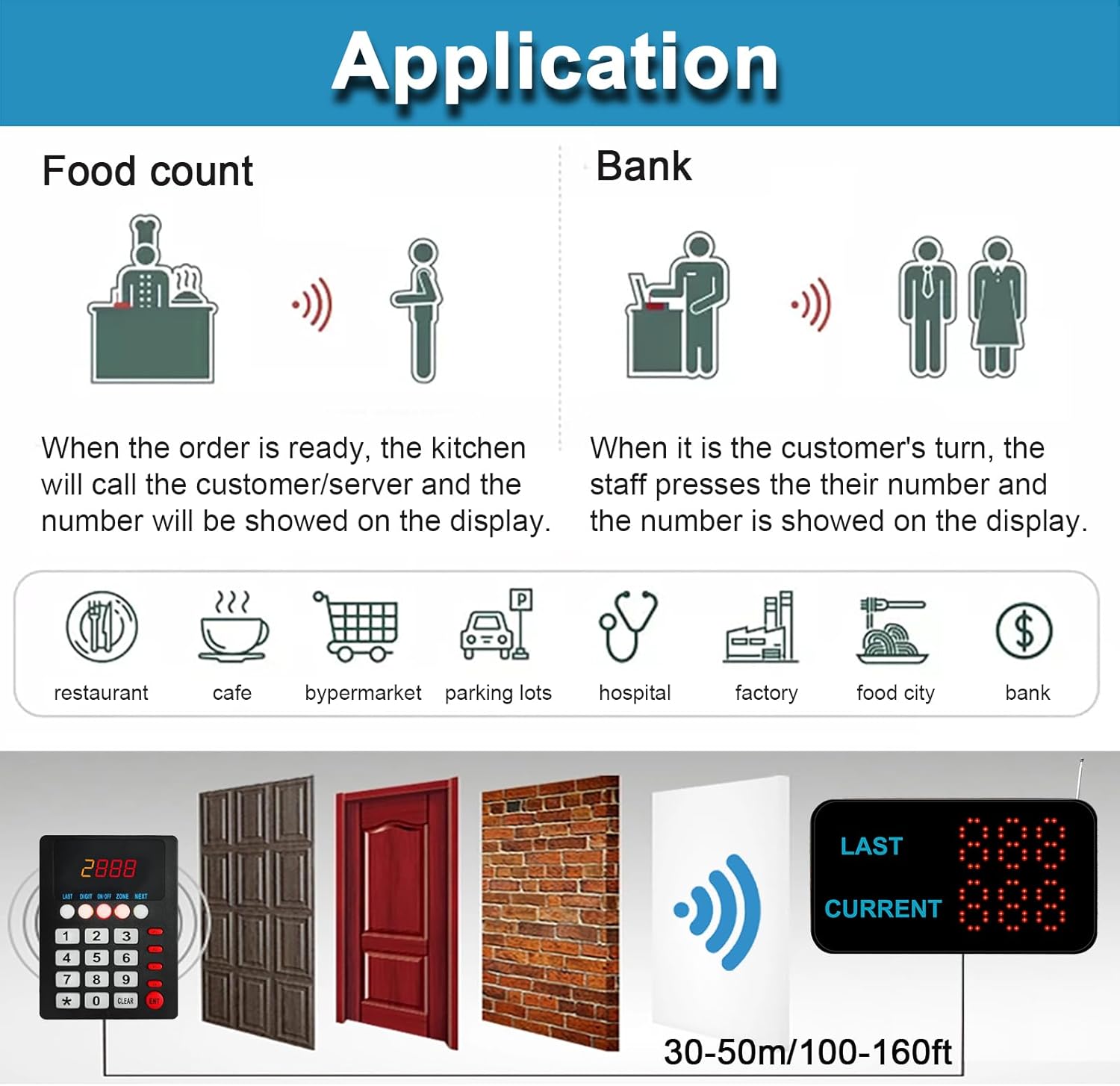
Figure 5: Diverse applications of the KOQICALL Wireless Queue Calling System.