
1. Introduction
This manual provides detailed instructions for the installation, operation, and maintenance of your MekedeTech Android Car Radio Stereo GPS Navigation system. This unit is designed for Ford Fiesta models from 2008 to 2017, offering an upgraded in-car entertainment and navigation experience with advanced features like 4G LTE, Wireless CarPlay, and Android Auto.
Please read this manual thoroughly before installation and use to ensure proper function and to maximize your experience with the device.
2. Key Features
- Compatibility: Specifically designed for Ford Fiesta 2008-2017 models.
- Operating System: Android 12 OS.
- Processor: 8-Core A53 1.8GHz CPU for fast performance.
- Memory: 4GB RAM and 32GB ROM for smooth operation and storage.
- Display: 9-inch IPS touch screen with 1280x720 resolution.
- Connectivity: Built-in 4G LTE module (SIM card slot), Wi-Fi, and Bluetooth 5.0.
- Smartphone Integration: Wireless CarPlay and Wired Android Auto support.
- Navigation: Integrated GPS navigation with pre-installed maps.
- Audio: Built-in DSP sound system for enhanced audio quality, 4*50W power output.
- Steering Wheel Control: Supports original steering wheel control functions.
- Multimedia Support: Wide range of audio (APE/FLAC/WAV/MP3/WMA) and video (MKV/RMVB/AVI/MP4/MDV) formats.
3. Package Contents
The package includes all necessary accessories for installation. Please verify that all items are present before proceeding with installation:
- MekedeTech Android Car Radio Stereo Head Unit
- Dash Kit (specific to Ford Fiesta 2008-2017)
- Power Cable
- RCA Cable
- Reversing Camera Cable (if included with your specific model)
- USB Cables
- GPS Antenna
- 4G Antenna
- External Microphone (if included)
- User Manual (this document)
4. Installation Guide
Professional installation is recommended. Ensure the vehicle's battery is disconnected before starting the installation process.
4.1 Preparing for Installation
Before beginning, ensure you have all the necessary tools and components. Familiarize yourself with your vehicle's dashboard layout.

Image 1: Comparison of the Ford Fiesta dashboard before and after the installation of the MekedeTech Android Car Radio Stereo. The left panel shows the original car radio, and the right panel shows the new Android head unit seamlessly integrated.
4.2 Connecting the Cooling Fan (If Applicable)
Some models include an optional cooling fan to manage internal temperatures, especially during prolonged use or in hot climates. Connect the cooling fan as shown in the diagram below.
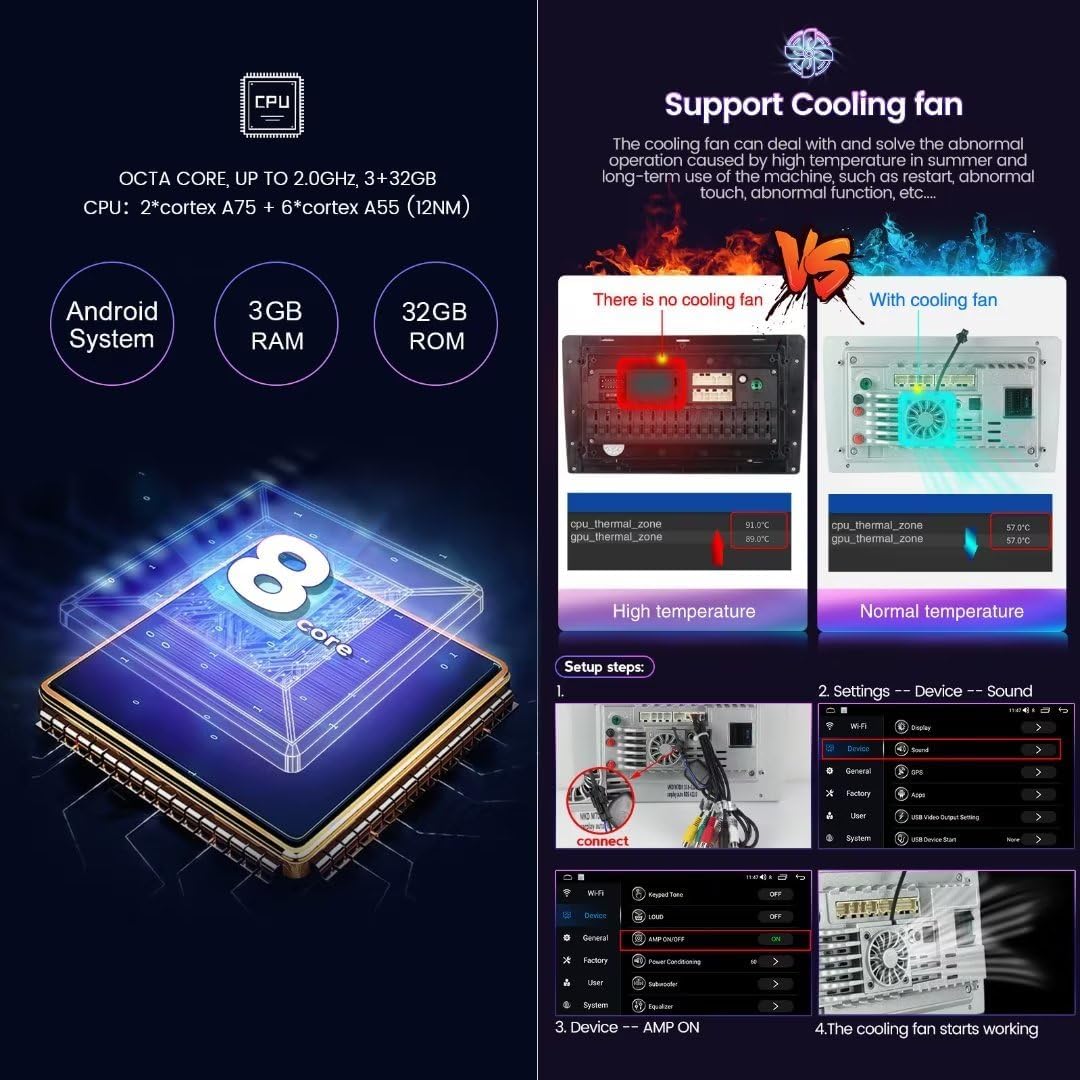
Image 2: Detailed view of the internal components, highlighting the 8-core CPU and the cooling fan. The image also illustrates the setup steps for connecting the cooling fan and accessing device sound settings.
- Connect Cooling Fan: Locate the cooling fan connector on the back of the head unit and securely attach the fan cable.
- Verify Operation: After installation, navigate to the device settings to confirm the cooling fan is recognized and operating correctly. (Settings > Device > Sound)
4.3 Wiring Connections
Connect the power cable, RCA cables, USB cables, and other necessary wiring to the corresponding ports on the head unit and your vehicle's harness. Ensure all connections are secure to prevent intermittent issues.
- Power Cable: Connect the main power harness.
- RCA Cables: For external amplifiers, subwoofers, or auxiliary video inputs/outputs.
- USB Cables: For connecting USB devices or for wired Android Auto.
- GPS Antenna: Mount the GPS antenna in a location with a clear view of the sky, typically on the dashboard.
- 4G Antenna: Mount the 4G antenna for optimal signal reception.
- Reversing Camera: If installing a reversing camera, connect its video and power cables as per the camera's instructions.
4.4 Finalizing Installation
Once all connections are made, carefully reassemble the dashboard components. Reconnect the vehicle's battery and test the unit's functionality.
5. Initial Setup
After successful installation, power on the unit and follow these steps for initial configuration.
5.1 System Language and Time
Upon first boot, you may be prompted to select your preferred language and set the correct time zone. If not, navigate to Settings > System to adjust these options.
5.2 Wi-Fi Connection
To access online features, connect the unit to a Wi-Fi network.
- Go to Settings > Network & Internet > Wi-Fi.
- Turn on Wi-Fi and select your desired network from the list.
- Enter the password if prompted and connect.
5.3 4G LTE Connection
The unit supports 4G LTE connectivity via a SIM card. This allows internet access without a Wi-Fi hotspot.
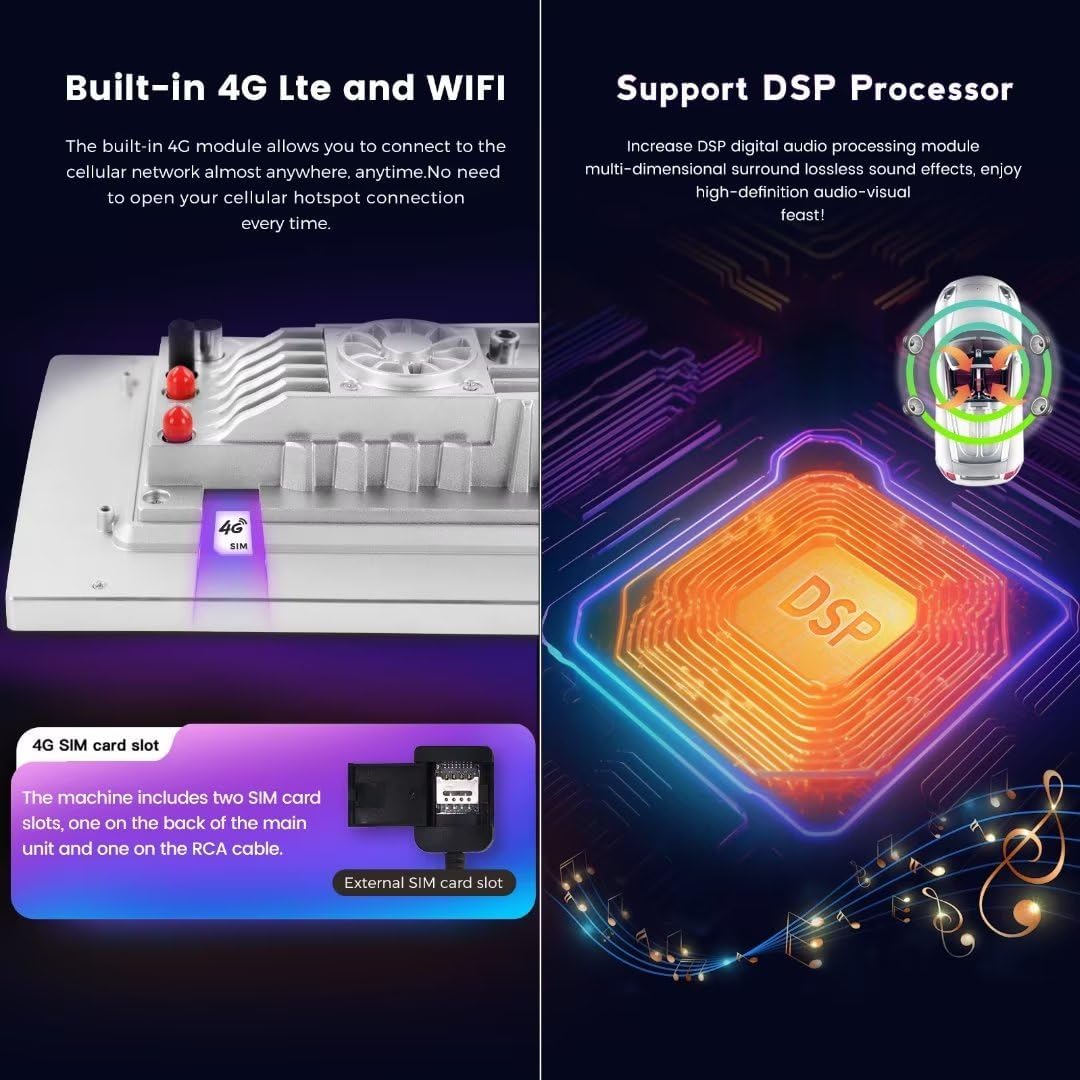
Image 3: Illustration of the built-in 4G LTE module with a SIM card slot, and a visual representation of the Digital Sound Processor (DSP) for enhanced audio.
- Insert SIM Card: Locate the 4G SIM card slot (one on the back of the main unit, one on the RCA cable) and insert a compatible 4G SIM card.
- Enable Mobile Data: Go to Settings > Network & Internet > Mobile network and ensure mobile data is enabled.
- APN Settings: If internet access is not automatic, you may need to configure APN settings manually. Refer to your mobile carrier for the correct APN details.
5.4 Bluetooth Pairing
Pair your smartphone or other Bluetooth devices for hands-free calling and audio streaming.
- Go to Settings > Connected devices > Pair new device.
- On your mobile device, enable Bluetooth and search for available devices.
- Select the car stereo's Bluetooth name (e.g., "MekedeTech Car Stereo") from your phone's list and confirm the pairing code.
6. Operating Instructions
6.1 Home Screen Navigation
The home screen provides access to all main functions. Swipe left or right to navigate between screens, and tap icons to open applications.
6.2 GPS Navigation
The unit comes with built-in GPS navigation and pre-installed maps. Tap the "Navigation" or "Maps" icon to launch the application. Ensure the GPS antenna is properly installed for accurate positioning.
6.3 Wireless CarPlay / Android Auto
Connect your iPhone or Android smartphone for seamless integration of apps, navigation, music, and calls.

Image 4: Visual guide demonstrating the user interfaces for Wireless CarPlay (iOS system) and Wireless Android Auto (Android system), along with their respective connection steps.
6.3.1 Wireless CarPlay (iOS System)
- Connect Bluetooth: Ensure your iPhone is paired with the car stereo via Bluetooth.
- Open Car Link App: On the car stereo, open the "Car Link" or similar application.
- Wait for Connection: The system will automatically connect to CarPlay. (Wired connection via USB is also supported if wireless fails or is preferred).
6.3.2 Wireless Android Auto (Android System)
- Connect Bluetooth: Ensure your Android phone is paired with the car stereo via Bluetooth.
- Open Car Link App: On the car stereo, open the "Car Link" or similar application.
- Wait for Connection: The system will automatically connect to Android Auto. (Wired connection via USB is also supported if wireless fails or is preferred).
6.4 Multimedia Playback
Access various multimedia functions:
- Radio: Tune into FM/AM stations.
- Music: Play audio files from internal storage, USB drives, or streaming apps.
- Video: Play video files from internal storage or USB drives.
- Bluetooth Music: Stream audio from your paired smartphone.
6.5 Steering Wheel Controls
The unit retains your vehicle's original steering wheel control functions. This allows you to adjust volume, change tracks/channels, and answer calls without taking your hands off the steering wheel.
7. Maintenance
To ensure the longevity and optimal performance of your MekedeTech car stereo, follow these maintenance guidelines:
- Cleaning the Screen: Use a soft, lint-free cloth to gently wipe the touch screen. Avoid abrasive cleaners or solvents.
- Software Updates: Periodically check for and install system software updates to ensure the latest features and security patches.
- Avoid Extreme Temperatures: Do not expose the unit to extreme heat or cold for extended periods.
- Secure Connections: Periodically check all wiring connections to ensure they remain secure.
8. Troubleshooting
If you encounter issues with your car stereo, refer to the following common problems and solutions:
| Problem | Possible Cause | Solution |
|---|---|---|
| Unit does not power on. | Loose power connection, blown fuse, vehicle battery issue. | Check power cable connections. Inspect vehicle fuses. Ensure vehicle battery is charged. |
| No sound. | Volume too low, mute activated, speaker wiring issue, incorrect audio output settings. | Increase volume. Check if mute is active. Verify speaker wiring. Check audio settings in the system. |
| GPS signal lost or inaccurate. | GPS antenna improperly installed or obstructed. | Ensure GPS antenna has a clear view of the sky. Check antenna connection. |
| Bluetooth not connecting. | Bluetooth off on either device, incorrect pairing process, interference. | Ensure Bluetooth is enabled on both devices. Re-attempt pairing. Clear previous pairings. |
| CarPlay/Android Auto not launching. | Incorrect connection steps, phone compatibility issues, app not updated. | Follow connection steps carefully. Ensure phone OS and apps are updated. Try wired connection. |
| Touch screen unresponsive. | System freeze, temporary software glitch. | Restart the unit (if possible, refer to system reset instructions). If persistent, contact support. |
9. Specifications
| Feature | Detail |
|---|---|
| Brand | MekedeTech |
| Model | 8-Core 4+32G |
| Compatible Vehicle Type | Ford Fiesta (2008-2017) |
| Operating System | Android 12 |
| CPU | 8-Core A53 1.8GHz |
| Memory (RAM) | 4 GB |
| Storage (ROM) | 32 GB |
| Screen Size | 9 Inches |
| Display Type | IPS LCD |
| Resolution | 1280 x 720 |
| Touch Screen Type | Capacitive |
| Connectivity Technology | Wireless (Wi-Fi, Bluetooth, Cellular) |
| Connectivity Protocols | Bluetooth 5.0, Cellular (4G LTE), Wi-Fi |
| Special Features | 4G LTE, Bluetooth, Touchscreen, Wireless Android Auto, Wireless CarPlay, Built-in GPS, DSP Sound System |
| Audio Output Mode | Stereo |
| Power Output | 4*50W |
| Supported Audio Formats | APE, FLAC, WAV, MP3, WMA, etc. |
| Supported Video Formats | MKV, RMVB, AVI, MP4, MDV, etc. |
| Map Type | Worldwide |
| Human-Interface Input | Touchscreen, Steering Wheel Controls |
10. Warranty and Support
This MekedeTech Android Car Radio Stereo GPS Navigation system comes with a 1-Year Warranty from the date of purchase.
The warranty covers manufacturing defects and malfunctions under normal use. It does not cover damage caused by improper installation, misuse, accidents, or unauthorized modifications.
For technical support, warranty claims, or further assistance, please contact MekedeTech customer service through the retailer where the product was purchased or visit the official MekedeTech website for contact information.
Please retain your proof of purchase for warranty purposes.