
1. Introduction
Thank you for choosing the Rapoo 1530 Silent Wireless Optical Mouse. This manual provides detailed instructions for the proper setup, operation, and maintenance of your new device. Please read this manual thoroughly before use to ensure optimal performance and longevity of your mouse.
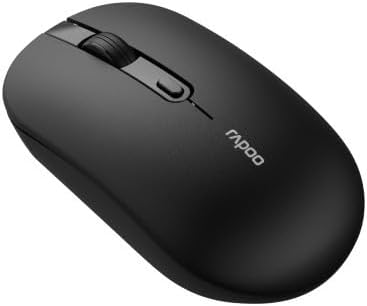
Figure 1: Rapoo 1530 Silent Wireless Optical Mouse (Top View)
2. Package Contents
Ensure all items are present in the package:
- Rapoo 1530 Silent Wireless Optical Mouse
- USB Receiver
- Quick Start Guide (this manual)
- AA Battery (may be pre-installed or included separately)
3. Setup
3.1. Battery Installation
- Locate the battery compartment cover on the underside of the mouse.
- Slide the cover open.
- Insert one AA battery, ensuring correct polarity (+/-).
- Close the battery compartment cover securely.
3.2. Connecting the USB Receiver
- Remove the USB receiver from its storage slot, usually located inside the battery compartment or on the underside of the mouse.
- Plug the USB receiver into an available USB port on your computer.
- Your computer should automatically detect and install the necessary drivers. This may take a few moments.
3.3. Powering On
Locate the On/Off switch on the underside of the mouse. Slide the switch to the "On" position. The mouse is now ready for use.
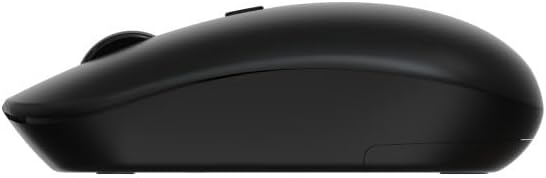
Figure 2: Rapoo 1530 Silent Wireless Optical Mouse (Side View)
4. Operating Instructions
4.1. Basic Functions
- Left Click: Primary action, select items, open links.
- Right Click: Secondary action, opens context menus.
- Scroll Wheel: Scroll up or down through documents and web pages.
- Middle Click (Scroll Wheel Press): Opens links in new tabs, or other application-specific functions.
4.2. Silent Click Feature
The Rapoo 1530 mouse is designed with silent click technology, significantly reducing click noise for a quieter working environment.
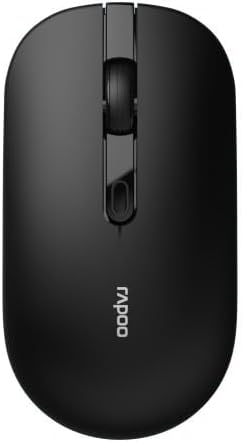
Figure 3: Rapoo 1530 Silent Wireless Optical Mouse (Button Layout)
5. Maintenance
5.1. Cleaning
To maintain optimal performance, regularly clean your mouse:
- Disconnect the mouse from your computer (or turn it off).
- Use a soft, lint-free cloth slightly dampened with water or a mild cleaning solution to wipe the surface.
- For the optical sensor, use a dry cotton swab to gently remove any dust or debris.
- Avoid using harsh chemicals or abrasive materials.
5.2. Battery Replacement
When the mouse performance degrades or it stops responding, it may be time to replace the battery. Follow the battery installation steps in Section 3.1.
6. Troubleshooting
| Problem | Solution |
|---|---|
| Mouse not responding |
|
| Cursor lagging or erratic movement |
|
| Connection issues |
|
7. Specifications
- Brand: Rapoo
- Model Name: 1530 Silent
- Model Number: 819660
- Connectivity: Wireless (USB Receiver)
- Sensor Type: Optical
- Color: Black (as per product images, though description mentions "multicolore" which might be a generic placeholder or refer to a range of colors)
- Power Source: 1x AA Battery
- Special Features: Silent Click Technology
8. Warranty and Support
Rapoo products are designed for reliability and performance. For warranty information and technical support, please refer to the official Rapoo website or contact your local retailer. Keep your proof of purchase for warranty claims.
For further assistance, visit the official Rapoo support page or contact their customer service.


