
1. Introduction
Thank you for choosing the ATTACK SHARK Ajazz AK820 Mechanical Keyboard. This 75% TKL keyboard is designed for gaming and productivity, featuring hot-swappable switches, customizable RGB backlighting, and a convenient multi-function knob. This manual provides detailed instructions for setup, operation, maintenance, and troubleshooting to ensure optimal performance and longevity of your keyboard.
2. Key Features
- 75% Layout (82 Keys): Compact design retaining essential arrow and function keys, optimizing desk space. Features N-key rollover for simultaneous key presses.
- Multi-Function Metal Knob: Allows independent control of volume level and mute function. Compatible with Mac and Windows operating systems.
- Gasket Mounted Design: Coupled with a Flex-cut PC plate and 5 layers of sound insulation (Poron sandwich cotton, IXPE under-axis pad, PET premium sound pad, bottom cotton, bottom silicone) to maximally reduce noise and provide a softer, more elastic typing feel.
- Hot-Swappable Mechanical Sea Salt Switches: High-quality PCB supports 3/5-pin hot-swap, allowing easy switch replacement without soldering. Pre-lubed Sea Salt Linear switches offer a smooth and pleasing typing experience with a 50 million keystroke lifespan.
- RGB Backlighting: South-facing LEDs with 1.6M RGB. Offers 20 lighting effects changeable via "FN+|" and customizable via driver software. Double-shot PBT keycaps provide superior shine-through.
3. Package Contents
- ATTACK SHARK Ajazz AK820 Mechanical Keyboard
- USB-C Cable
- 2-in-1 Keycap/Switch Puller

Image 1: The ATTACK SHARK Ajazz AK820 Mechanical Keyboard and its included USB-C cable.

Image 2: An overview highlighting the 82-key layout and key features like Knob Design, Gasket Mount, PBT Keycaps, RGB, 75% Layout, and Hot Swap capability.
4. Setup Guide
4.1 Connecting the Keyboard
- Locate the USB-C port on the back or side of the keyboard.
- Connect one end of the provided USB-C cable to the keyboard.
- Connect the other end of the USB-C cable to an available USB port on your computer (Laptop or PC).
- The keyboard is plug-and-play and should be automatically recognized by your operating system (Windows/Mac).

Image 3: The keyboard displaying its RGB backlighting, illustrating the 16.8 million colors and FN key combinations for controlling lighting modes.
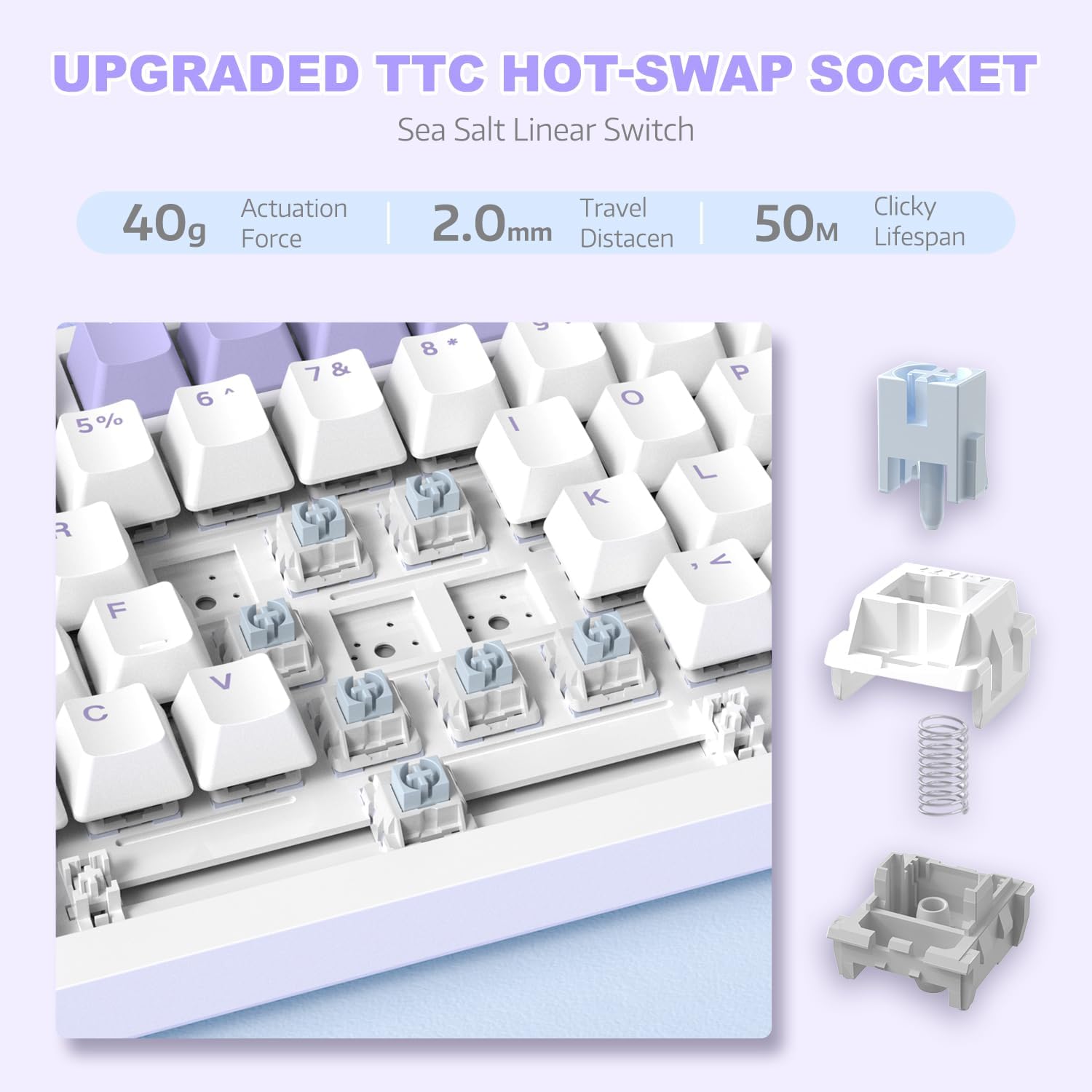
Image 4: A detailed view of the hot-swappable switch socket, demonstrating how switches can be easily removed and replaced.
5. Operating Instructions
5.1 Multi-Function Knob Control
The metal knob located on the top right of the keyboard provides convenient multimedia control:
- Turn Clockwise: Increase volume.
- Turn Counter-clockwise: Decrease volume.
- Press Down: Mute/Unmute audio.

Image 5: The multimedia knob, illustrating its functions for adjusting volume and muting audio.
5.2 RGB Backlighting Control
The keyboard features vibrant RGB backlighting with multiple effects. Use the following key combinations to control the lighting:
- FN + | (Backslash): Cycle through 20 different lighting effects.
- FN + X: Turn RGB backlighting ON/OFF.
- Refer to the included quick guide for additional lighting customization options or download the dedicated driver software for advanced control.
5.3 Hot-Swapping Switches and Keycaps
The AK820 supports hot-swapping, allowing you to change mechanical switches and keycaps without soldering.
- Removing Keycaps: Use the keycap puller tool to gently grip the keycap and pull upwards until it detaches from the switch.
- Removing Switches: Use the switch puller (the other end of the 2-in-1 tool) to grip the top and bottom clips of the switch. Gently pull upwards until the switch detaches from the PCB.
- Installing Switches: Align the pins of the new 3-pin or 5-pin mechanical switch with the holes on the PCB. Press down firmly until the switch clicks into place. Ensure pins are not bent.
- Installing Keycaps: Align the cross-stem of the keycap with the stem of the switch and press down firmly until it is seated.

Image 6: Highlighting the durable PBT keycaps, known for their oil and wear resistance.
5.4 Operating System Compatibility
The keyboard is compatible with both Windows and Mac operating systems. No special drivers are typically required for basic functionality.

Image 7: Visual representation of the keyboard's compatibility with both Mac and Windows operating systems.
6. Maintenance
6.1 Cleaning the Keyboard
- Disconnect the keyboard from your computer before cleaning.
- Use a can of compressed air to blow away dust and debris from between the keycaps.
- For surface cleaning, use a soft, lint-free cloth lightly dampened with water or a mild cleaning solution. Avoid excessive moisture.
- Do not spray cleaning solutions directly onto the keyboard.
6.2 Keycap and Switch Care
- When removing keycaps or switches, do so gently to avoid damaging the components.
- Store spare keycaps and switches in a clean, dry place.

Image 8: An exploded diagram illustrating the multi-layer noise reduction installation, including PORON sandwich cotton, IXPE switch pads, PET voice actor pdd, bottom cotton, and bottom silicone.
7. Troubleshooting
7.1 Keyboard Not Responding
- Ensure the USB-C cable is securely connected to both the keyboard and the computer.
- Try connecting the keyboard to a different USB port on your computer.
- Test the keyboard on another computer to rule out a computer-specific issue.
- Restart your computer.
7.2 RGB Backlighting Not Working/Incorrect
- Press FN + X to ensure the RGB is turned on.
- Press FN + | (Backslash) to cycle through different lighting modes.
- If using custom settings, ensure the driver software is installed and configured correctly.
7.3 Keys Not Registering (Anti-Ghosting)
The AK820 features N-key rollover (NKRO) to prevent ghosting. If specific keys are not registering:
- Ensure the keycap and switch are properly seated. Gently press down on the keycap to ensure it's fully attached.
- If a specific switch is faulty, use the hot-swap feature to replace it with a new one.

Image 9: Illustration of the 82-key anti-ghosting feature, demonstrating the ability to register multiple simultaneous key presses.
7.4 Video Demonstration: AK820 Keyboard Overview
Video 1: An official overview of the AK820 75% Wired RGB Gasket Mechanical Keyboard, demonstrating its features including the volume knob, hot-swappable switches, and RGB lighting effects.
8. Specifications
| Feature | Detail |
|---|---|
| Model Number | AK820 |
| Product Dimensions | 12.87 x 5.35 x 1.57 inches |
| Item Weight | 2.05 pounds |
| Manufacturer | ATTACK SHARK |
| Connectivity Technology | Wired (USB-C) |
| Keyboard Description | Gaming |
| Number of Keys | 82 |
| Switch Type | Sea Salt Linear Switch (Hot-Swappable) |
| Keycap Material | PBT |
| Backlighting | RGB (South-facing LEDs) |
| Special Features | 5 Layers of sound insulation cotton, CNC Metal Knob, Hot-Swappable |
| Compatible Devices | Laptop, PC (Windows, Mac) |
9. Warranty and Support
For warranty information and technical support, please refer to the official ATTACK SHARK website or contact their customer service directly. Keep your purchase receipt as proof of purchase for any warranty claims.
Manufacturer: ATTACK SHARK
Date First Available: December 15, 2023


