
KALOR TECH AC829F
KALOR TECH Wi-Fi Smart Thermostat User Manual
Model: AC829F
1. Product Overview
The KALOR TECH Wi-Fi Smart Thermostat (Model AC829F) is designed for electric baseboard heating systems operating on 120-240V. It features an LCD display, Wi-Fi connectivity, and compatibility with popular smart home platforms like Alexa, Google Home, Smart Life, and Tuya App. This thermostat provides precise temperature control and energy management for your home.

Image 1.1: Front view of the KALOR TECH Wi-Fi Smart Thermostat displaying temperature in Fahrenheit.
Key Features:
- App Remote Control: Manage your heating system from anywhere using the Smart Life or Tuya App.
- Voice Assistant Compatibility: Control your thermostat with voice commands via Alexa or Google Assistant.
- Programmable Settings: Schedule heating cycles for optimal comfort and energy savings.
- LCD Display: Clear display shows current temperature, target temperature, time, and Wi-Fi connectivity status.
- Fahrenheit/Celsius Display: Supports both Fahrenheit (USA) and Celsius (Canada) temperature units.
- Proprietary Wall Plate: Includes a custom-designed wall plate for standard American and Canadian electrical boxes.
- Child-Lock Capable: Prevents unauthorized changes to settings.
2. Safety Information
Please read all safety warnings and installation instructions carefully before installing or operating this thermostat. Failure to follow these instructions may result in electric shock, fire, or property damage.
- Electrical Compatibility: This thermostat is designed for 120-240V electric baseboard heating systems ONLY. It is NOT compatible with 24V central heating systems or single pole systems.
- Professional Installation Recommended: If you are unsure about electrical wiring, consult a qualified electrician.
- Power Disconnection: Always turn off power at the circuit breaker before installing or performing any maintenance on the thermostat.
- Wi-Fi Network: Requires access to a 2.4 MHz Wi-Fi network for installation and smart features. It is not compatible with 5 GHz networks.
- Indoor Use Only: This device is intended for indoor use in dry locations.
3. What's in the Box
Verify that all components are present before beginning installation:
- Digital Wi-Fi Thermostat (Model AC829F)
- Custom Wall Plate
- Installation Wires (Pigtail electrical wires)
- Mounting Screws
- Large-Print Instructions (This manual)
4. Setup and Installation
Follow these steps for proper installation of your KALOR TECH Smart Thermostat. Ensure power is OFF at the circuit breaker before proceeding.
- Turn Off Power: Locate the circuit breaker controlling your electric baseboard heater and turn off the power. Verify power is off using a voltage tester.
- Remove Old Thermostat: Carefully remove your existing thermostat from the wall. Disconnect the wires, noting their connections if necessary.
- Mount Wall Plate: Secure the custom wall plate to your electrical box using the provided mounting screws. Ensure it is level and flush with the wall.
- Wire the Thermostat: Connect the pigtail electrical wires from the thermostat to your home's electrical wiring. This thermostat is designed for 120-240V systems. Ensure all connections are secure and insulated.
- Attach Thermostat to Wall Plate: Align the thermostat with the mounted wall plate and gently push it into place until it clicks securely.
- Restore Power: Turn the power back on at the circuit breaker. The thermostat display should illuminate.
- Initial Setup: Follow the on-screen prompts for initial setup, including time and date.
- Connect to Wi-Fi:
- Download the "Smart Life" or "Tuya App" from your smartphone's app store.
- Register or log in to your account.
- Add a new device (usually by tapping the "+" icon). Select "Thermostat" or "Heater".
- Follow the in-app instructions to connect your thermostat to your 2.4 MHz Wi-Fi network. This may involve putting the thermostat into pairing mode (refer to the thermostat's display for specific instructions, often indicated by a blinking Wi-Fi icon).
5. Operating Instructions
5.1. Manual Operation
The thermostat features a clear LCD display and touch controls for direct operation.
- Power Button: Located at the top right, press to turn the thermostat On/Off.
- Temperature Adjustment: Use the "+" and "-" buttons (bottom right) to increase or decrease the target temperature.
- Mode Button (M): Located at the bottom left, press to cycle through operating modes (e.g., Manual, Program).
- Clock Button: Located at the bottom left, press to adjust time settings.
- Display Information: The LCD shows current room temperature, set target temperature, time, and Wi-Fi status.

Image 5.1: The thermostat displaying temperature in Celsius, indicating its dual unit capability.
5.2. App Control (Smart Life / Tuya App)
Once connected to Wi-Fi, you can control your thermostat remotely via the Smart Life or Tuya App.
- Remote Temperature Adjustment: Change the target temperature from anywhere.
- Scheduling: Create custom heating schedules for different days and times to optimize energy usage.
- Mode Selection: Switch between manual and programmed modes.
- Child Lock: Enable or disable the child lock feature to prevent accidental changes.
- Temperature Unit: Adjust the display unit between Fahrenheit and Celsius within the app settings.
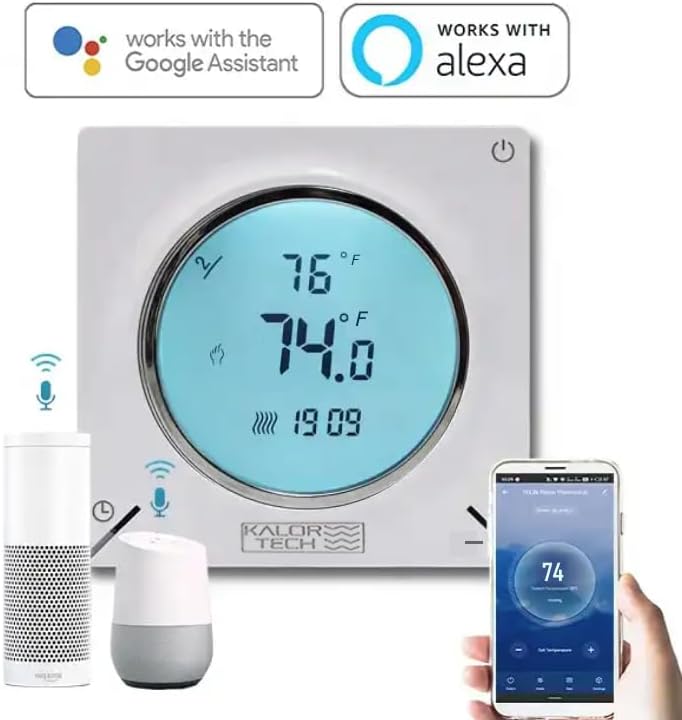
Image 5.2: The thermostat integrated with Google Assistant and Alexa devices, demonstrating app control via a smartphone.
5.3. Voice Control (Alexa / Google Home)
Integrate your thermostat with Amazon Alexa or Google Home for convenient voice control.
- Link Account: In your Alexa or Google Home app, enable the "Smart Life" or "Tuya Smart" skill/action. Link your Smart Life/Tuya account to your voice assistant account.
- Discover Devices: Ask your voice assistant to "Discover devices" or manually initiate discovery in the app.
- Voice Commands: Once discovered, you can use commands such as:
- "Alexa, set [Thermostat Name] to 72 degrees."
- "Hey Google, what's the temperature in [Room Name]?"
- "Alexa, turn on [Thermostat Name]."
- "Hey Google, lower the temperature in [Room Name] by 2 degrees."
6. Maintenance
The KALOR TECH Smart Thermostat requires minimal maintenance to ensure optimal performance.
- Cleaning: Wipe the thermostat's display and casing with a soft, damp cloth. Do not use abrasive cleaners, solvents, or spray cleaners directly on the unit.
- Dusting: Periodically dust the vents on the thermostat to prevent accumulation that could affect temperature sensing.
- Software Updates: Ensure your Smart Life/Tuya App is up to date to receive the latest features and performance improvements. Firmware updates for the thermostat may also be pushed through the app.
7. Troubleshooting
If you encounter issues with your thermostat, refer to the following common problems and solutions:
| Problem | Possible Cause | Solution |
|---|---|---|
| Thermostat not powering on. | No power from circuit breaker; incorrect wiring. | Check circuit breaker and ensure it is ON. Verify wiring connections are secure and correct (120-240V). |
| Cannot connect to Wi-Fi. | Incorrect Wi-Fi password; 5 GHz network; thermostat not in pairing mode; weak signal. | Ensure correct 2.4 MHz Wi-Fi network and password. Put thermostat into pairing mode (blinking Wi-Fi icon). Move thermostat closer to router if signal is weak. |
| Temperature reading seems inaccurate. | Sensor obstruction; calibration needed. | Ensure no objects are blocking the thermostat's vents. Check the app for a temperature calibration setting (offset adjustment) and adjust if available. |
| Display goes dark quickly. | Default display timeout setting. | This is a normal power-saving feature. The display will illuminate when touched or interacted with. There may be a setting in the app to adjust display brightness or timeout, if available. |
| Voice control not working. | Account not linked; device not discovered; incorrect commands. | Ensure Smart Life/Tuya skill/action is enabled and linked in your Alexa/Google Home app. Ask voice assistant to "Discover devices." Use correct voice commands as listed in section 5.3. |
8. Specifications
| Brand | KALOR TECH |
| Model Name | AC829F |
| Voltage | 120-240V |
| Power Source | Corded Electric |
| Connectivity Technology | Hard-wired, Wireless (Wi-Fi 2.4 MHz) |
| Controller Type | Hand Control, IFTTT, Google Assistant, Amazon Alexa |
| Display Type | LCD |
| Temperature Control Type | Heating in Fahrenheit/Celsius |
| Mounting Type | Wall Mount |
| Item Weight | 0.5 Pounds (approx. 8 ounces) |
| Color | White |
| Manufacturer | Dorado Services, LLC |
9. Warranty and Support
For warranty information and technical support, please contact the manufacturer, Dorado Services, LLC, or refer to the product's official website. Keep your purchase receipt as proof of purchase.
Note: No official product videos from the seller were available for embedding in this manual.
Related documentsAC829F


Ask a question about this manual
Ask about setup, troubleshooting, compatibility, parts, safety, or missing instructions. Manuals+ will review the question and use this page’s manual context to help answer it.