
1. Introduction
This manual provides essential information for the safe and efficient operation of your Blaupunkt 50QD7010 50-inch 4K QLED Google TV. Please read this manual thoroughly before using the television and retain it for future reference. It covers setup, operation, maintenance, and troubleshooting to ensure you get the best experience from your new television.
2. What's in the Box
Carefully unpack the box and ensure all the following items are present:
- 1 x Blaupunkt 50-inch LED TV
- 1 x Remote Control
- 1 x Wall Mount Bracket (for 32"-65" models)
- 1 x User Manual (this document)
- 2 x AAA Batteries (for remote control)
- 1 x Power Cord
- Base Stands (2 pieces)
- Stand Screws (4 pieces)
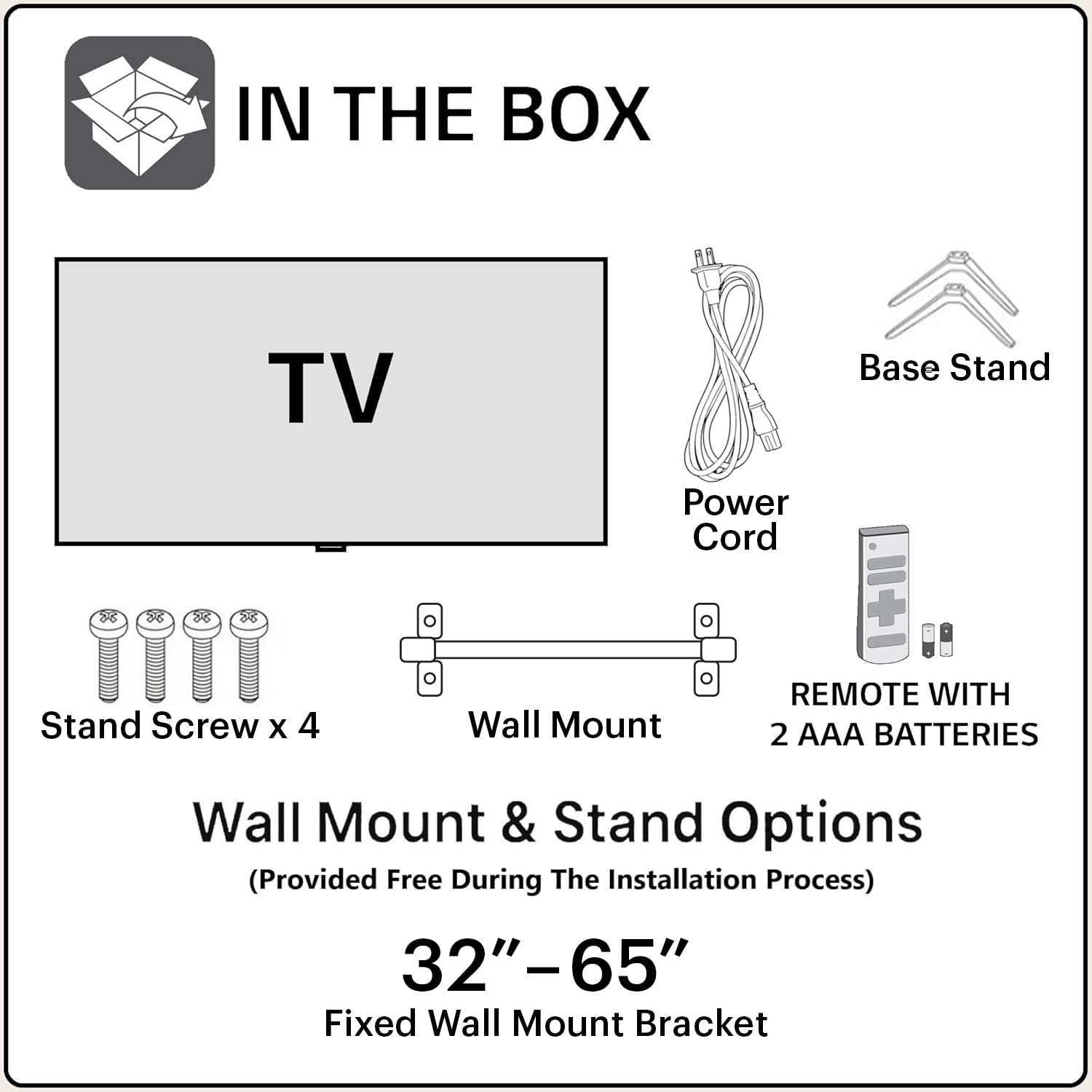
Please check all packaging materials carefully before discarding to ensure no items are missed.
3. Setup
3.1 Physical Installation
Your television can be installed using either the included base stands for table mounting or the provided wall mount bracket.
3.1.1 Table Stand Installation
- Carefully place the TV screen-down on a soft, flat surface to prevent damage.
- Attach the two base stands to the designated slots on the bottom of the TV.
- Secure each stand with the provided screws. Ensure they are tightened firmly.
- Carefully lift the TV to an upright position on a stable, level surface.
3.1.2 Wall Mount Installation
The television supports a VESA mount standard of 200 x 200 mm. The included wall mount bracket is suitable for 32"-65" models. For detailed wall mounting instructions, refer to the separate guide provided with the wall mount bracket. Professional installation is recommended for wall mounting.


3.2 Connecting Peripherals
Connect your external devices to the television using the appropriate ports.
- HDMI: Connect gaming consoles, set-top boxes, or Blu-ray players to the 3 HDMI ports. One port supports eARC for enhanced audio return.
- USB: Connect hard drives or other USB devices to the 2 USB ports.
- Ethernet: For a stable wired internet connection.
- Power: Connect the power cord to the TV and then to a power outlet.
3.3 Initial Power On
After connecting all necessary cables, plug the TV into a power source. Press the power button on the remote control or on the TV itself to turn it on. Follow the on-screen instructions for initial setup, including language selection, network connection, and Google TV account setup.
4. Operating the TV
4.1 Remote Control Overview
The included remote control allows you to navigate the TV's features. Insert the 2 AAA batteries into the remote control before use.

Key functions include:
- Power Button: Turns the TV on or off.
- Google Assistant Button: Activates voice control for commands and searches.
- Navigation Pad: Used to move through menus and select options.
- Volume Buttons: Adjusts the sound level.
- Quick Access Buttons: Dedicated buttons for popular streaming services like Netflix, Prime Video, and YouTube.
4.2 Google TV Features
Your Blaupunkt TV runs on the Google TV operating system, offering a personalized and intuitive user experience.
- App Access: Access a wide range of applications including Netflix, Prime Video, YouTube, Disney+Hotstar, Apple TV, and more.
- Voice Control: Use the built-in Google Assistant for hands-free control, searching for content, getting information, and managing smart home devices.
- Screen Mirroring: Cast content from your compatible smartphone or tablet directly to the TV.
- Content Recommendations: Google TV learns your preferences and provides personalized content suggestions across your streaming services.
4.3 Connectivity
The TV offers various connectivity options:
- Wi-Fi: Dual Band Wi-Fi for wireless internet connection.
- Bluetooth: Connect wireless headphones, speakers, or other Bluetooth-enabled devices.
- HDMI: 3 ports for high-definition audio and video input.
- USB: 2 ports for media playback from USB storage devices.
- Ethernet: For a stable wired network connection.
- Audio Input: Auxiliary input for external audio sources.
4.4 Display and Audio Features
Experience superior picture and sound quality:
- 4K Ultra HD Resolution: Enjoy stunning clarity with 3840 x 2160 pixels.
- QLED Technology: Quantum Dot display for vibrant colors, deep blacks, and enhanced contrast.
- HDR 10+: High Dynamic Range support for improved brightness and color accuracy.
- 60 Hertz Refresh Rate: Smooth motion for most content.
- 60 Watts Audio Output: Powerful sound from built-in box speakers.
- DTS TruSurround & Dolby Atmos: Immersive audio experience with surround sound processing.
5. Maintenance
5.1 Cleaning the TV
To clean the screen, gently wipe it with a soft, lint-free cloth. For stubborn marks, dampen the cloth with a small amount of water or a specialized screen cleaner. Never spray cleaner directly onto the screen. For the TV casing, use a soft, dry cloth. Avoid abrasive cleaners, waxes, or solvents.
5.2 Software Updates
Your Google TV may receive automatic software updates. Ensure your TV is connected to the internet to receive these updates, which can improve performance and add new features.
6. Troubleshooting
If you encounter issues with your television, refer to the following common problems and solutions:
| Problem | Possible Cause / Solution |
|---|---|
| No power | Ensure the power cord is securely plugged into both the TV and a working electrical outlet. Check the power indicator light on the TV. |
| No picture, but sound is present | Check the input source. Ensure the connected device is powered on and sending a signal. Try a different HDMI cable or port. |
| No sound, but picture is present | Check the volume level and mute status. Ensure external audio systems are correctly connected and selected as the output. |
| Remote control not working | Check and replace batteries. Ensure there are no obstructions between the remote and the TV's IR sensor. Re-pair the Bluetooth remote if necessary. |
| Cannot connect to Wi-Fi | Ensure your Wi-Fi router is on and working. Re-enter the Wi-Fi password. Try restarting both the TV and the router. |
| Apps are slow or freezing | Close unused applications. Clear app cache from TV settings. Ensure a stable internet connection. Restart the TV. |
7. Specifications
Detailed technical specifications for the Blaupunkt 50QD7010 TV:
| Feature | Detail |
|---|---|
| Screen Size | 50 Inches (126 cm) |
| Display Technology | QLED |
| Resolution | 4K Ultra HD (3840 x 2160) |
| Refresh Rate | 60 Hz |
| Special Features | DTS TruSurround, HDR 10+, CyberSound Gen2 Technology, Quantum Dot Color |
| Operating System | Google TV |
| Connectivity | Dual Band Wi-Fi, Bluetooth, 3 HDMI ports (1 eARC), 2 USB ports, Ethernet |
| Audio Output | 60 Watts (Built-in Box Speakers), Dolby Atmos |
| Memory Storage Capacity | 16 GB |
| Control Method | Voice (Google Assistant) |
| Product Dimensions (D x W x H) | 12D x 113W x 65H Centimeters |
| Item Weight | 9500 Grams |
| VESA Mount Standard | 200 x 200 mm |
| Power Consumption | 150 Watts |
| Annual Energy Consumption | 116 Kilowatt Hours Per Year |

8. Warranty and Support
8.1 Warranty Information
The product comes with a 1-year warranty on the TV and 6 months on remote accessories, provided by the manufacturer from the date of purchase. To avail warranty services, please retain your purchase invoice.
Items not covered in warranty: Light bleeding and dot issues (Mura issues) occurring on a certain Grey scale, as per the Mura Inspection standard, are considered acceptable. As per ND (Neutral Density) Filter 2% guideline, this is not considered a panel defect.
8.2 Customer Support
For assistance, service requests, or any queries regarding your Blaupunkt TV, please contact customer support:
- Toll-Free Number: 1800-274-4342
- Email ID: consumercare@blaupunkttv.in
When contacting support, please provide the product's model name (50QD7010) and seller's details as mentioned on your invoice. The service center will schedule a convenient slot for service.


