
1. Product Overview
The POLONO P31S is a compact and portable thermal label printer designed for various labeling needs in home, office, and school environments. It connects wirelessly via Bluetooth to your smartphone or tablet, allowing you to design and print labels using the dedicated mobile application. This device features a built-in cutter and operates without ink, utilizing thermal printing technology for clear, durable labels.
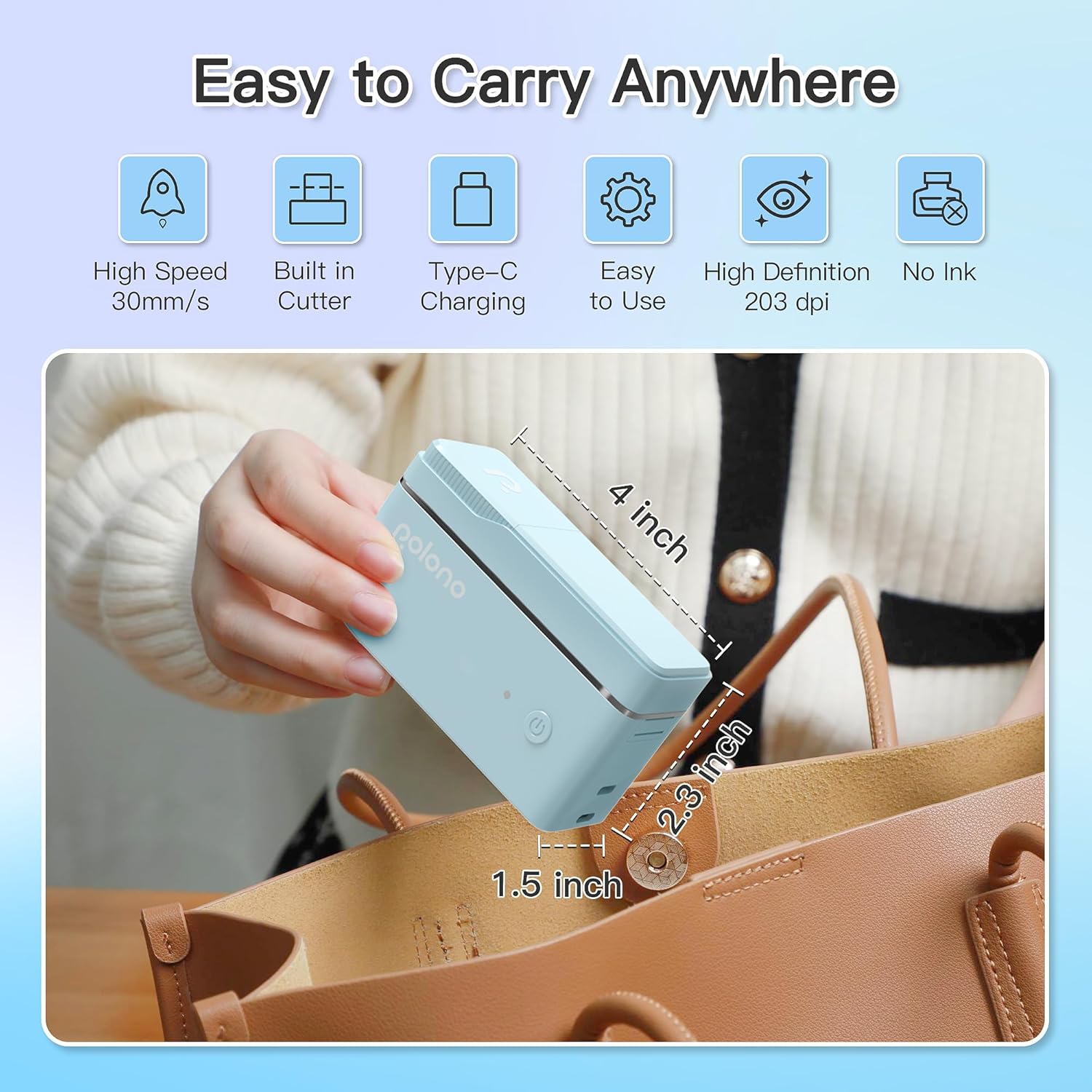
Figure 1: POLONO P31S Label Printer highlighting its compact design and dimensions (approximately 4 inches long, 2.3 inches high, 1.5 inches wide).
Key Features:
- Portable and lightweight design.
- Bluetooth connectivity for wireless printing.
- Thermal printing technology (no ink required).
- Built-in label cutter.
- Supports various label types including text, QR codes, barcodes, and images.
- Rechargeable battery.
2. Safety Information
Please read and understand all safety instructions before using the POLONO P31S label printer to prevent injury or damage to the device.
- Do not disassemble, repair, or modify the device.
- Keep the device away from water, moisture, and extreme temperatures.
- Use only POLONO-approved label tapes to ensure optimal performance and prevent damage.
- Avoid touching the print head immediately after printing, as it may be hot.
- Keep out of reach of children.
- Use the provided charging cable or a certified equivalent.
3. Package Contents
Verify that all items are present in the package:
- POLONO P31S Label Printer
- Label Tape Roll (starter roll)
- USB Charging Cable
- User Manual (this document)
4. Setup
4.1 Charging the Device
Before first use, fully charge the label printer. Connect the provided USB charging cable to the printer's charging port and to a USB power adapter (not included) or a computer's USB port. The indicator light will show charging status.
4.2 Installing Label Tape
- Open the label compartment cover.
- Insert the label tape roll with the printing surface facing up, ensuring it is properly seated.
- Pull a small portion of the label tape out, extending it past the cutter blade.
- Close the label compartment cover securely.

Figure 2: Proper installation of POLONO P31S label tape. Ensure the green sticker on the tape is not removed or damaged, as it contains chip technology for optimal performance. Do not pull the label out directly; use the cutting blade.
4.3 App Download and Bluetooth Connection
- Download the "Labelnize" app from the Apple App Store or Google Play Store.
- Turn on the POLONO P31S label printer by pressing and holding the power button.
- Enable Bluetooth on your smartphone or tablet.
- Open the "Labelnize" app. The app will prompt you to allow Bluetooth access. Grant permission.
- Within the app, search for available devices and select "P31S" to connect.
- Once connected, the app will indicate a successful connection, and you are ready to create labels.
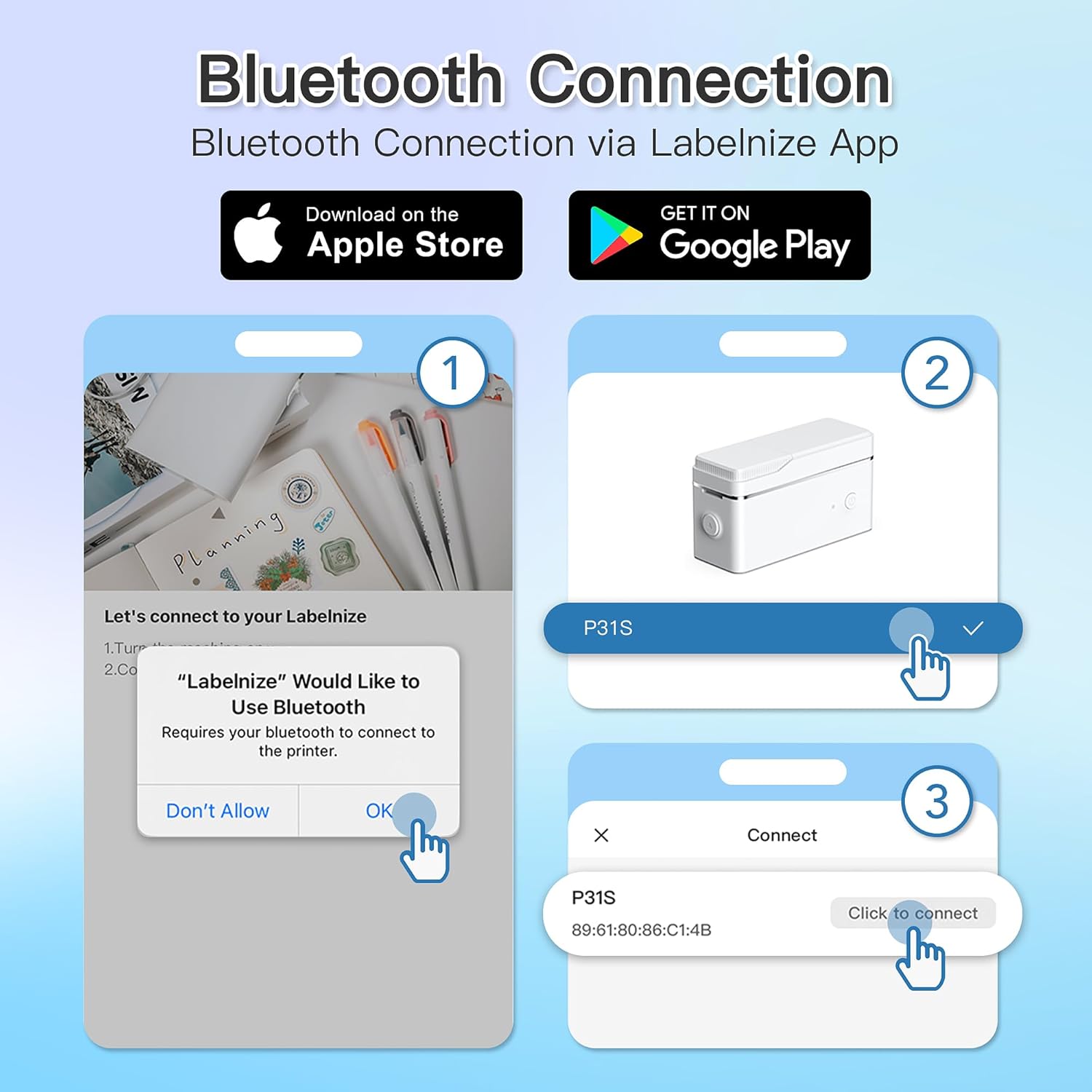
Figure 3: Steps for Bluetooth connection via the Labelnize App. Download the app, allow Bluetooth access, select "P31S" from the device list, and click "Connect".
5. Operating Instructions
5.1 Creating Labels with the Labelnize App
The Labelnize app offers a variety of tools to design your labels:
- Text: Enter custom text, choose from over 90 fonts, adjust size, style (bold, italic), and alignment.
- Borders: Select from over 95 border designs to frame your labels.
- Icons/Graphics: Access a library of over 670 tab icons and other graphics to enhance your labels.
- QR Code/Barcode: Generate QR codes or barcodes for various applications.
- Images: Insert images from your device's gallery.
- Templates: Utilize pre-designed templates for common labeling tasks.

Figure 4: The Labelnize app interface for creating labels, offering extensive customization options including borders, fonts, and icons. The app supports multiple languages.
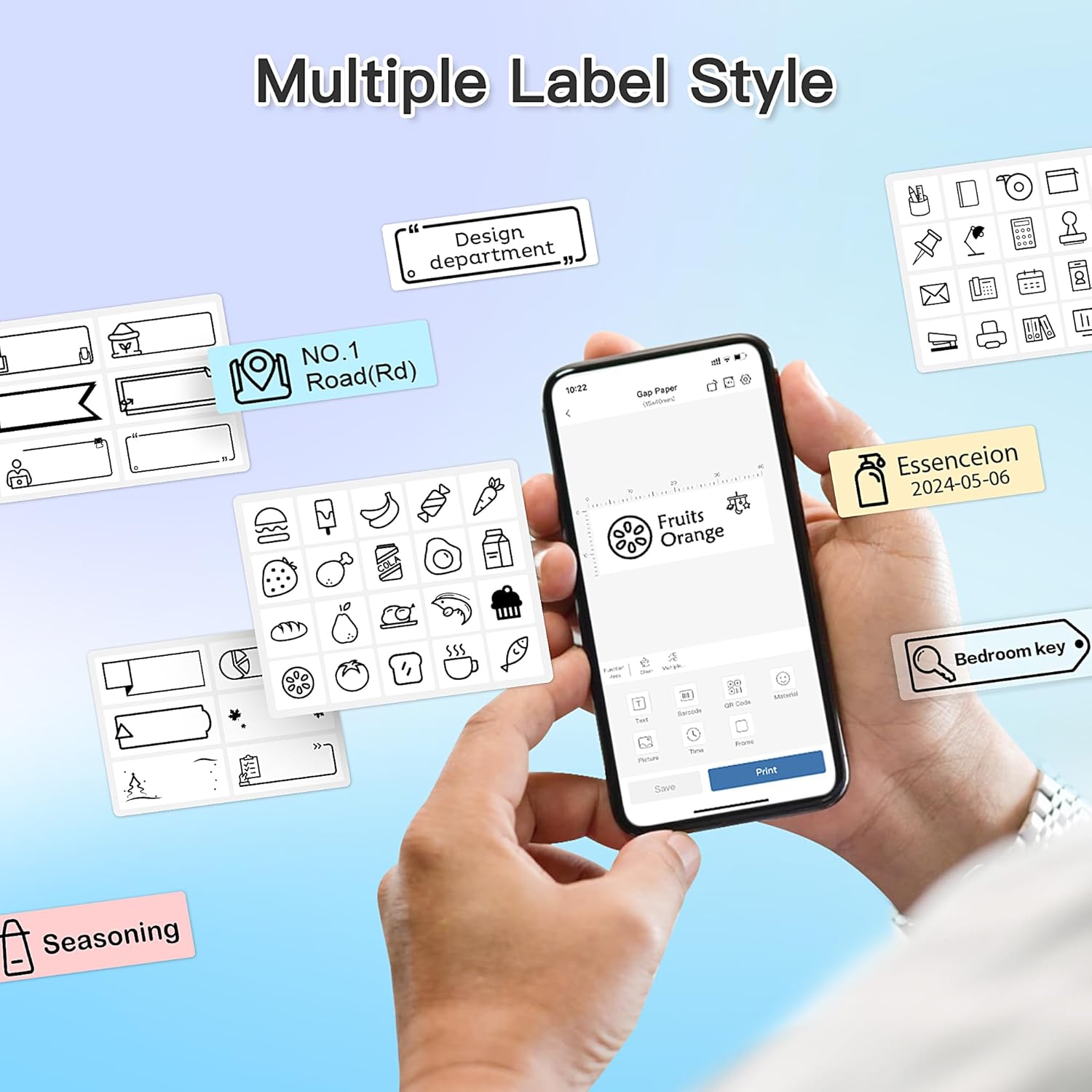
Figure 5: Examples of diverse label styles achievable with the POLONO P31S, demonstrating the flexibility in design for different organizational needs.
5.2 Printing Labels
After designing your label in the Labelnize app:
- Review your label design on the app screen.
- Tap the "Print" button within the app.
- Confirm print settings (e.g., number of copies) if prompted.
- The printer will automatically feed and print the label.
5.3 Using the Built-in Cutter
The POLONO P31S features a built-in cutter for clean and precise label separation. After printing, gently press the cutter button or lever (depending on model variation) to cut the label. Do not pull the label manually to tear it, as this may damage the printer or result in uneven cuts.
6. Maintenance
6.1 Cleaning the Print Head
To maintain print quality, clean the print head periodically:
- Turn off the printer and disconnect the power cable.
- Open the label compartment cover.
- Gently wipe the print head with a cotton swab lightly dampened with isopropyl alcohol.
- Allow the print head to dry completely before closing the cover and turning on the printer.
6.2 Battery Care
- Charge the battery regularly, even if the printer is not used frequently, to prolong its lifespan.
- Avoid fully discharging the battery for extended periods.
- Store the printer in a cool, dry place when not in use.
7. Troubleshooting
| Problem | Possible Cause | Solution |
|---|---|---|
| Printer does not turn on. | Low battery or no power. | Charge the printer using the provided USB cable. |
| Cannot connect via Bluetooth. | Bluetooth is off, printer is off, or app issue. | Ensure printer is on, Bluetooth is enabled on your device, and restart the Labelnize app. Try re-pairing. |
| Poor print quality. | Dirty print head, incorrect label tape, or low battery. | Clean the print head (Section 6.1). Ensure you are using POLONO P31S compatible label tape. Charge the printer. |
| Label jam. | Improper tape installation or foreign object. | Turn off the printer, open the cover, carefully remove any jammed tape. Reinstall tape correctly. |
| Printer not responding. | Temporary software glitch. | Restart the printer and the Labelnize app. |
8. Specifications
| Feature | Detail |
|---|---|
| Model | P31S |
| Printing Technology | Thermal |
| Connectivity | Bluetooth |
| Print Resolution | 203 x 203 DPI |
| Max Print Speed (Monochrome) | 15 ppm |
| Max Media Size | Label rolls (2 inches / 24 millimeters) |
| Ink Colour | Black (thermal print) |
| Power Source | 1 Lithium Polymer battery (included) |
| Product Dimensions | 7.2 x 7.4 x 12.7 cm; 260 g |
| Included Components | Labels |
9. Warranty and Support
For warranty information and technical support, please refer to the official POLONO website or contact their customer service. Keep your purchase receipt as proof of purchase for warranty claims.
Official Website: www.polono.com (Note: This is a placeholder URL, please verify the actual official website for POLONO products.)


