
1. Introduction
This manual provides detailed instructions for the safe and efficient operation of your POLONO P31S Portable Bluetooth Thermal Label Printer. Please read this manual thoroughly before using the device and retain it for future reference. The P31S is a compact, inkless thermal label printer designed for various labeling needs at home, in the office, or for personal organization.
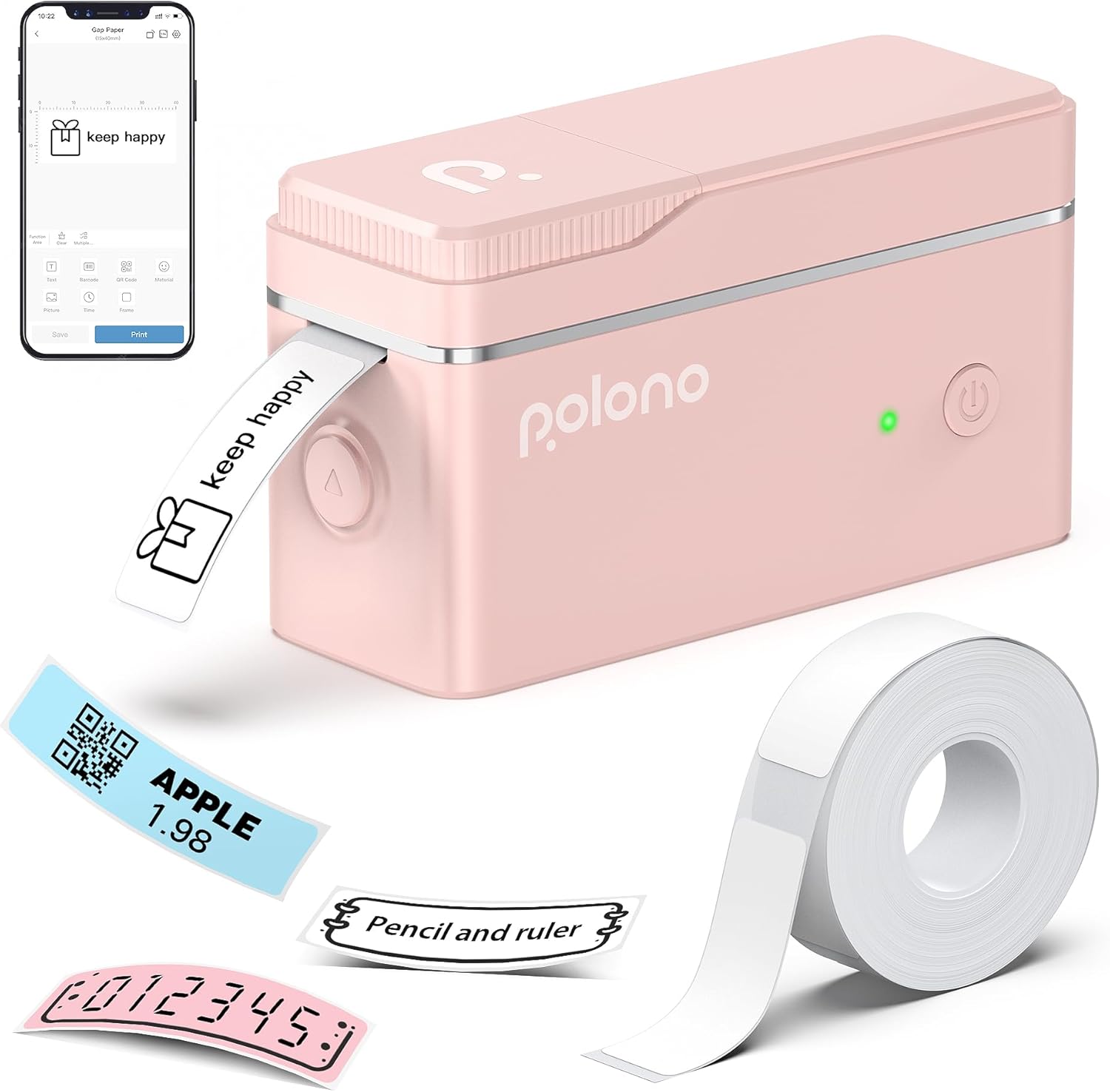
The POLONO P31S label maker, shown in pink, is a compact thermal printer. It connects via Bluetooth to a smartphone app for label design and printing. The image displays the printer, a roll of label tape, and various printed labels including text, QR codes, and barcodes.
2. Package Contents
Verify that all items are present in the package:
- 1 x POLONO P31S Label Maker
- 1 x Roll of White Label Paper
- 1 x User Manual
- 1 x Type-C Charging Cord
- 1 x Guide Card
3. Product Overview
The POLONO P31S is designed for portability and ease of use. Key features include a high-speed chip, 203dpi print resolution, and a built-in durable battery. It supports various label sizes for diverse applications.

This diagram illustrates the different label sizes supported by the P31S printer, ranging from 12x40mm to 14x75mm, with examples of content like text, icons, and QR codes.
4. Setup
4.1 App Download and Installation
The POLONO P31S operates via the 'Labelnize' mobile application, compatible with iOS and Android devices. It is not compatible with computers.
- Scan the QR code provided in the guide card or search for 'Labelnize' in the Apple App Store or Google Play Store.
- Download and install the application on your smartphone or tablet.

To begin, scan the provided QR codes to download the 'Labelnize' app from the Apple App Store or Google Play. Once installed, open the app and connect to the P31S printer via Bluetooth. The image shows the app interface for connection and basic label editing.
4.2 Loading Label Tape
Ensure the label maker is powered off before loading tape.
- Click the unlock button on the side of the printer to open the paper cover.
- Install the label tape roll into the paper bin, ensuring the printing surface faces upwards.
- Leave approximately 0.2 inches (5mm) of paper extended outside the machine and close the cover securely.
- Press and hold the power button to turn on the device. Then, press the power button again briefly to initiate label calibration.

Follow these steps to load the label tape: 1. Click the unlock button to open the paper cover. 2. Install the label tape roll into the paper bin. 3. Ensure approximately 0.2 inches of paper remains outside the machine and close the cover. 4. Press and hold the power button to turn on, then press the power button again to calibrate the label.
4.3 Bluetooth Connection
Connect your P31S to the Labelnize app via Bluetooth:
- Ensure your P31S label maker is powered on and Bluetooth is enabled on your smartphone.
- Open the 'Labelnize' app. The app will prompt for Bluetooth access; grant permission.
- Within the app, navigate to the device connection interface. Select 'P31S' from the list of available devices and tap 'Connect'.

This image details the Bluetooth connection process: 1. Open the Labelnize app. 2. Allow Bluetooth access. 3. Select 'P31S' from the device list and click to connect.
5. Operating Instructions
5.1 Creating and Customizing Labels
The Labelnize app provides extensive options for label design:
- Text: Input custom text, adjust fonts (over 90 available), sizes, and styles.
- Borders: Choose from over 95 border designs to frame your labels.
- Icons & Symbols: Access over 670 tab icons and various symbols for visual enhancement.
- Barcodes & QR Codes: Generate and print standard barcodes and QR codes.
- Other Features: The app also supports inserting pictures, time stamps, scanning functions, graffiti, document scanning, and voice recognition.

The Labelnize app offers multiple features for label creation, including text input, barcode generation, QR code creation, material selection, picture insertion, time stamps, frames, scanning, graffiti, document scanning, and voice recognition.

The Labelnize app provides over 95 borders, 90 fonts, support for 15 languages, and more than 670 tab icons to customize your labels. This image illustrates the variety of design elements available within the app.
5.2 Printing Labels
Once your label design is complete in the app:
- Review your label design on the app screen.
- Tap the 'Print' button within the app.
- Confirm the number of copies if prompted, then proceed with printing.
5.3 Cutting Labels
The P31S features a built-in cutting knife for neat label separation.
- After printing, press the designated cutting button on the printer to cut the label.
- Important: Do not pull the label out directly after printing, as this may damage the printer mechanism or the label. Always use the cutting button.

The P31S label maker includes a built-in cutting knife. After printing, press the designated button to neatly cut the label. Do not pull the label out directly to avoid damage.
6. Maintenance
6.1 Cleaning
To maintain optimal print quality and device longevity:
- Regularly clean the print head with a soft, lint-free cloth, slightly dampened with alcohol if necessary.
- Ensure no dust or debris accumulates in the label tape compartment.
6.2 Battery Charging
The P31S has a built-in rechargeable Lithium Polymer battery. Use the provided Type-C charging cord to charge the device. A full charge ensures extended use.
6.3 Label Tape Handling
For best results and to prevent issues:
- It is recommended to use genuine POLONO thermal label paper for good printing quality.
- Crucial: Do not tear or damage the green non-adhesive sticker on the back of the label tape. This sticker is essential for proper label detection and printing.

For optimal printing quality, use genuine POLONO P31S label maker tape. It is crucial not to tear or damage the green non-adhesive sticker on the back of the label tape, as this can affect printing performance.
7. Troubleshooting
If you encounter issues with your P31S label maker, refer to the following common problems and solutions:
- Device not connecting via Bluetooth:
Ensure the printer is powered on and fully charged. Restart both the printer and your smartphone's Bluetooth. Close and reopen the Labelnize app. - Poor print quality or blank labels:
Check if the label tape is loaded correctly with the printing surface facing up. Ensure the green non-adhesive sticker on the tape is intact. Clean the print head if necessary. Verify that you are using genuine POLONO thermal label paper. - Labels not cutting properly:
Always use the built-in cutting button after printing. Do not pull labels manually. Ensure no debris is obstructing the cutting mechanism. - Printer not turning on:
Charge the device using the provided Type-C cable. If the issue persists, contact customer support. - Cannot print continuous label tapes:
The POLONO P31S is designed for pre-cut label tapes and does not support continuous label rolls.
8. Specifications
| Feature | Specification |
|---|---|
| Model Name | P31S |
| Brand | POLONO |
| Printing Technology | Thermal |
| Connectivity Technology | Bluetooth |
| Compatible Devices | Smartphones (iOS & Android) |
| Maximum Print Resolution | 203 DPI |
| Max Print Speed (Monochrome) | 60 mm/s |
| Maximum Media Size | 14x75mm |
| Supported Label Sizes | 12x40mm, 14x40mm, 15x40mm, 14x75mm |
| Item Weight | 8.4 ounces (0.24 Kilograms) |
| Product Dimensions | 6.5 x 1.77 x 4.49 inches (approx. 4"D x 1.5"W x 2.3"H) |
| Battery | 1 Lithium Polymer battery (included) |
| Control Method | App |
9. Warranty and Support
POLONO products are manufactured to high-quality standards. For warranty information, please refer to the documentation included with your purchase or visit the official POLONO website. If you require technical assistance or have questions regarding your P31S label maker, please contact POLONO customer support through the contact information provided on the product packaging or their official website.


