
1. Introduction
Thank you for choosing the Baseus PowerCombo Charging Station. This manual provides detailed instructions for the safe and efficient use of your Baseus PowerCombo 100W and PowerCombo Pro 40W 7-in-1 Charging Stations. These devices are designed to provide versatile and high-speed charging for a wide range of electronic devices, including laptops, smartphones, tablets, and other peripherals.
Please read this manual thoroughly before using the product and retain it for future reference.
2. Product Overview
The Baseus PowerCombo series offers two main variants: the 100W model and the Pro 40W model. Both models integrate AC outlets with USB charging ports to create a comprehensive power solution.

Figure 2.1: Baseus PowerCombo 100W (top) and PowerCombo Pro 40W (bottom) Charging Stations.
2.1. Baseus PowerCombo Pro 40W Charging Station
This compact charging station features 3 AC outlets, 2 USB-C Power Delivery (PD) ports, and 1 USB-A port, allowing you to charge up to 6 devices simultaneously. It is ideal for bedside tables, small offices, or travel.

Figure 2.2: Close-up view of the Baseus PowerCombo Pro 40W Charging Station.

Figure 2.3: The PowerCombo Pro 40W efficiently powering up to 6 devices.
2.2. Baseus PowerCombo 100W Charging Station
The 100W model provides higher power output, featuring 3 AC outlets, 2 USB-C ports, and 2 USB-A ports, capable of charging up to 7 devices simultaneously. Its 100W USB-C output is suitable for fast-charging laptops.

Figure 2.4: Close-up view of the Baseus PowerCombo 100W Charging Station.

Figure 2.5: The PowerCombo 100W efficiently powering up to 7 devices.
2.3. Package Contents
- 1 x Baseus PowerCombo Charging Station (100W or Pro 40W, depending on purchase)
- 1 x Power Adapter (integrated cable)
- 2 x USB Cable (Note: These are generic USB cables, specific types may vary)
3. Setup
- Unpack the Device: Carefully remove the charging station and all accessories from the packaging.
- Choose a Location: Place the charging station on a stable, flat surface away from direct sunlight, heat sources, and liquids. Ensure adequate ventilation around the unit.
- Connect to Power: Plug the integrated power cable of the Baseus PowerCombo into a standard wall outlet. The indicator light on the unit will illuminate, indicating it is powered on.
- Connect Your Devices: Plug your electronic devices into the appropriate AC outlets, USB-C ports, or USB-A ports.
4. Operating Instructions
The Baseus PowerCombo Charging Stations are designed for simple plug-and-play operation. Once connected to a power source, they are ready to charge your devices.
4.1. Using AC Outlets
- Plug any device requiring a standard AC power connection (e.g., laptop chargers, lamps, small appliances) into the available AC outlets.
- Ensure the total power consumption of devices connected to the AC outlets does not exceed the maximum rated power for the unit (e.g., 1250W for 100W model, 1250W for 40W model).
4.2. Using USB-C Ports
- Connect your USB-C compatible devices (e.g., laptops, smartphones, tablets) using a USB-C to USB-C cable.
- The 100W model offers up to 100W Power Delivery (PD) from its USB-C ports, capable of fast-charging most laptops, including MacBook Pro 16" (up to 45% in 30 minutes).
- The Pro 40W model offers a total of 40W PD output from its two USB-C ports (20W max per port), ideal for fast-charging iPhones and iPads.

Figure 4.1: The PowerCombo 100W providing high-speed charging for a MacBook Pro.

Figure 4.2: The PowerCombo Pro 40W simultaneously fast charging an iPhone and iPad.
4.3. Using USB-A Ports
- Connect your USB-A compatible devices (e.g., older smartphones, smartwatches, power banks) using a USB-A cable.
4.4. Simultaneous Charging
Both PowerCombo models are designed to charge multiple devices simultaneously. The intelligent power distribution ensures optimal charging speeds for all connected devices, up to the unit's maximum total output.
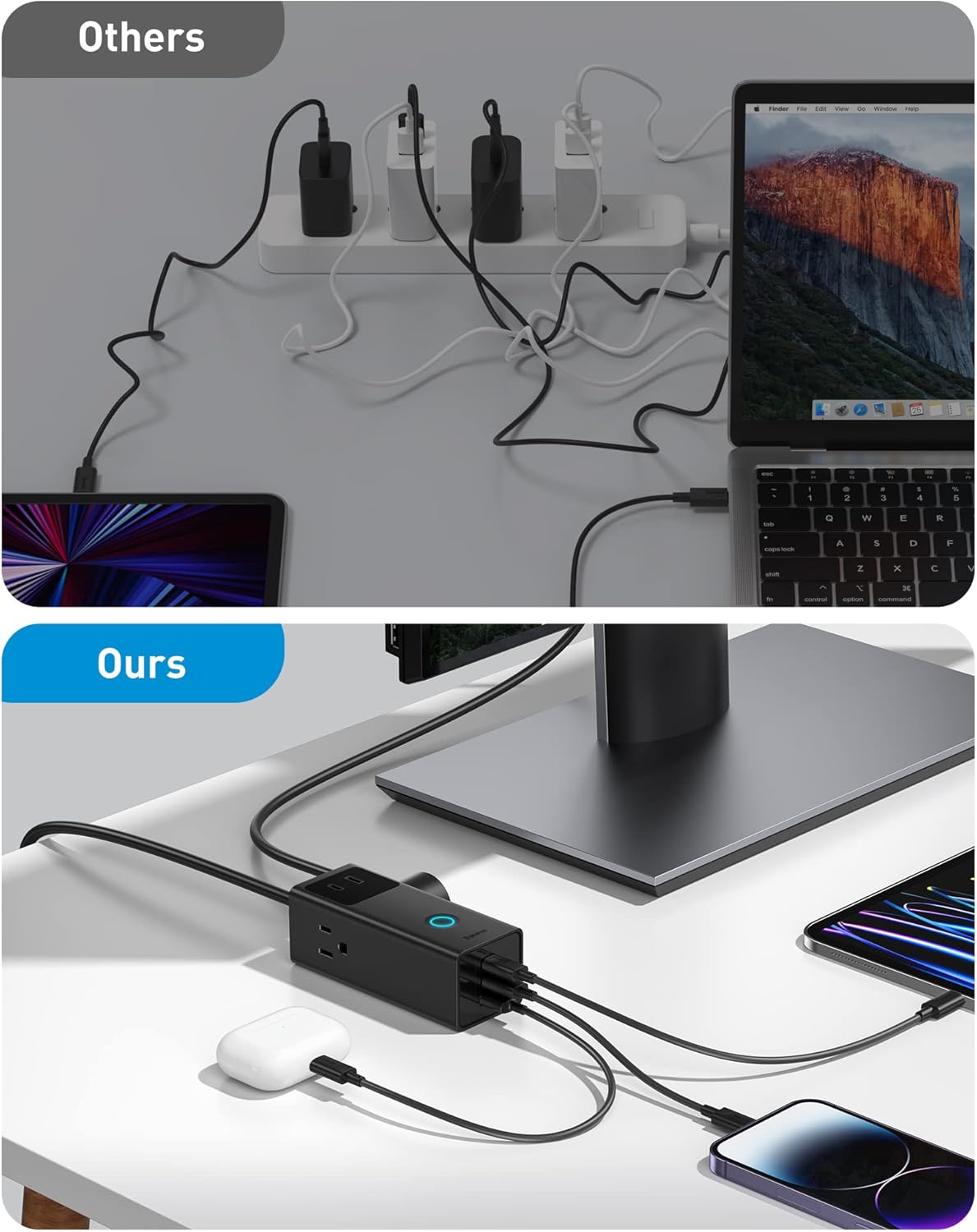
Figure 4.3: The compact design of Baseus PowerCombo helps in better cable management compared to traditional multi-charger setups.
5. Safety Information
To ensure safe operation and prevent damage to the product or connected devices, please adhere to the following safety guidelines:
- Indoor Use Only: This product is designed for indoor use in dry locations. Do not expose it to rain, moisture, or extreme temperatures.
- Avoid Overloading: Do not exceed the maximum power rating of the charging station. Overloading can cause overheating and potential damage.
- Surge Protection: Both PowerCombo models feature built-in 1200J surge protection to safeguard your devices from power surges and spikes.
- BDIP Technology: Baseus' self-developed BDIP technology continuously monitors charging status (up to 86,400 times a day) and actively cuts off power in 0.1 seconds if malfunctions like overload are detected.
- Proper Ventilation: Do not cover the charging station or place it in an enclosed space that restricts airflow.
- Handle with Care: Do not drop, disassemble, or attempt to repair the unit yourself. Refer all servicing to qualified personnel.
- Children and Pets: Keep the charging station and its cables out of reach of children and pets.

Figure 5.1: Illustration of the integrated 1200J surge protection technology.
6. Troubleshooting
If you encounter issues with your Baseus PowerCombo Charging Station, please refer to the following common problems and solutions:
| Problem | Possible Cause | Solution |
|---|---|---|
| Device not charging. | Loose connection, power outage, overloaded circuit, faulty cable/device. | Ensure the charging station is securely plugged into a live outlet. Check all cable connections. Try a different cable or device to rule out issues with them. Reduce the number of connected devices if overloaded. |
| Slow charging speed. | Using a non-fast charging port, cable not supporting fast charge, device not supporting fast charge, multiple devices drawing power. | Ensure you are using the correct USB-C PD port for fast charging. Use a high-quality cable that supports fast charging. Check if your device supports the fast charging protocol (e.g., PD 3.0). Disconnect other high-power devices if necessary. |
| Indicator light is off. | No power, unit malfunction. | Check the wall outlet with another device. Ensure the power cable is fully inserted. If the issue persists, contact customer support. |
| Unit feels warm. | Normal operation under load, poor ventilation. | It is normal for the unit to feel warm during heavy use. Ensure there is adequate ventilation around the unit. If it becomes excessively hot or emits a burning smell, immediately unplug it and contact support. |
If the problem persists after trying these solutions, please contact Baseus customer support for further assistance.
7. Specifications
Technical specifications for the Baseus PowerCombo Charging Stations:
| Feature | Baseus PowerCombo 100W | Baseus PowerCombo Pro 40W |
|---|---|---|
| AC Outlets | 3 | 3 |
| USB-C Ports | 2 | 2 |
| USB-A Ports | 2 | 1 |
| Max USB-C Output | 100W (single port) | 20W (single port), 40W (total) |
| Total USB Ports | 4 | 3 |
| Surge Protection | 1200J | 1200J |
| Safety Features | BDIP Technology (Overload protection) | BDIP Technology (Overload protection) |
| Connectivity | USB | USB |
| Special Features | Fast Charging | Fast Charging |
8. Maintenance
- Cleaning: Disconnect the charging station from the power outlet before cleaning. Use a soft, dry cloth to wipe the surface. Do not use liquid cleaners or aerosol sprays.
- Storage: When not in use for extended periods, store the charging station in a cool, dry place away from direct sunlight and extreme temperatures.
- Cable Care: Avoid bending or crimping the power cable excessively. Do not place heavy objects on the cable.
9. Warranty and Support
Baseus products are manufactured to high-quality standards and are backed by a limited warranty. For specific warranty terms and conditions, please refer to the warranty card included with your product or visit the official Baseus website.
For technical support, troubleshooting assistance, or any inquiries regarding your Baseus PowerCombo Charging Station, please contact Baseus customer service through their official website or the contact information provided in your product packaging.
Online Support: www.baseus.com