
FUNSNAP Capture 2S Combo-01
FUNSNAP Gimbal Stabilizer User Manual
Model: Capture 2S Kit
Introduction
This user manual provides comprehensive instructions for the FUNSNAP Gimbal Stabilizer for Smartphone, Capture 2S Kit. It covers setup, operation, maintenance, and troubleshooting to ensure optimal performance and longevity of your device. The FUNSNAP Gimbal Stabilizer is designed to provide smooth, stable footage for smartphones, featuring 3-axis stabilization, a magnetic fill light, and intelligent tracking capabilities for vlogging, TikTok, YouTube, and general video capture.
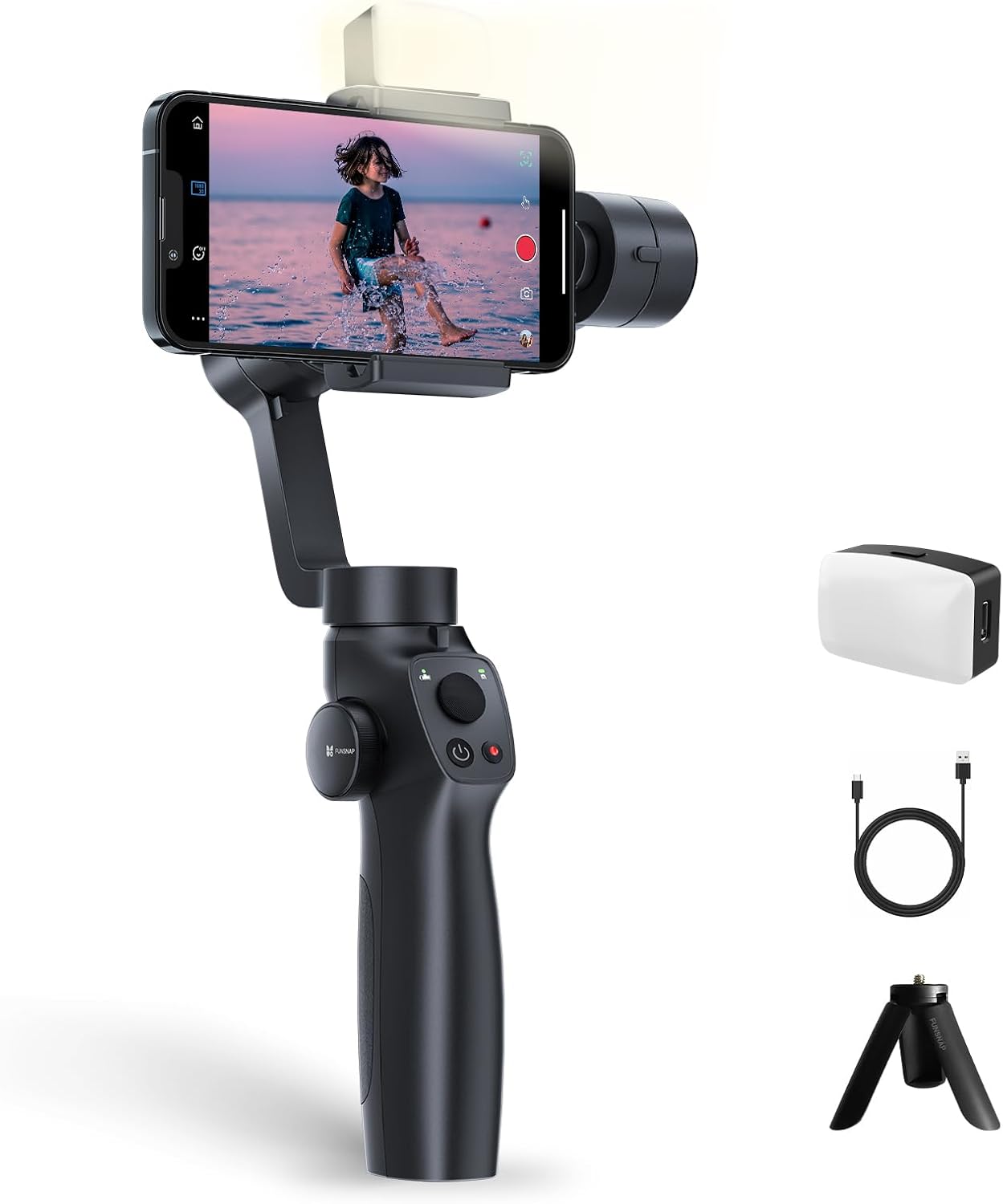
Figure 1: FUNSNAP Gimbal Stabilizer, Capture 2S Kit components.
What's in the Box
The FUNSNAP Gimbal Stabilizer, Capture 2S Kit, includes the following items:
- Capture 2S Gimbal ×1
- Fill Light ×1
- Mini Tripod ×1
- Power Cable (USB-A to USB-C, 50cm) ×1
- User Manual (this document)
Setup
Proper setup is crucial for the optimal performance of your FUNSNAP Gimbal Stabilizer. Follow these steps to prepare your device for use:
- Unfold the Gimbal: Gently unfold the gimbal to its operational position. Ensure all locking mechanisms (if any) are securely engaged.
- Attach the Tripod: Screw the mini tripod onto the bottom of the gimbal handle if you intend to use it for stable placement.
- Mount Your Smartphone:
- Remove your phone case for better balance and fit.
- Pull open the phone clamp on the gimbal.
- Carefully insert your smartphone into the clamp, ensuring it is centered and securely held.
- Adjust the phone's position within the clamp so that it is as balanced as possible before powering on the gimbal. This reduces strain on the motors.
- Attach Counterweight (if necessary): For larger or heavier phones, you may need to attach the provided counterweight to achieve proper balance. Peel off the protective film from the counterweight and attach it to the designated area on the gimbal arm.
- Power On: Long press the power button on the gimbal to turn it on. The gimbal will self-calibrate and stabilize your phone.
Video 1: Instructions on how to balance the FUNSNAP Gimbal for larger phones. This video demonstrates the process of mounting a smartphone, attaching a counterweight, and powering on the gimbal for initial stabilization.
Operating Instructions
The FUNSNAP Gimbal Stabilizer offers various modes and features to enhance your mobile videography. Familiarize yourself with the controls and functions for the best experience.
Key Features:
 3-Axis Stabilization: The optimized 3-axis stabilization system ensures smooth and steady footage, even during dynamic movements. This feature is essential for professional-looking videos and live broadcasts, minimizing camera shake.
Figure 2: Demonstrates the 3-axis stabilization system in action, providing smooth video capture during movement.
 Magnetic RGB Fill Light: Equipped with a magnetic RGB fill light, this gimbal allows for adjustable color temperature (cool to warm) and flexible lighting effects. It's ideal for improving video quality in various lighting conditions, including low-light environments.
Figure 3: Shows the magnetic fill light attached to the gimbal, providing illumination for the subject.
 Customized Lighting: The magnetic fill light offers 6 levels of brightness and adjustable color temperature (Cool, Natural, Warm) to suit different shooting environments and creative needs.
Figure 4: Illustrates the customizable lighting options of the magnetic fill light, including brightness levels and color temperatures.
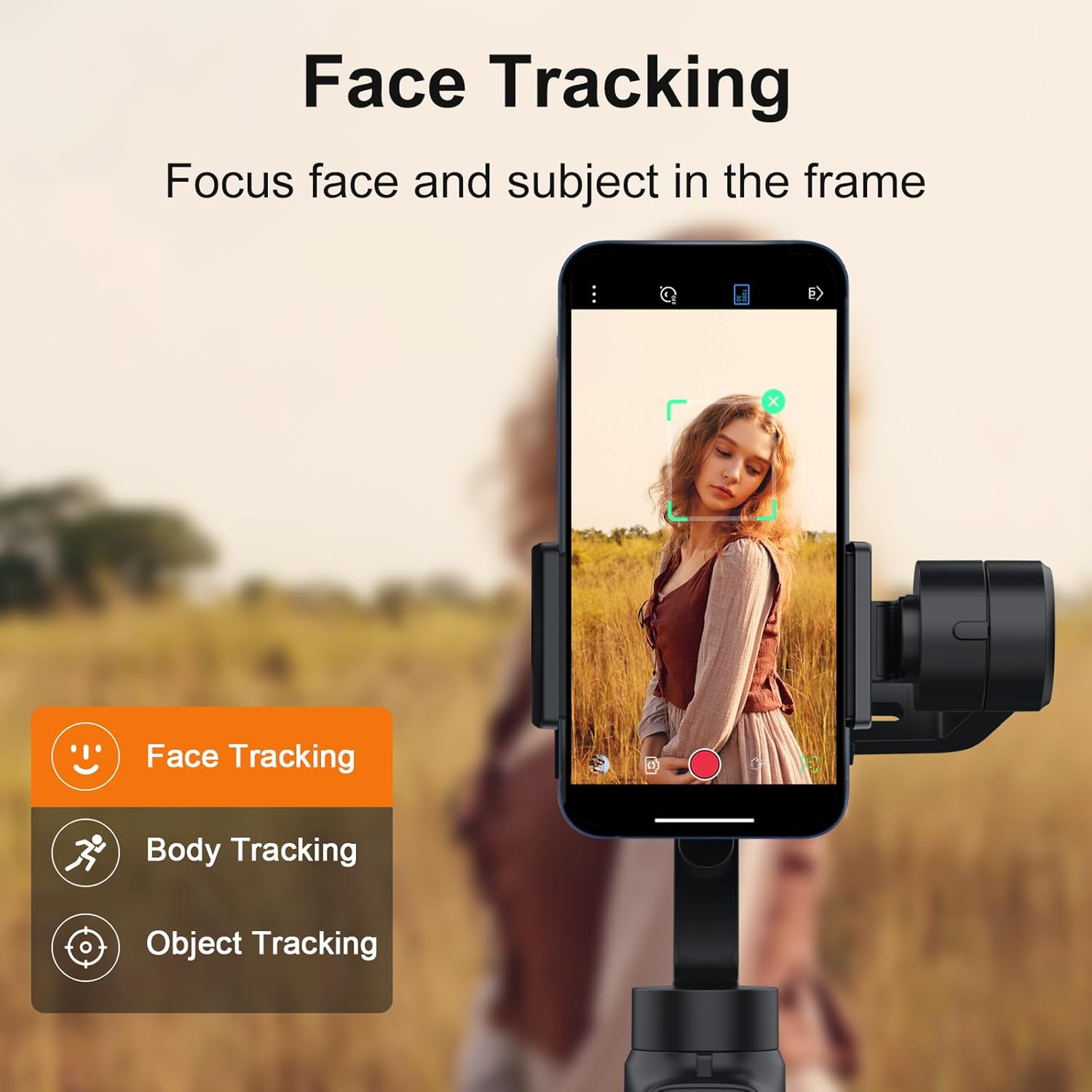 Face, Body, and Object Tracking: Utilize the intelligent tracking features to automatically follow faces, bodies, or specific objects, keeping your subject in focus and within the frame. This is particularly useful for vlogging and dynamic shots.
Figure 5: Depicts the face tracking functionality of the gimbal, showing a subject being automatically tracked on the smartphone screen.
 Ultra-Wide Angle Shots: Designed to prevent gimbal motors from obstructing your phone's lens, allowing for clear and unobstructed ultra-wide angle captures.
Figure 6: Highlights the gimbal's ability to capture ultra-wide angle shots without motor obstruction, showing a dynamic scene.
 Instant Sport Mode: Quickly activate Sport Mode to unlock the motor's full potential for rapid tracking of fast-moving subjects, ensuring you don't miss any action.
Figure 7: Illustrates the activation of Instant Sport Mode for tracking fast-moving subjects, such as a dog running in a field.
 AB Trajectory Memory: Record specific shooting tracks by setting A and B points to create stunning time-lapse footage with precise camera movements.
Figure 8: Shows the gimbal utilizing AB Trajectory Memory to capture time-lapse footage of a beach scene with people.
 Landscape/Portrait Switch: Seamlessly switch between horizontal (landscape) and vertical (portrait) video orientations with ease, adapting to various content formats like TikTok and YouTube Shorts.
Figure 9: Illustrates the quick and easy switching between landscape and portrait modes on the gimbal.
 Panoramic Photography: Capture expansive panoramic photos with options for 180°, 330°, 3x3, and 3x5 panoramas with a single click.
Figure 10: Shows the gimbal's capability for panoramic photography, capturing a wide city view.
 Long-Lasting Battery Life: Enjoy up to 13 hours of battery life on a single charge, with a fast charge time of approximately 2 hours. This ensures extended shooting sessions without interruption.
Figure 11: Highlights the long battery life of the gimbal, indicating 13 hours of usage and 2 hours fast charge.
Smartphone Compatibility:
The FUNSNAP Gimbal Stabilizer is compatible with most modern Apple and Android-powered phones. For detailed compatibility information regarding specific functions (e.g., lens support, video recording modes, slow motion, Hitchcock, time-lapse, trajectory delay), please refer to the table below or download the complete compatibility list from the official FUNSNAP website.

Figure 12: Compatibility chart detailing supported functions for various iPhone, Samsung, and Google Pixel models.
Specifications
| Feature | Detail |
|---|---|
| Product Dimensions | 1 x 1.18 x 40 inches (1"D x 1.18"W x 40"H) |
| Item Weight | 9.1 ounces (9.12 ounces) |
| Item Model Number | Capture 2S Combo-01 |
| Batteries | 2 Lithium Ion batteries required (included) |
| Color | Black |
| Brand | FUNSNAP |
| Compatible Devices | Cellphone |
| Maximum Weight Recommendation | 1.09 Kilograms |
| Folded Size | Compact or Small |
Maintenance
To ensure the longevity and optimal performance of your FUNSNAP Gimbal Stabilizer, follow these maintenance guidelines:
- Cleaning: Use a soft, dry cloth to wipe down the gimbal. Avoid using liquid cleaners or solvents, as they may damage the electronic components or finish.
- Storage: When not in use, store the gimbal in a cool, dry place, away from direct sunlight and extreme temperatures. It is recommended to store it in its original packaging or a protective case to prevent dust accumulation and physical damage.
- Battery Care: For long-term storage, ensure the battery is charged to approximately 50-60%. Recharge the battery every 3-6 months to prevent deep discharge, which can reduce battery life.
- Handle with Care: Avoid dropping the gimbal or subjecting it to strong impacts, as this can damage the delicate motors and internal components.
- Avoid Overloading: Do not exceed the maximum weight recommendation for your smartphone, as this can strain the gimbal motors and affect stabilization performance.
Troubleshooting
If you encounter issues with your FUNSNAP Gimbal Stabilizer, refer to the following common troubleshooting steps:
- Gimbal Not Stabilizing / Shaking:
- Ensure your smartphone is properly balanced in the clamp before powering on the gimbal. Adjust its position until it remains level when the gimbal is off.
- Verify that the phone case has been removed, as it can affect balance and fit.
- Check if the counterweight is correctly attached for heavier phones.
- Restart the gimbal by turning it off and then on again.
- Gimbal Not Turning On:
- Ensure the battery is sufficiently charged. Connect the gimbal to a power source using the provided USB-C cable.
- Confirm you are long-pressing the power button for the required duration (typically 2-3 seconds).
- App Connectivity Issues:
- Ensure Bluetooth is enabled on your smartphone.
- Restart both the gimbal and the smartphone.
- Try reinstalling the FUNSNAP companion app.
- Check for app updates in your phone's app store.
- Motors Overheating:
- This can occur if the phone is not properly balanced, causing the motors to work harder. Re-balance your phone.
- Avoid continuous use in extremely hot environments.
If these steps do not resolve the issue, please contact FUNSNAP customer support for further assistance.
Warranty and Support
FUNSNAP products are designed and manufactured to the highest quality standards. For information regarding warranty coverage, terms, and conditions, please refer to the warranty card included with your product or visit the official FUNSNAP website.
For technical support, troubleshooting assistance, or general inquiries, please contact FUNSNAP customer service through the following channels:
- Official Website: Visit the FUNSNAP Store on Amazon
- Email Support: Refer to your product packaging or the official website for the most current support email address.
Please have your product model number (Capture 2S Kit) and purchase details ready when contacting support.
About FUNSNAP
FUNSNAP was founded in 2018 with a mission to design and build innovative gimbals, fill lights, and microphones for content creators. The company is committed to providing users with high-quality products and friendly customer support, empowering them to capture meaningful moments and create professional-grade content.

Figure 13: FUNSNAP's brand philosophy and commitment to content creators.
Ask a question about this manual
Ask about setup, troubleshooting, compatibility, parts, safety, or missing instructions. Manuals+ will review the question and use this page’s manual context to help answer it.