
Introduction
This manual provides comprehensive instructions for the HP 690 Rechargeable Wireless Mouse. It covers product features, setup procedures, operational guidelines, maintenance tips, troubleshooting solutions, and detailed specifications. Please read this manual thoroughly to ensure proper use and optimal performance of your device.

Image: The HP 690 Rechargeable Wireless Mouse being used by an individual working at a computer desk.
Setup
1. Charging the Mouse
The HP 690 mouse offers versatile charging options: Qi wireless charging or USB-C charging. A full charge provides approximately 4 months of battery life.
- Qi Wireless Charging: Place the mouse on a compatible Qi wireless charging pad. Ensure the mouse is positioned correctly for charging to initiate.
- USB-C Charging: Connect the provided USB-C cable to the mouse's charging port and to a USB power source.

Image: Front view of the HP 690 mouse, highlighting the USB-C charging port.
2. Powering On/Off
Locate the power switch on the underside of the mouse. Slide the switch to the 'ON' position to power on the device, and to 'OFF' to power it down.

Image: Underside of the HP 690 mouse, showing the ON/OFF power switch and the Qi charging symbol.
3. Connecting to Devices
The HP 690 mouse supports multi-device connectivity via Bluetooth 5.3 and Microsoft Swift Pair.
- Bluetooth Pairing:
- Ensure the mouse is powered on.
- On your computer or device, navigate to Bluetooth settings.
- Press and hold the Bluetooth pairing button on the mouse (refer to the diagram in the Operating section for button location) until the indicator light flashes, indicating pairing mode.
- Select "HP 690 Mouse" from the list of available Bluetooth devices on your computer/device to complete pairing.
- Microsoft Swift Pair:
- For Windows 10/11 devices, ensure Bluetooth is enabled.
- Power on the mouse and bring it close to your computer.
- A notification should appear on your screen prompting you to connect. Follow the on-screen instructions to pair instantly.
Operating the Mouse
1. Button Functions
The HP 690 mouse features 6 programmable buttons and a 4-D tilt wheel for enhanced productivity.

Image: Top view of the HP 690 mouse, illustrating the scroll wheel, left/right click buttons, and central button.

Image: Side view of the HP 690 mouse, highlighting the two programmable thumb buttons.
- Left/Right Click: Standard mouse functions.
- Scroll Wheel: Scroll vertically. The 4-D tilt wheel also allows for horizontal scrolling by tilting it left or right.
- Programmable Buttons: The mouse includes additional buttons that can be customized for specific functions or shortcuts using compatible software (e.g., HP Accessory Center).
2. DPI Sensitivity
The mouse features a 4000 DPI sensor, providing high sensitivity and precise tracking on virtually any surface. DPI settings can often be adjusted through your operating system's mouse settings or dedicated HP software for finer control over cursor speed.
Maintenance
1. Cleaning
To maintain optimal performance and hygiene, clean your mouse regularly.
- Use a soft, lint-free cloth slightly dampened with water or a mild cleaning solution.
- Avoid harsh chemicals, abrasive cleaners, or spraying liquids directly onto the mouse.
- Clean the optical sensor area on the underside of the mouse periodically to prevent tracking issues.
2. Battery Care
To maximize battery lifespan:
- Avoid fully discharging the battery frequently.
- Store the mouse in a cool, dry place when not in use for extended periods.
- If not using the mouse for a long time, power it off to conserve battery.
Troubleshooting
1. Mouse Not Responding
- Check Power: Ensure the mouse is powered on and has sufficient battery charge.
- Recharge: Connect the mouse via USB-C or place it on a Qi charging pad.
- Re-pair Bluetooth: Go to your device's Bluetooth settings, remove the HP 690 mouse, and then re-pair it following the instructions in the Setup section.
- Restart Device: Sometimes, restarting your computer or device can resolve connectivity issues.
2. Cursor Jumps or Inaccurate Tracking
- Clean Sensor: Ensure the optical sensor on the underside of the mouse is clean and free of debris.
- Surface Check: Use the mouse on a clean, non-reflective, and uniform surface. While the mouse tracks on virtually any surface, some highly reflective or uneven surfaces may affect performance.
- DPI Settings: Adjust the DPI sensitivity through your operating system's mouse settings.
3. Buttons Not Working
- Software Check: If programmable buttons are not working as expected, check the HP Accessory Center software for correct configuration.
- Reboot: Restart your computer and the mouse.
Specifications
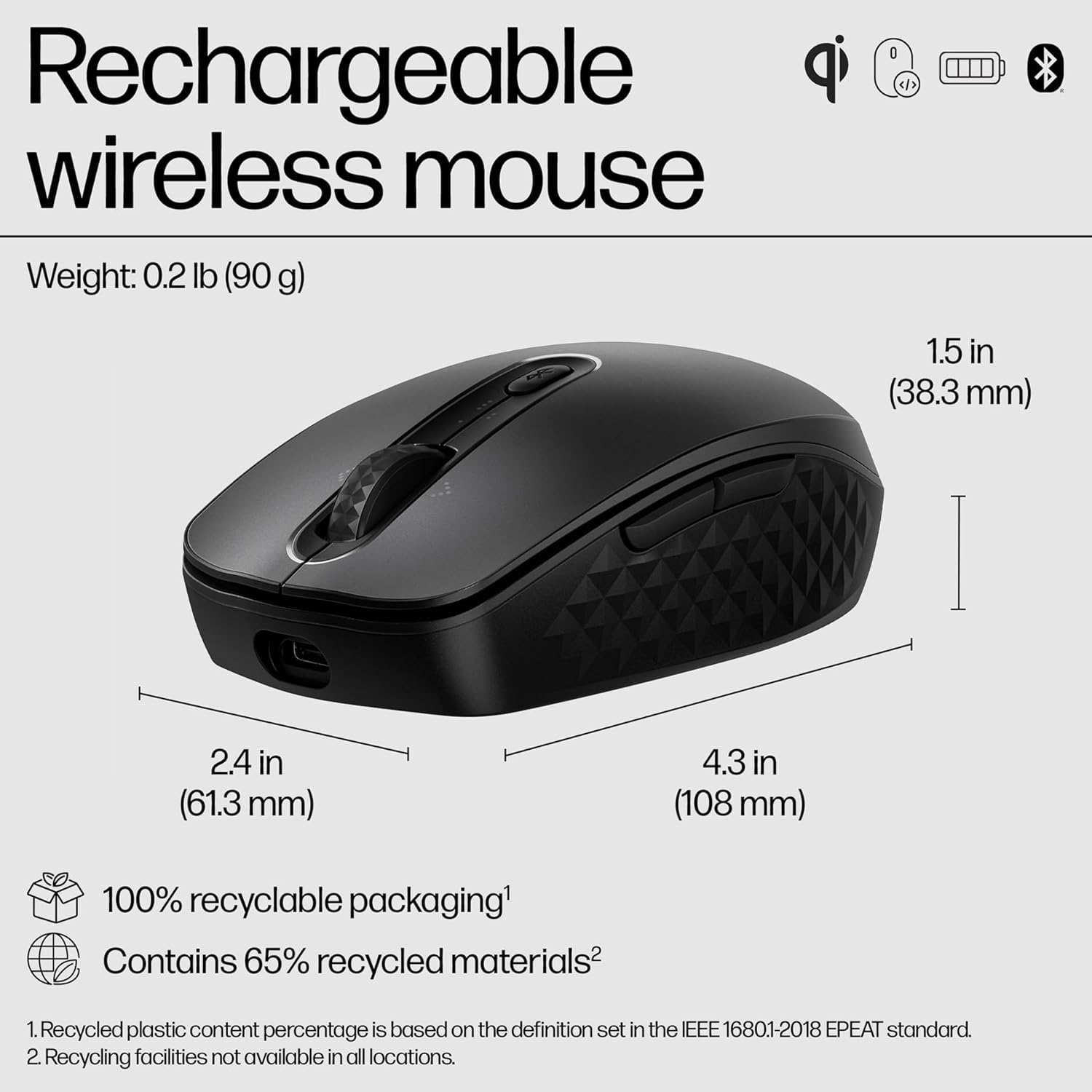
Image: Diagram illustrating the dimensions (4.3 in length, 2.4 in width, 1.5 in height) and environmental features of the HP 690 mouse.
| Feature | Detail |
|---|---|
| Model Name | HP 690 Rechargeable Wireless Mouse |
| Connectivity | Bluetooth 5.3 (Multi-device), Microsoft Swift Pair |
| Charging | Qi Wireless Charging, USB-C Charging |
| DPI Sensitivity | Up to 4000 DPI (Multi-surface tracking) |
| Buttons | 6 Programmable Buttons |
| Scroll Wheel | 4-D Tilt Wheel |
| Battery Life | Up to 4 months (approximate) |
| Weight | 0.2 lb (90 g) |
| Dimensions (LxWxH) | 4.3 x 2.4 x 1.5 inches (108 x 61.3 x 38.3 mm) |
| Encryption | AES 128 bits |
| Recycled Materials | Contains 65% recycled materials |
| Packaging | 100% recyclable packaging |
Warranty and Support
The HP 690 Rechargeable Wireless Mouse is manufactured by HP. For specific warranty details, please refer to the warranty card included with your product or visit the official HP support website. HP provides customer support for product inquiries, technical assistance, and warranty claims.
For further assistance, please visit the official HP support page: www.hp.com/support


