
1. Introduction
This manual provides essential information for the setup, operation, maintenance, and troubleshooting of your GMKtec M5 Ultra Mini PC. Please read this guide thoroughly to ensure proper usage and to maximize the performance and longevity of your device.

Figure 1: GMKtec M5 Ultra Mini PC (Front and Rear View)
The GMKtec M5 Ultra Mini PC is a compact and powerful desktop computer designed for a wide range of applications, from office productivity and home entertainment to casual gaming and demanding software. It features an AMD Ryzen 7 7730U processor, ample memory, and versatile connectivity options.
2. What's in the Box
Upon opening your GMKtec M5 Ultra Mini PC package, you should find the following items:
- GMKtec M5 Ultra Mini PC
- Power Adapter
- VESA Mount with Screws
- HDMI Cable
- User Manual (this document)

Figure 2: Retail Boxed Packaging and Included Accessories
3. Product Features
3.1. Key Components
- Processor: AMD Ryzen 7 7730U (8 Cores/16 Threads, Base 2.00GHz, Turbo Boost up to 4.50GHz)
- Graphics: AMD Radeon Graphics (8 Cores, 2000 MHz)
- RAM: 16GB DDR4 (Dual Channel, expandable up to 64GB)
- Storage: 512GB PCIe 3.0 M.2 2280 SSD (Dual slot expansion up to 8TB)
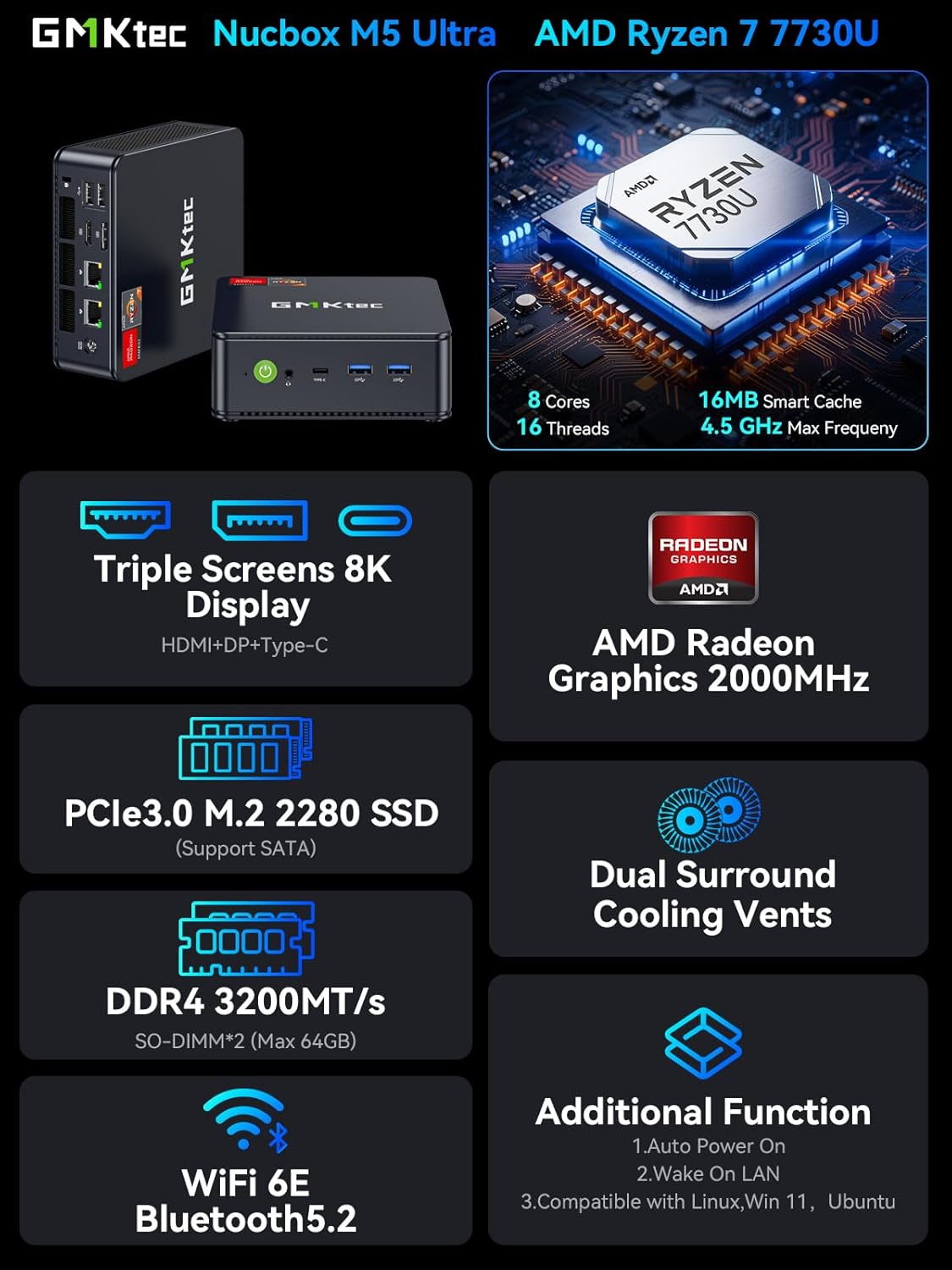
Figure 3: GMKtec M5 Ultra Mini PC Key Features Overview
3.2. Connectivity
- Front Ports: 1x Power Button, 1x 3.5mm Audio (HP&MIC), 1x USB-C (PD/DP/DATA, up to 10Gbps), 2x USB3.2 ports
- Rear Ports: 2x USB2.0 ports, 1x DP Port, 1x HDMI 2.0 port (4K@60Hz), 2x RJ45 2.5GbE LAN ports, 1x DC Power Port, 1x Kensington Lock slot
- Wireless: WiFi 6E (2.5G/5G/6G triple band), Bluetooth 5.2

Figure 4: Front and Rear Ports of the M5 Ultra Mini PC
3.3. Display Capabilities
The M5 Ultra Mini PC supports triple display output with up to 8K resolution via HDMI 2.0, DisplayPort, and USB-C connections.
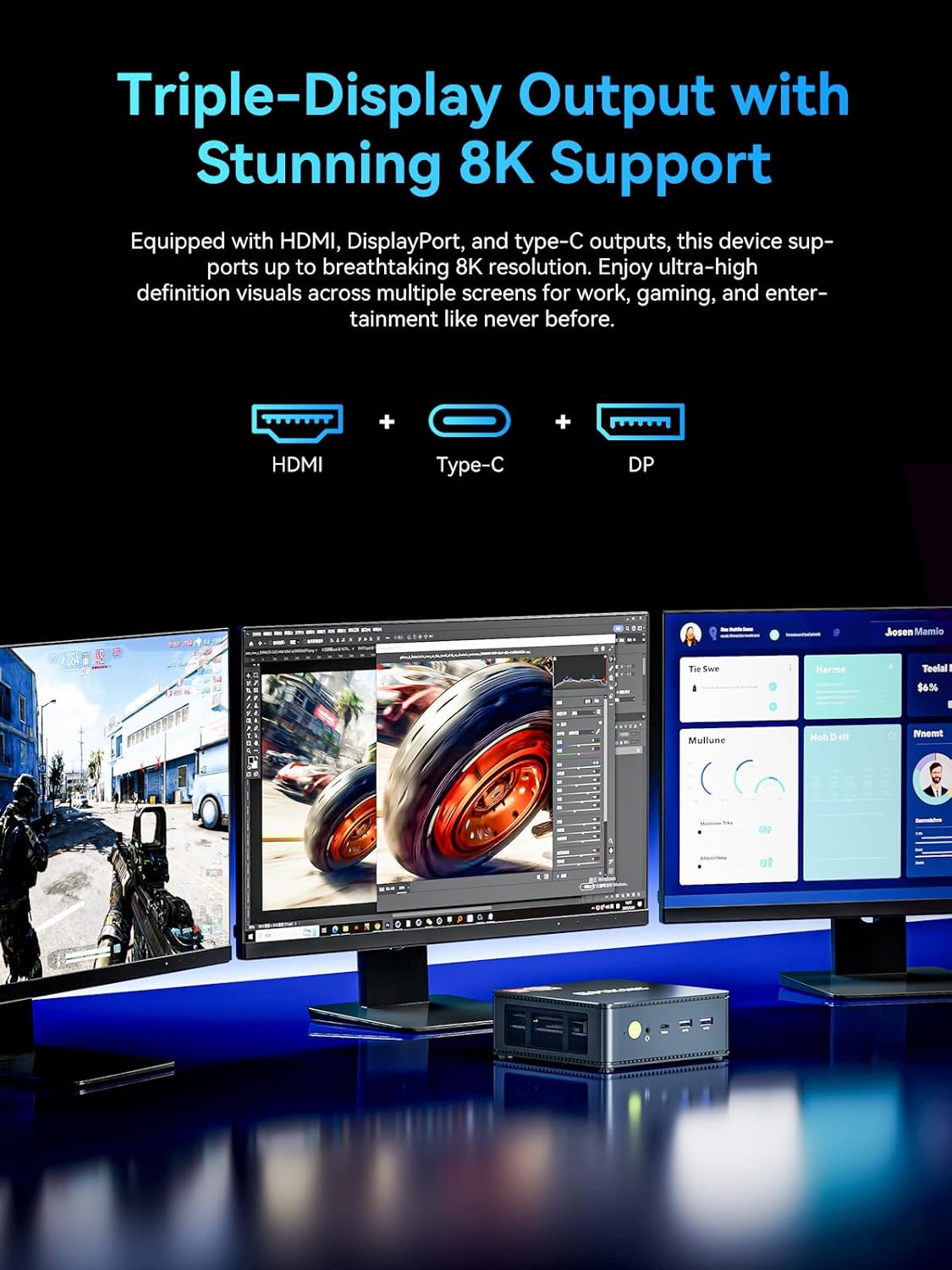
Figure 5: Triple Display Output with 8K Support
3.4. Cooling System
The device features dual surround cooling vents and an advanced cooling design for efficient heat dissipation, ensuring stable performance and extending device lifespan.
4. Setup Guide
4.1. Connecting Peripherals
- Connect your monitor(s) to the HDMI, DisplayPort, or USB-C video output ports.
- Connect your keyboard and mouse to the available USB ports.
- For wired network access, connect an Ethernet cable to one of the 2.5GbE LAN ports.
- Connect the power adapter to the DC Power Port on the rear of the Mini PC, then plug the adapter into a power outlet.
4.2. Powering On
Press the power button located on the front of the Mini PC. The device will begin its boot sequence. Follow the on-screen instructions for initial Windows 11 Pro setup if this is your first use.
4.3. VESA Mount Installation
The included VESA mount allows you to attach the Mini PC to the back of a compatible monitor or to a wall, saving desk space.
- Attach the VESA mount bracket to the back of your monitor or desired surface using the provided screws.
- Slide the Mini PC onto the mounted bracket until it securely locks into place.

Figure 6: VESA Mount Installation for Space-Saving Placement
5. Operating Instructions
5.1. Power Management
- Power On: Press the power button.
- Shut Down: From Windows, select Start > Power > Shut down.
- Restart: From Windows, select Start > Power > Restart.
- Sleep: From Windows, select Start > Power > Sleep.
5.2. BIOS Settings
To access the BIOS settings, press the DEL or ESC key repeatedly during startup. In the BIOS, you can configure various system settings, including boot order, performance modes (e.g., Power Saving Quiet Mode, Performance Mode), and other hardware parameters.
5.3. Multi-Display Setup
Connect up to three displays using a combination of the HDMI, DisplayPort, and USB-C ports. Windows will automatically detect the connected displays. You can configure display settings (resolution, orientation, extended/duplicated desktop) via Windows Display Settings.
Video 1: GMKtec M5 Mini PC Product Overview. This video provides a visual overview of the GMKtec M5 Mini PC, highlighting its design and features.
6. Maintenance
6.1. Cleaning
To maintain optimal performance and prevent overheating, regularly clean the air vents on the sides and bottom of the Mini PC. Use a can of compressed air to gently remove dust buildup. Ensure the device is powered off and unplugged before cleaning.
6.2. RAM and SSD Upgrades
The GMKtec M5 Ultra Mini PC is designed for easy upgrades of its RAM and SSD. It features dual SO-DIMM slots for DDR4 RAM (expandable up to 64GB) and dual M.2 2280 PCIe 3.0 SSD slots (expandable up to 8TB). Refer to the detailed disassembly video for guidance on accessing and upgrading these components.

Figure 7: Easy RAM and SSD Upgrade Slots
Video 2: GMKtec Mini PC Disassembly Guide. This video demonstrates how to disassemble the Mini PC to access internal components for upgrades or maintenance.
7. Troubleshooting
7.1. No Power
- Ensure the power adapter is securely connected to both the Mini PC and a working power outlet.
- Verify the power outlet is functional by plugging in another device.
- Check the power adapter for any visible damage.
7.2. No Display Output
- Confirm that the monitor is powered on and the correct input source is selected.
- Ensure the HDMI, DisplayPort, or USB-C cable is securely connected to both the Mini PC and the monitor.
- Try using a different video cable or monitor to isolate the issue.
7.3. Network Connectivity Issues
- Wired: Check the Ethernet cable connection. Verify your router/modem is working correctly.
- Wireless: Ensure Wi-Fi is enabled in Windows settings. Check if the correct Wi-Fi network is selected and the password is entered correctly. Restart your router/modem.
7.4. System Slowdown
- Check Task Manager (Ctrl+Shift+Esc) for high CPU, RAM, or disk usage by specific applications.
- Ensure the Mini PC's vents are clear of obstructions to allow for proper cooling.
- Consider upgrading RAM or SSD if consistently experiencing performance bottlenecks.
8. Specifications
| Feature | Detail |
|---|---|
| Processor | AMD Ryzen 7 7730U (8 Cores, 16 Threads, up to 4.5 GHz) |
| Graphics | AMD Radeon Graphics (8 Cores, 2000 MHz) |
| RAM | 16 GB DDR4 (Dual Channel, expandable to 64 GB) |
| Storage | 512 GB PCIe 3.0 M.2 2280 SSD (Dual slot, expandable to 8 TB) |
| Operating System | Windows 11 Pro |
| Video Output | 1x HDMI 2.0 (4K@60Hz), 1x DisplayPort, 1x USB-C (DP/PD/DATA) - Triple 8K Display Support |
| LAN | 2x RJ45 2.5GbE Ethernet |
| Wireless | WiFi 6E, Bluetooth 5.2 |
| USB Ports | 2x USB3.2, 2x USB2.0, 1x USB-C |
| Audio | 1x 3.5mm Audio Jack (HP&MIC) |
| Security | Kensington Lock Slot |
| Dimensions | 5 x 1.88 x 5.07 inches |
| Weight | 2.77 pounds |
9. Warranty and Support
9.1. Warranty Information
GMKtec offers a 1-year limited warranty for each Mini PC, starting from the date of purchase. This warranty covers defects due to design and workmanship. Please retain your proof of purchase for warranty claims.
9.2. Customer Support
For any technical assistance, troubleshooting, or warranty inquiries, please contact the GMKtec professional after-sales team:
- Email: support@gmktec.com
- Online Support: Visit the GMKtec official website for FAQs and further assistance.
- 24/7 Client Support is available to address your needs.


