
1. Introduction
This manual provides essential information for the installation and use of the Aokyitzm BCM94360CS/BCM94360CSAX Dual-Band Network Card. This component is designed as a replacement for the internal Airport wireless network card in compatible Apple MacBook Pro Retina and Mac Mini models.
The card integrates both Wi-Fi (802.11ac) and Bluetooth 4.0 functionalities, offering a solution for devices experiencing issues with their original wireless connectivity.
Package Contents:
- 1x Aokyitzm BCM94360CS/BCM94360CSAX AirPort Wireless Network Card (Wi-Fi + Bluetooth 4.0)
2. Compatibility
This network card is compatible with specific Apple MacBook Pro Retina and Mac Mini models from Late 2013 to Mid 2014. It is crucial to verify your device's model and EMC number before proceeding with installation.
Compatible Models:
- MacBook Pro 13-inch Retina Display A1502:
- Late 2013 (EMC 2678): ME864LL/A, ME866LL/A
- Mid 2014 (EMC 2875): MGX72LL/A, MGX82LL/A, MGX92LL/A
- MacBook Pro 15-inch Retina Display A1398:
- Late 2013 (EMC 2674): ME293LL/A
- Late 2013 (EMC 2745): ME294LL/A
- Mid 2014 (EMC 2876): MGXA2LL/A
- Mid 2014 (EMC 2881): MGXC2LL/A
- Mac Mini Unibody A1347:
- Late 2014 (EMC 2840): MGEM2LL/A, MGEN2LL/A, MGEQ2LL/A
To determine compatibility, locate the "Axxxx" model number and "EMC xxxx" number on the lower cover of your laptop or Mac Mini.
3. Setup and Installation
Installation of this internal component requires technical proficiency and appropriate tools. If you are not comfortable performing this procedure, it is recommended to seek assistance from a qualified technician.
Required Tools (Not Included):
- Pentalobe screwdriver (for MacBook bottom case screws)
- Torx screwdriver (for internal screws)
- Nylon spudger (for disconnecting cables)
- Anti-static wrist strap (recommended)
General Installation Steps:
- Power Off and Disconnect: Completely power down your MacBook or Mac Mini. Disconnect all power sources and external peripherals.
- Open Device: Carefully remove the bottom cover of your device using the appropriate screwdriver.
- Disconnect Battery: Locate and disconnect the battery connector from the logic board to prevent accidental power surges during installation.
- Locate Existing Network Card: Identify the current wireless network card. It is typically secured by a small screw and connected by antenna cables.
- Remove Old Card: Gently disconnect the antenna cables from the old card. Unscrew the retaining screw and carefully slide the old card out of its slot.
- Install New Card: Align the Aokyitzm network card with the slot and gently slide it in. Secure it with the retaining screw. Reconnect the antenna cables to the new card. Ensure connections are firm.
- Reconnect Battery: Reconnect the battery connector to the logic board.
- Reassemble Device: Carefully replace the bottom cover and secure it with the screws.
- Power On and Test: Power on your device. Navigate to System Settings (macOS) to verify Wi-Fi and Bluetooth functionality.

Image 1: Illustrates the installation of the Aokyitzm BCM94360CS/BCM94360CSAX Dual-Band Network Card into a compatible MacBook. The card is being carefully inserted into its designated slot on the logic board.
4. Operation
Once correctly installed, the Aokyitzm BCM94360CS/BCM94360CSAX network card should be automatically recognized by your macOS operating system. No additional drivers are typically required for standard functionality.
Wi-Fi Connectivity:
- Access Wi-Fi settings via the menu bar icon or System Settings.
- Select your desired 2.4GHz or 5GHz network and enter the password if prompted.
- The card supports 802.11ac protocol for high-speed wireless connections.
Bluetooth Connectivity:
- Access Bluetooth settings via the menu bar icon or System Settings.
- Ensure Bluetooth is turned on.
- Pair with compatible Bluetooth 4.0 devices such as headphones, keyboards, or mice.
5. Maintenance
As an internal component, the network card requires minimal maintenance. However, adhering to general computer maintenance practices can prolong its lifespan and ensure optimal performance.
- Keep Device Clean: Regularly clean the exterior of your device to prevent dust and debris from entering the internal components.
- Avoid Physical Damage: Protect your device from drops, impacts, and excessive vibrations, which can dislodge or damage internal components.
- Software Updates: Keep your macOS operating system updated to ensure the latest drivers and compatibility for your hardware.
6. Troubleshooting
If you encounter issues after installing the network card, consider the following troubleshooting steps:
- No Wi-Fi or Bluetooth:
- Double-check all internal connections, especially the antenna cables and the card's seating in its slot.
- Ensure the battery connector was properly reconnected.
- Verify that Wi-Fi and Bluetooth are enabled in macOS System Settings.
- Poor Signal Strength:
- Ensure antenna cables are securely attached to the card. Loose connections can significantly degrade performance.
- Check for physical obstructions or interference sources near your device.
- Device Not Recognized:
- Reconfirm that your device model and year are listed in the compatibility section (Section 2).
- Try reseating the card in its slot.
- Perform a PRAM/NVRAM reset on your Mac.
If problems persist, consider contacting the seller or a professional repair service.
7. Specifications
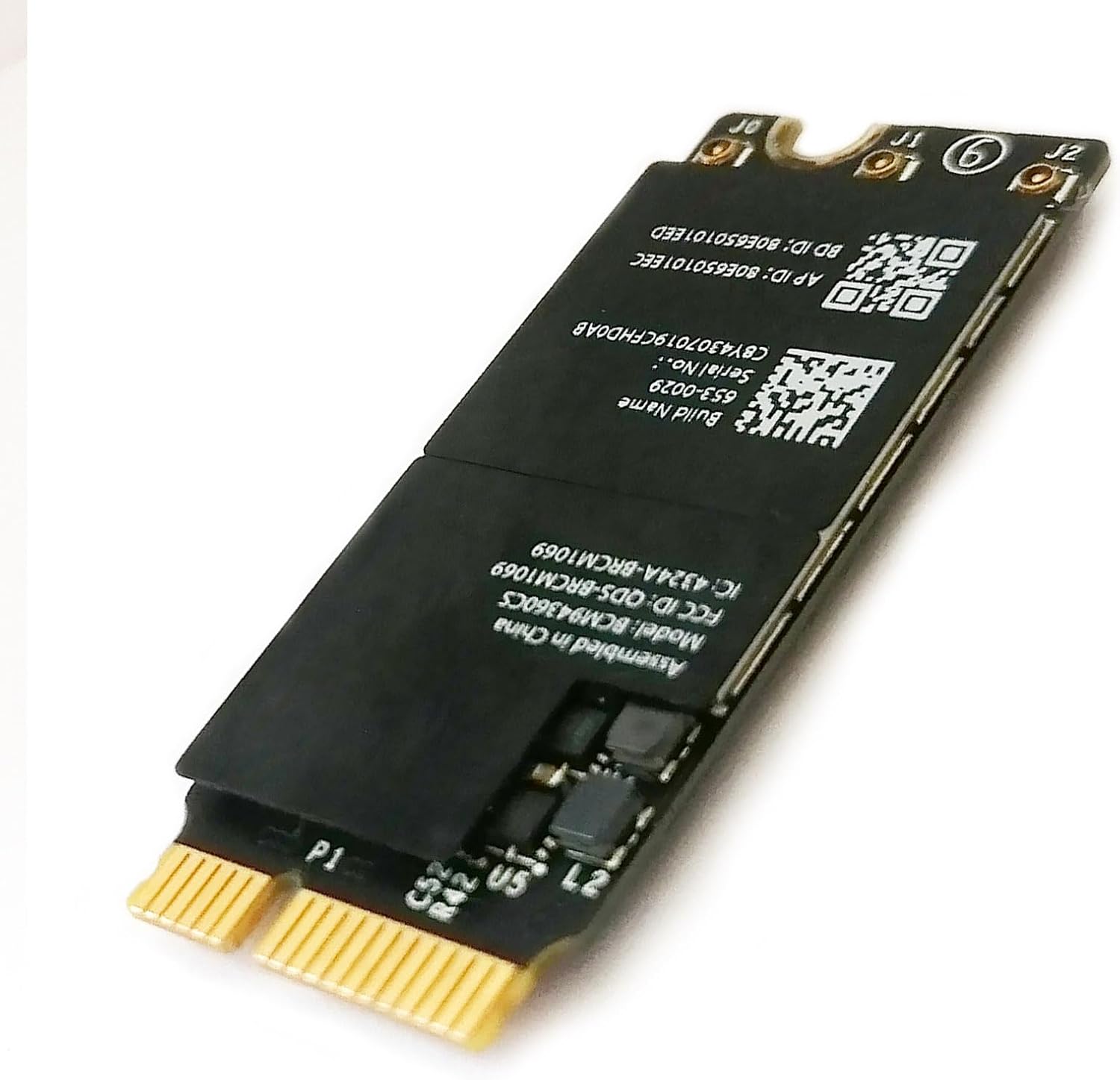
Image 2: Top view of the Aokyitzm BCM94360CS/BCM94360CSAX Dual-Band Network Card, showing its compact form factor and primary components.
| Feature | Detail |
|---|---|
| Model Numbers | BCM94360CS, BCM94360CSAX |
| Wi-Fi Protocol | IEEE 802.11ac (Dual-Band 2.4GHz/5GHz) |
| Bluetooth Version | Bluetooth 4.0 |
| Hardware Interface | Proprietary Apple connector (similar to M.2) |
| Product Dimensions | 1.77 x 0.71 x 0.06 inches (45 x 18 x 1.5 mm) |
| Item Weight | 0.1 ounces (approx. 2.8 grams) |
| Compatible Devices | MacBook Pro 13" & 15" Retina (Late 2013 - Mid 2014), Mac Mini (Late 2014) |
| APN | 661-8143, 661-01559 |
| PPN | 653-0029, 653-00002 |

Image 3: Displays the physical dimensions of the Aokyitzm BCM94360CS/BCM94360CSAX Dual-Band Network Card, indicating its length and width.

Image 4: Shows the reverse side of the Aokyitzm BCM94360CS/BCM94360CSAX Dual-Band Network Card, highlighting additional components and markings.
8. Warranty and Support
For specific warranty terms and conditions, please refer to the documentation provided at the time of purchase or contact the seller directly. Warranty coverage typically applies to manufacturing defects.
For technical support or further assistance with installation and troubleshooting, please contact the product seller or a certified Apple service provider.
Seller Information: Aokyitzm (via Amazon)