1. Introduction
Thank you for choosing the KOLINK Umbra X 120mm PWM ARGB Fan. This fan is designed to provide efficient cooling for your computer system while offering customizable ARGB lighting effects. Featuring a 28mm thick frame for enhanced airflow and a durable hydraulic bearing, the Umbra X delivers quiet and reliable performance. This manual provides essential information for proper installation, operation, and maintenance.
2. Safety Information
- Ensure your computer system is powered off and unplugged from the wall outlet before installation.
- Handle the fan and its components with care to avoid damage.
- Do not attempt to modify the fan or its cables. Unauthorized modifications may void your warranty and cause damage.
- Keep the fan away from liquids and excessive moisture.
- This product is intended for use within computer systems. Do not use it for other purposes.
3. Package Contents
The KOLINK Umbra X Single Pack includes the following items:
- 1x KOLINK Umbra X 120mm PWM ARGB Fan
- 4x Mounting Screws
- Necessary connection cables (PWM and ARGB)
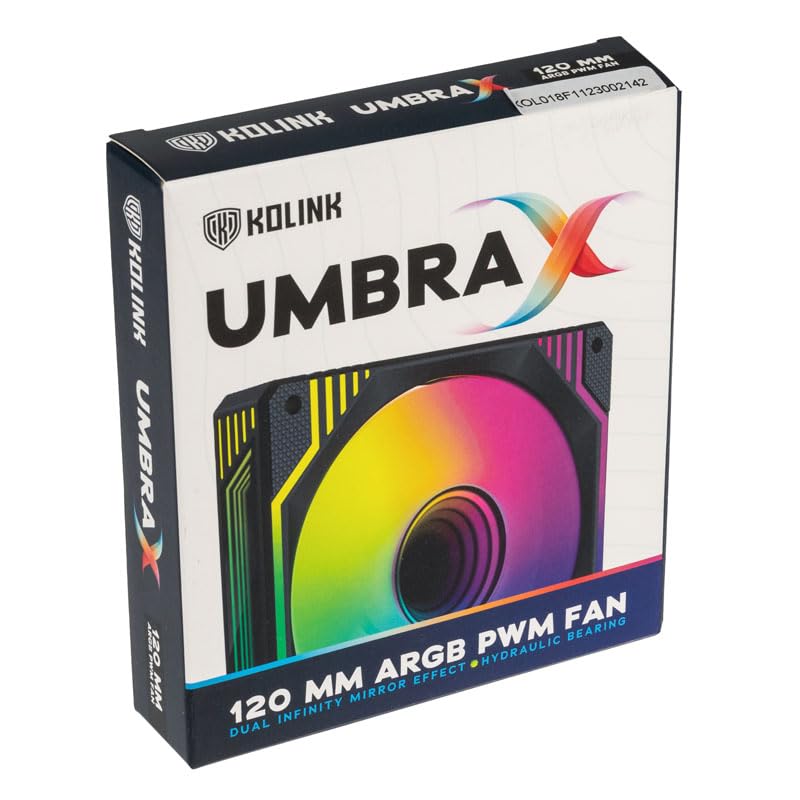
Image: KOLINK Umbra X 120mm PWM ARGB Fan product box.
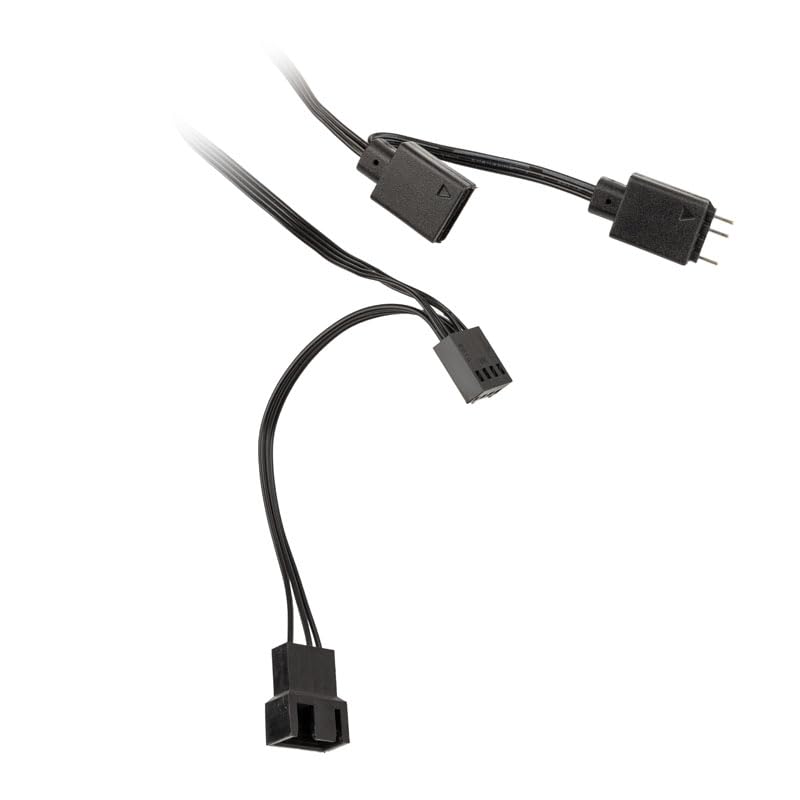
Image: Included PWM and ARGB connection cables for the fan.
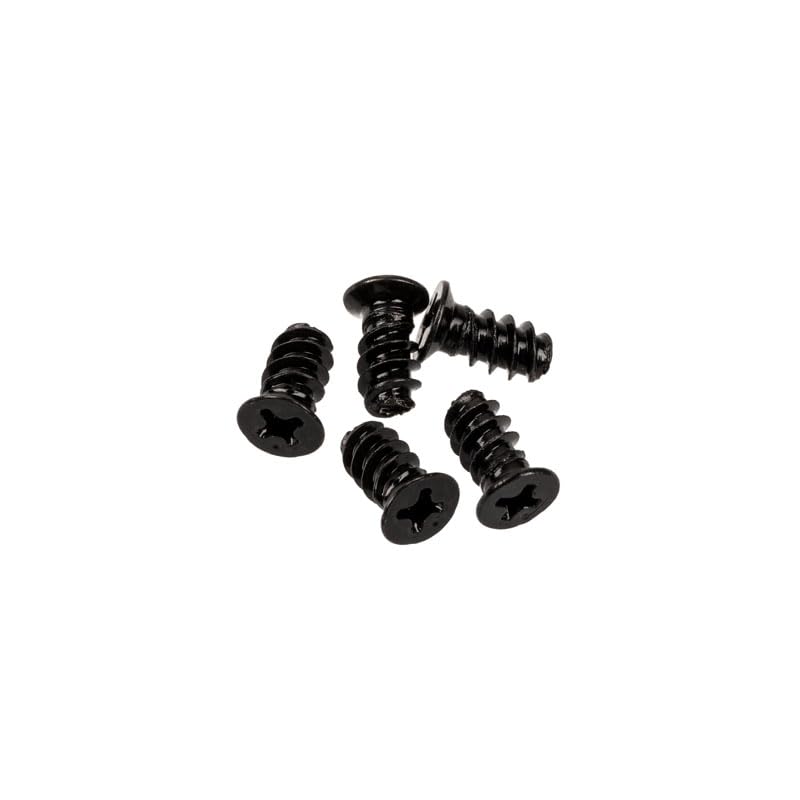
Image: Four black mounting screws for fan installation.
4. Specifications
| Feature | Specification |
|---|---|
| Model | Umbra X Single Pack (539470) |
| Dimensions (L x W x H) | 120 x 120 x 28 mm |
| Fan Speed | Up to 1600 RPM |
| Noise Level | 24 dBA (maximum) |
| Bearing Type | Hydraulic Bearing |
| MTBF (Mean Time Between Failures) | 40,000 hours |
| Connector Type | 4-pin PWM (Fan Control), 3-pin ARGB (5V) |
| Cooling Method | Air |
| Compatible Devices | Desktop Computers |
5. Installation (Setup)
Follow these steps to install your KOLINK Umbra X fan:
- Prepare Your System: Power off your computer and unplug it from the power outlet. Open your computer case to access the fan mounting locations.
- Identify Mounting Location: Determine where you want to install the fan (e.g., front, rear, top, or bottom of the case, or on a radiator). Ensure there is sufficient space.
- Mount the Fan: Position the fan in the desired location. Ensure the airflow direction is correct (usually indicated by an arrow on the fan frame). Use the four included mounting screws to secure the fan to the case or radiator. Tighten screws until snug, but do not overtighten.
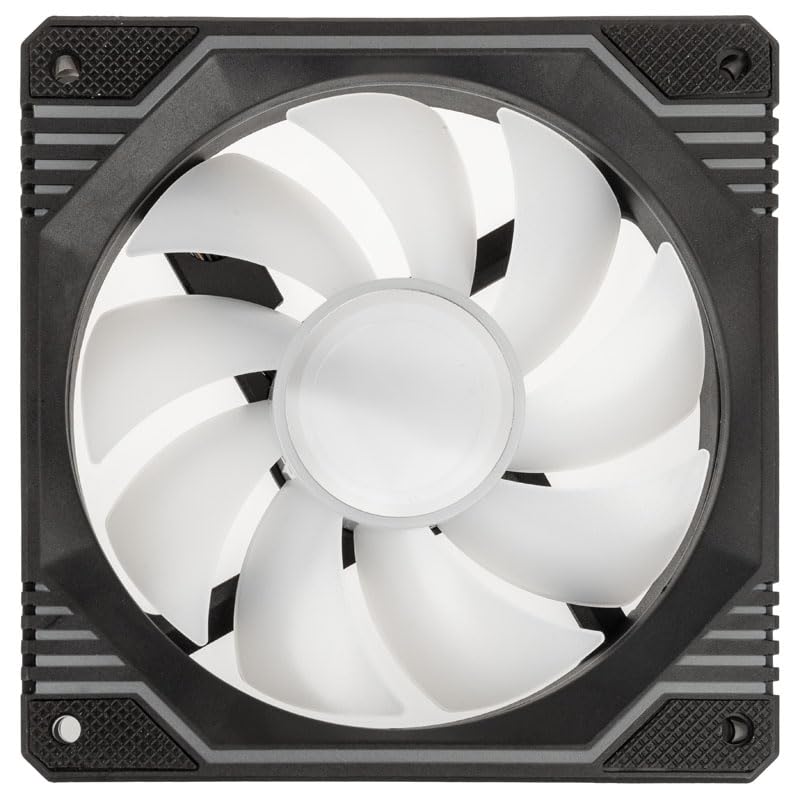
Image: Top-down view of the KOLINK Umbra X fan, showing the fan blades and mounting holes.
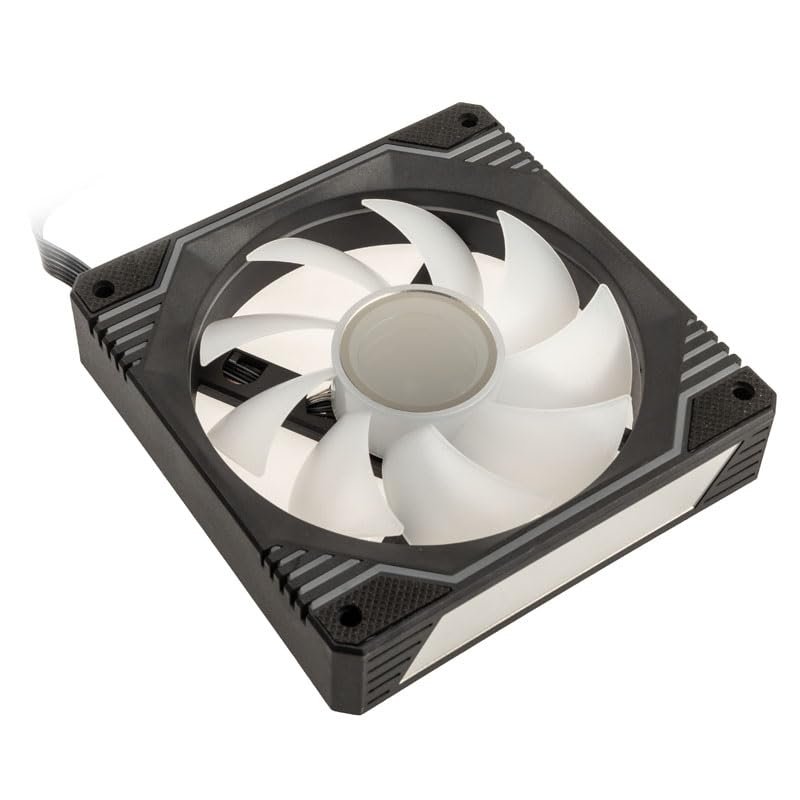
Image: Angled view of the KOLINK Umbra X fan, highlighting its design and mounting points.
- Connect PWM Cable: Locate a 4-pin fan header on your motherboard (often labeled CPU_FAN, SYS_FAN, or CHA_FAN). Connect the fan's 4-pin PWM cable to this header. This allows your motherboard to control the fan speed.
- Connect ARGB Cable: Locate a 3-pin 5V ARGB header on your motherboard (often labeled ADD_HEADER, JRAINBOW, or D_LED). Connect the fan's 3-pin ARGB cable to this header. Ensure the arrow on the connector aligns with the +5V pin on the motherboard header to prevent damage. Do not connect to a 4-pin 12V RGB header.
- Cable Management: Route the cables neatly to avoid interference with other components and to improve airflow within the case.
- Close Case and Power On: Close your computer case, plug in the power cable, and power on your system. Verify that the fan spins and the ARGB lighting illuminates.
6. Operation
The KOLINK Umbra X fan operates with two primary functions: fan speed control and ARGB lighting control.
Fan Speed Control (PWM)
The fan's speed is controlled via the 4-pin PWM connection to your motherboard. You can manage fan speed settings through your motherboard's BIOS/UEFI or through compatible software provided by your motherboard manufacturer. This allows for dynamic adjustment of fan speed based on system temperature, optimizing cooling performance and noise levels.
ARGB Lighting Control
The ARGB lighting features two Infinity Mirror effects on the fan hub and frame edges. The lighting is controlled via the 3-pin 5V ARGB connection to your motherboard. You can customize lighting effects, colors, and patterns using your motherboard's ARGB synchronization software (e.g., ASUS Aura Sync, MSI Mystic Light Sync, Gigabyte RGB Fusion, ASRock Polychrome Sync). Ensure your motherboard supports 3-pin 5V ARGB.
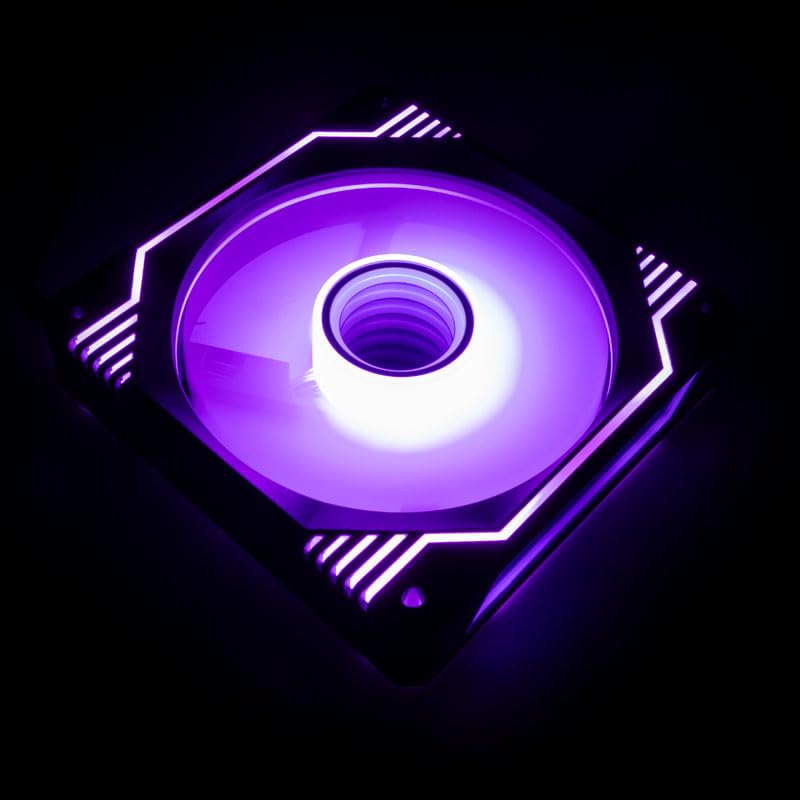
Image: KOLINK Umbra X fan illuminated with purple ARGB lighting, showcasing the infinity mirror effect.

Image: KOLINK Umbra X fan illuminated with green ARGB lighting.
7. Maintenance
Regular maintenance helps ensure optimal performance and longevity of your fan.
- Cleaning: Periodically clean the fan blades and frame to remove dust buildup. Use a can of compressed air or a soft, dry cloth. Ensure the system is powered off and unplugged before cleaning.
- Inspection: Occasionally check the fan for any signs of damage or loose connections.
- Avoid Lubrication: The hydraulic bearing is sealed and does not require external lubrication. Attempting to lubricate it may cause damage.
8. Troubleshooting
If you encounter issues with your KOLINK Umbra X fan, refer to the following common solutions:
- Fan Not Spinning:
- Ensure the 4-pin PWM cable is securely connected to a functional fan header on the motherboard.
- Check BIOS/UEFI settings to ensure the fan header is enabled and configured correctly (e.g., not set to 0 RPM).
- Verify that your power supply is providing adequate power to the motherboard and components.
- ARGB Lighting Not Working:
- Ensure the 3-pin ARGB cable is securely connected to a 5V ARGB header on the motherboard. Do not connect to a 12V RGB header.
- Check your motherboard's ARGB software to ensure lighting effects are enabled and configured.
- Verify that the ARGB header on your motherboard is functioning correctly.
- Excessive Noise:
- Check for any cables or obstructions touching the fan blades.
- Ensure the fan is securely mounted and screws are tightened appropriately.
- Adjust fan speed settings in your motherboard's BIOS/UEFI or software to a lower RPM if noise is a concern.
- Clean any dust buildup on the fan blades.
- Poor Cooling Performance:
- Verify the fan's airflow direction is appropriate for your case configuration (e.g., intake or exhaust).
- Ensure there are no obstructions blocking airflow to or from the fan.
- Increase fan speed settings if temperatures are too high.
9. Warranty and Support
KOLINK products are manufactured to high-quality standards. For warranty information and technical support, please refer to the official Kolink website or contact your retailer. Keep your proof of purchase for warranty claims.


