
1. Introduction
The Overmax Multipic 6.1 is a Full HD 1080p LED projector designed for a versatile viewing experience. It features advanced functionalities such as autofocus, automatic keystone correction, Wi-Fi 6, and Bluetooth 5.0 connectivity. This manual provides essential information for setting up, operating, and maintaining your projector to ensure optimal performance and longevity.

Image 1.1: Front-right view of the Overmax Multipic 6.1 projector, showcasing the lens and ventilation.
2. Package Contents
Verify that all items listed below are included in your package. If any items are missing or damaged, please contact customer support.
- Overmax Multipic 6.1 Projector
- Remote Control
- Power Cable
- HDMI Cable

Image 2.1: Included HDMI and power cables.

Image 2.2: The remote control for the Overmax Multipic 6.1 projector.
3. Product Overview
3.1 Projector Components
Familiarize yourself with the main components of your projector.
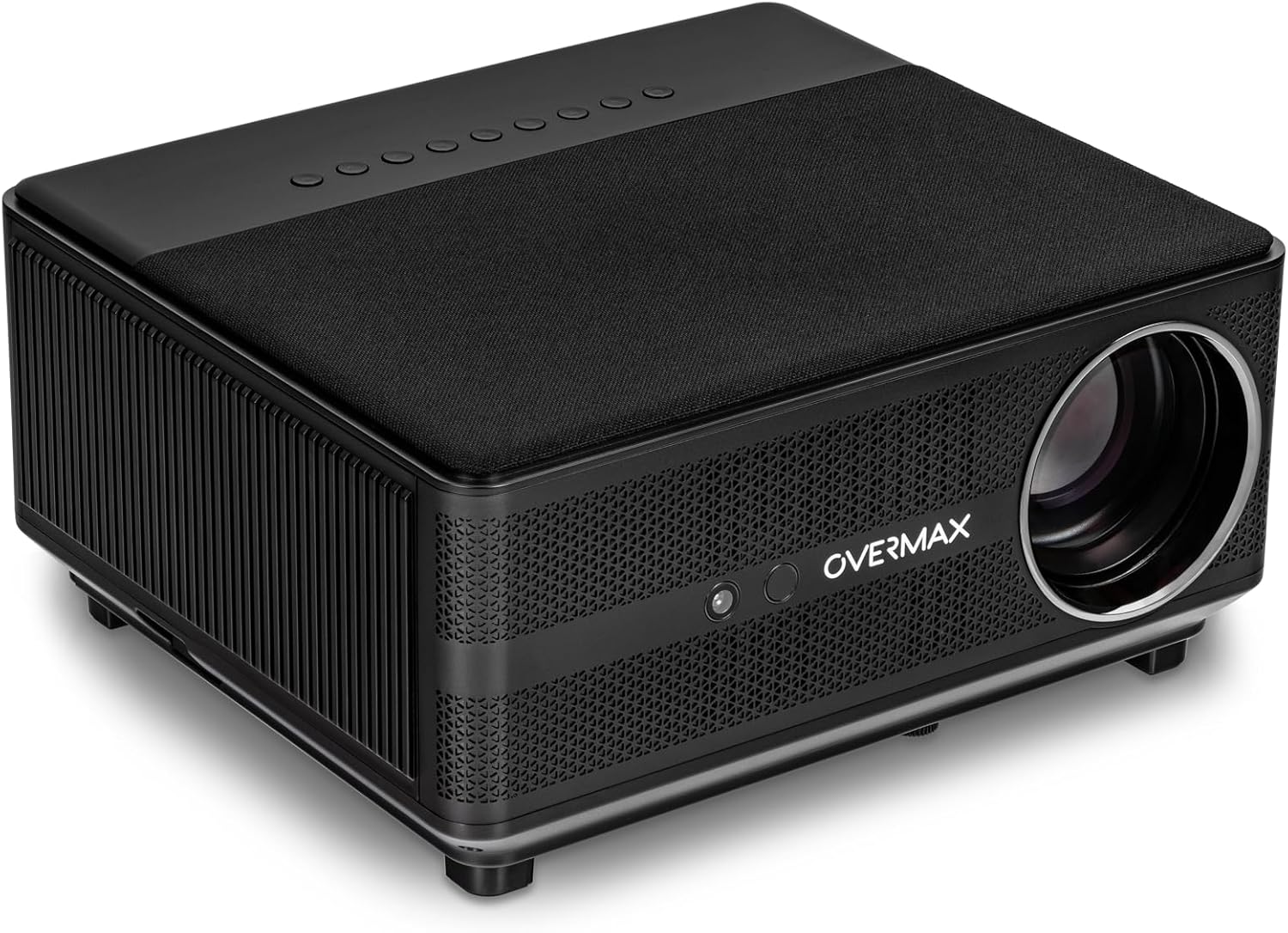
Image 3.1: Top-front-right view of the projector, showing the lens and top panel.

Image 3.2: Top view of the projector, highlighting the integrated control buttons.
3.2 Input/Output Ports
The projector features various ports for connecting external devices.

Image 3.3: Rear view of the projector, displaying the AV, USB, HDMI 1, HDMI 2, and RJ45 ports.

Image 3.4: A closer view of the input/output panel, detailing each port.
4. Setup
4.1 Placement
Place the projector on a stable, flat surface. Ensure there is adequate ventilation around the unit to prevent overheating. The projector can project an image size from 40 to 150 inches, allowing flexibility in placement based on your desired screen size.

Image 4.1: Projector with its adjustable front foot, useful for minor angle adjustments.
4.2 Power Connection
- Connect the power cable to the projector's power input port.
- Plug the other end of the power cable into a suitable electrical outlet.
4.3 Initial Power On
Press the power button on the projector or the remote control to turn on the device. The projector will initiate its startup sequence.
4.4 Focus and Keystone Adjustment
The Multipic 6.1 features automatic focus and AUTO KEYSTONE (horizontal and vertical four-point automatic correction). This eliminates the need for manual adjustments, ensuring a clear and perfectly centered image automatically upon startup or repositioning.
4.5 Network Connection (Wi-Fi)
To access online applications and streaming services, connect your projector to a Wi-Fi network:
- Navigate to the 'Settings' menu on the projector.
- Select 'Network & Internet'.
- Turn on Wi-Fi and select your desired network from the list.
- Enter the password if prompted and connect.
4.6 Bluetooth Connection
Connect Bluetooth devices such as speakers, keyboards, or mice:
- Go to 'Settings' and select 'Connected Devices' or 'Bluetooth'.
- Enable Bluetooth.
- Select your device from the list of available devices to pair.
5. Operating
5.1 Basic Operation with Remote Control
The included remote control allows full navigation and control of the projector's functions, including voice commands.
- Power Button: Turns the projector on/off.
- Navigation Buttons: Use the arrow keys to move through menus and the 'OK' button to confirm selections.
- Volume Control: Adjust the audio output.
- Source Button: Select input sources (HDMI, USB, AV).
- Voice Control Button: Activate voice commands for easier navigation and content search.
5.2 Connecting External Devices
The projector supports various external devices:
- HDMI: Connect laptops, gaming consoles, Blu-ray players, etc., using an HDMI cable. Select the corresponding HDMI input (HDMI 1 or HDMI 2) from the source menu.
- USB: Plug in USB drives to play media files directly.
- AV: Connect older devices using an AV cable.
- RJ45: For wired internet connection.
5.3 Android OS and Applications
The projector runs on Android 9.0, providing access to a wide range of applications. You can download and install apps from the pre-installed app store or other compatible sources.
5.4 Image Size Adjustment
The projector can display images from 40 to 150 inches. Adjust the distance between the projector and the projection surface to achieve your desired screen size. The autofocus and auto keystone features will automatically optimize the image.
6. Maintenance
6.1 Dust-Proof Function
The projector incorporates a Dust-Proof function designed to improve cooling efficiency and protect internal components from dust accumulation. This feature contributes to increased performance and extends the lifespan of the projector.
6.2 LED Lamp Life
The 110W LED lamp has a long service life of up to 50,000 hours. This means the lamp is designed to last for the entire lifespan of the projector under normal usage conditions, minimizing the need for replacement.
6.3 General Cleaning
- Exterior: Use a soft, dry cloth to wipe the projector's exterior. Do not use abrasive cleaners or solvents.
- Lens: Gently clean the projector lens with a lens cleaning cloth or specialized lens paper. Avoid touching the lens directly with your fingers.
- Ventilation: Ensure the ventilation openings are clear of dust and obstructions to maintain proper airflow.
7. Troubleshooting
If you encounter issues with your projector, refer to the following common solutions:
- No Power: Ensure the power cable is securely connected to both the projector and the power outlet. Try a different outlet.
- No Image: Check the input source selection. Ensure the connected device is powered on and sending a signal. Verify cables are properly connected.
- Blurry Image: The projector features autofocus. If the image remains blurry, try restarting the projector. Ensure the projection surface is flat and the projector is stable.
- No Sound: Check the projector's volume settings and the volume of the connected source device. If using external speakers, ensure they are properly connected and powered.
- Remote Control Not Working: Check the batteries in the remote control. Ensure there are no obstructions between the remote and the projector's IR receiver.
For persistent issues, please contact Overmax customer support.
8. Specifications
| Feature | Specification |
|---|---|
| Brand | Overmax |
| Model Name | Multipic 6.1 |
| Display Type | LED |
| Display Resolution | 1920 x 1080 (Full HD) |
| Brightness | 7000 Lumens |
| Image Contrast Ratio | 4500:1 |
| Aspect Ratio | 16:9, 4:3 |
| Projection Size | 40 to 150 inches |
| Lamp Life | Up to 50,000 hours |
| Operating System | Android 9.0 |
| Wireless Connectivity | Wi-Fi 6, Bluetooth 5.0 |
| Special Features | Autofocus, Auto Keystone Correction, Dust-Proof Function, Voice Control |
| Hardware Interface | HDMI (x2), USB, AV, RJ45 |
| Compatible Devices | Laptop, Smartphone, Speaker, Tablet |
| Wattage | 110 watts |
| Product Dimensions | 30.2 x 27 x 14.5 cm |
| Weight | 1.9 kg |
9. Warranty and Support
Your Overmax Multipic 6.1 projector comes with a standard manufacturer's warranty. Please refer to the warranty card included in your package for specific terms and conditions. For technical support, service, or warranty claims, please contact Overmax customer service through their official website or the contact information provided in your product documentation.

