
1. Introduction
The ORICO M.2 2230 NVMe SSD Enclosure (Model TC20) is a compact and portable external storage solution designed specifically for 2230 NVMe SSDs. It features a transparent polycarbonate casing, offering a modern aesthetic while providing robust protection for your SSD. With a 10Gbps USB 3.2 Gen 2 Type-C interface, this enclosure supports UASP acceleration protocol, enabling high-speed data transfer rates exceeding 900MB/s. It is an ideal solution for expanding storage for devices like the iPhone 15 Pro/Pro Max for ProRes video recording, or for creating a portable backup drive for laptops and tablets.

Figure 1: The ORICO M.2 2230 NVMe SSD Enclosure, demonstrating its small, portable form factor when held in a hand.
2. Package Contents
Please verify that all items listed below are included in your package. If any items are missing or damaged, please contact ORICO customer support.
- 1 x ORICO M.2 2230 NVMe Enclosure
- 1 x USB-C to C Cable
- 2 x Thermal Pads
- 1 x Screwdriver
- 1 x Screw (for SSD retention)
- 1 x Instruction Book (this manual)

Figure 2: Contents of the ORICO M.2 2230 NVMe SSD Enclosure retail package.
3. Specifications
| Feature | Detail |
|---|---|
| Model Number | TC20 |
| Compatible SSD Type | M.2 NVMe SSD (2230 size only, M-Key or B+M Key) |
| Interface | USB 3.2 Gen 2 Type-C |
| Data Transfer Speed | Up to 10Gbps (Theoretical) |
| Supported Protocols | UASP, Trim |
| Max Capacity | Up to 4TB |
| Material | Polycarbonate (PC) |
| Dimensions | 1.81 x 1.81 x 0.47 inches (45mm x 45mm x 12mm) |
| Weight | 1.76 ounces (50 Grams) |
| Installation Type | Screw-In (with provided screw) |
Important Note: This enclosure is designed exclusively for M.2 2230 NVMe SSDs. Other sizes or SATA-based M.2 SSDs are not compatible.

Figure 3: Supported SSD type and interface for the enclosure.
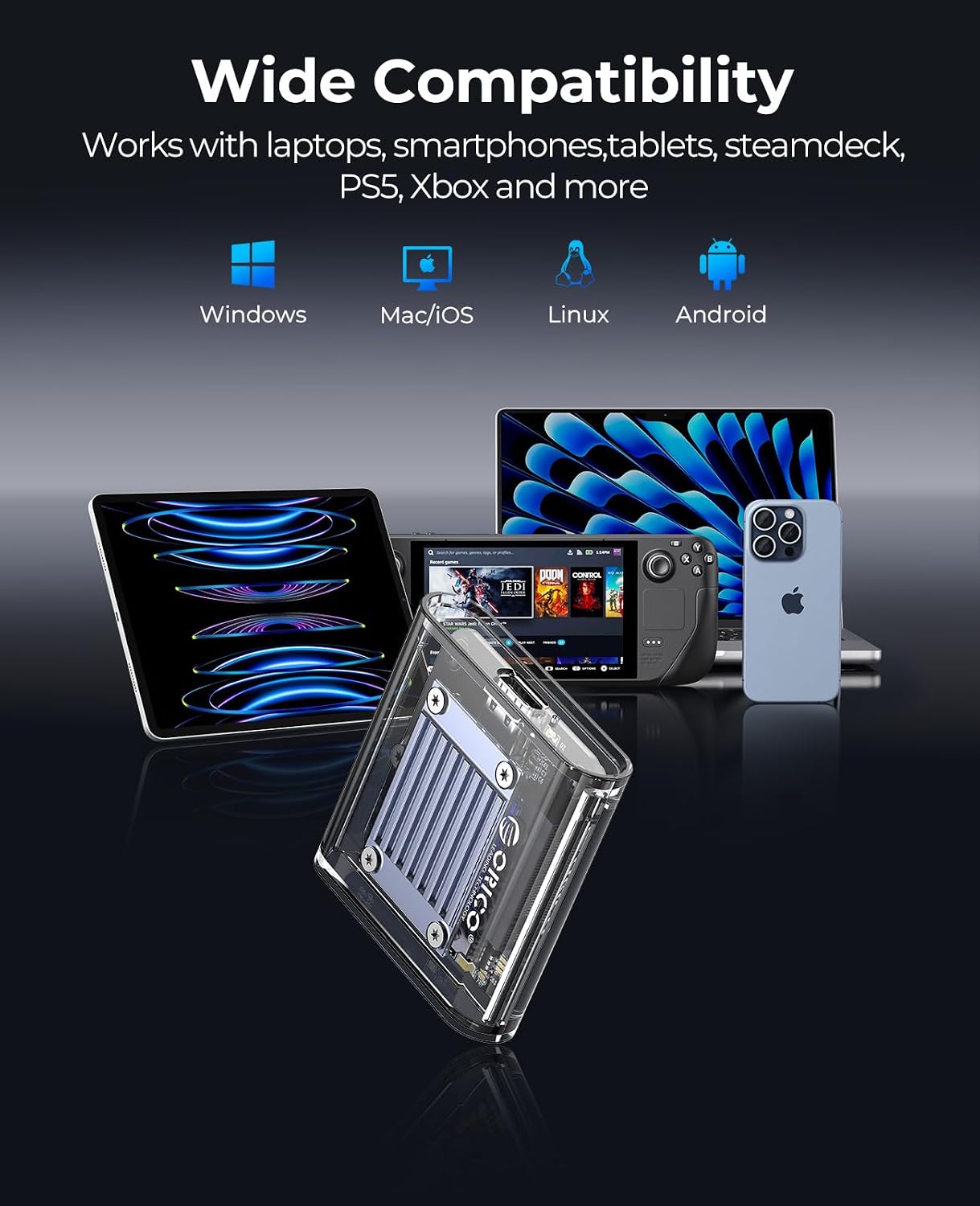
Figure 4: Wide compatibility with various operating systems and devices.
4. Setup Guide: Installing Your SSD
Follow these steps to install your M.2 2230 NVMe SSD into the ORICO enclosure. The installation process is designed to be fast and easy.
- Slide Open Cover: Gently slide open the top cover of the hard drive enclosure. The design allows for a smooth push-pull action.
- Insert SSD: Carefully insert your 2230 NVMe SSD into the designated slot inside the enclosure. Ensure it is fully seated.
- Secure SSD: Use the provided small screw and screwdriver to secure the SSD in place. This prevents movement and ensures a stable connection.
- Attach Thermal Pads: Place the two thermal pads onto the aluminum plate located on the inside of the top cover. Ensure they are positioned correctly to make contact with the SSD once the cover is closed.
- Align and Close Cover: Align one side of the grooves on the top cover with the enclosure body and snap the covers into place.
- Secure Cover: Press down on the other side of the top cover to fully secure it. Slightly slide the top cover to ensure it is completely closed without disturbing the thermal pads' placement.

Figure 5: Detailed steps for SSD installation.
5. Operating Instructions
Once your SSD is installed, the ORICO enclosure is ready for use. Simply connect it to your device using the provided USB-C to C cable.
5.1. Connecting to Devices
- Connect one end of the USB-C cable to the enclosure's USB-C port.
- Connect the other end of the USB-C cable to a compatible USB-C port on your computer, smartphone (e.g., iPhone 15 Pro/Pro Max), tablet, or gaming console.
- The enclosure is plug-and-play, meaning it should be automatically recognized by most operating systems (Windows, macOS, Linux, Android).
- For new SSDs, you may need to initialize and format the drive through your operating system's disk management utility before it can be used.
5.2. High-Speed Data Transfer
Leveraging the USB 3.2 Gen 2 interface, the enclosure supports data transfer speeds up to 10Gbps. This allows for rapid transfer of large files, such as 4K videos, high-resolution photos, and large game files.

Figure 6: High-speed data transfer capabilities.
5.3. ProRes File Recording (iPhone 15 Pro/Pro Max)
For iPhone 15 Pro and iPhone 15 Pro Max users, this enclosure allows direct recording of 4K ProRes video to the external SSD, bypassing the phone's internal storage limitations.
- Connect the enclosure with the installed SSD to your iPhone 15 Pro/Pro Max via the USB-C port.
- Ensure your iPhone recognizes the external storage.
- Open your camera application and select ProRes video recording. The video will now be saved directly to the external SSD.

Figure 7: Using the enclosure for ProRes video recording with iPhone 15 Pro/Pro Max.
5.4. Product Demonstration Video
Watch this short video for a quick demonstration of the ORICO M.2 2230 NVMe enclosure's features, including its compact size and fast data transfer capabilities.
Video 1: A brief demonstration of the ORICO 2230 NVMe enclosure, highlighting its compact design and quick file transfer speed.
6. Maintenance
To ensure the longevity and optimal performance of your ORICO M.2 2230 NVMe SSD Enclosure, please follow these maintenance guidelines:
- Cleaning: Use a soft, dry cloth to clean the exterior of the enclosure. Avoid using liquid cleaners or solvents, which may damage the polycarbonate material.
- Storage: Store the enclosure in a cool, dry place away from direct sunlight and extreme temperatures.
- Handling: Handle the enclosure with care to prevent drops or impacts, which could damage the internal SSD or the enclosure itself.
- Thermal Pads: Ensure the thermal pads are properly seated on the aluminum plate to facilitate efficient heat dissipation from the SSD.
7. Troubleshooting
If you encounter issues with your ORICO M.2 2230 NVMe SSD Enclosure, please refer to the following common troubleshooting steps:
| Problem | Possible Cause / Solution |
|---|---|
| Enclosure not recognized by device. |
|
| Slow data transfer speeds. |
|
| Enclosure feels warm during use. |
|
| SSD not fitting in the enclosure. |
|
8. Warranty and Support
ORICO products come with a standard manufacturer's warranty. For specific warranty terms and conditions, please refer to the warranty card included in your package or visit the official ORICO website.
For technical support, troubleshooting assistance, or to inquire about replacement parts, please contact ORICO customer service through their official channels. You can typically find contact information on the ORICO website or through the retailer where you purchased the product.
ORICO Official Website: www.oricotech.com (Please note: This is a placeholder URL, refer to your product documentation for the exact support website.)


