
1. Introduction
This manual provides detailed instructions for the installation, operation, and maintenance of your UNITOPSCI Android Car Stereo, Model A7321A2516KTA3. Please read this manual thoroughly before use to ensure proper functionality and safety.

Figure 1.1: UNITOPSCI Android Car Stereo with accessories.
2. Compatibility and Important Notes
This UNITOPSCI Android Car Stereo is specifically designed for the following vehicle models:
- Subaru Legacy (2010, 2011, 2012, 2013, 2014)
- Subaru Outback (2010, 2011, 2012, 2013, 2014)
Important Compatibility Note:
- This unit is not compatible with vehicles equipped with the original Harman Kardon Sound System. If your vehicle has this system, please contact customer support for guidance on suitable wiring harnesses.
- For vehicles without an OEM sound system, the provided wire harness is typically plug-and-play.
- This unit is suitable for vehicles with a small original screen. If your vehicle has a large original screen, a different frame may be required.

Figure 2.1: Vehicle compatibility overview.
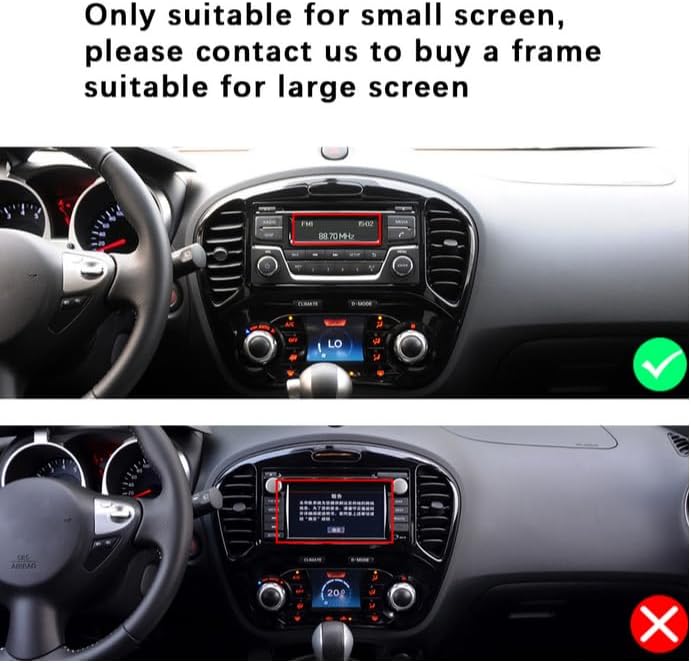
Figure 2.2: Visual guide for screen size compatibility.
3. Package Contents
Please verify that all items listed below are included in your package:
- Android Car Stereo Unit (9-inch display)
- Rear View Camera (12 LEDs, night vision, waterproof, 170-degree angle)
- RCA Cable
- Power Cable
- Installation Tool
- Camera Input Cable
- GPS Antenna
- USB Cables (6-pin and 4-pin)
- User Manual (this document)

Figure 3.1: Package contents and product dimensions.
4. Installation Guide
Professional installation is recommended. Ensure the vehicle's battery is disconnected before beginning installation.
4.1. Pre-Installation Check
- Verify vehicle compatibility (refer to Section 2).
- Confirm all package contents are present.
4.2. Removal of Original Unit
- Carefully remove the trim panels surrounding the original car stereo.
- Unscrew and detach the original stereo unit.
- Disconnect all wiring harnesses and antenna cables from the original unit.
4.3. Installing the New Unit
- Connect the provided power cable and other necessary harnesses to the UNITOPSCI Android Car Stereo.
- Connect the GPS antenna and route it to a suitable location (e.g., dashboard, A-pillar) for optimal signal reception.
- If installing the backup camera, route its cable from the rear of the vehicle to the head unit's camera input. Refer to Section 4.4 for wiring details.
- Carefully slide the new stereo unit into the dashboard opening.
- Secure the unit with screws and reattach the trim panels.

Figure 4.1: Visual comparison of dashboard before and after installation.

Figure 4.2: Installation comparison for proper fitment.
4.4. Rear View Camera Wiring Diagram
To connect the backup camera:
- Connect the camera's video output to the head unit's 'CAM IN' or 'REVERSE IN' port.
- Connect the camera's power wire (red) to the vehicle's reverse light positive (+12V).
- Connect the camera's ground wire (black) to a suitable chassis ground (GND).
- Connect the trigger wire (labeled 'back' or 'reverse' on the power cable) from the head unit to the reverse light positive. This signals the head unit to switch to the camera view when reverse gear is engaged.

Figure 4.3: Rear View Camera Wiring Diagram.
5. Initial Setup
After installation, turn on your vehicle's ignition to power on the stereo. The unit will boot into the Android operating system.
- Language and Time Settings: Navigate to 'Settings' to set your preferred language, time zone, and date.
- Wi-Fi Connection: Go to 'Settings' > 'Network & Internet' > 'Wi-Fi' to connect to an available Wi-Fi network. This is necessary for online maps, app downloads, and internet browsing.
- GPS Configuration: Ensure the GPS antenna is properly connected. The system should automatically detect GPS signals. You can verify this in the GPS settings.
- Steering Wheel Control Learning: If your vehicle supports steering wheel controls, go to 'Settings' > 'Steering Learn' to program the buttons. Follow the on-screen instructions to assign functions to each button.
6. Operating Instructions
6.1. Bluetooth Function
The built-in Bluetooth 4.2 module allows for hands-free calling and audio streaming.
- Pairing: On your mobile device, search for Bluetooth devices and select 'UNITOPSCI' (or similar name). Confirm the pairing code if prompted.
- Hands-Free Calling: Once paired, you can make and receive calls directly from the stereo's touch screen. The unit supports automatic phone book download.
- Audio Streaming: Play music from your paired phone through the car stereo speakers.

Figure 6.1: Bluetooth interface for calls and music.

Figure 6.2: Bluetooth handsfree calling in use.
6.2. GPS Navigation
The unit comes with built-in GPS and preloaded offline maps. Online navigation is also supported via Wi-Fi.
- Offline Maps: The stereo includes free offline maps. You can download additional maps via Wi-Fi using applications like 'Here WeGo'.
- Online Navigation: Connect to Wi-Fi to use online navigation apps for real-time traffic updates and more detailed mapping.

Figure 6.3: GPS Navigation in action.

Figure 6.4: Built-in WiFi and GPS Navigation features.
6.3. Wi-Fi Connectivity
Connect the stereo to a Wi-Fi hotspot (e.g., from your phone) to access online features.
- Browse the internet, watch real-time TV shows, use social media, and download apps from the app store.
6.4. Mirror Link Function
Mirror Link allows you to display your smartphone's screen on the car stereo.
- For iPhone (iOS): One-way operation via Wi-Fi. The phone screen is mirrored to the stereo.
- For Android Phones: Two-way operation via Wi-Fi or USB. You can control your phone from the stereo's touch screen.

Figure 6.5: Mirror Link functionality.

Figure 6.6: Mirror Link for iOS and Android devices.
6.5. FM/RDS Radio
Access local radio stations and enjoy news, music, and weather broadcasts.
- The unit supports FM radio with 18 preset stations.
- RDS (Radio Data System) provides additional information like station name and song title where available.

Figure 6.7: FM/RDS Radio interface.
6.6. Steering Wheel Control (SWC)
Control basic functions of the stereo using your vehicle's existing steering wheel buttons for convenience and safety.
- Refer to Section 5 for initial setup of SWC.
- Functions typically include volume control, track skipping, mode switching, and answering/ending calls.

Figure 6.8: Steering Wheel Control setup.
6.7. Backup Camera Input
The included 12LEDs rear view camera provides a clear view when reversing.
- The stereo automatically switches to display the HD reversing image when the vehicle is put into reverse gear.
- Features include night vision, a 170-degree viewing angle, and waterproof design for enhanced parking safety.

Figure 6.9: Backup camera view on the stereo screen.

Figure 6.10: Parking Assistant features.
6.8. EQ Audio Settings
Adjust the audio output to your preference using the built-in equalizer.
- The digital chip allows adjustment of delay time, loudness, equalizer settings (e.g., Jazz, Pop, Rock, Classical), and balance.

Figure 6.11: EQ Sound Settings interface.
6.9. Split Screen Function
The unit supports split-screen display, allowing you to run two applications simultaneously.
- For example, use navigation on one side and music playback on the other.

Figure 6.12: Split Screen functionality.
7. Troubleshooting
If you encounter issues, please refer to the following common problems and solutions before contacting support.
| Problem | Possible Cause | Solution |
|---|---|---|
| Head unit not turning on when car starts | Pink wire or KEY 1 blocking electricity. | Locate the pink wire or KEY 1 wire. Cut it off and ensure it is isolated. This wire may be designed to prevent operation while driving, but can interfere with normal power-on. |
| No audio output | Incorrect wiring; volume too low; mute function active; incompatible sound system. | Check all speaker wire connections. Ensure volume is up and not muted. Verify compatibility with your vehicle's sound system (especially Harman Kardon). Check EQ settings. |
| Bluetooth connection issues | Phone not paired; interference; unit/phone software glitch. | Ensure Bluetooth is enabled on both devices. Delete previous pairings and re-pair. Restart both the stereo and your phone. |
| GPS signal weak or inaccurate | GPS antenna placement; environmental interference. | Ensure the GPS antenna is mounted in a clear, unobstructed location (e.g., dashboard, not under metal). Check antenna connection. |
| Backup camera not displaying | Incorrect wiring; camera malfunction. | Verify all camera wiring connections, especially the trigger wire and power supply to the reverse light. Check camera for damage. |
8. Specifications

Figure 8.1: Core system specifications.
| Feature | Detail |
|---|---|
| Model Number | A7321A2516KTA3 |
| Operating System | Android |
| CPU | Quad Core |
| RAM | 1GB |
| ROM | 32GB |
| Display Size | 9 Inches |
| Resolution | 1024 x 600 |
| Power Output | 4 x 45W |
| Bluetooth Version | 4.2 |
| Connectivity Technology | Wireless (Wi-Fi, Bluetooth) |
| Special Features | Backup Camera Input, Bluetooth, FM Radio, Mirror Link, Touchscreen, GPS Navigation, Steering Wheel Control |
| Audio Output Mode | Stereo |
| Item Weight | 3.78 pounds |
| Package Dimensions | 16.73 x 13.07 x 4.06 inches |

Figure 8.2: Display resolution comparison.
9. Warranty and Support
UNITOPSCI is committed to providing high-quality products and satisfactory services.
- Warranty: This product comes with a 1-year warranty.
- Replacement Policy: Replacement available within 24 months for eligible issues.
- Return Policy: 60-day no-worry return period.
- Technical Support: Lifetime after-sales consultation and technical support are provided.
- Contact Support: For any inquiries or technical assistance, please contact UNITOPSCI customer support via email at UNITOPSCI@126.com. Expect a quick response within 16 hours.

Figure 9.1: UNITOPSCI Customer Support Information.