
1. Product Overview
The FIFINE AmpliTank KS6 is a comprehensive podcast equipment bundle designed for music recording, vocal performance, and voice-over applications. It includes a studio-grade dynamic microphone and a versatile USB audio mixer with XLR mic input, headphone monitoring, and intuitive volume controls. This kit is engineered to enhance audio performance and streamline your recording workflow.

Image 1: FIFINE AmpliTank KS6 Podcast Equipment Bundle featuring the dynamic microphone and USB audio mixer.
2. What's in the Box
- 1x Dynamic Microphone
- 1x Audio Interface (USB Audio Mixer)
- 1x USB-C to USB-A/C Cable
- 1x XLR Cable
- 1x Tripod Stand
- 1x User’s Manual

Image 2: All components included in the FIFINE AmpliTank KS6 package.
3. Setup Guide
3.1 Connecting the Microphone and Mixer
- Attach the dynamic microphone to the included tripod stand or a compatible boom arm.
- Connect one end of the XLR cable to the microphone's XLR output.
- Connect the other end of the XLR cable to the XLR Mic Input (MIC/LINE 1) on the USB Audio Mixer.
- Connect the USB-C to USB-A/C cable from the mixer's USB-C port to an available USB port on your computer (PC or Laptop).
- For real-time audio monitoring, plug your headphones into the Headphone jack on the mixer.

Image 3: Dynamic microphone connected to the USB audio mixer and placed on a desktop stand.
3.2 Instrument Connection (Optional)
If you wish to record an instrument simultaneously, connect your instrument (e.g., guitar, bass) to the Instrument Input (INST 2) on the USB Audio Mixer.
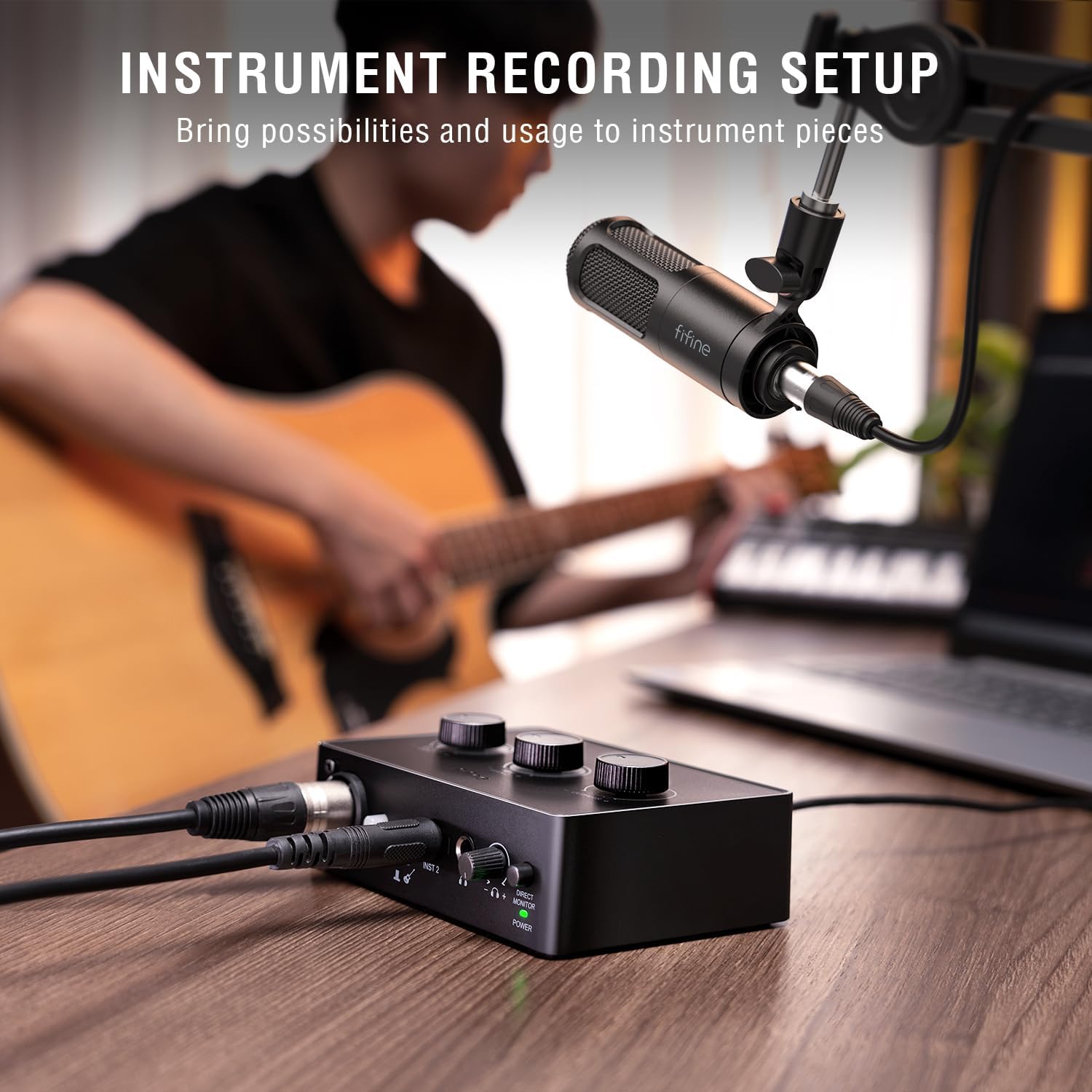
Image 4: Instrument (guitar) connected to the USB audio mixer for simultaneous recording.
4. Operating Instructions
4.1 Volume Adjustment
The USB Audio Mixer features dedicated volume knobs for precise control over your audio levels:
- MIC/LINE GAIN 1: Adjusts the input gain for the XLR microphone.
- INST GAIN 2: Adjusts the input gain for the instrument.
- OUTPUTS: Controls the overall output volume for headphones and speakers.

Image 5: Close-up of the USB audio mixer showing the individual volume adjustment knobs and audio status indicators.
4.2 Audio Status Indicators
The mixer is equipped with LED indicators to help you monitor your audio levels:
- Green: Moderate Level (Optimal audio signal)
- Yellow: Close to Distortion (Signal is getting too hot, adjust gain)
- Red: Distortion (Audio clipping, immediately reduce gain to prevent damage and poor sound quality)
4.3 Monitoring and Output
The mixer provides multiple ways to monitor your audio:
- Headphone Monitoring: Connect headphones to the dedicated jack for direct, real-time monitoring of your input and output audio.
- Speaker Output: Connect external speakers to the mixer's output ports for playback.

Image 6: User monitoring audio with headphones while recording vocals and guitar.
5. Key Features
- Enhanced Sound Quality: The dynamic XLR microphone is designed to maintain natural sound and process audio up to 120dB SPL for a smooth output, paired with the audio interface for stable audio.
- Versatile Input Options: Features both an XLR input for the microphone and an instrument input port for music creation, expanding recording possibilities.
- Durable Microphone Construction: The microphone boasts a sturdy metal design, ensuring stability whether connected to a desktop stand or boom arm.
- Effective Noise Shielding: The vocal dynamic microphone utilizes a cardioid pattern and three-layer shockproof design to reduce background noise and low-frequency vibrations, ensuring pure recording quality.
- Comprehensive Functionality: Offers dual input interfaces, headphone monitoring, speaker output, and separate volume knobs for each output/input, providing flexible control during creation.
Video 1: Official product video showcasing the FIFINE Dynamic Microphone and XLR Audio Mixer Recording-KS6.
6. Technical Specifications
| Specification | Detail |
|---|---|
| Item Weight | 0.634 ounces |
| Package Dimensions | 9.8 x 8.9 x 2.87 inches |
| Item Model Number | KS6 |
| Compatible Devices | Personal Computer, Laptop |
| Connector Type | USB, XLR |
| Supported Software | Ableton Live, Pro Tools, Logic Pro, Drivers for Windows and macOS |
| Operating System | Windows, macOS |
| Brand | FIFINE |
| Connectivity Technology | XLR/USB |
| Number of Channels | 2 |
7. Maintenance
- Keep the microphone and mixer clean by wiping with a soft, dry cloth.
- Avoid exposing the equipment to moisture, extreme temperatures, or direct sunlight.
- Store the bundle in a dry, dust-free environment when not in use.
- Ensure all cables are properly coiled and stored to prevent damage.
8. Troubleshooting
- No Sound Output:
- Check all cable connections (XLR, USB, headphones/speakers).
- Ensure the mixer is powered on and recognized by your computer.
- Verify volume knobs on the mixer and your computer's audio settings are appropriately adjusted.
- Distorted Audio:
- Reduce the MIC/LINE GAIN 1 or INST GAIN 2 knobs if the audio status indicator is yellow or red.
- Check for damaged cables.
- Computer Not Recognizing Mixer:
- Try a different USB port on your computer.
- Restart your computer.
- Ensure the USB-C cable is securely connected.
9. Warranty and Support
For detailed warranty information and technical support, please refer to the official FIFINE website or the contact information provided in your User's Manual.

