
BOMGE 22S
BOMGE USB Audio Interface SOLO 22S User Manual
Model: 22S | Brand: BOMGE
1. Introduction
The BOMGE USB Audio Interface SOLO 22S is a high-fidelity audio interface designed for musicians, vocalists, podcasters, and producers. It offers 32-bit/192kHz audio resolution, ensuring pristine recording quality. With its compact and portable design, it's an ideal solution for both studio and on-the-go recording needs. This manual provides detailed instructions for setting up, operating, and maintaining your audio interface.

Image 1.1: The BOMGE USB Audio Interface SOLO 22S, a compact and robust audio device.
2. Key Features
- High-Fidelity Audio: Delivers 32-bit/192kHz audio resolution for professional-grade recordings.
- Versatile Inputs: Features two combo XLR / Line / Instrument Inputs with 48V phantom power, suitable for microphones, guitars, and other line-level signals.
- Clear Monitoring: Equipped with two low-noise balanced 1/4" main outputs and a 1/4" headphone monitor output for accurate audio playback and real-time monitoring.
- Plug and Play: Driver-free operation for most systems, making it easy to set up and use for beginners. Supports Mono mode for flexible input routing.
- Wide Compatibility: Compatible with Mac OS and Windows XP or later, and supports popular recording software like Audacity, Ableton Live, and Steinberg Cubase.
- Portable Design: Mini and compact size ensures minimal space usage, perfect for desktop setups or mobile recording.
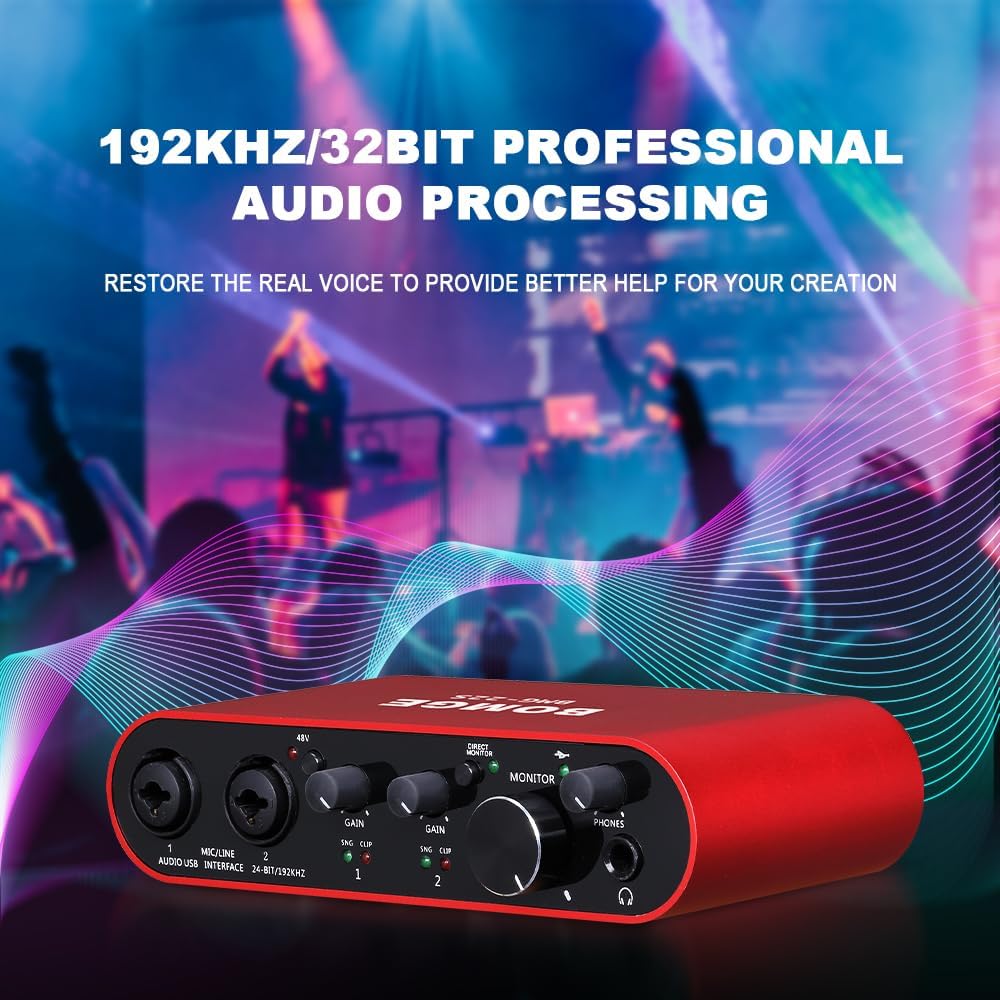
Image 2.1: Illustrates the high-resolution audio processing capabilities of the BOMGE 22S.
3. Product Overview
Familiarize yourself with the various components and controls of your BOMGE 22S audio interface.

Image 3.1: Detailed diagram showing the front and rear panel functions of the BOMGE 22S.
Front Panel Controls:
- MIC/LINE Inputs (1 & 2): Combo jacks for connecting XLR microphones or 1/4" line/instrument cables.
- 48V Phantom Power Button: Activates +48V phantom power for condenser microphones. An indicator light illuminates when active.
- GAIN Knobs (1 & 2): Adjust the input level for each channel.
- SIG/CLIP Indicators: Green indicates signal presence, red indicates clipping (input level is too high).
- DIRECT MONITOR Button: Enables direct monitoring of inputs to headphones/outputs with zero latency.
- MONITOR Knob: Controls the overall output volume to your main speakers.
- PHONES Knob: Adjusts the volume for the headphone output.
- PHONES Output: 1/4" stereo jack for connecting headphones.
Rear Panel Connections:
- USB-C Port: Primary connection for power and data to your computer or phone.
- USB-B Port: Alternative connection for power and data to your computer.
- LINE OUTPUTS (RIGHT & LEFT): 1/4" jacks for connecting to studio monitors or other audio playback systems.
4. Setup
Follow these steps to set up your BOMGE 22S audio interface.
4.1. Power and Connection
- Connect the audio interface to your computer using the provided USB-C or USB-B cable. The device is plug-and-play and typically does not require additional drivers for most systems (Mac OS, Windows XP or later).
- Ensure the power indicator light on the interface illuminates, indicating it is receiving power.
Video 4.1: Demonstrates the connection of the BOMGE 22S, including power input and audio output connections.
4.2. Connecting Microphones and Instruments
- For microphones (XLR), guitars, or other line-level instruments (1/4" TS/TRS), connect them to the MIC/LINE Inputs (1 or 2) on the front panel.
- If using a condenser microphone, press the 48V Phantom Power Button to supply the necessary power. The 48V indicator light will turn on. Caution: Do not activate 48V phantom power for dynamic microphones or ribbon microphones unless specifically required and supported by the microphone, as it may cause damage.
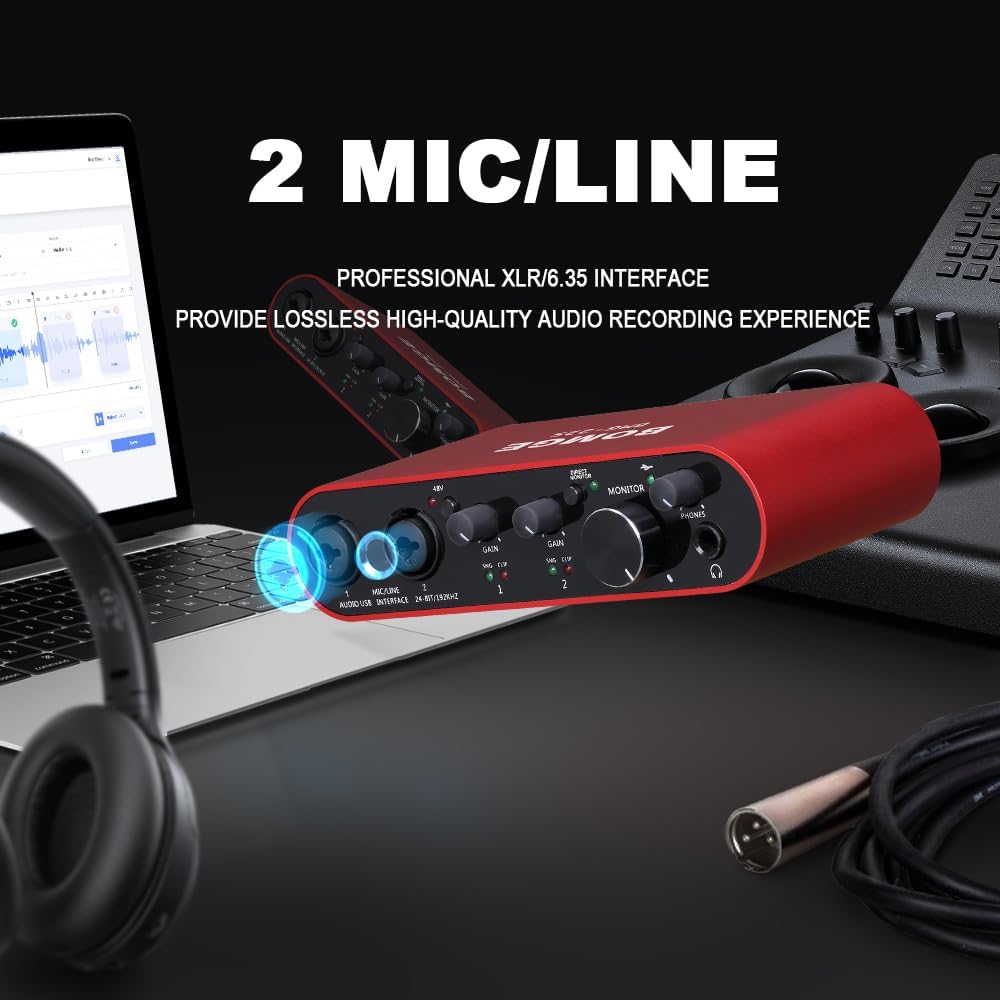
Image 4.2: Shows the dual MIC/LINE inputs for connecting various audio sources.

Image 4.3: Highlights the 48V phantom power feature for condenser microphones.
4.3. Connecting Outputs
- Connect your studio monitors or speakers to the LINE OUTPUTS (RIGHT & LEFT) on the rear panel using 1/4" TS/TRS cables.
- Plug your headphones into the PHONES Output on the front panel for personal monitoring.
5. Operating
Learn how to operate your BOMGE 22S audio interface for optimal performance.
5.1. Adjusting Input Levels
Use the GAIN Knobs (1 & 2) to set the input level for each connected microphone or instrument. Adjust the gain until the SIG indicator (green) lights up consistently during performance, and the CLIP indicator (red) only flashes occasionally during the loudest peaks. If the CLIP indicator stays red, reduce the gain to prevent distortion.
5.2. Monitoring Your Audio
- Direct Monitoring: Press the DIRECT MONITOR button to enable zero-latency monitoring of your input signals directly through the headphones and main outputs. This is crucial for recording to avoid delay.
- Headphone Volume: Adjust the PHONES Knob to control the listening volume through your headphones.
- Main Output Volume: Adjust the MONITOR Knob to control the volume of your studio monitors or speakers.
5.3. Software Integration
The BOMGE 22S is compatible with various Digital Audio Workstations (DAWs) and recording software. Once connected, select the BOMGE 22S as your audio input and output device within your software's audio settings. Supported software includes Audacity, Ableton Live, Steinberg Cubase, and more.

Image 5.1: Demonstrates the wide compatibility of the BOMGE 22S with various operating systems like Mac and Windows.

Image 5.2: Highlights the plug-and-play functionality, requiring no driver installation.
6. Maintenance
To ensure the longevity and optimal performance of your BOMGE 22S audio interface, follow these maintenance guidelines:
- Cleaning: Use a soft, dry cloth to clean the exterior of the device. Avoid using abrasive cleaners, solvents, or waxes, as they may damage the finish or internal components.
- Storage: When not in use, store the interface in a cool, dry place away from direct sunlight, extreme temperatures, and high humidity.
- Handling: Handle the device with care. Avoid dropping it or subjecting it to strong impacts, which can damage internal circuitry or connectors.
- Cable Management: Ensure cables are not excessively bent or strained, especially at the connection points, to prevent damage to the cables and ports.
7. Troubleshooting
If you encounter issues with your BOMGE 22S, refer to the following common troubleshooting steps:
- No Sound Output:
- Check all cable connections (USB, speakers, headphones).
- Ensure the MONITOR and PHONES knobs are turned up.
- Verify the BOMGE 22S is selected as the default audio output device in your computer's sound settings and your recording software.
- Confirm the power indicator light is on.
- No Input Signal:
- Check microphone/instrument cable connections.
- Adjust the GAIN knob for the respective input channel.
- If using a condenser microphone, ensure 48V phantom power is activated.
- Verify the BOMGE 22S is selected as the audio input device in your computer's sound settings and your recording software.
- Check the SIG/CLIP indicators; if no green light, there's no signal.
- Distorted Sound (Clipping):
- If the CLIP indicator (red) is frequently lit, reduce the GAIN for that input channel.
- Check the input level from your microphone or instrument; it might be too high before reaching the interface.
- Latency (Delay in Monitoring):
- Ensure the DIRECT MONITOR button is engaged for zero-latency monitoring of inputs.
- In your recording software, adjust the buffer size (lower buffer size reduces latency but requires more CPU power).
- Device Not Recognized by Computer:
- Try connecting to a different USB port on your computer.
- Restart your computer.
- Try a different USB cable.
- For Windows, ensure your operating system is updated.
8. Specifications
| Feature | Detail |
|---|---|
| Model Number | 22S |
| Item Weight | 1.19 pounds |
| Product Dimensions | 7.87 x 4.53 x 1.97 inches |
| Audio Resolution | 32-bit/192kHz |
| Number of Channels | 2 |
| Inputs | 2 x Combo XLR / 1/4" (Mic/Line/Instrument) |
| Phantom Power | 48V (switchable) |
| Outputs | 2 x 1/4" Line Outputs (L/R), 1 x 1/4" Headphone Output |
| Connectivity Technology | USB, AUX |
| Compatible Devices | Microphone, Personal Computer, Electric Guitar |
| Operating System | Mac OS, Windows XP or later, Android |
| Supported Software | Audacity, Ableton live, Steinberg Cubase, etc. |
| Material Type | Metal |
| Country of Origin | China |
9. Warranty and Support
For warranty information, technical support, or service inquiries, please refer to the official BOMGE website or contact their customer support directly. Keep your purchase receipt as proof of purchase for any warranty claims.
Related documents22S


Ask a question about this manual
Ask about setup, troubleshooting, compatibility, parts, safety, or missing instructions. Manuals+ will review the question and use this page’s manual context to help answer it.