
1. Introduction
Thank you for choosing the WirelessFinest Stylus Pen for iPad. This manual provides essential information for setting up, operating, and maintaining your new stylus pen. Please read it thoroughly to ensure optimal performance and longevity of your device.
2. Compatibility
This stylus pen is ONLY compatible with the following Apple iPad models (2018-2023 series):
- iPad 6th/7th/8th/9th/10th Generation
- iPad Air 3rd/4th/5th Generation
- iPad Pro 11 inch 1st/2nd/3rd/4th Generation
- iPad Pro 12.9 inch 3rd/4th/5th/6th Generation
- iPad Mini 5th/6th Generation
Please verify your iPad model number before use. You can find your model number on the back of your iPad or by navigating to Settings > General > About.

This image illustrates the various compatible iPad models and provides instructions on how to locate your iPad's model number in the settings.
3. Package Contents
- 1 x WirelessFinest Stylus Pen (White)
- 4 x Replaceable POM Nibs/Tips
- 1 x Elastic Adhesive Leather Pen Sleeve
- 1 x USB Type-C Charging Cable (included with pen)

This image displays the stylus pen along with its accessories: four extra replaceable nibs and an elastic adhesive leather pen sleeve.
4. Setup & Initial Use
4.1 Power On/Off
To power on the stylus pen, simply tap the top of the pen. The LED indicator lights will illuminate. To power off, tap the top of the pen again. The pen will also auto-shut down after 5 minutes of inactivity to conserve power.
4.2 Charging
Connect the included USB Type-C charging cable to the charging port on the stylus pen and a power source. The LED indicator lights will show the charging status:
- 1 Blue Light: 5%-30% Battery Capacity
- 2 Blue Lights: 30%-70% Battery Capacity
- 3 Blue Lights: 70%-100% Battery Capacity
A full charge takes approximately 20-25 minutes.
4.3 Important: Disconnect Previous Stylus
Before using this stylus pen, it is crucial to disconnect any previously connected Apple Pencil or other Bluetooth stylus from your iPad. Failure to do so may prevent this stylus from functioning correctly.
Follow these steps:
- Go to your iPad's Settings.
- Tap on Bluetooth.
- Locate your previously connected Apple Pencil or other stylus under "My Devices".
- Tap the (i) icon next to the device name.
- Select Forget This Device.
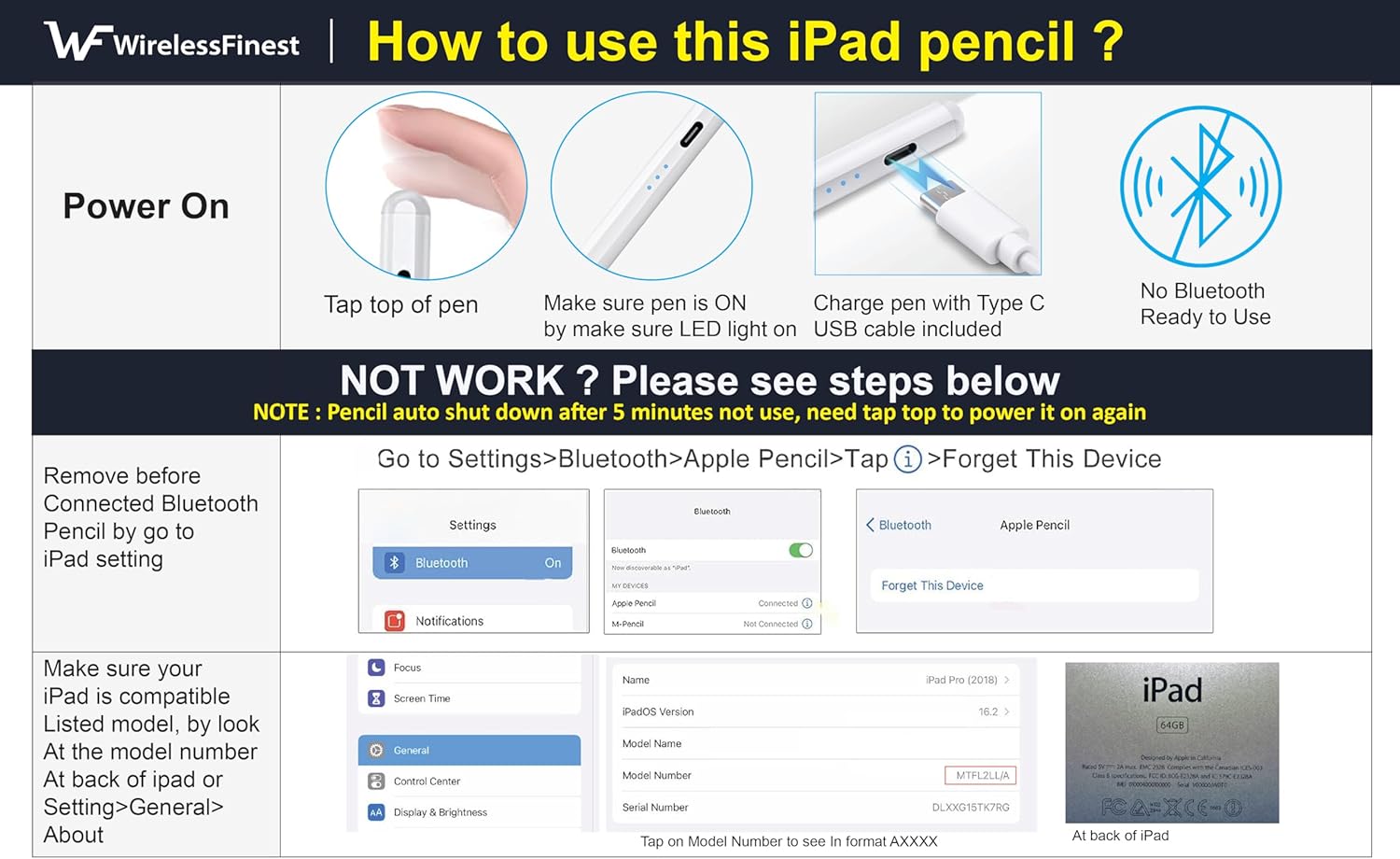
This image provides a visual guide for powering on the stylus, charging it via USB-C, and the essential step of forgetting any previously paired Apple Pencil in your iPad's Bluetooth settings.
5. Operating Instructions
5.1 Palm Rejection Technology
This stylus features palm rejection technology, allowing you to comfortably rest your hand on the iPad screen while writing or drawing, just as you would on paper. There is no need to wear special gloves.
5.2 Tilt Sensitivity
The tilt-sensitive function enables you to create different stroke thicknesses and depths by altering the inclination of the stylus tip. This is ideal for sketching, drawing, and note-taking, providing artistic-level accuracy and shading.
5.3 Pressure Sensitivity (4096 Levels)
Equipped with 4096 levels of pressure sensitivity, the stylus offers greater response and precision. This high sensitivity allows for natural writing and drawing, making it feel like a traditional pencil while interacting with your tablet.
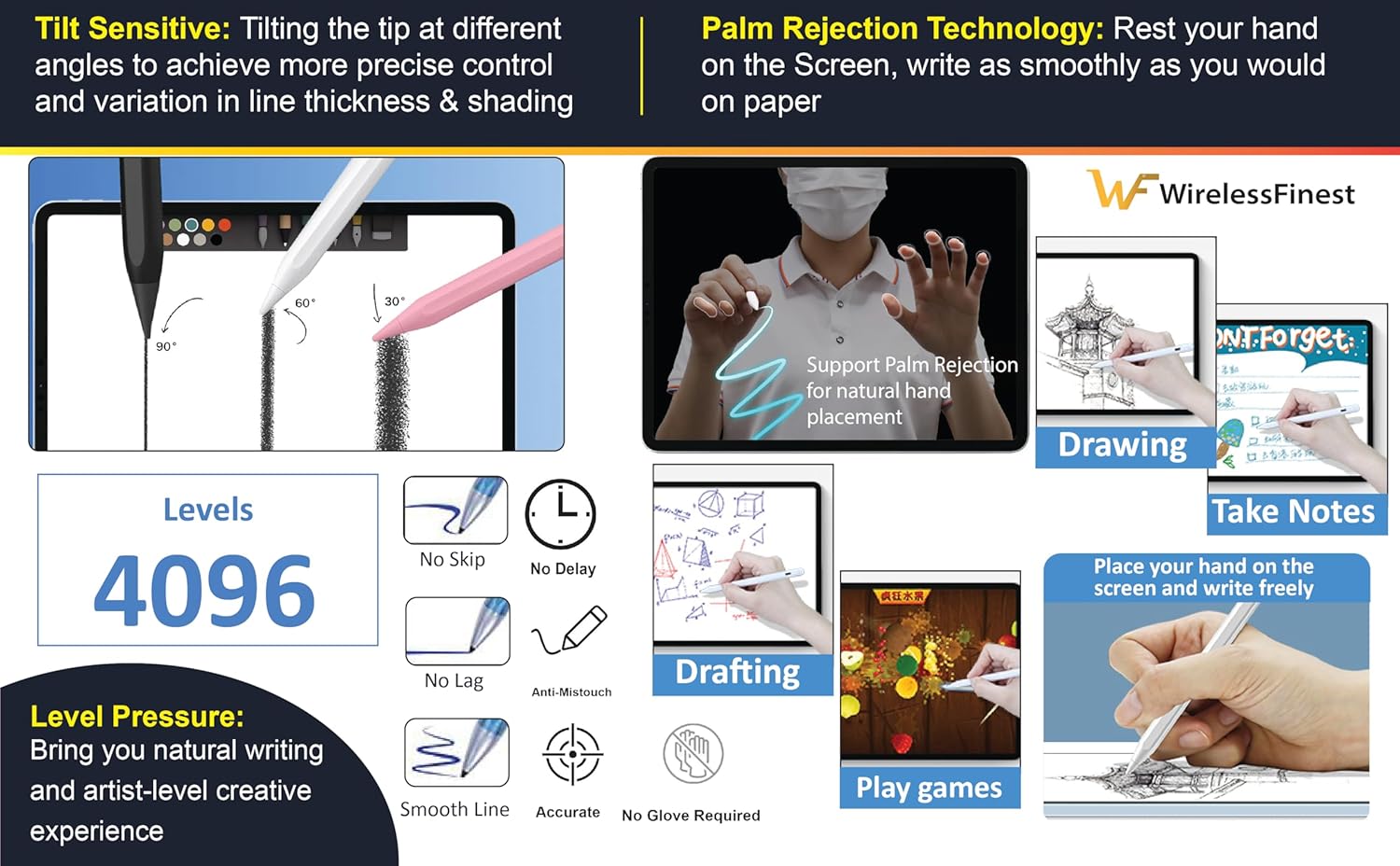
This image visually explains the key operational features: palm rejection for comfortable use, tilt sensitivity for varied line thickness, and 4096 levels of pressure sensitivity for precise input across various applications like drawing, note-taking, drafting, and gaming.
6. Battery & Power Management
- Fast Charging: Approximately 20-25 minutes for a full charge.
- Continuous Use: Up to 9 hours of continuous use on a full charge.
- Standby Time: Up to 365 days of standby time.
- Smart Auto-Shutdown: The pen automatically shuts down after 5 minutes of inactivity to save power.
- LED Indicators: 3 smart LED lights reflect battery power and work state (as detailed in Section 4.2).

This image highlights the stylus's power features, including its fast charging capability, extended working and standby times, and the intelligent auto-shutdown function, along with the meaning of the LED power indicators.
7. Nib Replacement
The stylus pen is equipped with a 1.5mm upgraded POM tip, which is replaceable. Extra nibs are included in the package to extend the lifetime of your stylus.
How to Replace the Nib:
- Gently twist the old nib counter-clockwise to remove it.
- Align the new nib with the pen tip and gently twist it clockwise until it is securely in place. Do not overtighten.
8. Care & Maintenance
- Keep the stylus clean by wiping it with a soft, dry cloth.
- Avoid exposing the stylus to extreme temperatures or direct sunlight.
- Do not drop the stylus or subject it to strong impacts.
- Store the stylus in a safe place when not in use, ideally in the provided pen sleeve, to prevent loss or damage.

This image illustrates the included elastic adhesive leather pen sleeve, designed to securely hold your stylus and prevent loss. It shows how the sleeve can be attached to an iPad case or notebook.
9. Troubleshooting
9.1 Stylus Not Working / No Response
- Check Compatibility: Ensure your iPad model is listed in Section 2.
- Disconnect Previous Stylus: Make sure you have "Forgotten" any previously paired Apple Pencil or other Bluetooth stylus in your iPad's Bluetooth settings (refer to Section 4.3).
- Power On: Tap the top of the pen to ensure it is powered on. The LED lights should illuminate.
- Battery Level: Check the LED indicators for battery level. If low, charge the pen fully.
- Restart iPad: Sometimes, a simple iPad restart can resolve connectivity issues.
9.2 Lagging or Skipping
- Ensure the stylus is fully charged.
- Check if the nib is securely attached.
- Close and reopen the application you are using.
- Restart your iPad.
10. Specifications
| Feature | Detail |
|---|---|
| Product Dimensions | 6.55 x 0.35 x 0.3 inches |
| Item Weight | 0.31 Pounds (approx. 5 ounces) |
| Material | Metal |
| Battery Type | 1 Lithium Ion battery (included) |
| Charging Time | 20-25 minutes |
| Continuous Use Time | 9 hours |
| Standby Time | 365 days |
| Pressure Sensitivity | 4096 levels |
| Tip Material | Upgraded POM |
11. Warranty & Support
WirelessFinest offers the following support for this product:
- Extended Warranty: 6 Months
- Customer Technical Support: 12 Months Free Customer Technical Email Support.
For any inquiries or support needs, please contact WirelessFinest customer service.