
Introduction
The EPOMAKER EK21 VIA Gasket Number Pad is a versatile and customizable mechanical number pad designed to enhance productivity and typing comfort. It features a gasket-mounted design, triple-mode connectivity, hot-swappable switches, and VIA software compatibility for extensive customization. This manual provides detailed instructions for setup, operation, maintenance, and troubleshooting to ensure optimal use of your EK21 number pad.
Product Overview
Key Features
- Gasket Structure: Designed for a flexible and comfortable typing experience, reducing impact and noise.
- VIA Programmable: Customize key assignments, macros, and lighting effects using the intuitive VIA software.
- Triple-Mode Connectivity: Supports wired (USB-C), 2.4GHz wireless, and Bluetooth 5.0 connections for versatile use across multiple devices.
- 1000mAh Battery: Provides extended wireless usage without frequent recharging.
- Hot-Swappable PCB: Compatible with 3/5-pin mechanical switches, allowing for easy switch replacement and customization without soldering.
- Poron Underlay, Sandwich Foam, and IXPE Switch Pads: Enhances typing comfort by reducing finger fatigue and minimizing acoustic noise.
- Aluminum Alloy Knob: Offers precise control for volume or other customizable functions.
- Fine-Tuned Stabilizers: Ensures stable and satisfying keystrokes for larger keys.
- RGB Backlight: Features 16.8 million colors with various customizable effects.
- Double Shot PBT Keycaps: Durable, wear-resistant keycaps with an ergonomic SA-like profile.
Package Contents
The EPOMAKER EK21 package includes the following items:
- EPOMAKER EK21 Number Pad
- USB-C Cable
- Keycap Puller
- Switch Puller
- Additional Switches (if included with your specific model)
- User Manual (this document)
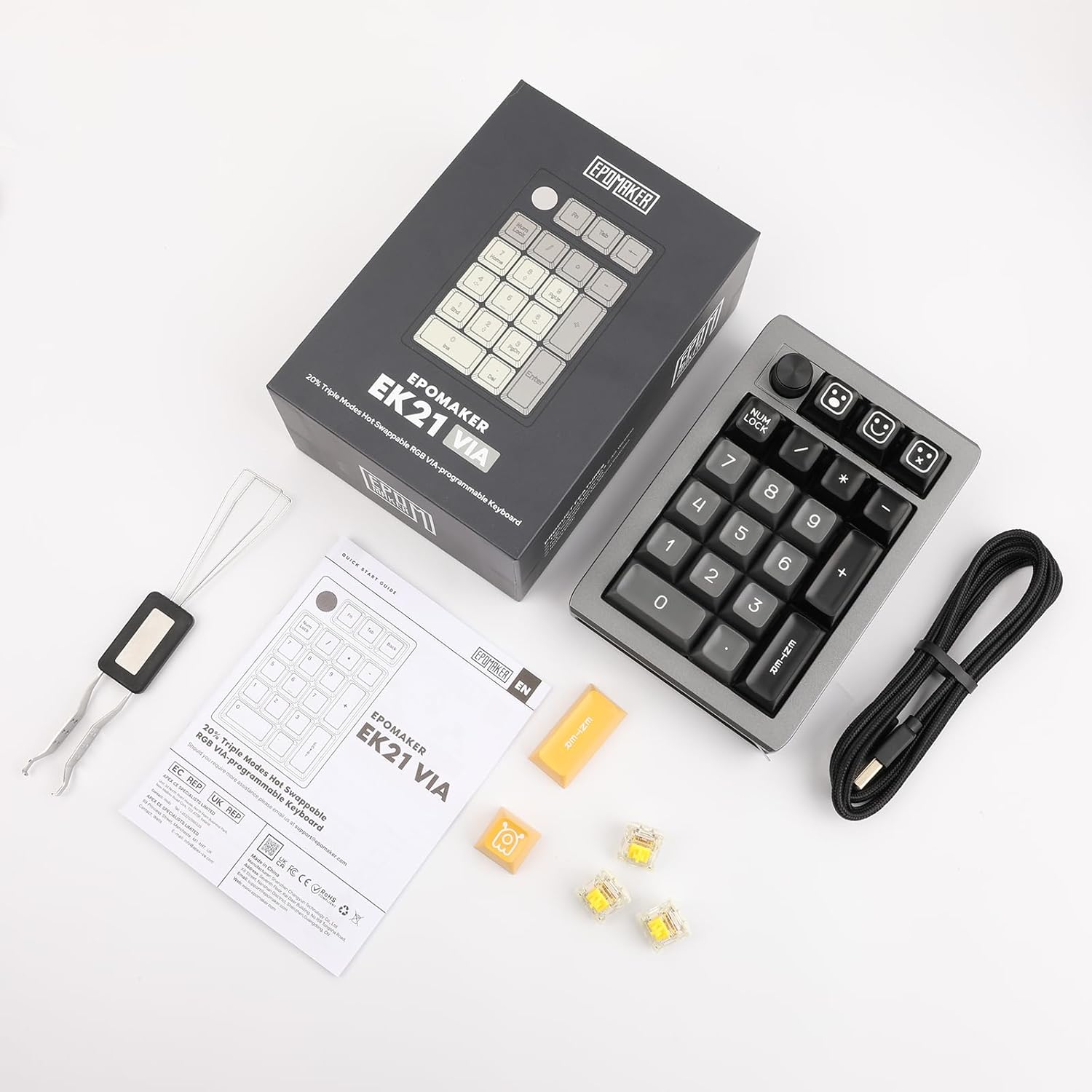
Image: EPOMAKER EK21 package contents.
Setup
Connectivity Modes
The EK21 supports three connection modes: Wired, 2.4GHz Wireless, and Bluetooth. A switch on the side of the number pad allows you to select the desired mode.

Image: EPOMAKER EK21 connectivity options.
1. Wired Connection (USB-C)
- Locate the USB-C port on the number pad.
- Connect the provided USB-C cable to the number pad and your computer.
- The number pad will be automatically recognized and ready for use.
2. 2.4GHz Wireless Connection
- Locate the 2.4G receiver stored in the compartment on the side of the number pad.
- Plug the 2.4G receiver into an available USB port on your computer.
- Switch the mode selector on the number pad to '2.4G'.
- The number pad should connect automatically.
3. Bluetooth 5.0 Connection
- Switch the mode selector on the number pad to 'BT'.
- On your computer or device, enable Bluetooth and search for new devices.
- Select 'EPOMAKER EK21' from the list of available devices to pair.
- The indicator light will confirm successful pairing.
Gasket Structure and Hot-Swappable PCB
The EK21 features a gasket-mounted design for improved typing feel and a hot-swappable PCB, allowing you to change mechanical switches without soldering.

Image: Exploded view of the EK21 Gasket Structure.

Image: Hot-swappable PCB and switch replacement.
To replace switches:
- Use the keycap puller to gently remove the keycap from the desired switch.
- Use the switch puller to carefully grip the switch and pull it straight up to remove it.
- Align the pins of the new switch with the holes on the PCB.
- Gently press the new switch into place until it clicks securely. Ensure pins are not bent.
Operating Instructions
Basic Key Functions
The EK21 number pad includes standard numeric keys, function keys, and a multi-function knob.

Image: RGB Backlight and key combinations.
- Num Lock: Toggles the numeric keypad function.
- Fn + Enter: Toggles the RGB backlight effect.
- Fn + Backspace: Turns the RGB backlight on or off.
- Fn + 0 (Hold for 3 seconds): Resets the number pad to factory settings.
- Knob: By default, controls volume (rotate) and mute (press). Functions can be customized via VIA software.
VIA Software Customization
The EK21 is compatible with VIA software, allowing for extensive customization of key mappings, macros, and lighting.
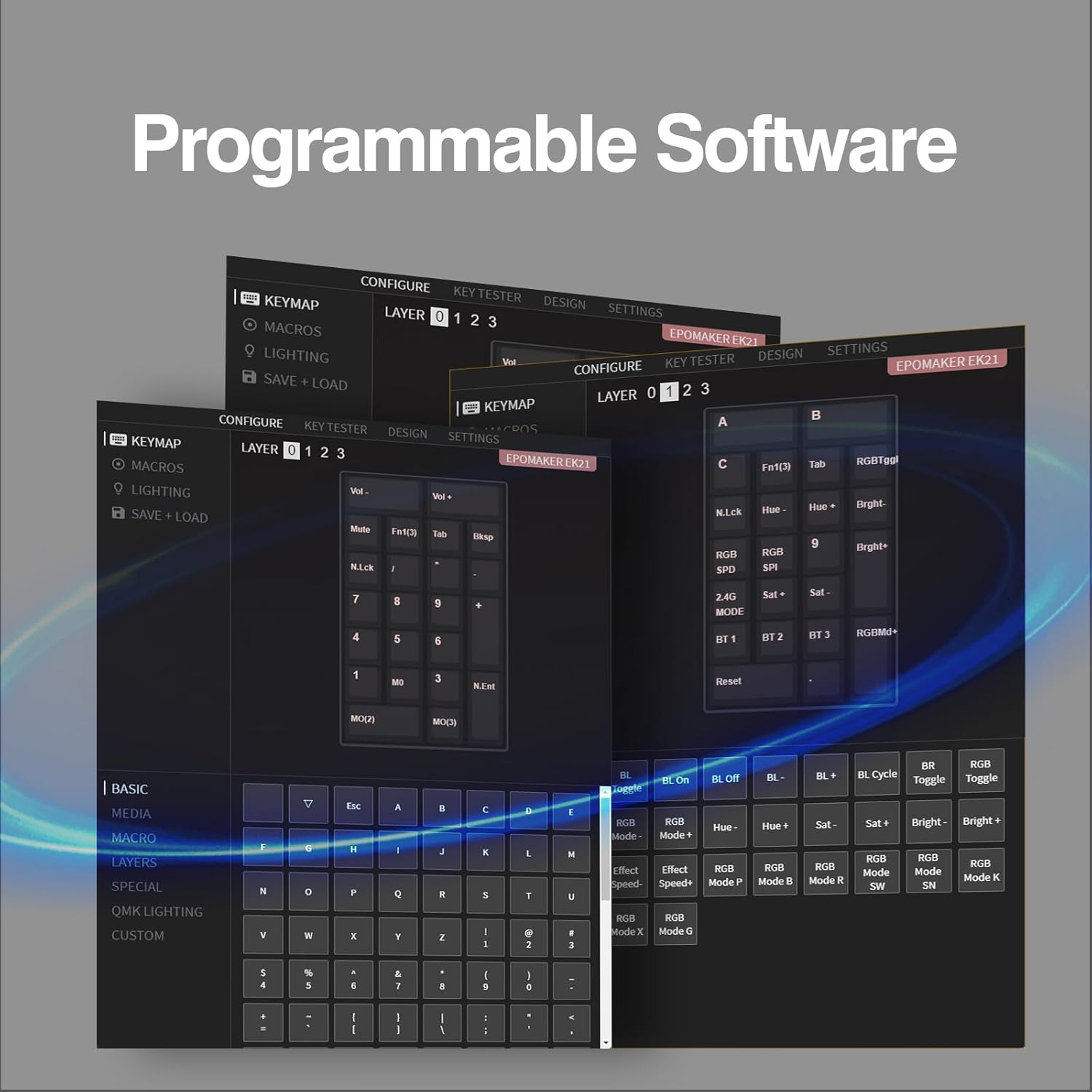
Image: VIA Programmable Software interface.
To use VIA software:
- Download the VIA software from the official EPOMAKER website or the VIA website.
- Connect the EK21 to your computer via USB-C cable.
- Launch the VIA software. The software should automatically detect the EK21.
- Use the interface to remap keys, create macros, and adjust lighting settings across different layers.
Battery Management
The EK21 is equipped with a 1000mAh battery for wireless operation. To charge the battery, connect the number pad to your computer or a USB power adapter using the provided USB-C cable. The indicator light will show charging status.
Maintenance
- Cleaning: Use a soft, dry cloth to clean the surface of the number pad. For keycaps, a damp cloth with mild soap can be used, ensuring no liquid enters the switches.
- Keycap and Switch Replacement: Refer to the 'Setup' section for instructions on how to safely remove and install keycaps and switches.
- Storage: When not in use for extended periods, store the number pad in a cool, dry place. Ensure the power is off to preserve battery life.
Troubleshooting
- Number pad not responding:
- Ensure the number pad is charged or connected via USB-C.
- Check the connection mode switch (Wired, 2.4G, BT) is set correctly.
- For 2.4G, ensure the receiver is properly plugged in.
- For Bluetooth, ensure it is paired correctly and your device's Bluetooth is enabled.
- Try restarting your computer or device.
- Keys not registering:
- Ensure Num Lock is enabled if you are trying to use the numeric functions.
- If a specific key is not working, try replacing the switch for that key (refer to 'Setup' section).
- Reset the number pad to factory settings (Fn + 0, hold 3s).
- Backlight not working:
- Ensure the backlight is turned on (Fn + Backspace).
- Check backlight settings in VIA software.
- VIA software not detecting the number pad:
- Ensure the number pad is connected via USB-C.
- Make sure you have the latest version of VIA software.
- Try restarting the VIA software and reconnecting the number pad.
Specifications
| Feature | Detail |
|---|---|
| Brand | EPOMAKER |
| Model Number | EK21 |
| Connectivity Technology | Bluetooth, 2.4GHz Wireless, USB-C Wired |
| Compatible Devices | Tablet, Laptop, PC (Windows, Mac) |
| Battery | 1 Lithium Ion battery (included), 1000mAh |
| Material | Aluminum |
| Color | Black |
| Special Features | NKRO, Ergonomic, Customizable Display Keys, Backlit, Hot-Swappable |
| Product Weight | 420 g |
| Package Dimensions | 26 x 11 x 1.8 cm |
Warranty and Support
Warranty Information
Specific warranty details for the EPOMAKER EK21 are not provided in this manual. Please refer to the product packaging, the official EPOMAKER website, or contact EPOMAKER customer support for comprehensive warranty information.
Customer Support
If you encounter any issues or have questions regarding your EPOMAKER EK21 number pad that are not covered in this manual, please contact EPOMAKER customer support through their official website or the retailer where you purchased the product. Please have your product model and purchase details ready when contacting support.
Product Videos
EPOMAKER EK21 Wireless Mechanical Number Pad Overview
Video: This video provides an overview of the EPOMAKER EK21 Wireless Mechanical Number Pad, showcasing its features and design.
EPOMAKER EK21 Mechanical Number Pad Features
Video: This video highlights various mechanical aspects and features of the EPOMAKER EK21 Mechanical Number Pad.


