
1. Introduction
This manual provides instructions for the installation, operation, and maintenance of your ENVIO USB Wireless WiFi Adapter. This adapter is designed to connect DVR/NVR systems to a local area network wirelessly, eliminating the need for network cables. It simplifies the setup process for your DVR/NVR by enabling a wireless connection to your router.
2. Package Contents
- ENVIO USB Wireless WiFi Adapter (Model: B0CPYPJM1X)
- User Manual (This document)
Note: Please check the package contents upon receipt. If any items are missing or damaged, contact your vendor.
3. Product Overview
The ENVIO USB Wireless WiFi Adapter provides wireless connectivity for compatible DVR and NVR systems. It operates on the 2.4 GHz frequency band and supports IEEE 802.11 b/g/n standards, offering data transfer speeds up to 150 Mbps.

Figure 1: ENVIO USB Wireless WiFi Adapter with antenna in extended position.
The compact design allows for easy integration with your existing surveillance equipment. Its primary function is to enable wireless network access for DVRs and NVRs, facilitating remote viewing and management without the need for physical Ethernet connections.
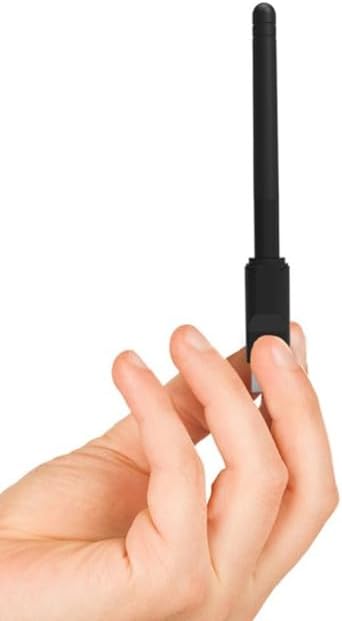
Figure 2: The adapter's compact size, shown held in a hand.
3.1. Key Features
- Wireless connectivity for DVR/NVR systems.
- IEEE 802.11 b/g/n compliant.
- Up to 150 Mbps data transfer rate.
- 2.4 GHz frequency band operation.
- USB interface for easy connection.
3.2. Compatible DVR/NVR Models
This adapter is compatible with a wide range of DVR/NVR models, including but not limited to:
- ADH2-416v3, ADH304v3, ADH-304v3, ADH308v3, ADH-308v3
- ADM2-516, ADM-504, ADM-508
- ADN2-416v3, AGS-404, AGS-408, AGS-416
- AMS2-816, AMS-804, AMS-808
- ESS2M04-NRT, ESS2M08-NRT, ESS4M04-NRT, ESS4M08-NRT, ESS4M16-NRT, ESS5M04-NRT, ESS5M08-NRT, ESS5M16-NRT, ESS8M04-NRT, ESS8M08-NRT, ESS8M16-NRT
- HS-NH-3808BW-T4
- NVR164K-N, NVR324K-N, NVR-328M325, NVR-85M245FHD2
- PNNR-404, PNV504-P, PNV508-P, PNVR-408, PNVR-804, PNVR804P, PNVR-808, PNVR808P
- XVR2604HN, XVR2608HN
Note: Compatibility may vary depending on the firmware version of your DVR/NVR. Refer to your DVR/NVR manual or manufacturer's website for specific wireless adapter support.
4. Setup Instructions
Follow these steps to install and configure your ENVIO USB Wireless WiFi Adapter:
- Prepare your DVR/NVR: Ensure your DVR/NVR system is powered off before connecting the adapter.
- Connect the Adapter: Insert the ENVIO USB Wireless WiFi Adapter into an available USB port on your DVR/NVR. Ensure it is firmly seated.
- Power On: Power on your DVR/NVR system. The system should detect the new hardware.
- Access Network Settings: Navigate to the network settings menu on your DVR/NVR. The exact path may vary depending on your device model (e.g., Menu > Network > Wi-Fi Settings).
- Scan for Networks: Select the option to scan for available wireless networks. Your DVR/NVR should display a list of nearby Wi-Fi networks.
- Select Your Network: Choose your desired Wi-Fi network from the list.
- Enter Password: If your network is secured, enter the Wi-Fi password (WPA/WPA2 key) when prompted. Ensure the password is entered correctly.
- Connect: Confirm the settings and initiate the connection. The DVR/NVR should now connect to your wireless network.
- Verify Connection: Check the network status on your DVR/NVR to ensure it has obtained an IP address and is successfully connected to the internet (if applicable).

Figure 3: ENVIO USB Wireless WiFi Adapter with antenna in folded position, ready for insertion.
Important: If the DVR/NVR does not detect the adapter or connect to the network, ensure your DVR/NVR firmware supports this specific adapter model. You may need to update your DVR/NVR firmware or consult its manufacturer's support resources.
5. Operating Instructions
Once the ENVIO USB Wireless WiFi Adapter is successfully connected to your DVR/NVR and configured with your wireless network, its operation is largely automatic. The adapter facilitates the wireless communication between your DVR/NVR and your router.
- Automatic Reconnection: The adapter is designed to automatically reconnect to the last configured Wi-Fi network upon DVR/NVR startup, provided the network is available and its credentials have not changed.
- Network Stability: For optimal performance, ensure the adapter is within a reasonable range of your wireless router and free from major obstructions that could interfere with the signal.
- Remote Access: With a stable wireless connection, you can now access your DVR/NVR remotely via its dedicated mobile application or web interface, as configured by your DVR/NVR system.
6. Maintenance
The ENVIO USB Wireless WiFi Adapter requires minimal maintenance. Follow these guidelines to ensure its longevity and optimal performance:
- Keep Clean: Periodically wipe the adapter with a soft, dry cloth to remove dust. Avoid using liquid cleaners or solvents.
- Physical Protection: Avoid exposing the adapter to extreme temperatures, humidity, or direct sunlight. Do not drop or subject it to physical shock.
- Secure Connection: Ensure the adapter remains securely plugged into the USB port of your DVR/NVR. Loose connections can lead to intermittent network issues.
- Firmware Updates: While the adapter itself typically does not require user-initiated firmware updates, ensure your DVR/NVR's firmware is kept up-to-date, as this can improve compatibility and performance with network devices.
7. Troubleshooting
If you encounter issues with your ENVIO USB Wireless WiFi Adapter, refer to the following troubleshooting steps:
- Adapter Not Detected:
- Ensure the adapter is fully inserted into the USB port.
- Try a different USB port on your DVR/NVR.
- Restart your DVR/NVR system.
- Verify that your DVR/NVR model is listed as compatible and has the latest firmware.
- Cannot Connect to Wi-Fi Network:
- Double-check the Wi-Fi password. Passwords are case-sensitive.
- Ensure your Wi-Fi router is powered on and broadcasting a signal.
- Move the DVR/NVR closer to the Wi-Fi router to improve signal strength.
- Check if your Wi-Fi network is using a hidden SSID. If so, you may need to manually enter the network name (SSID).
- Restart your Wi-Fi router.
- Intermittent Connection/Slow Speed:
- Ensure the adapter's antenna is positioned optimally for signal reception.
- Reduce interference from other electronic devices (e.g., microwaves, cordless phones).
- Check for congestion on your Wi-Fi channel. You might need to change the channel on your router.
- Verify that your internet service provider (ISP) is not experiencing issues.
If the problem persists after trying these steps, contact ENVIO customer support or your DVR/NVR manufacturer for further assistance.
8. Specifications
| Brand | ENVIO |
| Manufacturer | ENVIO SECURITY |
| Model Number (ASIN) | B0CPYPJM1X |
| Hardware Interface | USB |
| Wireless Standards | IEEE 802.11n, IEEE 802.11g, IEEE 802.11b |
| Data Link Protocol | IEEE 802.11n, IEEE 802.11 |
| Data Transfer Rate | Up to 150 Megabits per second |
| Frequency Band | 2.4 GHz |
| Compatible Devices | DVR, NVR, Desktop Computer, Laptop |
| First Available Date | December 11, 2023 |
9. Warranty and Support
ENVIO products are designed for reliability and performance. For specific warranty information, please refer to the documentation included with your purchase or visit the official ENVIO website. If you require technical assistance or have questions regarding your USB Wireless WiFi Adapter, please contact ENVIO customer support.
Contact Information: Please refer to your purchase receipt or the ENVIO official website for the most up-to-date customer support contact details.