
1. Introduction
This manual provides essential information for setting up, operating, maintaining, and troubleshooting your new HP 15.6-inch HD Laptop. Please read this guide thoroughly to ensure optimal performance and longevity of your device. For further assistance, refer to the official HP support website.
2. Product Overview
The HP 15.6-inch HD Laptop is designed for everyday computing, offering a balance of performance and portability. It features an Intel Pentium N200 Quad-core Processor, 8GB RAM, and a 128GB SSD for efficient multitasking and fast data access. The laptop runs on Windows 11 Home in S Mode, providing a secure and streamlined experience.
Key Features:
- Display: 15.6-inch HD (1366 x 768) micro-edge anti-glare display.
- Processor: Intel Pentium N200 Quad-core (up to 3.70GHz, 6M Cache).
- Memory: 8GB DDR4-3200 MHz RAM for smooth application performance.
- Storage: 128GB PCIe NVMe M.2 Solid State Drive for quick boot-up and file transfers.
- Operating System: Windows 11 Home in S Mode.
- Connectivity: Wi-Fi 6 and Bluetooth 5.3.
- Battery Life: Up to 11 hours and 45 minutes of video playback.
- Included Software: 1 Year Microsoft Office 365.
Ports and Slots:
- 1x USB Type-C (5Gbps signaling rate)
- 2x USB Type-A (5Gbps signaling rate)
- 1x HDMI 1.4b
- 1x Headphone/microphone combo jack
- 1x AC smart pin

Image: Side view of the HP 15.6-inch HD Laptop, highlighting the USB Type-A, HDMI, USB Type-C, and headphone/microphone combo ports.
3. Setup
3.1 Unboxing and Initial Inspection
Carefully remove your laptop and all accessories from the packaging. Ensure all components listed in the 'What's in the Box' section are present. Inspect the laptop for any physical damage.
3.2 Connecting to Power
Connect the AC smart pin power adapter to the laptop's power port and then plug it into a wall outlet. It is recommended to fully charge the battery before the first use.

Image: The HP 15.6-inch HD Laptop and its 45W Smart AC power adapter, as typically found in the product box.
3.3 First Boot and Windows Setup
- Press the power button to turn on your laptop.
- Follow the on-screen instructions to complete the Windows 11 Home in S Mode setup. This includes selecting your region, connecting to a Wi-Fi network, and creating a user account.
- Windows 11 in S Mode is designed for security and performance, exclusively running apps from the Microsoft Store. You can switch out of S Mode if you need to install apps from other sources.
4. Operating Your Laptop
4.1 Using the Keyboard and Touchpad
The laptop features a full-size keyboard with a number pad and a large precision touchpad. Use the touchpad for navigation, clicking, and multi-touch gestures. Refer to Windows settings for customizing touchpad sensitivity and gestures.
4.2 Connecting to Wi-Fi and Bluetooth
To connect to Wi-Fi, click the network icon in the taskbar, select your desired network, and enter the password. For Bluetooth devices, go to Settings > Bluetooth & devices, turn on Bluetooth, and pair your device.
4.3 Using External Devices
Utilize the available USB Type-A, USB Type-C, and HDMI ports to connect external displays, mice, keyboards, storage devices, printers, and other accessories. The HDMI 1.4b port supports video output to compatible monitors or TVs.
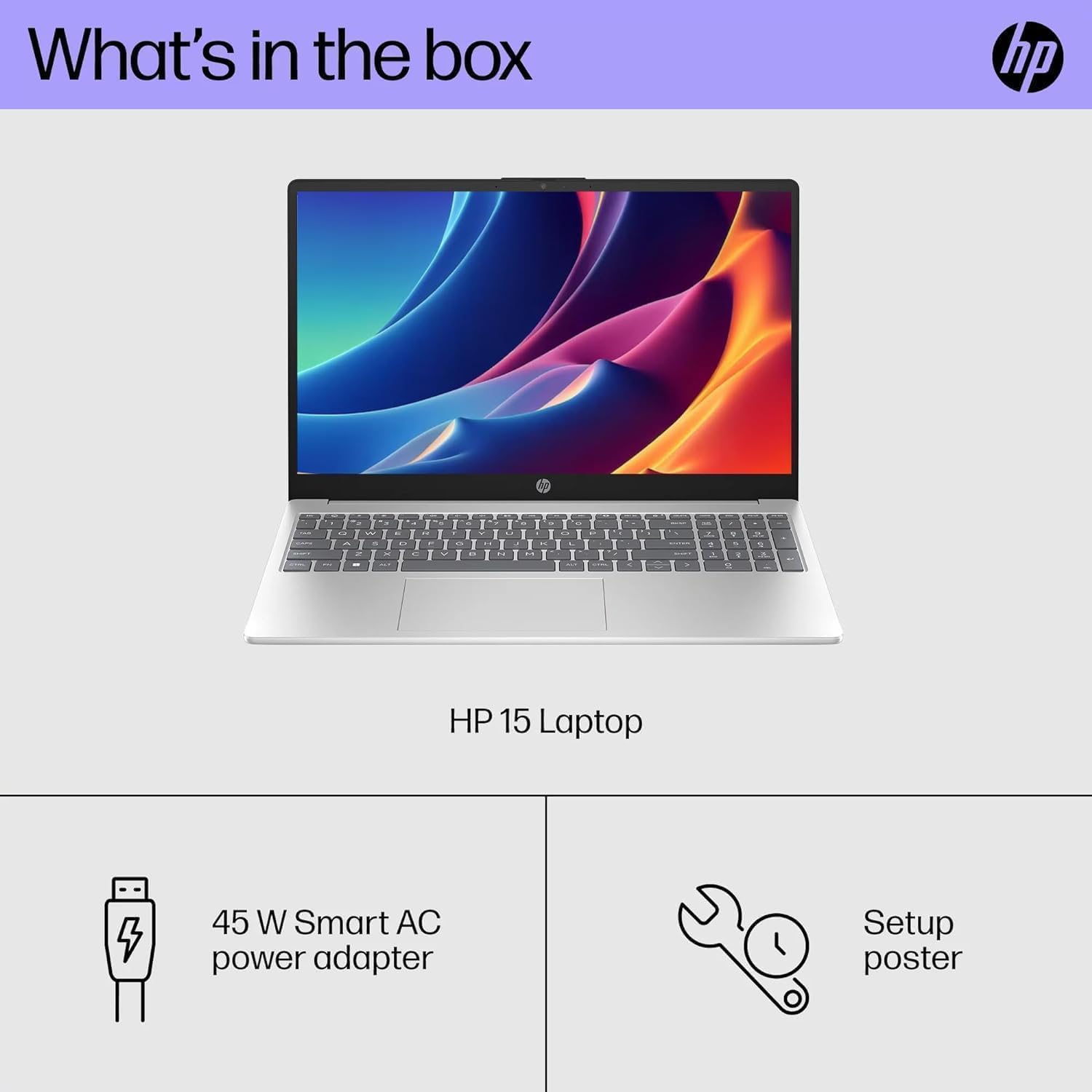
Image: The HP 15.6-inch HD Laptop showcasing its capability for effortless multitasking with several applications open on the screen.
4.4 Webcam and Privacy Shutter
The integrated webcam is suitable for video calls and online meetings. For enhanced privacy, the webcam includes a physical privacy shutter. Slide the shutter to cover the camera lens when not in use.

Image: Detail of the laptop's webcam, illustrating the privacy shutter feature for user security.
5. Maintenance
5.1 Cleaning Your Laptop
Use a soft, lint-free cloth to clean the screen and exterior surfaces. For stubborn smudges, slightly dampen the cloth with water or a screen-safe cleaner. Avoid harsh chemicals or abrasive materials.
5.2 Battery Care
To prolong battery life, avoid extreme temperatures and do not leave the laptop fully charged or fully discharged for extended periods. For optimal performance, allow the battery to discharge partially before recharging.
5.3 Software Updates
Regularly check for and install Windows updates and driver updates to ensure your system remains secure and performs optimally. These updates often include performance enhancements and bug fixes.
6. Troubleshooting
6.1 Power Issues
- Laptop won't turn on: Ensure the power adapter is securely connected and the outlet is working. Try a different outlet. If the battery is completely drained, it may take a few minutes to respond after plugging in.
- Battery not charging: Check the power adapter and cable for damage. Ensure the power port on the laptop is clean and free of debris.
6.2 Display Problems
- Screen is blank: Press the power button briefly to wake the screen. Check if the laptop is connected to an external display; if so, disconnect it or switch display modes (usually by pressing Fn + F4 or a similar key combination).
- Flickering screen: Update your graphics drivers. If the issue persists, contact HP Support.
6.3 Connectivity Issues
- Wi-Fi not connecting: Restart your router and modem. Ensure Wi-Fi is enabled on your laptop (check network settings). Try forgetting the network and reconnecting.
- Bluetooth device not pairing: Ensure the Bluetooth device is in pairing mode and within range. Check that Bluetooth is enabled on your laptop and try restarting both devices.
7. Specifications

Image: The HP 15.6-inch HD Laptop with its dimensions (width, depth, height) clearly indicated.
| Feature | Detail |
|---|---|
| Brand | HP |
| Model Name | HP 15 |
| Screen Size | 15.6 Inches |
| Display Resolution | 1366 x 768 pixels (HD) |
| Processor | Intel Pentium N200 Quad-core (up to 3.7 GHz) |
| Graphics | Intel UHD Graphics (Integrated) |
| RAM | 8 GB DDR4 SDRAM |
| Storage | 128 GB PCIe NVMe M.2 SSD |
| Operating System | Windows 11 Home in S Mode |
| Wireless Connectivity | Wi-Fi 6 (802.11ax), Bluetooth 5.3 |
| Ports | 1x USB Type-C, 2x USB Type-A, 1x HDMI 1.4b, 1x Headphone/microphone combo, 1x AC smart pin |
| Webcam | Yes (Front) |
| Battery Life | Up to 11 hours and 45 minutes (video playback) |
| Weight | 3.75 Pounds |
| Dimensions (L x W x Th) | 14.11" x 9.52" x 0.78" |
| Color | Scarlet Red |
8. Warranty and Support
8.1 Limited Warranty
Your HP 15.6-inch HD Laptop comes with a limited warranty. The specific terms and duration of the warranty may vary by region and purchase date. Please refer to the warranty documentation included with your product or visit the official HP support website for detailed information.
8.2 Technical Support
For technical assistance, driver downloads, or service requests, please visit the official HP Support website. You can find comprehensive resources, FAQs, and contact options for customer service.
HP Support Website: support.hp.com


