
Introduction
Thank you for choosing the Hecate G3m Pro Wireless Bluetooth Gaming Mouse. This manual provides detailed instructions for setting up, operating, and maintaining your new gaming mouse. Designed for performance and versatility, the G3m Pro offers three-mode connectivity, a high-precision sensor, and a lightweight, silent design to enhance your gaming experience.
Product Overview
The Hecate G3m Pro features a robust design with multiple buttons and connectivity options. Familiarize yourself with the mouse components before use.
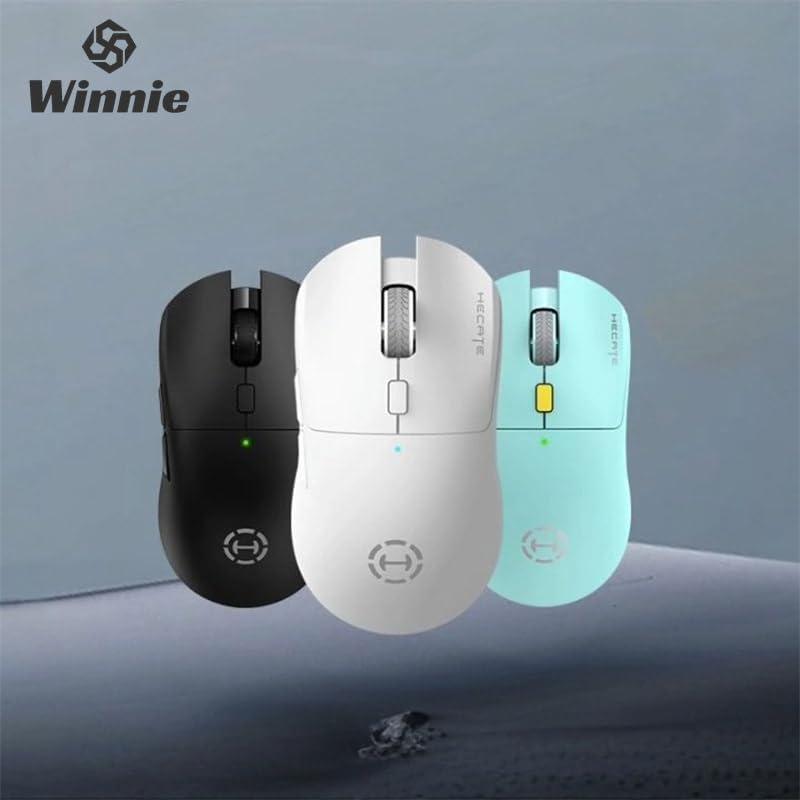
Figure 1: Hecate G3m Pro Wireless Gaming Mouse (Black)
- Left/Right Click Buttons: Standard mouse functions.
- Scroll Wheel: For scrolling and middle-click functionality.
- DPI Cycle Button: Adjusts the mouse sensitivity (DPI) on the fly.
- Side Buttons: Programmable for various in-game actions or navigation.
- Connectivity Mode Switch: Located on the underside, allows switching between 2.4GHz, Bluetooth, and Wired modes.
- USB-C Port: For wired connection and charging.
Setup
Follow these steps to set up your Hecate G3m Pro mouse.
1. Charging the Mouse
Before first use, ensure the mouse is fully charged. Connect the provided USB-C cable to the mouse's USB-C port and the other end to a USB power source (e.g., computer, wall adapter). The LED indicator will show charging status.
2. Connecting via 2.4GHz Wireless (USB Dongle)
- Locate the USB 2.4GHz receiver (dongle) usually stored in a compartment on the underside of the mouse.
- Plug the USB receiver into an available USB port on your computer.
- Switch the connectivity mode selector on the mouse to the '2.4G' position.
- The mouse should automatically connect to your computer. The LED indicator may flash briefly and then become solid to indicate a successful connection.
3. Connecting via Bluetooth
- Switch the connectivity mode selector on the mouse to the 'BT' (Bluetooth) position.
- On your computer or device, go to Bluetooth settings and enable Bluetooth.
- The mouse LED indicator will start flashing, indicating it is in pairing mode.
- Select 'Hecate G3m Pro' from the list of available Bluetooth devices on your computer/device to pair.
- Once paired, the LED indicator will become solid.
4. Connecting via Wired Mode
- Connect the provided USB-C cable to the mouse's USB-C port.
- Connect the other end of the USB-C cable to an available USB port on your computer.
- Switch the connectivity mode selector on the mouse to the 'Wired' position.
- The mouse will function as a wired mouse and will also charge its internal battery.
Operating Instructions
Understand the functions of your mouse for optimal use.
DPI Adjustment
Press the DPI cycle button (usually located behind the scroll wheel) to cycle through different DPI settings. Each press will change the sensitivity, often indicated by a change in the LED color or a specific number of flashes. The mouse supports up to 26000 DPI.
Mode Switching
Use the switch on the underside of the mouse to select your preferred connection mode: 2.4GHz, Bluetooth, or Wired. Switch modes according to your device and usage scenario.
Customizing Buttons
For advanced customization of buttons and macros, it is recommended to download the official Hecate software (if available) from the manufacturer's website. This software allows you to reassign button functions, create profiles, and fine-tune performance settings.
Maintenance
Proper maintenance ensures the longevity and performance of your mouse.
Cleaning
- Use a soft, dry cloth to wipe the surface of the mouse.
- For stubborn dirt, slightly dampen the cloth with water or a mild cleaning solution. Avoid harsh chemicals.
- Do not allow liquids to enter the mouse's internal components.
- Clean the optical sensor on the underside periodically with a cotton swab to ensure accurate tracking.
Battery Care
- Avoid fully discharging the battery frequently.
- Charge the mouse when the battery indicator suggests low power.
- If storing the mouse for an extended period, charge it to about 50% and store it in a cool, dry place.
Storage
Store the mouse in a clean, dry environment away from extreme temperatures and direct sunlight. Keep it away from dust and moisture.
Troubleshooting
If you encounter issues with your Hecate G3m Pro mouse, refer to the following common solutions.
Mouse Not Responding
- Check Battery: Ensure the mouse is charged. Connect it via USB-C cable to charge.
- Check Connection Mode: Verify that the mode switch on the underside of the mouse is set to the correct mode (2.4G, BT, or Wired) for your connection type.
- 2.4GHz Connection: Ensure the USB receiver is securely plugged into a working USB port. Try a different USB port.
- Bluetooth Connection: Re-pair the mouse with your device. Go to Bluetooth settings, remove the mouse, and then add it again. Ensure your device's Bluetooth is enabled.
- Wired Connection: Ensure the USB-C cable is securely connected to both the mouse and the computer. Try a different USB port or cable.
Inconsistent Tracking or Cursor Movement
- Clean Sensor: Clean the optical sensor on the underside of the mouse.
- Mouse Pad: Use the mouse on a clean, uniform surface or a high-quality mouse pad. Avoid reflective or glass surfaces.
- DPI Setting: Adjust the DPI setting using the DPI cycle button to find a comfortable sensitivity.
Buttons Not Working
- Software Interference: If using custom software, try resetting button assignments to default.
- Test on Another Device: Connect the mouse to another computer to determine if the issue is with the mouse or the original device's settings.
Specifications
Detailed technical specifications for the Hecate G3m Pro Wireless Bluetooth Gaming Mouse.
| Feature | Description |
|---|---|
| Model | G3m Pro |
| Brand | Hecate |
| Connectivity Technology | 2.4GHz Wireless, Bluetooth, Wired (USB-C) |
| Movement Detection | Optical (Paw3395 Sensor) |
| DPI (Dots Per Inch) | Up to 26000 DPI |
| Acceleration | 50G |
| IPS (Inches Per Second) | 600 |
| Number of Buttons | 6 |
| Number of Rollers | 1 (Scroll Wheel) |
| Hand Orientation | Ambidextrous |
| Special Feature | Lightweight (Approx. 63g) |
| Power Type | Rechargeable Battery |
| Recommended Use | Gaming |
| Compatible Devices | Personal Computer, Laptop, Game Console |
| Operating Systems | Linux, Windows XP (and newer versions) |
Warranty and Support
Your Hecate G3m Pro Wireless Bluetooth Gaming Mouse comes with a warranty and dedicated support.
Warranty Information
All products are covered by a 12-month warranty from the date of purchase. This warranty covers manufacturing defects and issues arising from normal use.
Customer Support
If you encounter any problems with your product, such as defective or incorrect items, please do not hesitate to contact us. We are committed to providing prompt assistance and will respond to your inquiries within 24 hours. Please refer to your purchase documentation for specific contact details or visit the official Hecate support website.