
MOKIBO MKB420
MOKIBO Fusion Keyboard Instruction Manual
Model: MKB420
Introduction
The MOKIBO Fusion Keyboard is a revolutionary universal keyboard designed for ultimate portability and versatility. It seamlessly integrates a full-size keyboard with an innovative invisible touchpad, allowing you to navigate and type with unparalleled efficiency across multiple operating systems. This manual provides comprehensive instructions to help you get the most out of your Fusion Keyboard.

Figure 1: MOKIBO Fusion Keyboard with its protective folio cover.
This image displays the sleek, black MOKIBO Fusion Keyboard alongside its protective folio cover, highlighting its compact and portable design.
Setup
What's in the Box
- MOKIBO Touchpad Portable Fusion Keyboard
- Protective Folio Cover
- USB-C Charging Cable (not explicitly listed but implied by USB-C port)
Initial Charging
Before first use, fully charge your MOKIBO Fusion Keyboard. Locate the USB-C port on the side of the keyboard. Connect the provided USB-C cable to the keyboard and the other end to a compatible USB power adapter (not included).
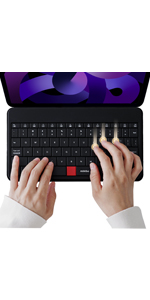
Figure 2: USB-C Charging Port.
The image shows the USB-C port for charging, indicating a full charge takes less than 2 hours and provides up to 60 hours of non-stop use.
- Charging Time: Less than 2 hours for a full charge.
- Battery Life: Up to 60 hours of active use, up to 3 months in sleep mode.
Bluetooth Pairing
The MOKIBO Fusion Keyboard supports multi-device Bluetooth pairing, allowing connection to up to three devices simultaneously.
- Turn on the keyboard by opening the protective folio cover. The keyboard will automatically wake up.
- Press and hold the Fn key and one of the Bluetooth keys (F9, F10, or F11) for 3 seconds to enter pairing mode. The corresponding LED indicator will blink.
- On your device (iPad, Mac, Windows PC, Android, Chrome OS), go to Bluetooth settings and select "MOKIBO Fusion Keyboard" from the list of available devices.
- Once paired, the LED indicator will stop blinking and remain solid.
- Repeat for up to two additional devices using the other Bluetooth keys.

Figure 3: Multi-Device Bluetooth Pairing.
This image illustrates the keyboard's ability to connect to three different devices (e.g., iPad, desktop, smartphone) via Bluetooth, with dedicated function keys for switching between them.
Operating the Fusion Keyboard
Keyboard Functionality
The MOKIBO Fusion Keyboard features a standard QWERTY layout with 80 keys, providing a comfortable typing experience similar to a laptop keyboard.

Figure 4: Smooth and Accurate Typing.
This image shows hands actively typing on the keyboard, emphasizing the smooth and accurate key presses.
Invisible Touchpad Functionality
The unique feature of the MOKIBO Fusion Keyboard is its integrated touchpad, which utilizes the entire key surface. Touch sensors beneath the keycaps recognize your intent, automatically transforming the keyboard into a large, responsive touchpad when you are not typing.

Figure 5: Touchpad Area.
The image clearly outlines the entire keyboard surface as the functional touchpad area, demonstrating its expansive size compared to traditional trackpads.
Touchpad Gestures
- Single Finger Tap: Left-click.
- Two Finger Scroll: Scroll up/down or left/right.
- Three Finger Swipe: Navigate between applications or bring up the Dock (OS dependent).
- Pinch-to-Zoom: Supported in some applications, primarily web browsers (functions as Ctrl+ or Ctrl-).
- Drag & Drop: Select an item with one finger and drag it.
- Paragraph Selection & Movement: Select a paragraph and drag it to another application for pasting.
Video 1: MOKIBO Fusion Keyboard Folio Universal 2nd Gen Overview.
This video demonstrates the various features of the MOKIBO Fusion Keyboard, including its integrated touchpad functionality, multi-device connectivity, and versatile usage modes.
Video 2: MOKIBO Keyboard with Invisible Touchpad in Action.
This video showcases the innovative invisible touchpad feature of the MOKIBO keyboard, demonstrating how the entire key surface functions as a responsive trackpad for seamless navigation.
Multimedia Keys
The keyboard includes a row of multimedia and function keys (F1-F12) that provide quick access to various controls when used in conjunction with the Fn key. These include volume control, screen brightness, media playback, and more.

Figure 6: Multimedia Keys and Functions.
This detailed diagram labels the multimedia keys and their corresponding functions, such as home, mic off, camera off, speaker mute, volume control, screenshot, battery check, virtual keyboard, Bluetooth channel switching, and OS selection.
Versatile Usage Modes
The protective folio cover doubles as a smart device stand, offering multiple viewing angles for various activities.
- Typing Mode: Positions your device at an optimal angle for comfortable typing (e.g., 55°).
- Pencil Mode / Drawing Mode: Provides a lower, more stable angle ideal for drawing or writing with a stylus (e.g., 26.5°).
- Browsing Mode: Allows for easy viewing and interaction with content.

Figure 7: Transformative Modes Support.
The image illustrates the keyboard's ability to support different modes, such as Typing Mode (55°) and Pencil Mode (26.5°), along with a convenient magnetic pencil holder.

Figure 8: Powerful Versatility.
This composite image demonstrates the keyboard's powerful versatility across Typing, Drawing, and Browsing modes, adapting to various user needs.
Maintenance
To ensure the longevity and optimal performance of your MOKIBO Fusion Keyboard, follow these maintenance guidelines:
- Cleaning: Use a soft, damp cloth to wipe the surface of the keyboard. Avoid harsh chemicals or abrasive materials.
- Spill Resistance: The keyboard is designed with some spill resistance. In case of spills, immediately power off the device and wipe it dry. Do not immerse the keyboard in water.
- Storage: When not in use, keep the keyboard in its protective folio cover to prevent dust and scratches. Store in a cool, dry place.

Figure 9: Spill Resistance.
This image shows water droplets on the keyboard surface, illustrating its spill-resistant design for added durability.
Troubleshooting
- Keyboard not connecting via Bluetooth:
- Ensure the keyboard is charged.
- Make sure Bluetooth is enabled on your device.
- Put the keyboard into pairing mode (Fn + F9/F10/F11 for 3 seconds).
- Forget the device on your host system's Bluetooth settings and re-pair.
- Touchpad not responding:
- Ensure the keyboard is powered on.
- Verify that the touchpad is not accidentally disabled (check multimedia keys for a touchpad toggle).
- Restart the keyboard by closing and reopening the folio cover.
- Keys not responding:
- Check battery level.
- Ensure the keyboard is properly connected via Bluetooth.
- Clean any debris from around the keys.
- Intermittent connection:
- Move the keyboard closer to your device to reduce interference.
- Ensure no other strong wireless signals are interfering.
- Update your device's operating system and Bluetooth drivers.
Specifications
| Feature | Detail |
|---|---|
| Model Number | MKB420 |
| Product Dimensions | 5.6 x 10 x 0.37 inches |
| Item Weight | 9.3 ounces |
| Connectivity Technology | Bluetooth Low Energy |
| Compatible Devices | Smart TV, Tablet PC, Laptop PC, iPad, Smartphone |
| Number of Keys | 80 |
| Battery Type | 1 Lithium Polymer battery (included) |
| Charging Port | USB-C |
| Color | Black |
Warranty and Support
For warranty information and customer support, please refer to the official MOKIBO website or contact their customer service directly. Details regarding product registration, troubleshooting, and warranty claims can typically be found on the manufacturer's support pages.
MOKIBO Official Store: Visit MOKIBO Store on Amazon
Related documentsMKB420


Ask a question about this manual
Ask about setup, troubleshooting, compatibility, parts, safety, or missing instructions. Manuals+ will review the question and use this page’s manual context to help answer it.