
Redragon K660RGB-PRO
Redragon K660RGB-PRO (K556 TKL) Wireless Gaming Keyboard User Manual
Model: K660RGB-PRO
Brand: Redragon
Introduction
This manual provides detailed instructions for the setup, operation, maintenance, and troubleshooting of your Redragon K660RGB-PRO Wireless Gaming Keyboard. Please read this manual thoroughly before using the product to ensure proper functionality and longevity.
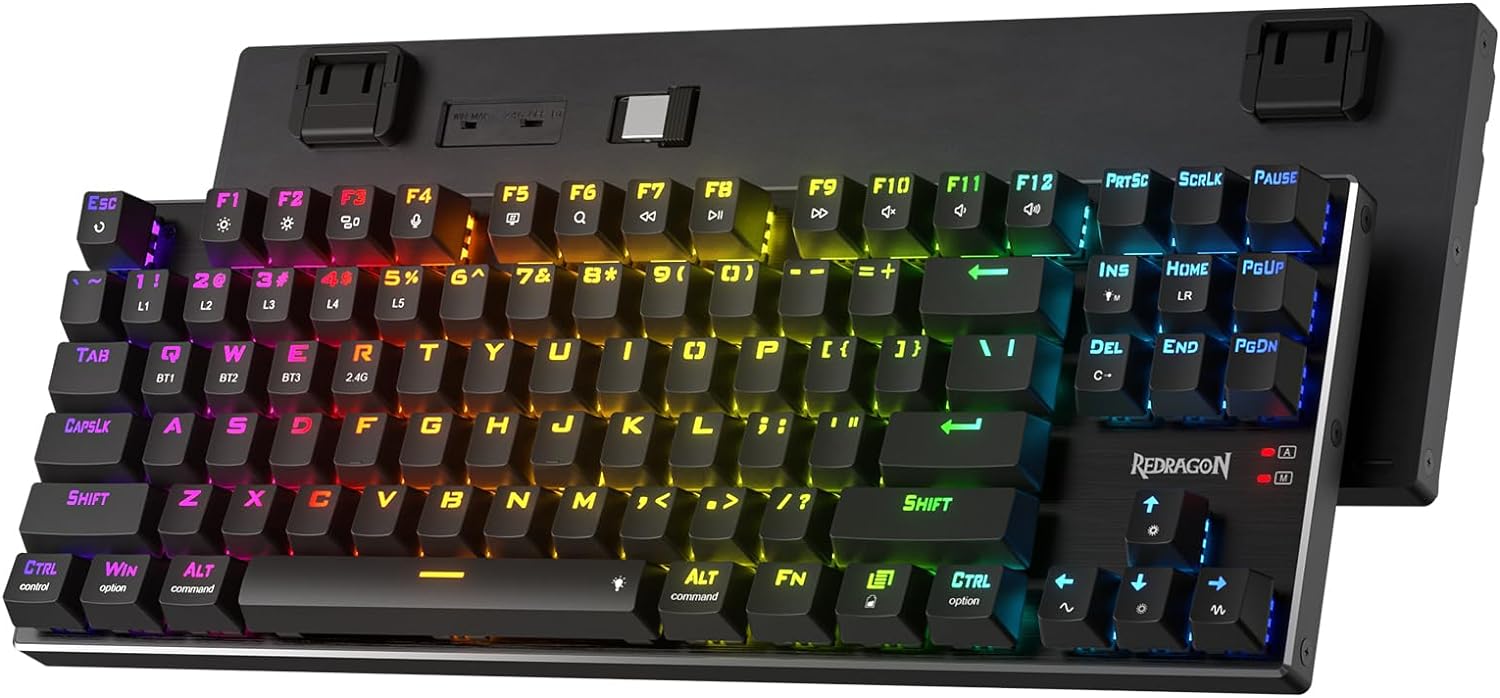
Image: The Redragon K660RGB-PRO Wireless Gaming Keyboard, showcasing its compact TKL layout and vibrant RGB backlighting.
Package Contents
Verify that all items are present in the package:
- Redragon K660RGB-PRO Wireless Gaming Keyboard
- Keycap/Switch Puller
- Spare Switches
- USB Cable
Setup
Connection Modes
The Redragon K660RGB-PRO supports three connection modes: USB-C Wired, Bluetooth (BT 3.0/5.0), and 2.4Ghz Wireless.

Image: Diagram illustrating the three connection modes: 2.4GHz Performance Mode, BT Efficiency Mode, and USB-C Wired Mode.
USB-C Wired Connection
- Connect the provided USB-C cable to the keyboard's USB-C port.
- Connect the other end of the USB cable to an available USB port on your computer.
- The keyboard will be automatically recognized and ready for use.
2.4Ghz Wireless Connection
- Locate the 2.4Ghz USB receiver, typically stored in a compartment on the keyboard.
- Plug the USB receiver into an available USB port on your computer.
- Ensure the keyboard's mode switch (usually on the back or side) is set to 2.4Ghz mode.
- The keyboard should automatically connect to the receiver.
Bluetooth Connection (BT 3.0/5.0)
- Ensure the keyboard's mode switch is set to Bluetooth mode.
- On your computer or device, enable Bluetooth and search for new devices.
- Select "Redragon K660RGB-PRO" (or similar name) from the list of available devices.
- Follow any on-screen prompts to complete the pairing process.
Operating Instructions
Key Functions and Layout
The K660RGB-PRO features an 80% TKL (Tenkeyless) layout with 87 keys, designed for efficient use and more mouse-moving space, particularly beneficial for FPS gamers.

Image: Overhead view of the Redragon K660RGB-PRO keyboard, highlighting its compact 80% TKL layout, suitable for gaming setups with limited desk space.
RGB Backlighting Control
The keyboard offers vibrant RGB backlighting with multiple preset modes. Brightness and flowing speed are adjustable directly on the keyboard.
- FN + INS: Cycles through various preset backlighting patterns.
- FN + DEL: Cycles through different backlighting colors (for static modes).
- FN + Arrow Up/Down: Adjusts brightness levels.
- FN + Arrow Left/Right: Adjusts flowing speed or direction of dynamic effects.

Image: The Redragon K660RGB-PRO keyboard displaying its customizable RGB lighting effects, enhancing the aesthetic appeal.
Software Customization
For advanced customization, including creating new modes, effects, macros, and keybindings, download the professional software from the official Redragon website.

Image: Screenshot of the Redragon keyboard software interface, showing options for lighting customization and macro editing.
Mac Function Keys
The keyboard includes specific function keys for Mac compatibility, allowing seamless switching between Windows and Mac operating systems.

Image: Visual representation of the Redragon K660RGB-PRO's compatibility with both Windows and Mac operating systems, indicated by respective logos.
Maintenance
Cleaning the Keyboard
- Disconnect the keyboard from your computer before cleaning.
- Use a soft, lint-free cloth slightly dampened with water or a mild cleaning solution to wipe the surface.
- For dust and debris between keycaps, use compressed air.
- Avoid using harsh chemicals or abrasive materials.
Hot-Swappable Switches
The K660RGB-PRO features hot-swappable sockets, allowing for easy replacement of switches without soldering. This keyboard comes with pre-lubed original Red Linear Switches.
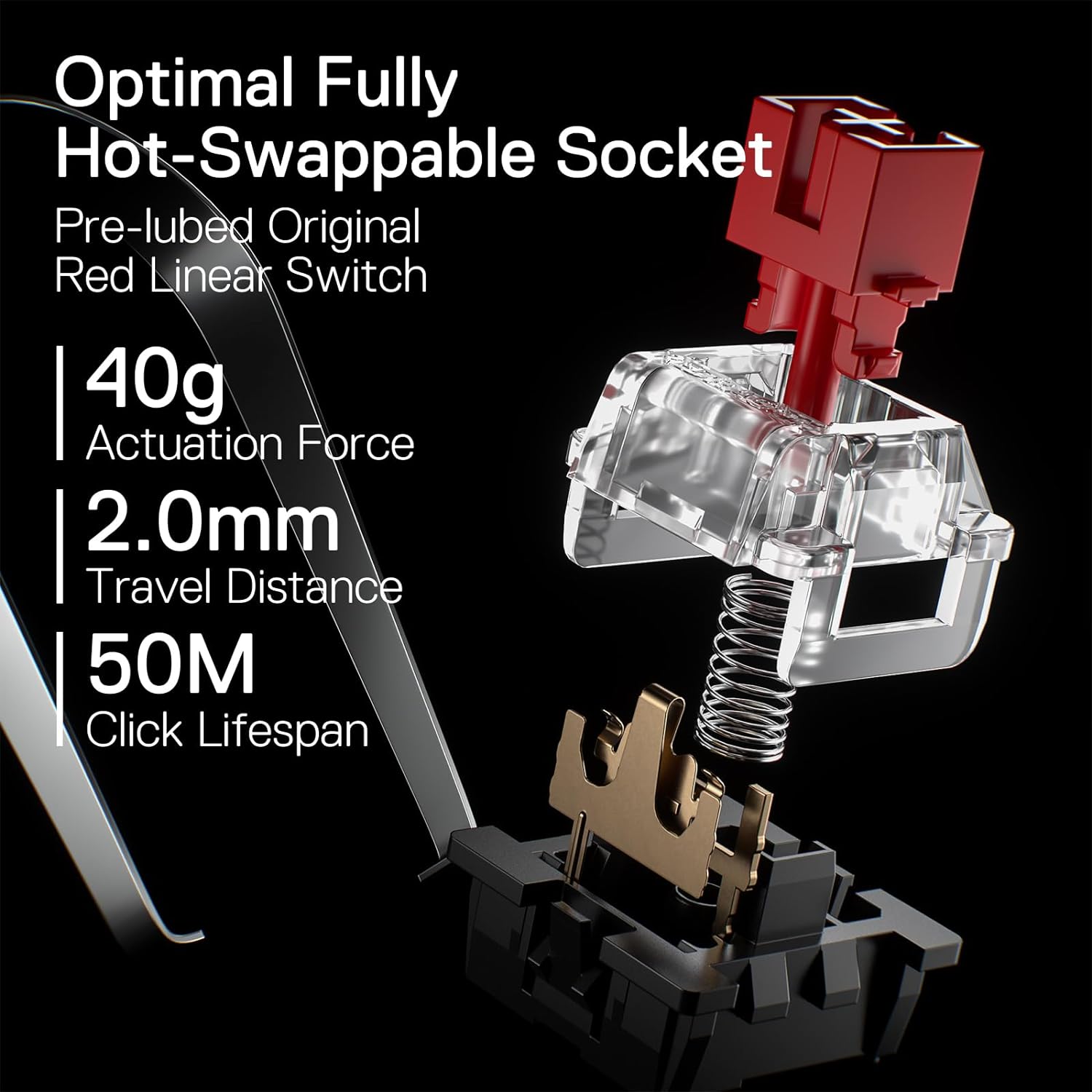
Image: Close-up view of a hot-swappable switch socket on the Redragon K660RGB-PRO, showing a Red Linear Switch with its specifications: 40g actuation force, 2.0mm travel distance, and 50M click lifespan.
To replace a switch:
- Use the provided keycap puller to remove the desired keycap.
- Use the provided switch puller to gently remove the switch from its socket.
- Align the pins of the new switch with the holes in the socket and press firmly until it clicks into place.
- Replace the keycap.
Battery Management
The keyboard is equipped with a Lithium Polymer battery, offering up to 150 hours of usage. To maximize battery life:
- Charge the keyboard fully before first use.
- Connect via USB-C when battery is low or for extended wired use.
- Turn off RGB lighting when not needed to conserve power.
- Store in a cool, dry place when not in use for prolonged periods.
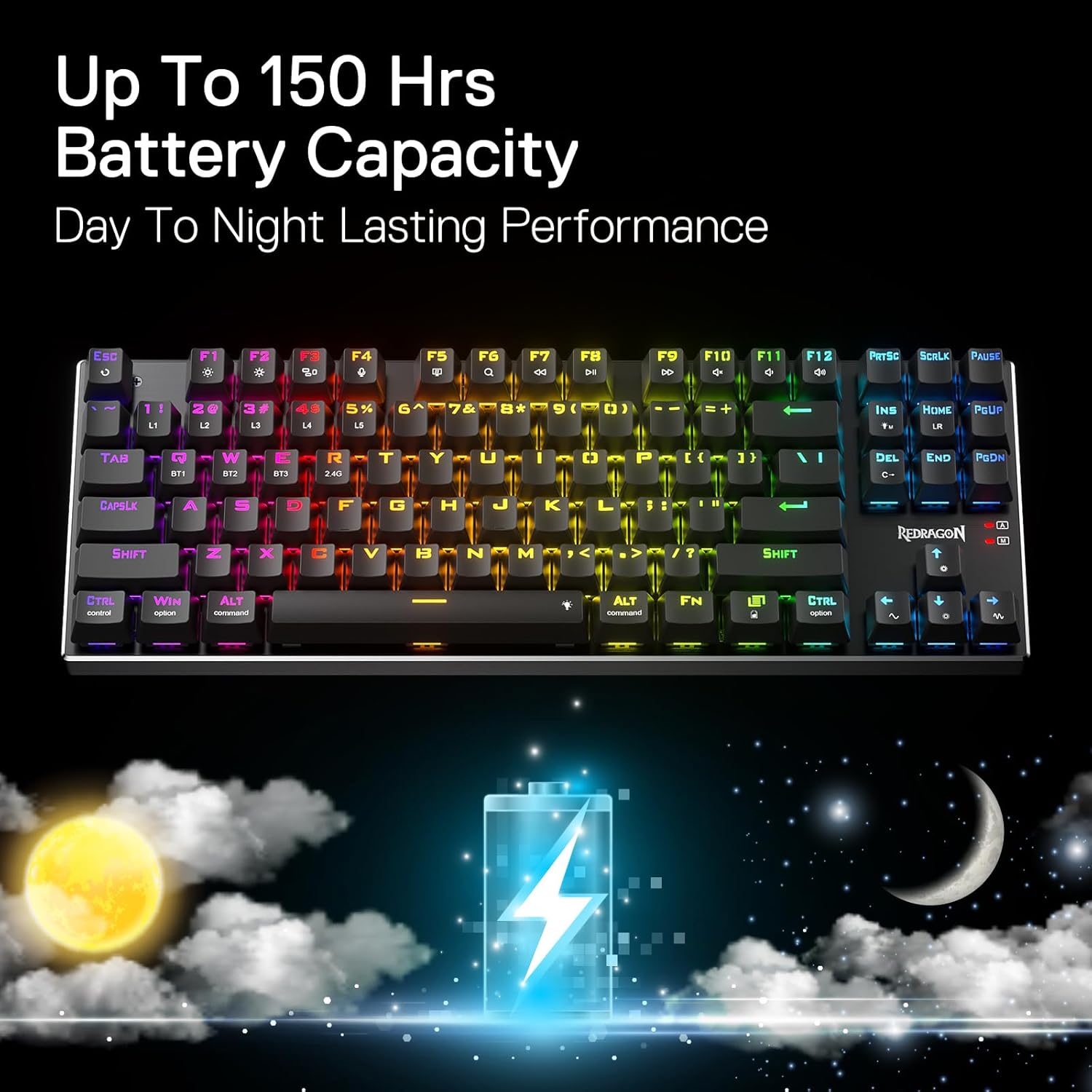
Image: Illustration depicting the Redragon K660RGB-PRO's battery life, showing a full battery icon with "Up To 150 Hrs Battery Capacity" and a day-to-night cycle.
Troubleshooting
| Problem | Possible Cause | Solution |
|---|---|---|
| Keyboard not responding (Wired) | Loose USB connection; Driver issue; Faulty cable/port. | Ensure USB cable is securely connected. Try a different USB port or cable. Restart your computer. |
| Keyboard not responding (Wireless/Bluetooth) | Low battery; Incorrect mode selected; Receiver not plugged in (2.4Ghz); Not paired (Bluetooth); Interference. | Charge the keyboard. Ensure correct mode (2.4Ghz/BT) is selected. Plug in 2.4Ghz receiver. Re-pair Bluetooth. Move closer to receiver/device. |
| RGB lighting not working | Lighting turned off; Software conflict; Low battery. | Press FN + INS to cycle modes. Check brightness (FN + Up Arrow). Ensure software is not overriding settings. Charge keyboard. |
| Keys not registering or double-typing | Dust/debris under keycap; Faulty switch. | Remove keycap and clean with compressed air. If issue persists, replace the switch using the hot-swap feature. |
Specifications
| Feature | Detail |
|---|---|
| Model | K660RGB-PRO (K556 TKL) |
| Layout | 80% TKL, 87 Keys |
| Connection Modes | USB-C Wired, Bluetooth (BT 3.0/5.0), 2.4Ghz Wireless |
| Switches | Hot-Swappable Red Linear Switches |
| Actuation Force | 40g |
| Travel Distance | 2.0mm |
| Click Lifespan | 50 Million |
| Material | Aluminum Board |
| Sound Dampening | 3.5mm Sound Absorbing Foam |
| Backlighting | RGB (20+ preset modes) |
| Battery Type | Lithium Polymer |
| Battery Life | Up to 150 hours |
| Compatible Devices | PC, Laptop, Tablet |
| Operating Systems | Windows, macOS |
| Product Dimensions | 13.98 x 4.9 x 1.35 inches |
| Item Weight | 1.98 pounds |
Warranty and Support
Redragon products typically come with a manufacturer's warranty. For specific warranty details, technical support, or service inquiries, please refer to the official Redragon website or contact their customer service directly.
Official Redragon Website: www.redragonshop.com
For additional support, you may also refer to the user manual PDF available on Amazon: User Manual (PDF)
Related documentsK660RGB-PRO


Ask a question about this manual
Ask about setup, troubleshooting, compatibility, parts, safety, or missing instructions. Manuals+ will review the question and use this page’s manual context to help answer it.