
OMOTON WK012
OMOTON WK012 Ergonomic Wireless Keyboard User Manual
Model: WK012 | Brand: OMOTON
1. Introduction
Thank you for choosing the OMOTON WK012 Ergonomic Wireless Keyboard. This keyboard is designed to provide a natural and comfortable typing experience, reducing strain on your wrists, forearms, and shoulders during extended use. It features a split, curved design, a soft padded wrist rest, 2.4G wireless connectivity, and a long-lasting rechargeable battery. This manual will guide you through the setup, operation, and maintenance of your new keyboard.
2. Key Features
- Ergonomic Split Design: The curved and split layout promotes a more natural hand and wrist position, enhancing comfort and reducing fatigue.
- Padded Wrist Rest: Integrated soft memory foam wrist rest provides continuous support for your wrists.
- 2.4G Wireless Connectivity: Ensures a stable and reliable wireless connection up to 10 meters (33 feet) for seamless use with computers, desktops, and laptops.
- Rechargeable Battery: Built-in 500mAh battery offers approximately 1 month or more of usage on a single charge (usage dependent). Includes a Type-C charging cable.
- Silent Typing: Membrane key construction provides a quiet, comfortable, and smooth typing experience.
- Adjustable Tilt Legs: Features 4 foldable feet for multiple angle adjustments to suit your preference.
3. Package Contents
Please check the package contents upon unboxing:
- OMOTON WK012 Ergonomic Wireless Keyboard
- 2.4G USB Receiver
- USB-A to Type-C Charging Cable
- User Manual (this document)

Image: The OMOTON WK012 ergonomic wireless keyboard shown with its included USB receiver.
4. Setup Guide
- Locate the USB Receiver: The 2.4G USB receiver is conveniently stored in a compartment on the back of the keyboard. Gently remove it.
- Connect the Receiver: Plug the USB receiver into an available USB-A port on your computer, desktop, or laptop.
- Power On the Keyboard: Locate the power switch on the keyboard (usually on the top edge or bottom) and slide it to the "ON" position.
- Automatic Connection: The keyboard should automatically connect to your device within a few seconds. No additional drivers are typically required for Windows systems.

Image: The OMOTON WK012 keyboard shown alongside its compact USB receiver, illustrating the wireless connection.
5. Operating Instructions
5.1 Basic Typing
Begin typing as you would with any standard keyboard. The QWERTZ layout is designed for German language input. The split and curved design is intended to naturally align your hands and wrists for improved comfort.

Image: An overhead view of a user's hands positioned naturally on the split ergonomic keyboard, demonstrating the comfortable typing posture.

Image: A user typing on the OMOTON WK012 keyboard at a desk, with a monitor and mouse visible, illustrating typical usage.
5.2 Function Keys (F-Keys)
The keyboard features a row of function keys (F1-F12) that also serve as multimedia and shortcut keys. To activate the secondary function, press the Fn key simultaneously with the desired F-key.
| Key | Function |
|---|---|
| Fn + F1 | Esc / Screen Lock |
| Fn + F2 | Brightness Down |
| Fn + F3 | Brightness Up |
| Fn + F4 | Mute / Play/Pause |
| Fn + F5 | |
| Fn + F6 | Favorites / Search |
| Fn + F7 | Mute Volume |
| Fn + F8 | Volume Down |
| Fn + F9 | Volume Up |
| Fn + F10 | Previous Track |
| Fn + F11 | Play/Pause |
| Fn + F12 | Next Track / Calculator |
| Dedicated Button 1 | 2.4G Connect |
| Dedicated Button 2 | My Computer |
| Dedicated Button 3 | Open Home Page |
| Dedicated Button 4 | Screen Lock |

Image: A detailed diagram showing the layout of the function keys (F1-F12) and dedicated shortcut buttons on the OMOTON WK012 keyboard, with their corresponding functions.
6. Charging the Keyboard
The OMOTON WK012 keyboard is equipped with a built-in 500mAh rechargeable battery. When the battery is low, the indicator light (if present) may flash, or you may experience connection issues.
- Connect Charging Cable: Insert the Type-C end of the provided charging cable into the charging port on the keyboard.
- Connect to Power Source: Plug the USB-A end of the cable into a USB power adapter (not included), a computer's USB port, or a power bank.
- Charging Indicator: A charging indicator light will illuminate (e.g., red) while charging and typically turn off or change color (e.g., green) when fully charged.
A full charge takes approximately 4 hours and provides up to 200 hours of operating time, or about 1 month or more of typical use.
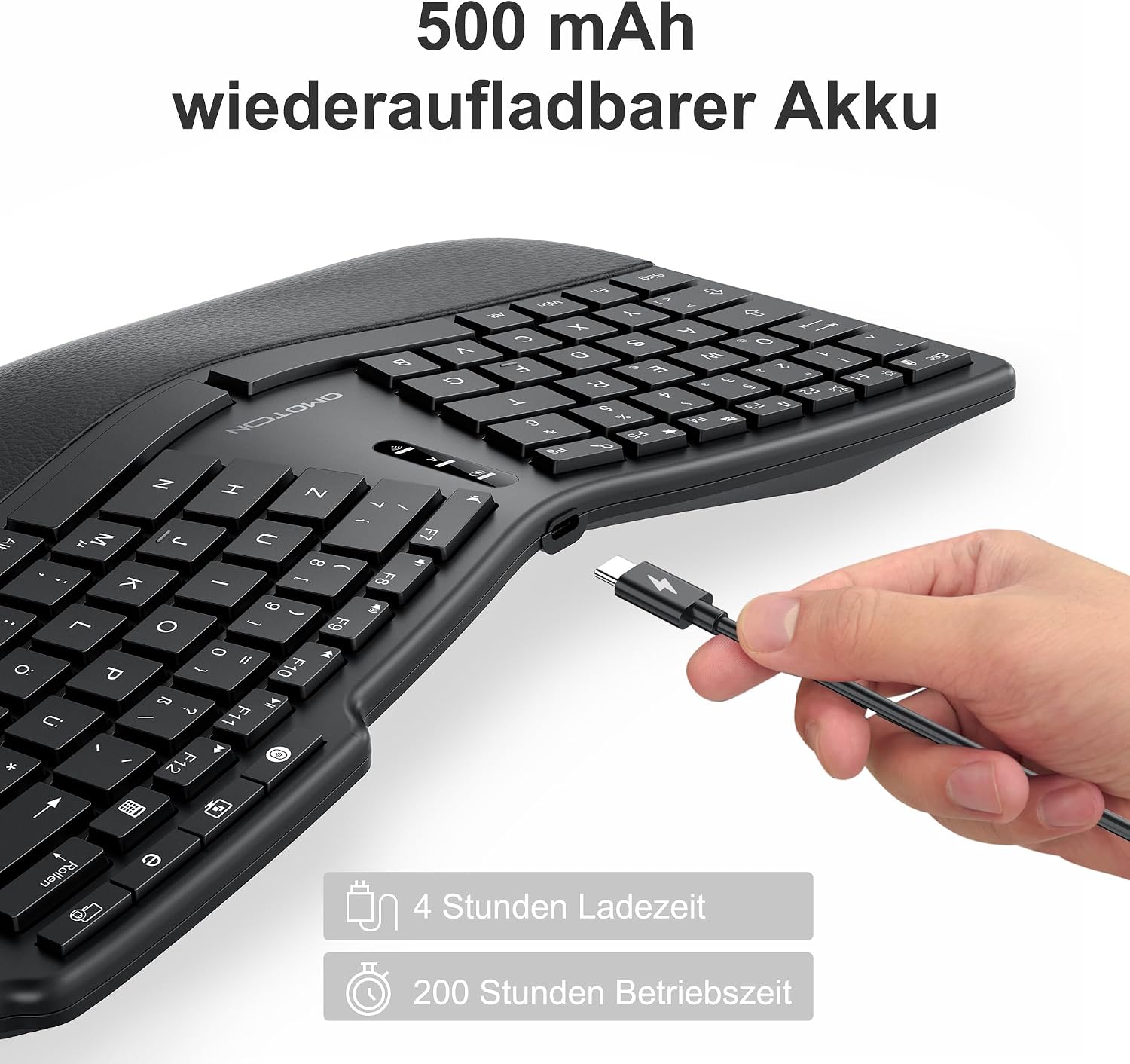
Image: A hand connecting a Type-C charging cable to the OMOTON WK012 keyboard, with text indicating 4 hours charging time and 200 hours operating time.
7. Adjustable Angles
The keyboard features four foldable feet on its underside, allowing you to adjust the typing angle for personalized comfort. You can choose from several tilt options:
- 0° (Flat): The keyboard is in its natural horizontal state with all feet folded.
- 6.2° (Front Feet Extended): Extend the front foldable feet to achieve a 6.2-degree upward tilt.
- 3° (Rear Feet Extended): Extend the rear foldable feet to achieve a 3-degree upward tilt.
- 1.2° (Both Front & Rear Extended): Extend both front and rear foldable feet simultaneously for a 1.2-degree backward tilt.
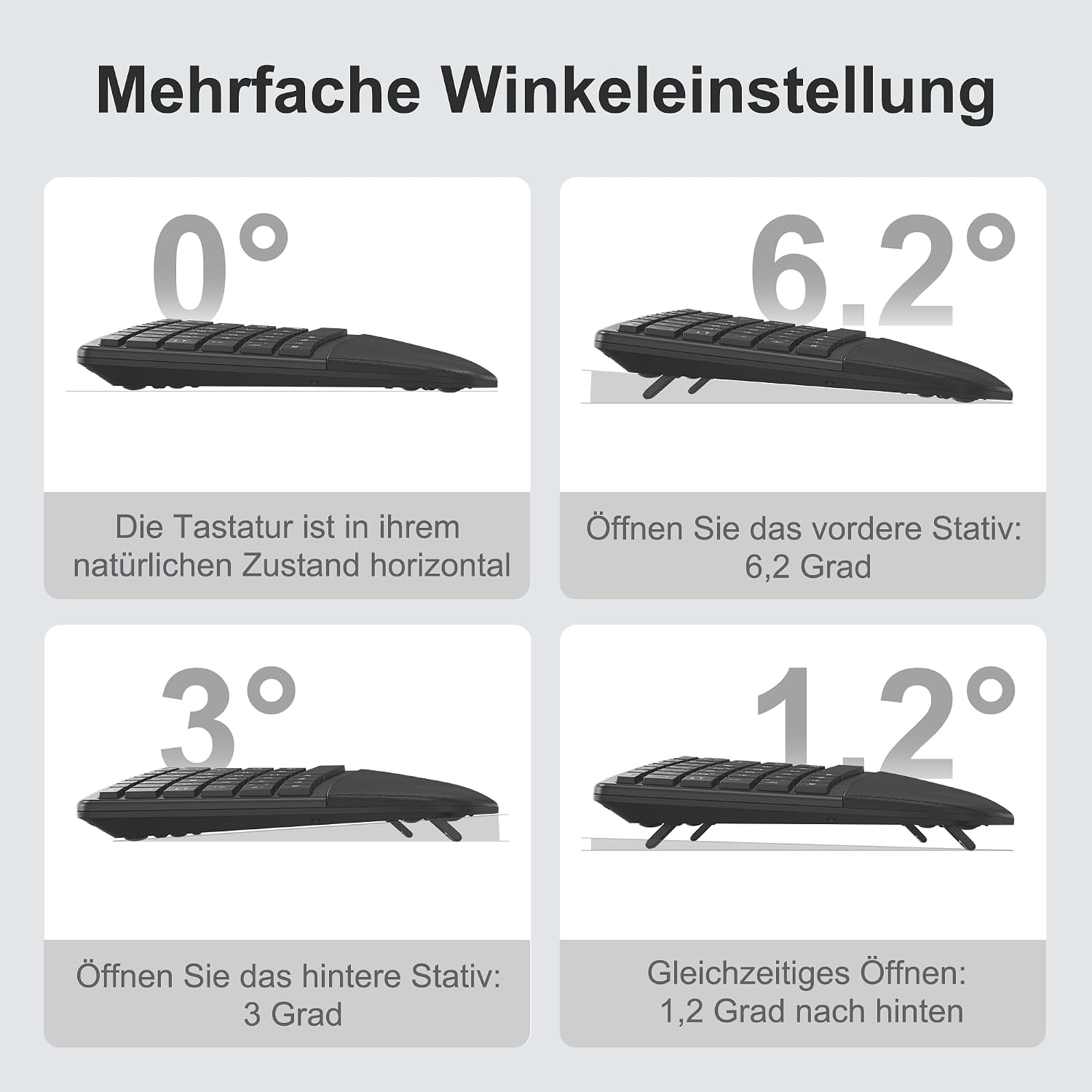
Image: A visual guide illustrating the four different adjustable angles (0°, 6.2°, 3°, 1.2°) of the OMOTON WK012 keyboard using its foldable feet.

Image: A user's hands demonstrating the adjustment of the keyboard's tilt, with small diagrams showing the different angle options.
8. Maintenance
To ensure the longevity and optimal performance of your OMOTON WK012 keyboard, follow these maintenance tips:
- Cleaning: Use a soft, dry, lint-free cloth to wipe the keyboard surface. For stubborn dirt, slightly dampen the cloth with water or a mild cleaning solution. Avoid excessive moisture.
- Dust Removal: Use compressed air to remove dust and debris from between the keys.
- Avoid Liquids: Do not spill liquids on the keyboard. If a spill occurs, immediately power off the keyboard and disconnect it from your computer. Allow it to dry completely before attempting to use it again.
- Storage: Store the keyboard in a cool, dry place away from direct sunlight and extreme temperatures.
- Battery Care: To preserve battery life, avoid fully discharging the battery frequently. Recharge it when the low battery indicator appears. If storing for a long period, charge the battery to about 50% every few months.
9. Troubleshooting
If you encounter issues with your OMOTON WK012 keyboard, please refer to the following common solutions:
| Problem | Possible Solution |
|---|---|
| Keyboard not responding/connecting. |
|
| Keys are sticky or unresponsive. |
|
| Short battery life. |
|
| Typing feels uncomfortable. |
|
10. Specifications
| Feature | Detail |
|---|---|
| Brand | OMOTON |
| Model Number | WK012 |
| Connectivity Technology | 2.4G Wireless (USB Receiver) |
| Compatible Devices | Laptop, Desktop Computers (Windows) |
| Keyboard Description | Ergonomic, Split |
| Special Features | Ergonomic, Padded Wrist Rest, Rechargeable |
| Color | Black |
| Number of Keys | 78 |
| Material | Plastic |
| Battery Type | Lithium Polymer |
| Battery Capacity | 500mAh |
| Charging Time | Approx. 4 hours |
| Operating Time | Approx. 200 hours (or 1 month+) |
| Dimensions (L x W x H) | Approx. 14.8 in x 8.7 in x 1.6 in |

Image: A diagram showing the approximate dimensions of the OMOTON WK012 keyboard: 14.8 inches in length, 8.7 inches in width, and 1.6 inches in height.
11. Warranty and Support
OMOTON products are designed and manufactured to the highest quality standards. For information regarding warranty coverage, technical support, or customer service, please refer to the contact information provided on the product packaging or visit the official OMOTON website. Please retain your proof of purchase for warranty claims.
Ask a question about this manual
Ask about setup, troubleshooting, compatibility, parts, safety, or missing instructions. Manuals+ will review the question and use this page’s manual context to help answer it.