
1. Introduction
This manual provides detailed instructions for the InnoView 15.6" Dual Portable Monitor, model INVPM009-02B. This device is designed to enhance productivity by providing additional display space for laptops running Windows or macOS. Please read this manual thoroughly before using the product to ensure proper setup and operation.

Figure 1.1: The InnoView 15.6" Dual Portable Monitor in its stacked, upright position, connected to a laptop.
2. Product Overview
The InnoView Dual Portable Monitor features two 15.6-inch Full HD (1080P) IPS screens, offering vivid picture quality and wide viewing angles. Its foldable design allows for efficient space utilization and portability. Key features include:
- Dual 15.6-inch 1080P IPS displays.
- Automatic screen rotation (90°/180° for Windows, 180° for Mac).
- Anti-glare and flicker-free technology for enhanced comfort.
- Multiple display modes: Extension, Sharing, Split, and Portrait.
- Single-cable connectivity for compatible Type-C devices.
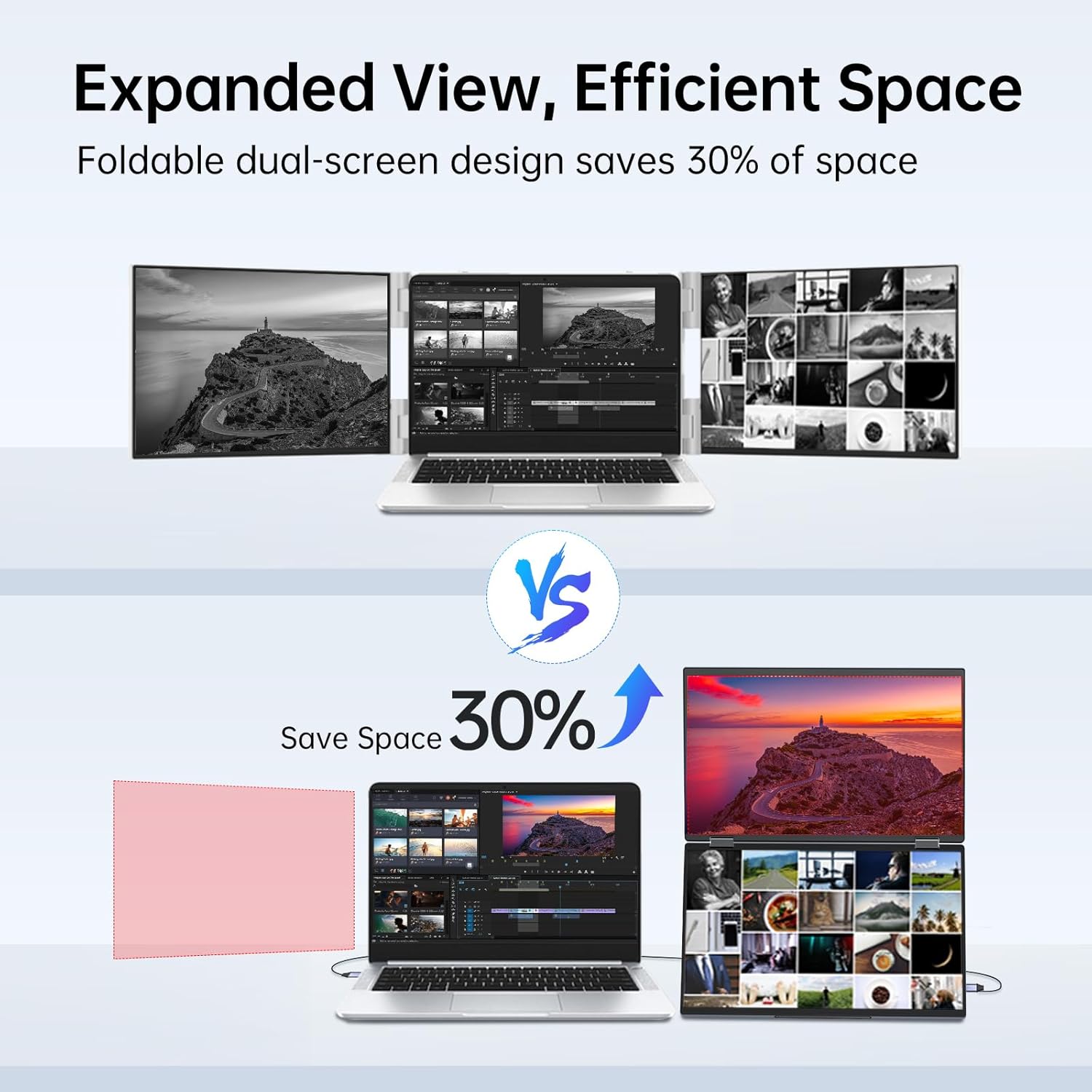
Figure 2.1: The InnoView Dual Portable Monitor in its compact, folded state, demonstrating its portability.
3. Setup Instructions
3.1 Driver Installation
For initial use, driver installation is required for both Windows and macOS systems to ensure full functionality, especially for dual-screen operation. When connected to an iPad, only one screen may activate.
- Locate the QR code provided with your product packaging or on the device itself.
- Scan the QR code to access the latest driver and setup video.
- Download and install the driver. If a security warning appears, proceed with the installation as the driver is safe.

Figure 3.1: Illustration of single-cable connection and the necessity of driver installation for triple screen functionality.
3.2 Connection Methods
The monitor supports two primary connection methods:
Type-C Connection (Single Cable)
If your computer has a fully functional USB Type-C port that supports video output and power delivery, you can connect the monitor using a single USB-C cable.
- Connect one end of the USB-C cable to your laptop's full-featured Type-C port.
- Connect the other end to the monitor's designated Type-C input port.
- If insufficient power is detected, connect an external power supply (30W or higher recommended) to the monitor's power input port.

Figure 3.2: USB-C connection setup, illustrating the single cable for video and power, with an optional power cable for additional power.
HDMI Connection (Multiple Cables)
For computers without a full-featured Type-C port, use an HDMI and USB 3.0 connection.
- Connect the mini HDMI to HDMI cable from your laptop's HDMI port to the monitor's HDMI input.
- Connect a USB-A to USB-C cable from your laptop's USB 3.0 port to the monitor's USB-C data input.
- Connect an external power supply (30W or higher recommended) to the monitor's power input port using a power cable.

Figure 3.3: HDMI connection setup, showing the required cables for video, data, and power.
3.3 Power Considerations
Dual screens require higher power. Insufficient power supply may lead to screen flickering or dimming. While a single Type-C cable can provide power, it is recommended to use an external power supply of 30W or higher for each connection to optimize performance and ensure stable operation.
4. Operating Instructions
4.1 Display Modes
The InnoView monitor supports various display modes to suit different tasks:
- Extension Mode: Extends your laptop's display across the two portable screens, creating a triple-screen setup for increased workspace.
- Sharing Mode: Allows for effortless collaboration by mirroring content or displaying different content for multiple viewers.
- Split Mode: Divides a single screen into multiple sections (not compatible with Mac).
- Portrait Mode: Rotates the screens vertically for reading long articles or coding (not compatible with Mac).

Figure 4.1: Examples of multiple display modes, including extension, sharing, split, and portrait orientations.
4.2 Automatic Rotation
The monitor features intelligent gravity sensing for automatic screen rotation:
- Windows: Supports 90° and 180° automatic rotation.
- macOS: Supports 180° automatic rotation only.
Adjust screen angles by simply tilting the device. This feature provides a smooth and intuitive viewing experience.

Figure 4.2: Demonstration of the 90° and 180° automatic rotation capabilities.
5. Maintenance
To ensure the longevity and optimal performance of your InnoView Dual Portable Monitor, follow these maintenance guidelines:
- Cleaning: Use a soft, lint-free cloth slightly dampened with water or a screen-cleaning solution to clean the display surfaces. Avoid harsh chemicals or abrasive materials.
- Storage: When not in use, fold the monitor into its compact form to protect the screens. Store in a cool, dry place away from direct sunlight and extreme temperatures.
- Handling: Avoid applying excessive force to the screens or hinges. Transport the monitor in a protective sleeve or case to prevent damage.
6. Troubleshooting
If you encounter issues with your InnoView Dual Portable Monitor, refer to the following common problems and solutions:
6.1 Screen Not Displaying or Flickering
- Check Connections: Ensure all cables (USB-C, HDMI, power) are securely connected to both the monitor and your laptop.
- Power Supply: Verify that the monitor is receiving adequate power. If using a single USB-C cable, ensure your laptop's port provides sufficient power. Connect an external power adapter (30W or higher) if flickering or dimming occurs.
- Driver Installation: Confirm that the correct drivers are installed. Reinstalling the drivers may resolve display issues.
- Laptop Settings: Check your laptop's display settings to ensure the external monitors are detected and configured correctly (e.g., extended or duplicate mode).
6.2 Only One Screen Lights Up
- This can occur when connected to an iPad or if drivers are not fully installed or configured. Ensure drivers are installed and your system is set to extend to both displays.
- For HDMI connections, ensure both the HDMI and USB-A to USB-C cables are connected, along with external power.
6.3 Automatic Rotation Not Working
- Ensure the monitor is placed on a stable surface and tilted to trigger the gravity sensor.
- Verify that the drivers are correctly installed. Note that macOS only supports 180° rotation.
6.4 Driver Installation Warnings
If you encounter a risk warning during driver installation, it is typically a false alarm. The provided drivers are safe to install. Proceed with the installation.
7. Specifications
| Feature | Specification |
|---|---|
| Model Number | INVPM009-02B |
| Screen Size | Dual 15.6 inches |
| Resolution | 1920 x 1080 Pixels (FHD 1080p) |
| Aspect Ratio | 16:9 |
| Screen Surface | Glossy |
| Product Dimensions | 15.67 x 10.24 x 2.4 inches |
| Item Weight | 5 pounds |
| Total USB Ports | 1 (Type-C for data/video/power) |
| Manufacturer | InnoView |
8. Warranty and Support
InnoView is committed to providing reliable products and customer satisfaction.
- Return Policy: Enjoy a 30-day return policy from the date of purchase.
- Guarantee: The product comes with an 18-month guarantee, excluding damage caused by misuse.
- Customer Service: For any questions or concerns, please contact InnoView customer service. Contact information is typically displayed on the back of the monitor or can be found on the official InnoView website.


